Introduction
Thank you for choosing the Callez Wired Computer Headset. This manual provides comprehensive instructions to help you set up, operate, and maintain your headset for optimal performance. Designed for clear communication, this headset features a noise-cancelling microphone and versatile connectivity options, making it ideal for call centers, home offices, online meetings, and various other communication needs.
Package Contents
Please verify that all items are present in your package:
- Callez Wired Computer Headset with 3.5mm Jack
- USB Type-C to 3.5mm Headset Jack Adapter
Product Overview
The Callez C502EC1 headset is engineered for comfort and clarity. Familiarize yourself with its key components:
- Adjustable Headband: For a customized and comfortable fit.
- Soft Breathable Leather Ear Cushions: Designed for all-day comfort during extended use.
- Noise-Cancelling Microphone: Reduces background noise for crystal-clear conversations. The microphone arm is 330° rotatable, allowing placement on either the left or right side.
- In-line Controls: Conveniently located on the cable for easy access to volume adjustment and call management.
- 3.5mm Audio Jack: Primary connection for a wide range of devices.
- USB Type-C Adapter: Extends compatibility to devices with USB-C ports.

Image: The Callez Wired Computer Headset showing its main components including the headset, 3.5mm jack, USB-C adapter, and in-line control unit.

Image: Detailed view highlighting the 330° flexible microphone, soft ear cushions, and adjustable headband for ergonomic comfort.
Setup
Follow these steps to connect your Callez headset to your device:
- Identify Your Device's Port: Determine if your device (PC, laptop, tablet, smartphone) has a 3.5mm audio jack or a USB-C port.
- For 3.5mm Jack Connection: Directly plug the 3.5mm audio jack of the headset into your device's 3.5mm port.
- For USB-C Port Connection: Connect the 3.5mm audio jack of the headset into the provided USB Type-C to 3.5mm Headset Jack Adapter. Then, plug the USB-C end of the adapter into your device's USB-C port.
- For iPhone Users (iPhone 7/8/X/XS/XR/11/12/13/14): An Apple Original Lightning to 3.5mm Adapter is required and must be supplied by Apple. This adapter is not included with the headset. Connect the headset's 3.5mm jack to the Apple adapter, then plug the adapter into your iPhone's Lightning port.
- System Recognition: Your device should automatically recognize the headset. You may need to select the headset as the default audio input and output device in your system's sound settings.
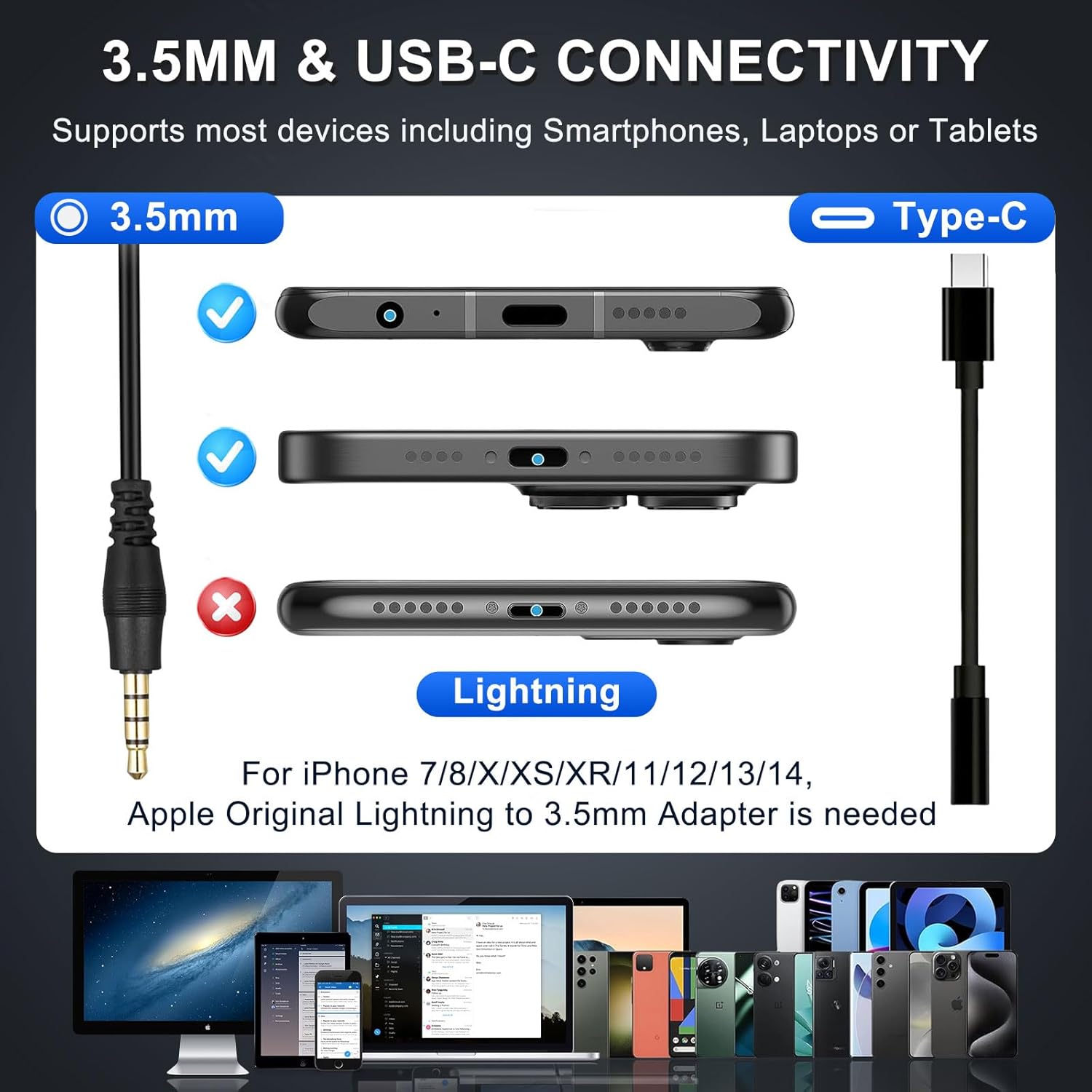
Image: Visual guide illustrating the 3.5mm and USB-C connection methods, along with a reminder that an Apple Lightning adapter is needed for certain iPhone models.

Image: A close-up demonstrating the proper connection of the 3.5mm jack into the USB-C adapter, highlighting a secure fit.
Operating Instructions
Maximize your headset's performance with these operational guidelines:
Wearing the Headset
- Adjust the headband to ensure the ear cushions sit comfortably over your ears.
- Position the microphone arm so the microphone is approximately 1-2 inches from your mouth for optimal voice pickup. The 330° rotatable mic allows you to wear it on either side.
Using In-line Controls
The in-line control unit provides convenient access to essential functions:
- Volume Control: Use the volume +/- buttons to adjust the listening volume.
- Call Button: Press to answer or end a call. This button may also function as a play/pause button for media playback on some devices.

Image: A user demonstrating the headset in use, with a close-up of the in-line controls for managing calls and volume.
Noise-Cancelling Microphone
The integrated noise-cancelling microphone is designed to filter out most background noise, ensuring your voice is heard clearly during calls. This feature is particularly beneficial in busy environments like call centers or home offices.

Image: A visual representation of how the noise-cancelling microphone works, demonstrating the reduction of ambient noise for clearer communication.
Wide Compatibility
The headset is compatible with a broad range of devices and communication platforms, including PC, Mac, laptops, iPhone, Android cell phones, and applications like Zoom, Teams, Skype, and more.

Image: The headset positioned among logos of popular communication software (Zoom, Teams, Skype) and operating systems (Android, Apple, Windows), illustrating its broad compatibility.
Maintenance
To ensure the longevity and optimal performance of your Callez headset, follow these maintenance tips:
- Cleaning: Gently wipe the ear cushions and headset surfaces with a soft, dry cloth. Avoid using harsh chemicals or abrasive materials.
- Storage: Store the headset in a clean, dry place away from extreme temperatures and direct sunlight.
- Cable Care: Avoid sharp bends or excessive pulling on the cable to prevent internal damage.
- Microphone Protection: Keep the microphone foam cover clean and free from debris.
Troubleshooting
If you encounter issues with your headset, try these common solutions:
No Sound from Headset
- Check Connection: Ensure the 3.5mm jack or USB-C adapter is fully and securely plugged into your device.
- Volume Levels: Verify that the volume on the in-line control unit is turned up, and your device's system volume is not muted or too low.
- Default Device: In your device's sound settings, ensure the headset is selected as the default playback device.
- Test on Another Device: Try connecting the headset to a different device to determine if the issue is with the headset or the original device.
Microphone Not Working
- Microphone Position: Ensure the microphone arm is positioned correctly near your mouth.
- Mute Status: Check if the microphone is muted in your device's settings or within the application you are using (e.g., Zoom, Teams).
- Default Recording Device: In your device's sound settings, ensure the headset is selected as the default recording device.
- Application Permissions: For certain applications, ensure microphone access is granted in your device's privacy settings.
Intermittent Connection/Static
- Secure Connection: Re-plug the 3.5mm jack or USB-C adapter to ensure a firm connection.
- Port Cleanliness: Check the device's audio port for any dust or debris that might obstruct the connection.
- Cable Integrity: Inspect the headset cable for any visible damage or kinks.
Specifications
| Model Name | C502EC1 |
| Connectivity Technology | Wired (3.5mm Audio Jack + USB-C Jack) |
| Noise Control | Passive Noise Cancellation (Microphone) |
| Speaker Size | 28mm |
| Microphone Rotation | 330° Rotatable |
| Weight | 2.85 oz (approx. 81g) |
| Cable Length | 5.2 ft (approx. 1.6m) |
| Material | Soft Foam, Faux Leather, High-quality Metal |
| Compatible Devices | iPhone, Samsung, Google Android Cellphones, PC, Laptop, Mac |
| Included Components | In-line Controls, Adjustable Headband, Soft Earcushion, Lightweight |
Warranty & Support
Callez is committed to providing high-quality products and customer satisfaction.
- 2-Year Warranty: Your Callez headset is covered by a 2-year warranty from the date of purchase, protecting against manufacturing defects.
- 45-Day Money-Back Guarantee: We offer a 45-day money-back guarantee for your peace of mind.
- Customer Support: For any questions, technical assistance, or warranty claims, please contact Callez customer support through the retailer's platform or visit the official Callez store page.


