
1. Introduction
Thank you for purchasing the NAFYRE N11 PRO GPS Drone. This manual provides essential information for safe operation, setup, and maintenance of your drone. Please read it thoroughly before first use and retain it for future reference.
2. Package Contents
Ensure all items listed below are present in your package:
- NAFYRE N11 PRO Drone
- Remote Controller
- 3 x 2000 mAh Lithium Ion Batteries
- 8 x Additional Propeller Blades
- Instruction Manual
- 6 x USB Cables

Image: NAFYRE N11 PRO Drone, remote controller, batteries, propellers, and charging cables laid out on a surface.
3. Setup
3.1 Unboxing and Initial Preparation
Carefully remove all components from the packaging. Unfold the drone arms as shown in the video. Ensure the camera lens is clear of any protective film.
3.2 Battery Installation and Charging
Insert the charged battery into the drone. Charge all batteries using the provided USB cables. The charging indicator will show the battery status.
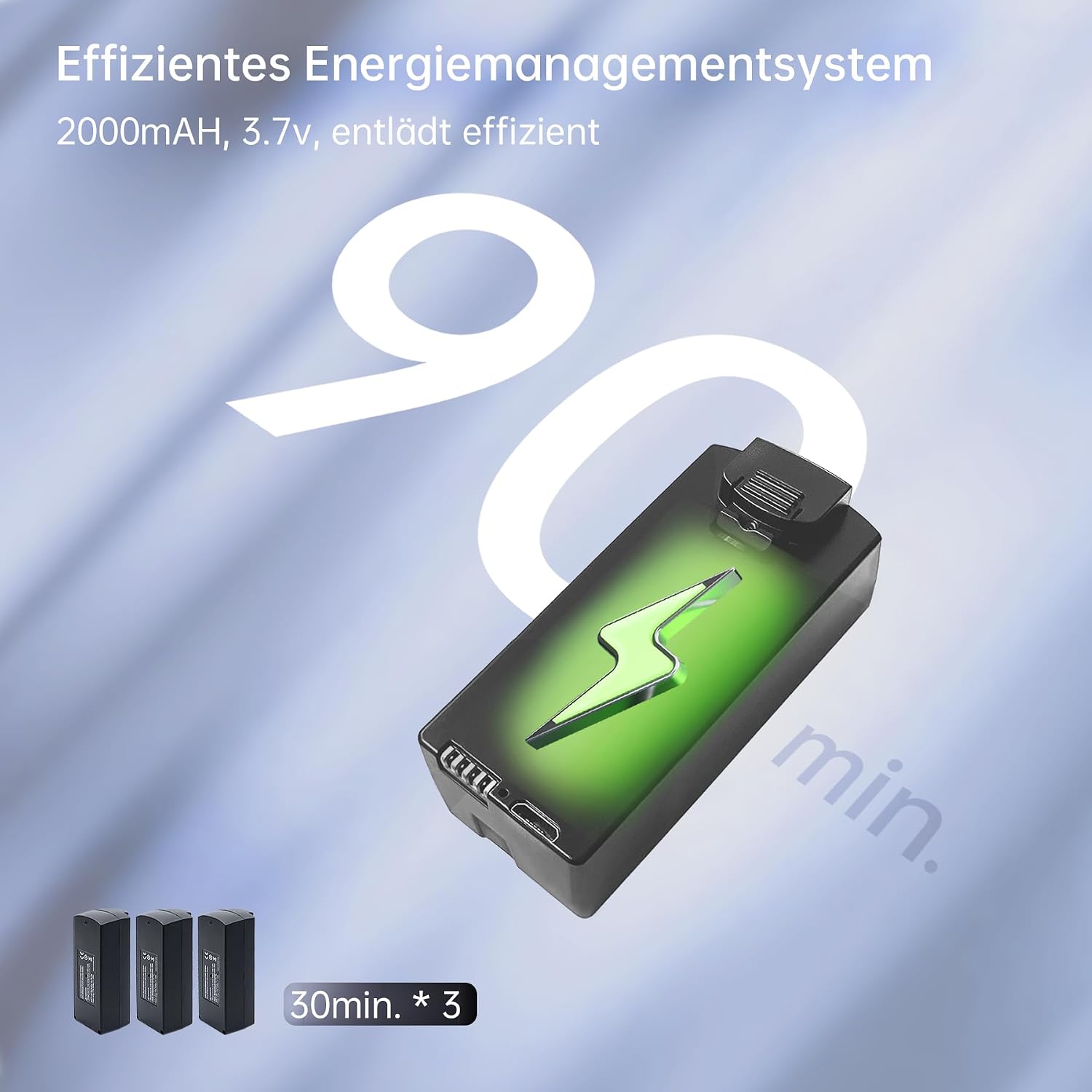
Image: Visual representation of the drone battery charging status: red for less than 30%, green for 30% or more, and solid green for fully charged.
3.3 Remote Controller Setup
Install 3 AAA batteries (not included) into the remote controller. Unfold the phone holder and handles. Mount your mobile phone securely onto the phone holder.
3.4 App Download and Connection
Download the 'AMETA Drone' app from your mobile device's app store. Power on the drone and the remote controller. The drone will automatically pair with the remote. Connect your mobile device to the drone's Wi-Fi network (AMETA S20-XXXXXX) and launch the app.
3.5 Calibration
For first-time use, it is recommended to calibrate the drone. Follow the on-screen instructions in the app for compass and gyroscope calibration. Ensure the drone is placed on a flat, level surface during calibration.
Video: A comprehensive guide to unboxing, setting up, connecting, and calibrating the drone for its first flight. This video demonstrates battery installation, remote control setup, app connection, and both compass and gyroscope calibration procedures.
4. Operating the Drone
Always operate the drone in an open, unobstructed area, away from crowds and weak GPS signal zones.
4.1 Takeoff
- Manual Takeoff: Push both control sticks inward at a 45-degree angle to unlock the motors. Then, push the left control stick forward to take off.
- One-Key Takeoff: Press and hold the one-key takeoff button on the remote for 1 second. The drone will ascend and hover at approximately 1.2 meters.
4.2 Flight Controls
Use the left control stick to adjust flight altitude and nose direction. Use the right control stick to move the drone forward, backward, left, and right. You can switch between two speed levels using the speed switch on the remote.

Image: NAFYRE N11 PRO Drone flying over a landscape, illustrating its long flight range capability of up to 3300 feet.
4.3 Taking Photos and Videos
The photo and video buttons are located on the remote controller. You can also use the app interface to capture media. Adjust the camera angle using the dial on the upper left side of the remote controller.

Image: Close-up of the NAFYRE N11 PRO Drone's 4K UHD camera, highlighting features like EIS, 5G connectivity, 90° adjustable angle, 130° FOV, and 50x zoom.
4.4 Smart Flight Modes
The N11 PRO features several intelligent flight modes:
- Automatic Tracking (Follow Me): The drone can follow a subject automatically.
- Tap to Fly: Tap a point on the map in the app, and the drone will fly to that location.
- GPS Return: The drone can automatically return to its takeoff point.

Image: NAFYRE N11 PRO Drone illustrating its intelligent return function, including one-key return, low-power return, and signal loss return, with GPS-based positioning.
4.5 Landing
- Manual Landing: Push the left control stick backward and hold. The drone will descend and land.
- One-Key Landing: Press and hold the landing button on the remote for 1 second. The drone will descend and land automatically.
5. Maintenance & Storage
After each flight, power off the drone and the remote controller. Remove the drone battery for better storage. Fold the drone arms and store all components in the provided storage bag.
6. Specifications
- Model Name: N11 PRO
- Brand: NAFYRE
- Dimensions: 12 x 7.5 x 5 cm
- Weight: 180 Grams
- Material: Plastic, Carbon Fiber, Aluminum
- Batteries: 3 x 2000 mAh Lithium Ion (included)
- Flight Time: Up to 90 minutes (with multiple batteries)
- Camera: 4K UHD, 12 MP effective still image resolution, 1080p video capture resolution
- Connectivity: 5G Wi-Fi
- Max Range: 3328 Feet
- Special Features: GPS Return, Automatic Tracking, Tap to Fly, Brushless Motor
- Age Range: Adult
- UPC: 718027253117
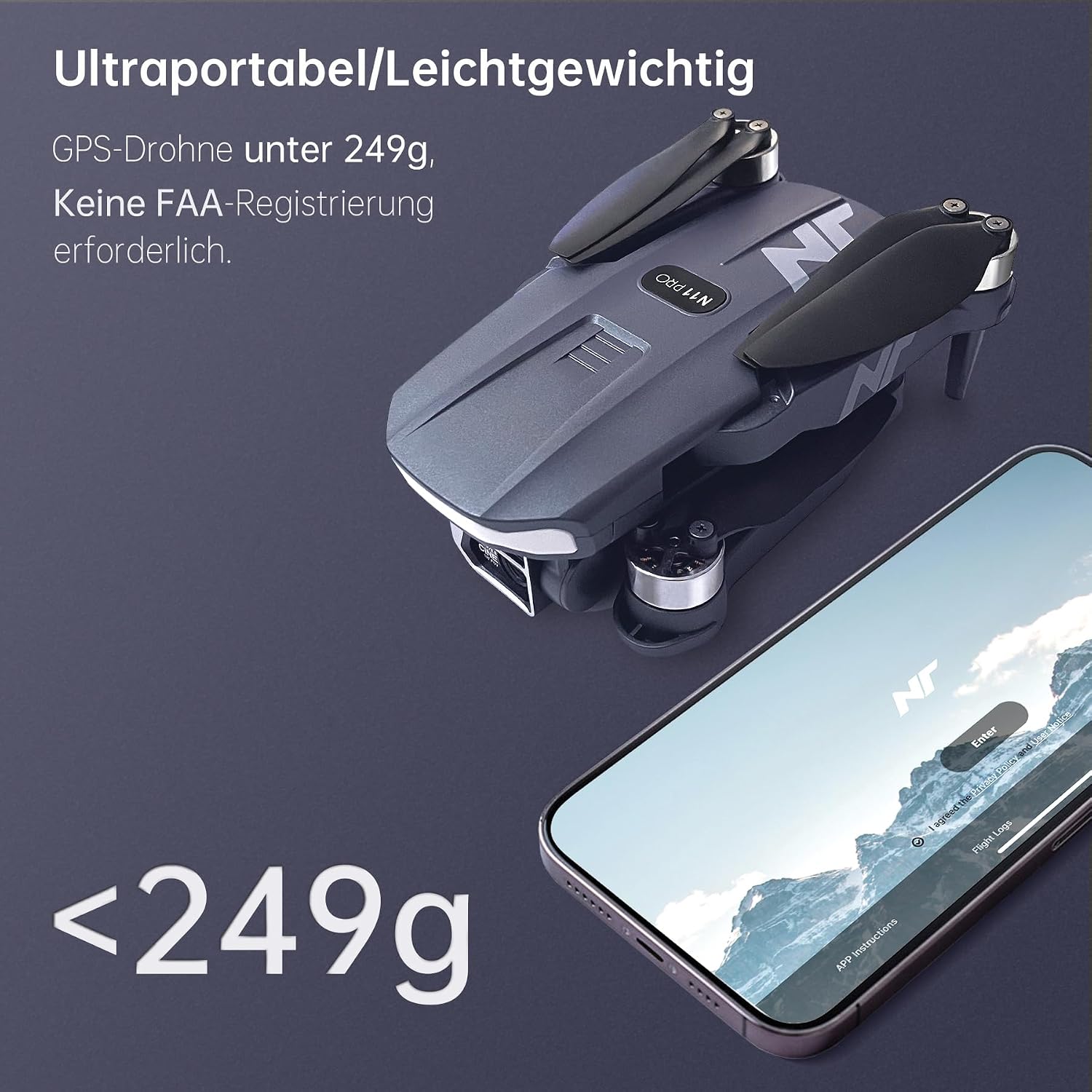
Image: NAFYRE N11 PRO Drone showcasing its ultraportable and lightweight design, weighing under 249g.
7. Troubleshooting
If you encounter any issues, please refer to the following common solutions:
- Drone not powering on: Ensure batteries are fully charged and correctly inserted. Press and hold the power button for 2 seconds.
- Remote not connecting: Ensure both drone and remote are powered on. Check battery levels. Re-attempt pairing by powering both devices off and on.
- App connection issues: Verify your phone is connected to the drone's Wi-Fi network. Restart the app and the drone.
- Unstable flight: Perform compass and gyroscope calibration as described in Section 3.5. Ensure you are flying in an open area with strong GPS signals.
- Poor image/video quality: Ensure the camera lens is clean and free of obstructions. Check that a memory card is properly inserted.
8. Warranty and Support
For warranty information or technical support, please refer to the contact details provided in the original product packaging or visit the NAFYRE official website. Keep your purchase receipt as proof of purchase.


