
1. Introduction
This manual provides detailed instructions for the installation, operation, and maintenance of your Hyojum 7-inch Double Din Car Stereo. Please read this manual thoroughly before using the product to ensure proper functionality and safety. Keep this manual for future reference.
2. Safety Information
- Installation: Professional installation is recommended. Incorrect wiring can cause damage to the unit or vehicle.
- Power Supply: Ensure the unit is connected to a 12V DC power supply with negative grounding.
- Driving Safety: Do not operate the unit in a way that distracts you from driving. Always prioritize road safety.
- Temperature: Avoid exposing the unit to extreme temperatures or direct sunlight for prolonged periods.
- Moisture: Keep the unit away from water and excessive moisture.
3. Package Contents
Verify that all items are present in the package:
- Hyojum 7-inch Double Din Car Stereo Unit
- Remote Control
- Wire Harness
- User Manual (this document)
- Rear View Camera
- Mounting Bracket
- Frameworks
- USB to C Adapter
- Camera Cable
4. Setup and Installation
4.1 Wiring Connections
Refer to the wiring diagram provided in Figure 3.1 and the included wire harness for correct connections. Ensure all connections are secure to prevent malfunctions.
- Red Wire: Connect to ACC (Ignition Switch +12V).
- Yellow Wire: Connect to Power Supply +12V (constant).
- Black Wire: Connect to Ground (GND).
- Blue Wire: Connect to Antenna (ANT).
- Orange Wire: Connect to Illumination (ILL).
- Brown Wire (KEY1) & Brown/Black Wire (KEY2): Connect to Steering Wheel Control wires (if applicable).
- Orange & Black Wire (Reverse): Connect to Reversing Camera trigger.
- Speaker Wires: Connect front and rear speakers according to color codes (e.g., White/White-Black for Front Left, Gray/Gray-Black for Front Right, Green/Green-Black for Rear Left, Purple/Purple-Black for Rear Right).
4.2 Physical Installation
Install the double din unit into your vehicle's dashboard using the provided mounting brackets and frameworks. Ensure the unit is securely fastened and does not obstruct any vehicle controls.
4.3 Backup Camera Installation
The included 12-LED HD backup camera automatically displays a full-screen reversing image when reverse gear is engaged.
- Mount the camera at the rear of your vehicle.
- Connect the camera's power wire (red) to the reverse light's positive terminal.
- Connect the camera's ground wire (black) to a suitable ground point.
- Connect the video cable from the camera to the "Rear View Input" on the car stereo unit.

5. Operating Instructions
5.1 Basic Controls
The unit features a 7-inch IPS capacitive touchscreen for primary interaction. Physical buttons on the left side provide quick access to essential functions:
- Power Button: Press to turn on/off, short press for mute.
- Volume Up/Down: Adjust audio level.
- Home Button: Return to the main menu.
- USB Ports: For media playback and charging.
- AUX Input: For external audio devices.

5.2 Wireless CarPlay
Connect your iPhone wirelessly to access Apple CarPlay features directly on the stereo screen. This allows for navigation, music, messages, and calls via Siri voice commands or touch interaction.
- Ensure Bluetooth and Wi-Fi are enabled on your iPhone.
- On the stereo, select the CarPlay icon.
- Follow the on-screen prompts to pair your iPhone.

5.3 Wireless Android Auto
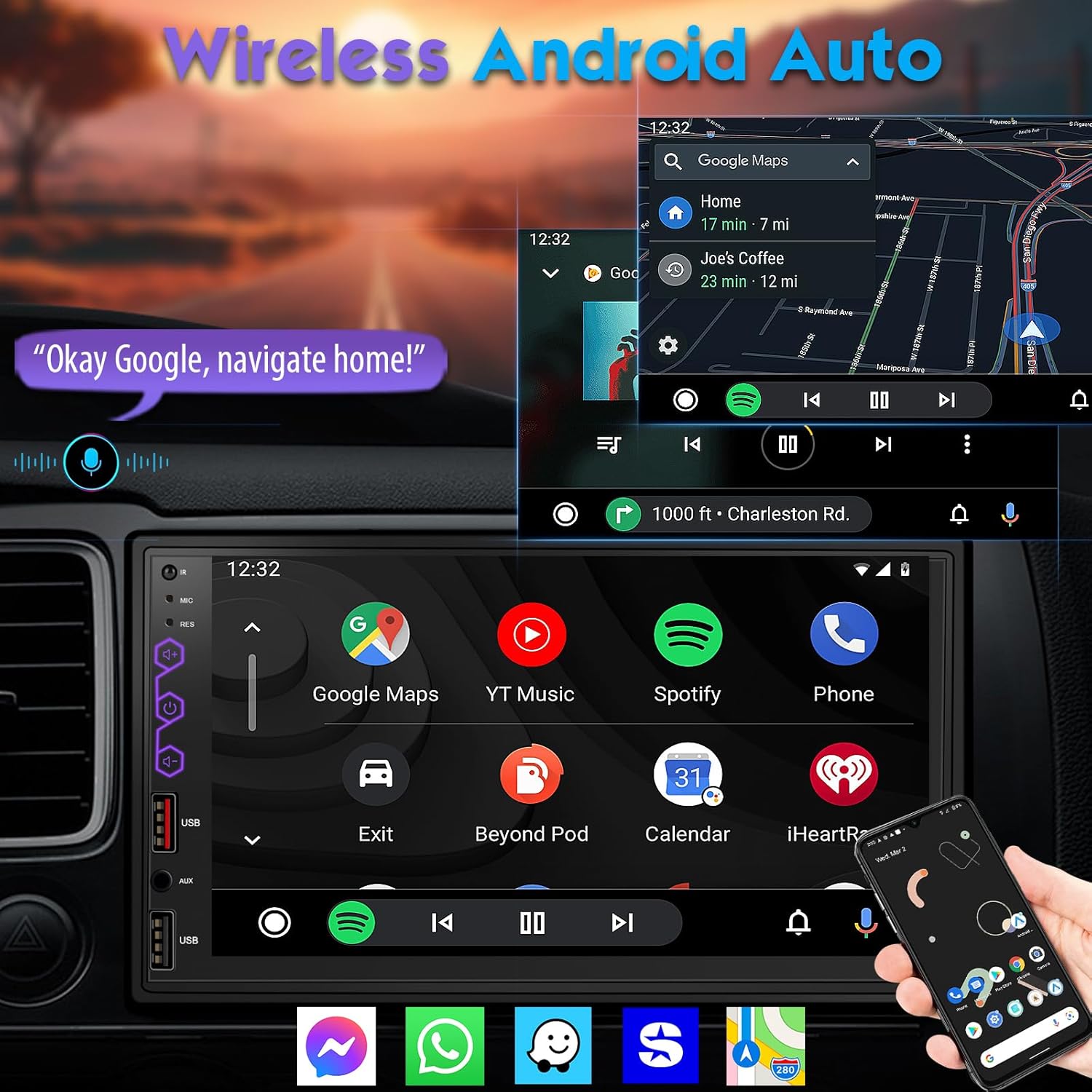
Connect your Android phone wirelessly to use Android Auto features on the stereo display. This provides access to Google Maps, music streaming, calls, and messages using Google Assistant.
- Ensure Bluetooth and Wi-Fi are enabled on your Android phone.
- On the stereo, select the Android Auto icon.
- Follow the on-screen prompts to pair your Android phone.
5.4 Phone MirrorLink
The MirrorLink function allows you to cast your smartphone screen (iOS via AirPlay, Android via data cable) to the car stereo display. This enables viewing photos, videos, games, and maps from your phone on the larger screen.

5.5 Bluetooth 5.3
The unit features Bluetooth 5.3 for stable and efficient wireless connectivity. This enables hands-free calling and wireless audio streaming from your smartphone.
- Go to the Bluetooth menu on the stereo.
- Enable Bluetooth on your phone and search for available devices.
- Select the stereo's name from your phone's Bluetooth list to pair.
- Once paired, you can make/receive calls and play music wirelessly.
5.6 FM/AM Radio
Access local radio stations with the built-in FM/AM tuner. The interface allows for easy station scanning and saving presets.
- Select the Radio icon from the main menu.
- Use the on-screen controls to scan for stations or manually tune.
- Long-press a preset button to save the current station.

5.7 Built-in DSP Audio
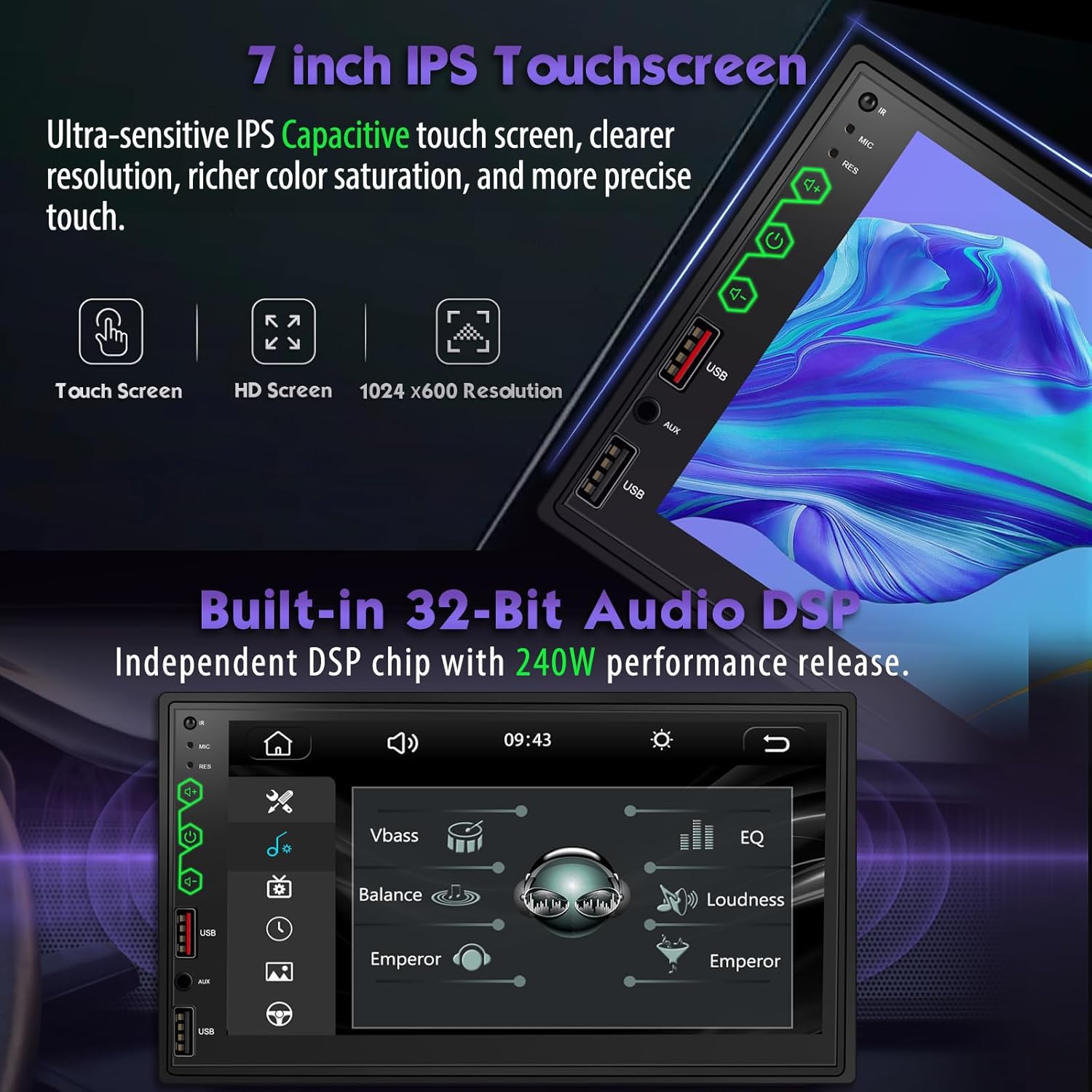
The stereo features a built-in 32-bit Audio DSP (Digital Signal Processor) with 240W performance. This allows for advanced audio customization, including a multi-band equalizer, bass, balance, and loudness controls to optimize sound quality.
- Access the DSP settings from the main menu or audio settings.
- Adjust the equalizer bands to fine-tune audio frequencies.
- Modify bass, balance, and loudness settings to suit your preferences.
5.8 Steering Wheel Controls
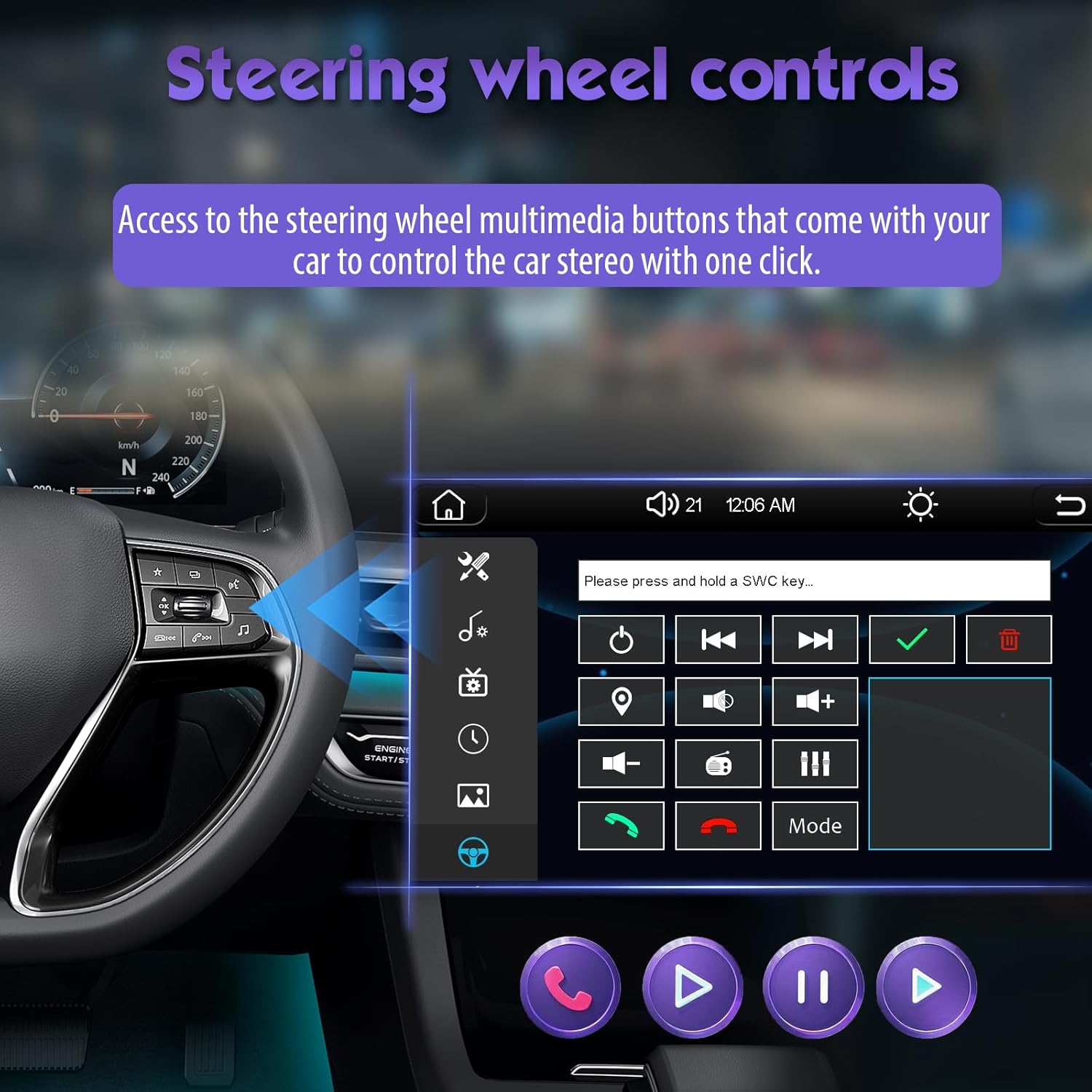
If your vehicle supports it, you can connect the stereo to your car's steering wheel multimedia buttons for convenient control of the unit without taking your hands off the wheel.
- Access the Steering Wheel Control (SWC) learning function in the stereo's settings menu.
- Follow the on-screen instructions to program each button on your steering wheel to the desired function on the stereo.
5.9 USB Charging
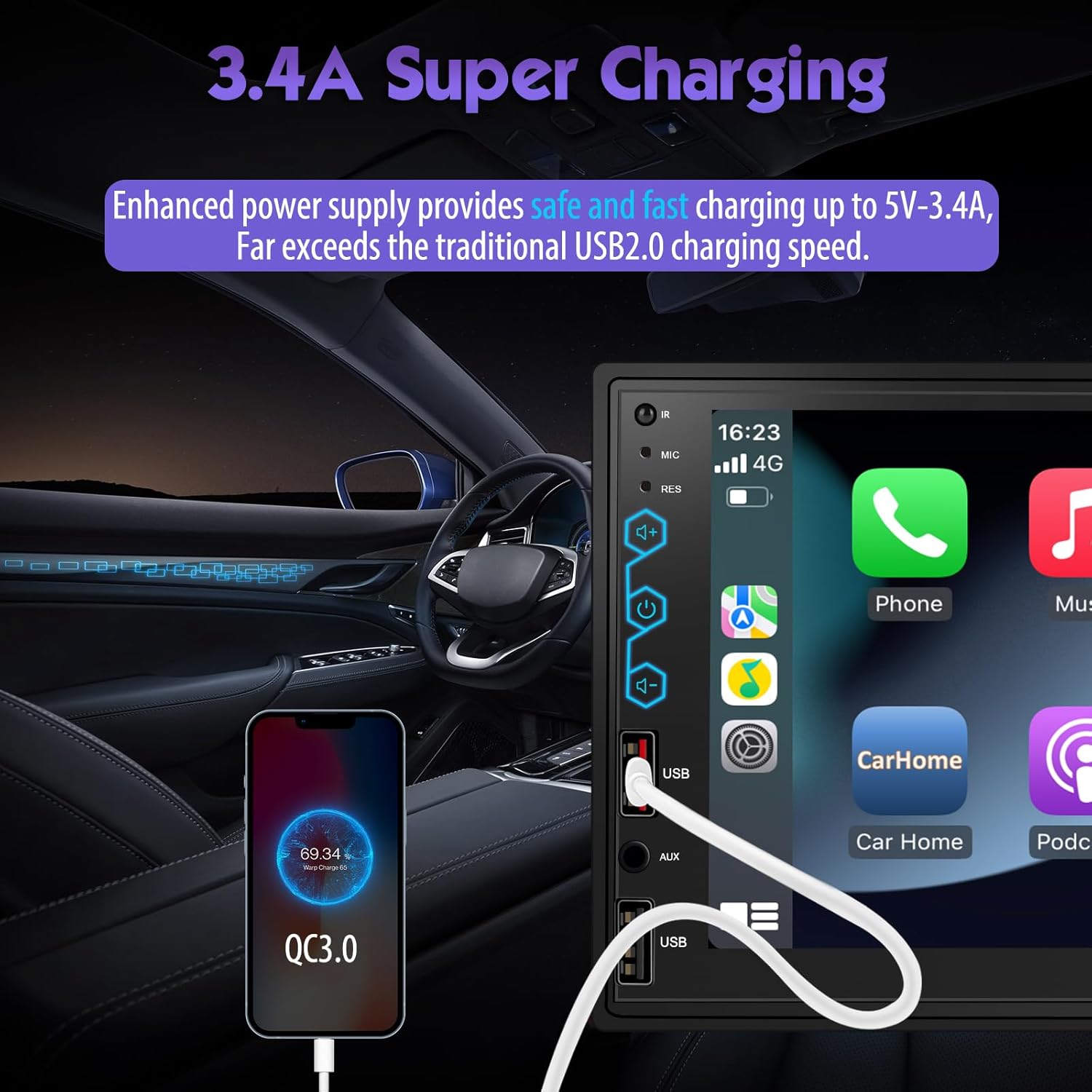
The unit provides enhanced power supply for safe and fast charging up to 5V-3.4A via its USB ports, exceeding traditional USB 2.0 charging speeds.
6. Maintenance
- Cleaning the Screen: Use a soft, lint-free cloth to gently wipe the touchscreen. Avoid abrasive cleaners or solvents.
- General Cleaning: Keep the unit free from dust and debris. Use a dry cloth for cleaning the exterior.
- Firmware Updates: Check the manufacturer's website periodically for any available firmware updates to ensure optimal performance and new features.
7. Troubleshooting
If you encounter issues with your Hyojum car stereo, refer to the following common problems and solutions:
| Problem | Possible Cause | Solution |
|---|---|---|
| Unit does not power on. | Incorrect wiring; Blown fuse; No power supply. | Check power connections (Yellow, Red, Black wires). Verify vehicle fuse and unit's fuse. |
| No sound or poor sound quality. | Incorrect speaker wiring; Volume too low; DSP settings misconfigured; External amplifier needed. | Check speaker connections. Adjust volume. Reset DSP settings. Consider an external amplifier if sound output is consistently low. |
| Bluetooth connection is unstable. | Interference; Out of range; Phone issue. | Ensure phone is close to the unit. Disconnect and re-pair the device. Restart both the stereo and phone. |
| CarPlay/Android Auto is glitchy or disconnects. | Software conflict; Weak Wi-Fi/Bluetooth signal; Phone compatibility. | Ensure phone's OS is updated. Reconnect wirelessly. Try a different USB cable for wired connection (if applicable). Check for stereo firmware updates. |
| Backup camera not displaying. | Incorrect camera wiring; Faulty camera; Reverse trigger not connected. | Verify camera power and video connections. Ensure the reverse trigger wire (Orange & Black) is correctly connected to the vehicle's reverse light. |
| Steering wheel controls not working. | Incorrect SWC wiring; Not programmed. | Check KEY1/KEY2 wiring. Perform the SWC learning procedure in the settings menu. |
If the problem persists after attempting these solutions, please contact customer support.
8. Specifications
- Model Number: 5a74a014-5c65-4a7b-87c2-9e948ab776cb
- Display: 7-inch IPS Capacitive Touchscreen (1024x600 Resolution)
- Audio Output: 240W (Peak) with Built-in 32-bit DSP
- Connectivity: Wireless Apple CarPlay, Wireless Android Auto, Bluetooth 5.3, Phone MirrorLink (iOS via AirPlay, Android via data cable), USB, AUX
- Radio Tuner: FM/AM
- Backup Camera: 12-LED HD Camera (included)
- Charging: 3.4A Super Charging via USB
- Power Supply: 12V DC (Negative Ground)
- Item Weight: 2.39 pounds
- Package Dimensions: 8.31 x 6.38 x 4.69 inches
9. Warranty and Support
Your Hyojum 7-inch Double Din Car Stereo comes with a standard manufacturer's warranty. Please refer to the warranty card included in your package for specific terms and conditions.
For technical support, troubleshooting assistance, or warranty claims, please contact Hyojum customer service through the retailer where you purchased the product or visit the official Hyojum website for contact information.