
1. Introduction
This manual provides essential information for the safe and effective use of your Epson SureColor F170 Dye-Sublimation Printer. Designed for professional-grade heat transfer applications, this printer utilizes PrecisionCore printhead technology and UltraChrome DS ink to deliver vibrant, high-resolution prints on various compatible media.

Figure 1.1: Epson SureColor F170 Printer with included ink bottles and sublimation paper.
2. Safety Information
Please read all safety instructions before operating the printer to prevent injury or damage to the device.
- Always place the printer on a stable, level surface.
- Do not block ventilation openings.
- Use only the power cable supplied with the printer.
- Keep ink bottles out of reach of children and do not ingest ink. In case of contact with skin or eyes, rinse immediately with water.
- Unplug the printer from the power outlet before cleaning or performing maintenance.
3. What's in the Box
Verify that all components are present upon unpacking:
- Epson SureColor F170 Dye-Sublimation Printer
- Full Set of CMYK UltraChrome DS Ink Bottles (Black, Cyan, Magenta, Yellow)
- Sublimation Paper (100 Sheets)
- AC Power Cable
- User Guide (this document)
4. Setup
4.1 Unpacking and Placement
Carefully remove the printer from its packaging. Remove all protective tapes and packing materials. Place the printer on a flat, stable surface with adequate space around it for ventilation and operation.
4.2 Power Connection
Connect the supplied AC power cable to the printer's power input and then to a grounded electrical outlet.
4.3 Ink Installation
The Epson SureColor F170 uses UltraChrome DS ink bottles. Follow these steps to fill the ink tanks:
- Open the ink tank unit cover on the side of the printer.
- Uncap the ink bottle for the corresponding color (Black, Cyan, Magenta, or Yellow).
- Align the key on the ink bottle with the slot on the ink tank and insert it. The ink will automatically begin to fill the tank.
- Once the tank is full, the ink flow will stop. Remove the bottle and recap it.
- Repeat for all colors. Close the ink tank unit cover.

Figure 4.1: Proper method for filling the ink tanks with UltraChrome DS ink bottles.
4.4 Paper Loading
Load the sublimation paper into the rear paper feeder. Ensure the paper is loaded correctly, with the printable side facing the correct direction as indicated by the printer or paper packaging. Adjust the paper guides to fit the paper width.
4.5 Software and Connectivity
Install the printer drivers and software from the official Epson website or the provided installation disc (if applicable). The printer supports Wi-Fi, Hi-Speed USB 2.0, and Ethernet connectivity. Follow the on-screen instructions during software installation to set up your preferred connection method.
5. Operating the Printer
5.1 Basic Printing
To print, ensure the printer is powered on and connected to your computer. Open the document or image you wish to print, select the Epson SureColor F170 from your printer list, and adjust print settings as needed.
5.2 Print Settings and Media
For optimal sublimation results, it is crucial to select the correct print settings in your printer driver. This includes choosing the appropriate paper type (e.g., Epson DS Transfer Multi-Use), print quality (e.g., High), and color management profiles. The F170 is designed for heat transfer applications on polyester fabrics and coated rigid media such as mugs, mousepads, and t-shirts.
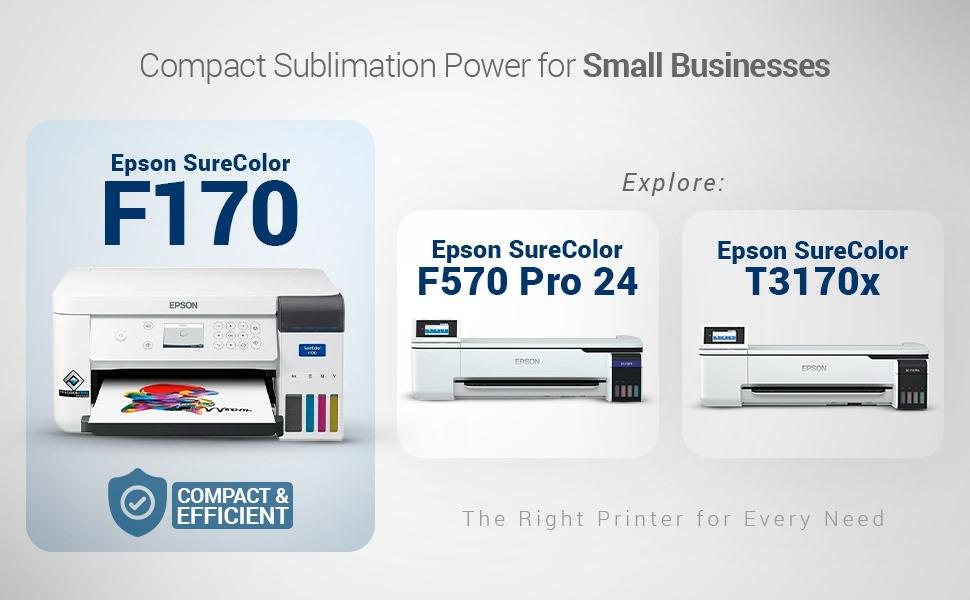
Figure 5.1: The Epson SureColor F170 is ideal for creating custom designs on various items like t-shirts and mugs.
6. Maintenance
Regular maintenance ensures the longevity and optimal performance of your printer.
6.1 Cleaning
- Print Head Cleaning: If print quality declines (e.g., missing lines, banding), perform a print head cleaning cycle through the printer's utility software.
- Exterior Cleaning: Wipe the exterior of the printer with a soft, damp cloth. Do not use abrasive cleaners or solvents.
6.2 Ink Level Monitoring and Replacement
Monitor ink levels regularly using the printer's control panel or software. When an ink tank is low, refill it promptly using genuine Epson UltraChrome DS ink bottles to maintain print quality and prevent damage to the print head.
6.3 Storage
If storing the printer for an extended period, ensure all ink tanks are adequately filled to prevent ink from drying out in the print head. Store in a cool, dry place away from direct sunlight.
7. Troubleshooting
This section addresses common issues you might encounter.
| Problem | Possible Cause | Solution |
|---|---|---|
| Poor Print Quality (banding, faded colors) | Clogged print head nozzles, low ink, incorrect print settings. | Perform a print head cleaning. Check ink levels and refill if necessary. Verify print settings (paper type, quality). |
| Printer Not Responding | Loose cable connection, printer off, software issue. | Check power and USB/Ethernet connections. Ensure printer is powered on. Restart printer and computer. Reinstall drivers if needed. |
| Paper Jam | Improperly loaded paper, too much paper, foreign object. | Remove jammed paper carefully. Ensure paper is loaded correctly and not overloaded. Remove any foreign objects. |
| Ink Not Filling | Incorrect bottle alignment, tank already full. | Ensure the ink bottle is correctly aligned with the tank's key. Check if the tank is already full. |
If you continue to experience issues, please refer to the support section or contact Epson customer service.
8. Specifications
Key technical specifications for the Epson SureColor F170 Dye-Sublimation Printer:
| Feature | Detail |
|---|---|
| Printing Technology | Dye Sublimation (PrecisionCore Printhead) |
| Maximum Color Print Resolution | 1200 x 600 dpi |
| Maximum Media Size | 8.5" x 14" |
| Max Input Sheet Capacity | 50 sheets |
| Ink Type | UltraChrome DS Ink (CMYK) |
| Connectivity | Wireless (Wi-Fi), USB, Ethernet |
| Product Dimensions (D x W x H) | 13.7" x 14.8" x 7.4" |
| Item Weight | 15.5 pounds |
| Specific Uses | Mousepads, Mugs, T-shirts |
9. Warranty and Support
The Epson SureColor F170 printer comes with a limited warranty. For detailed warranty terms and conditions, please refer to the documentation included with your product or visit the official Epson support website.
For technical support, driver downloads, and additional resources, please visit the official Epson support website or contact their customer service department. Keep your printer's serial number and proof of purchase readily available when seeking support.


