
1. Introduction and Overview
The REKA Smart Electric Radiator Thermostat ME223EH-NU is designed to optimize your comfort while reducing energy consumption. This intelligent thermostat offers advanced features for efficient temperature management in your home.
Key Features:
- Smart Control: Manage your heating remotely via the Tuya application.
- Voice Assistant Compatibility: Seamlessly integrates with Amazon Alexa and Google Home for convenient voice control.
- Open Window Detection: Automatically pauses heating when an open window is detected to prevent energy waste.
- Flexible Programming: Customize heating schedules for each day of the week to suit your lifestyle and maximize energy savings.
- Advanced Buffer Memory: Ensures continuous operation and maintains predefined settings even if internet connection is lost.
- Universal Compatibility: Supplied with universal adapters for compatibility with a wide range of existing radiator thermostats.
- European Standards Compliance: Conforms to NF EN ISO 52120-1 and NF EN 12098-3 for optimal safety and performance.
Note: A Zigbee 3.0 gateway is required for optimal synchronization and control of the thermostat.
2. Setup and Installation
2.1. Physical Installation
Follow these steps to install your REKA Smart Thermostat on your radiator:
- Turn off the heating system before installation.
- Remove your existing radiator thermostat head.
- Select the appropriate universal adapter from the package that fits your radiator valve.
- Mount the REKA thermostat onto the valve using the selected adapter and secure it firmly.
- Ensure the thermostat is properly aligned and stable.
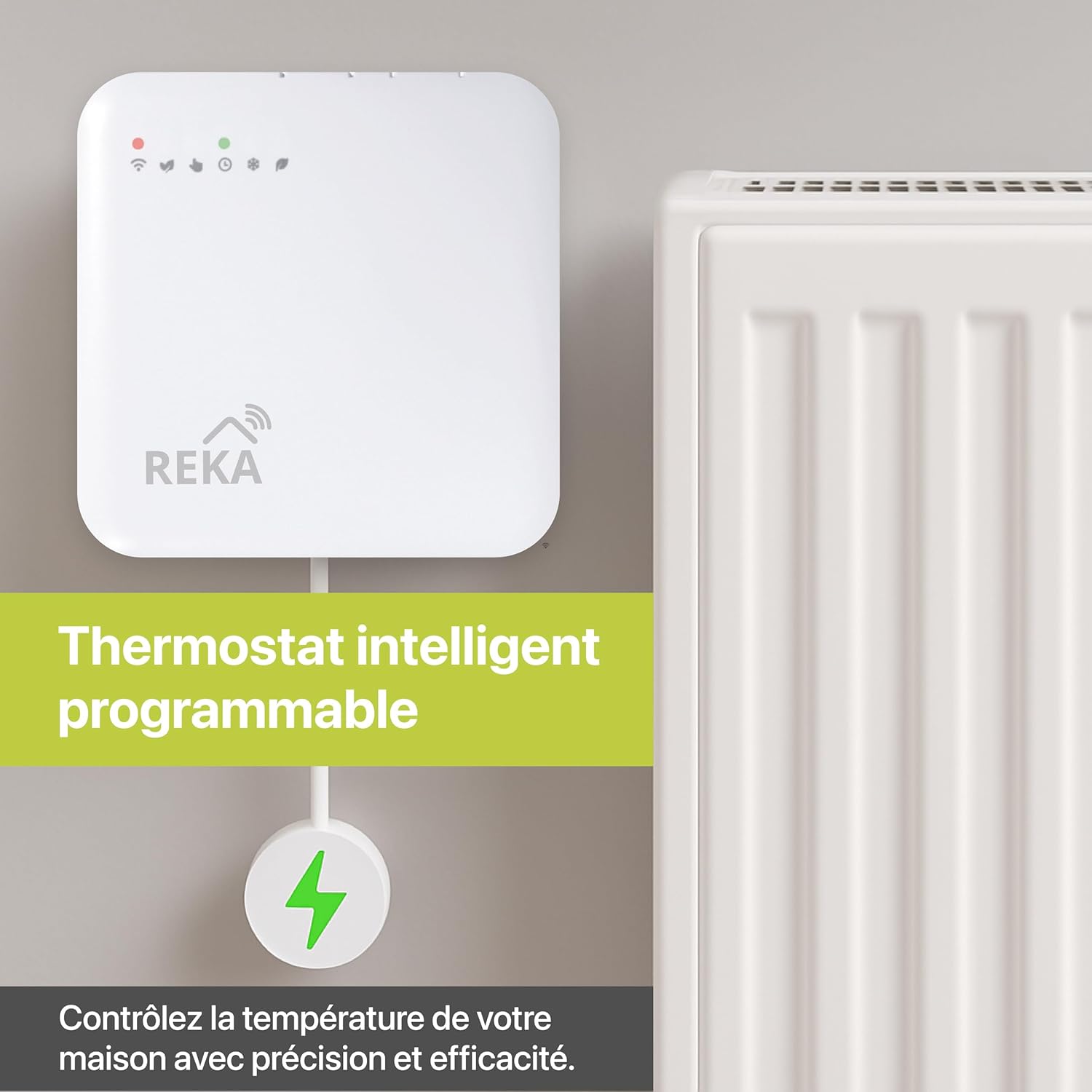
Figure 2.1: The REKA smart thermostat connected to a radiator, with a Zigbee gateway nearby, illustrating a typical installation setup.
2.2. Connecting to the Zigbee Gateway and Tuya App
For optimal control and smart features, connect your thermostat to a Zigbee 3.0 gateway and the Tuya Smart application.
- Ensure your Zigbee 3.0 gateway is powered on and connected to your home network.
- Download the Tuya Smart app from your smartphone's app store (iOS or Android).
- Open the Tuya Smart app and create an account or log in.
- Add the Zigbee gateway to the Tuya app by following the in-app instructions.
- Once the gateway is added, put the REKA thermostat into pairing mode (refer to the device's specific instructions for pairing mode activation, usually a long press on a button).
- In the Tuya app, add a new device under the Zigbee gateway, and select the thermostat from the list of discovered devices.
- Follow the prompts to complete the pairing process.

Figure 2.2: The REKA smart thermostat displayed alongside the Zigbee gateway, emphasizing the need for the gateway for proper function.
3. Operating the Thermostat
3.1. Tuya App Control
The Tuya Smart app provides comprehensive control over your REKA thermostat:
- Remote Temperature Adjustment: Change the temperature from anywhere.
- Room-by-Room Control: Manage heating for individual rooms if multiple thermostats are installed.
- Mode Selection: Switch between Comfort, Eco, and Anti-Frost modes.
- Scheduling: Create and modify personalized heating schedules.
- Energy Monitoring: Track energy consumption (if supported by the app version).

Figure 3.1: The Tuya app interface, demonstrating the ability to control and monitor temperatures in different rooms remotely.
3.2. Voice Control
Integrate your thermostat with Amazon Alexa or Google Home for hands-free control:
- Link your Tuya Smart account to Alexa or Google Home through their respective apps.
- Discover new devices. Your REKA thermostat should appear.
- Use commands like: "Alexa, set living room temperature to 21 degrees" or "Hey Google, what's the temperature in the bedroom?"
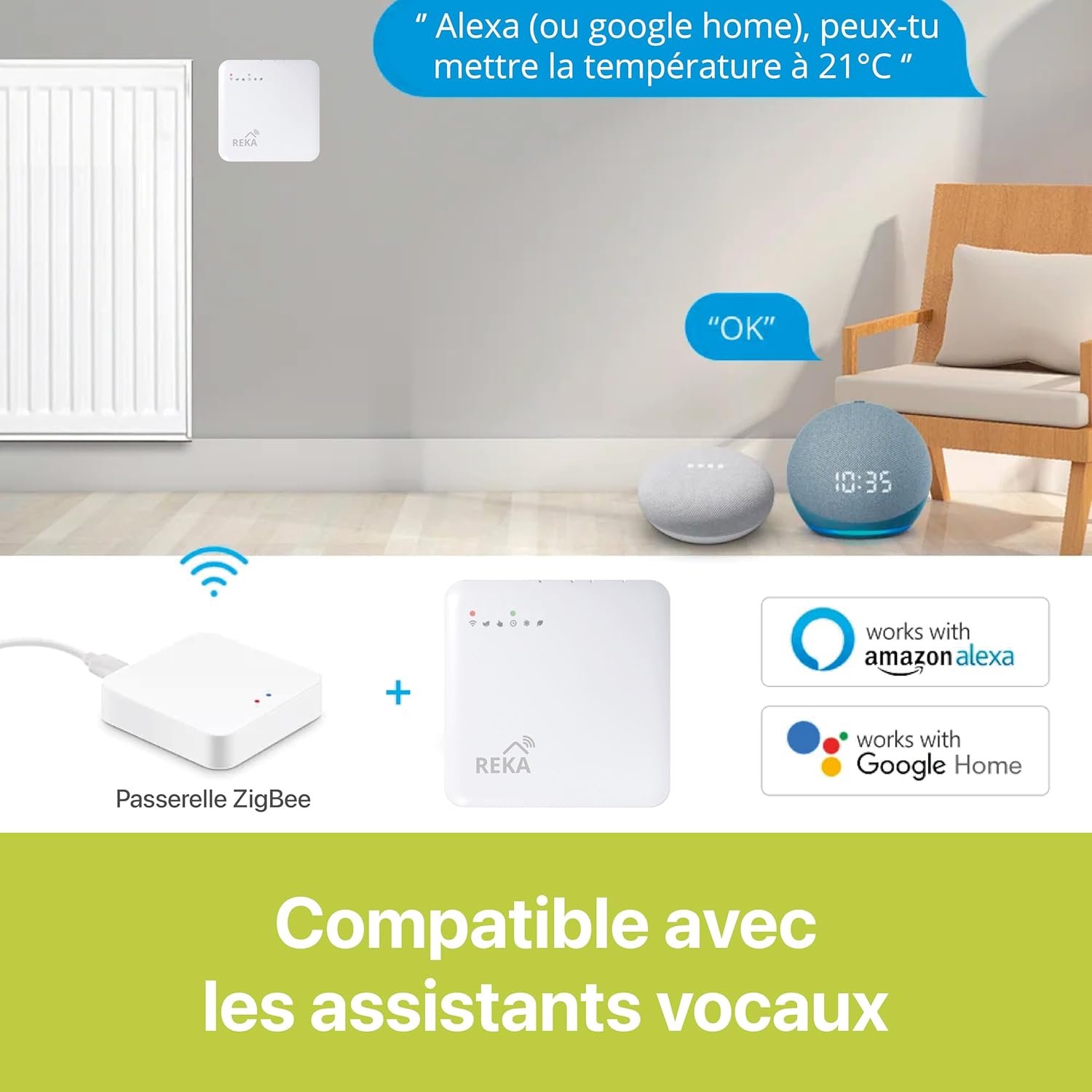
Figure 3.2: This image demonstrates the thermostat's compatibility with Amazon Alexa and Google Home, showing how voice commands can be used for control.
3.3. Programming Schedules
Create personalized heating schedules to match your daily routine and save energy:
- Open the Tuya Smart app and select your thermostat.
- Navigate to the "Schedule" or "Programming" section.
- Set desired temperatures for different times of the day and days of the week.
- Save your custom schedule.

Figure 3.3: This image displays the programming interface within the Tuya app, allowing users to create customized heating schedules for different days.
3.4. Special Features and Modes
- Open Window Detection: The thermostat automatically detects a sudden drop in temperature (indicating an open window) and temporarily pauses heating to conserve energy. Heating resumes once the window is closed or after a set period.
- Comfort Mode: Maintains your preferred comfortable temperature.
- Eco Mode: Optimizes heating for energy efficiency, typically setting a slightly lower temperature.
- Anti-Frost Mode: Prevents pipes from freezing by maintaining a minimum temperature (e.g., 5°C) when the heating is otherwise off.
- Buffer Memory: In case of internet outage, the thermostat continues to operate based on the last programmed schedule, ensuring uninterrupted comfort.
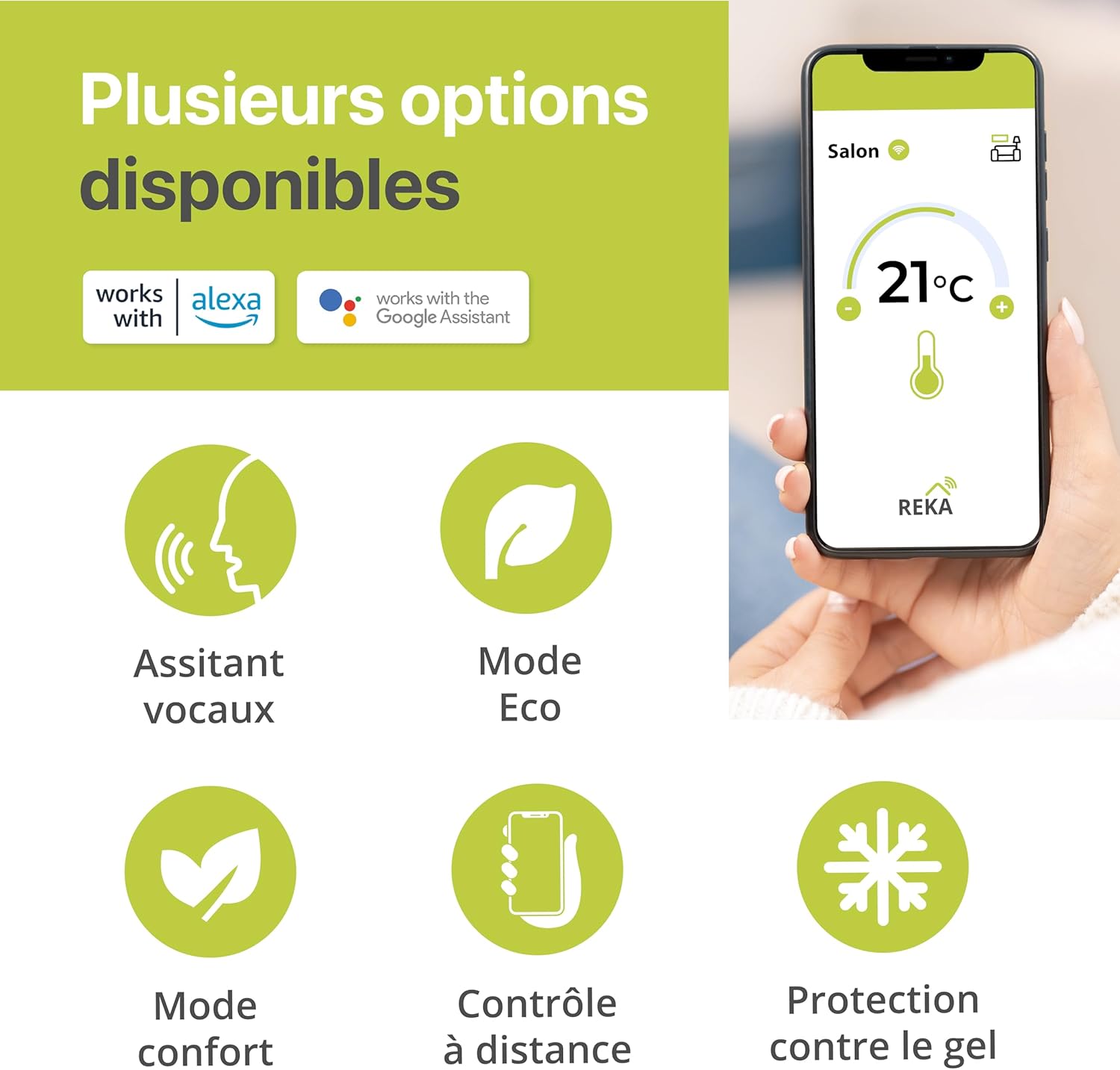
Figure 3.4: This image illustrates the various operational modes and features available, including voice assistant integration, Eco mode, Comfort mode, remote control, and frost protection.
4. Maintenance
To ensure the longevity and optimal performance of your REKA Smart Thermostat, follow these simple maintenance guidelines:
- Cleaning: Wipe the thermostat's exterior with a soft, dry cloth. Do not use abrasive cleaners or solvents.
- Battery Replacement: If your thermostat uses batteries (check product specifications), replace them when the low battery indicator appears. Use only the recommended battery type.
- Firmware Updates: Regularly check the Tuya Smart app for any available firmware updates for your thermostat and gateway to ensure you have the latest features and security enhancements.
5. Troubleshooting
If you encounter issues with your REKA Smart Thermostat, refer to the following common troubleshooting steps:
- Thermostat not responding:
- Check if the batteries are depleted and replace them if necessary.
- Ensure the thermostat is securely mounted on the radiator valve.
- No connection to Tuya App:
- Verify that your Zigbee gateway is powered on and connected to the internet.
- Ensure your smartphone has a stable internet connection.
- Try restarting the Zigbee gateway and the thermostat.
- Re-pair the thermostat with the gateway and app if the issue persists.
- Incorrect temperature readings:
- Ensure the thermostat is not obstructed or exposed to direct sunlight or drafts, which can affect readings.
- Calibrate the temperature in the Tuya app if an offset is consistently observed.
- Heating not turning on/off as scheduled:
- Check your programmed schedules in the Tuya app for any errors.
- Verify that the thermostat is in the correct operating mode (e.g., not in Anti-Frost mode if you expect full heating).
- Ensure the Zigbee gateway has a stable connection to the internet and the thermostat.
For further assistance, please contact REKA customer support.
6. Specifications
| Feature | Detail |
|---|---|
| Brand | REKA |
| Model Number | ME223EH-NU |
| Model Name | REKA ME223EH |
| Color | White |
| Product Dimensions (L x W x H) | 2.4 x 8.5 x 8.5 cm |
| Item Weight | 300 grams |
| Material | Plastic |
| Features | Programmable, Open Window Detection, Buffer Memory |
| Controller Type | Amazon Alexa, Google Assistant |
| Specific Uses | Heating |
| Temperature Control Type | Heating |
| Connectivity Technology | Zigbee standard IBEE B02.1 .4 |
| Included Components | Fixing screws |
| Compliance | NF EN ISO 52120-1, NF EN 12098-3 |
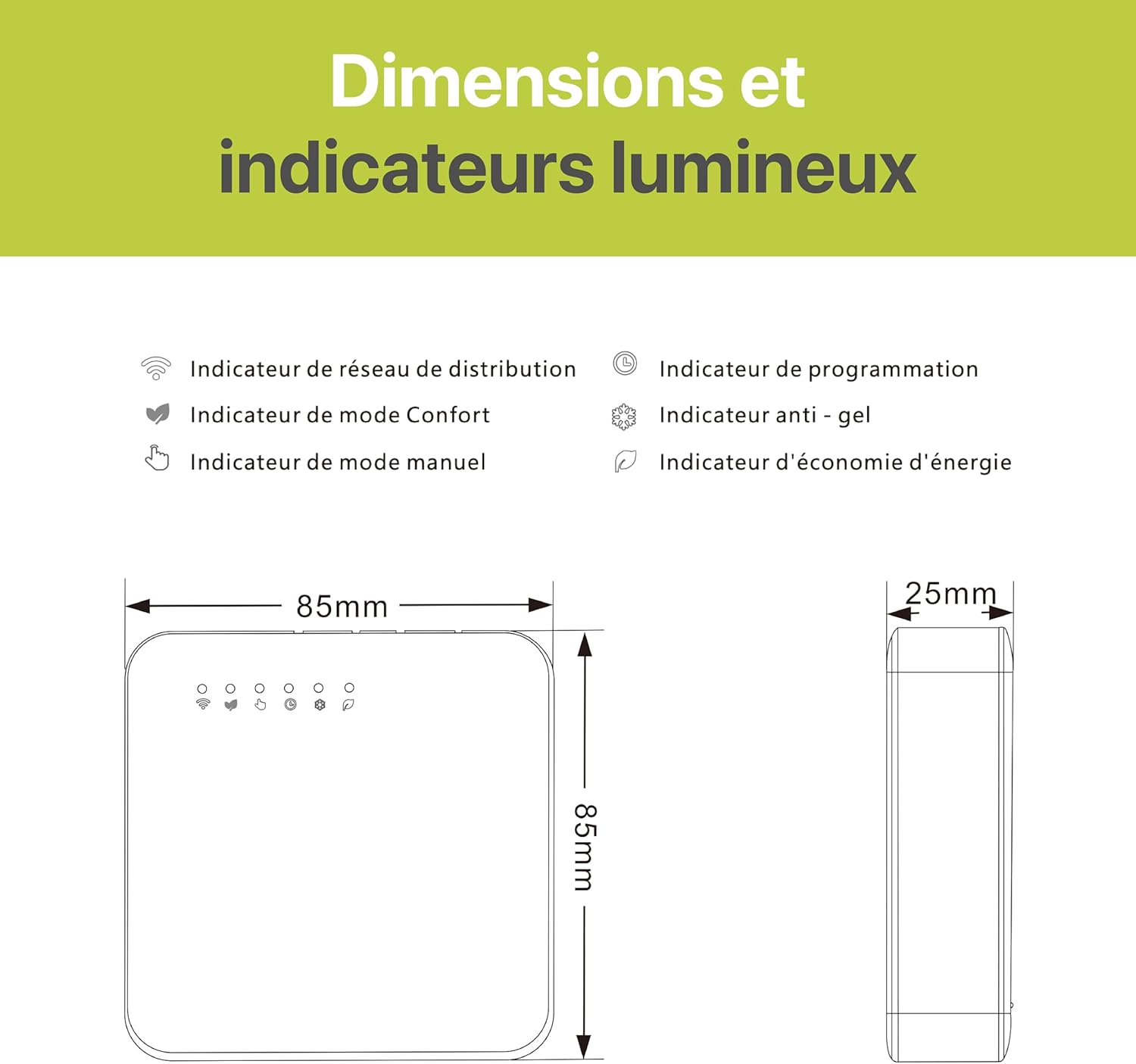
Figure 6.1: This diagram provides the physical dimensions of the thermostat (85mm x 85mm x 25mm) and explains the meaning of its various LED indicators for network, comfort mode, manual mode, programming, anti-freeze, and energy saving.
7. Warranty and Support
Warranty Information:
REKA products are manufactured to high-quality standards. For specific warranty details, please refer to the warranty card included with your product or visit the official REKA website. Keep your proof of purchase for warranty claims.
Customer Support:
If you have any questions, require technical assistance, or need to report an issue, please contact REKA customer support. Contact information can typically be found on the product packaging, the official REKA website, or within the Tuya Smart application's help section.


