
1. Introduction
The REKA Smart Electric Radiator Thermostat ME223EH is designed to optimize your home's comfort while reducing energy consumption. This intelligent thermostat offers advanced features for precise temperature control and energy efficiency.
Key features include:
- Remote temperature control via the Tuya application.
- Compatibility with voice assistants like Amazon Alexa and Google Home.
- Flexible programming for customized heating schedules.
- Automatic open window detection to prevent energy waste.
- Integrated buffer memory for continuous operation even without an internet connection.
- Compliance with European safety and performance standards (NF EN ISO 52120-1 and NF EN 12098-3).
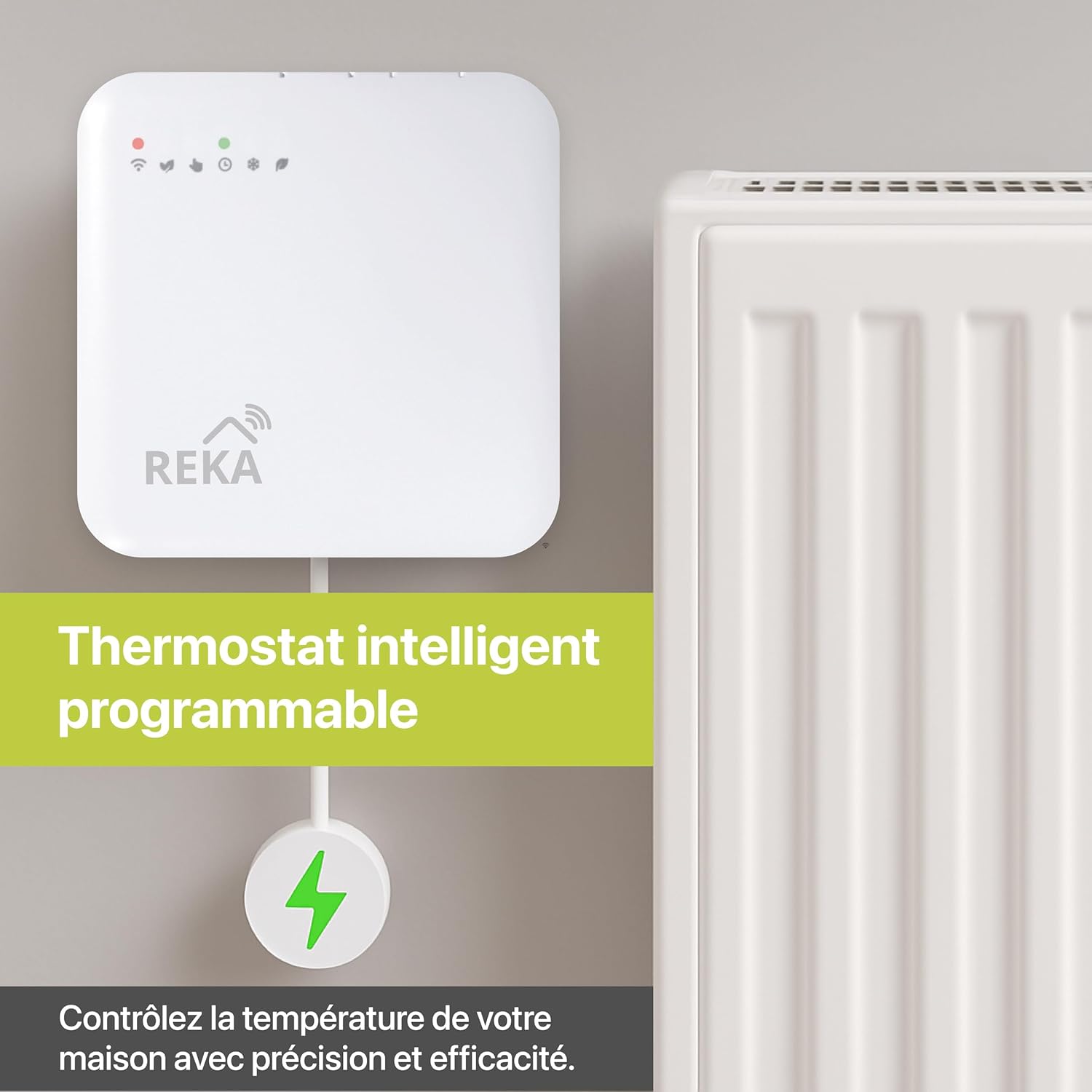
Image 1.1: REKA Smart Thermostat and Zigbee Gateway connected to a radiator, illustrating the system setup.
2. Package Contents
Please verify that all components are present in your package:
- REKA Smart Electric Radiator Thermostat ME223EH
- Universal adapters for various radiator valves
- Fixing screws
- User Manual (this document)
- Note: A Zigbee 3.0 gateway is required for optimal synchronization and control, and may be included depending on your purchase variant.
3. Setup and Installation
3.1 Physical Installation
- Remove Existing Thermostat: Carefully remove your current radiator thermostat.
- Select Adapter: Choose the appropriate universal adapter from the package that fits your radiator valve.
- Mount Thermostat: Attach the REKA Smart Thermostat to the radiator valve using the selected adapter and fixing screws. Ensure it is securely fastened.

Image 3.1: The Zigbee gateway is essential for ensuring proper function and connectivity of your REKA thermostat.
3.2 Zigbee Gateway Connection
For optimal functionality and remote control, a Zigbee 3.0 gateway is required. Connect the gateway to your home network according to its specific instructions. The thermostat communicates with the gateway via Zigbee standard IBEE B02.1.4.
3.3 Tuya App Pairing
- Download App: Download the Tuya Smart or Smart Life app from your smartphone's app store (iOS or Android).
- Create Account: Register or log in to your Tuya account.
- Add Device: In the app, select "Add Device" and follow the on-screen instructions to add your REKA Smart Thermostat. Ensure your Zigbee gateway is already connected and recognized by the app.
- Pair Thermostat: The app will guide you through the pairing process. This typically involves putting the thermostat into pairing mode (refer to the thermostat's display or specific instructions for this step).
3.4 Voice Assistant Integration
The REKA thermostat is compatible with Amazon Alexa and Google Home. To integrate:
- Enable Skill/Action: In the Alexa or Google Home app, search for and enable the "Tuya Smart" or "Smart Life" skill/action.
- Link Account: Link your Tuya account with your voice assistant account.
- Discover Devices: Ask your voice assistant to "discover devices" or manually initiate device discovery in the app. Your REKA thermostat should appear.
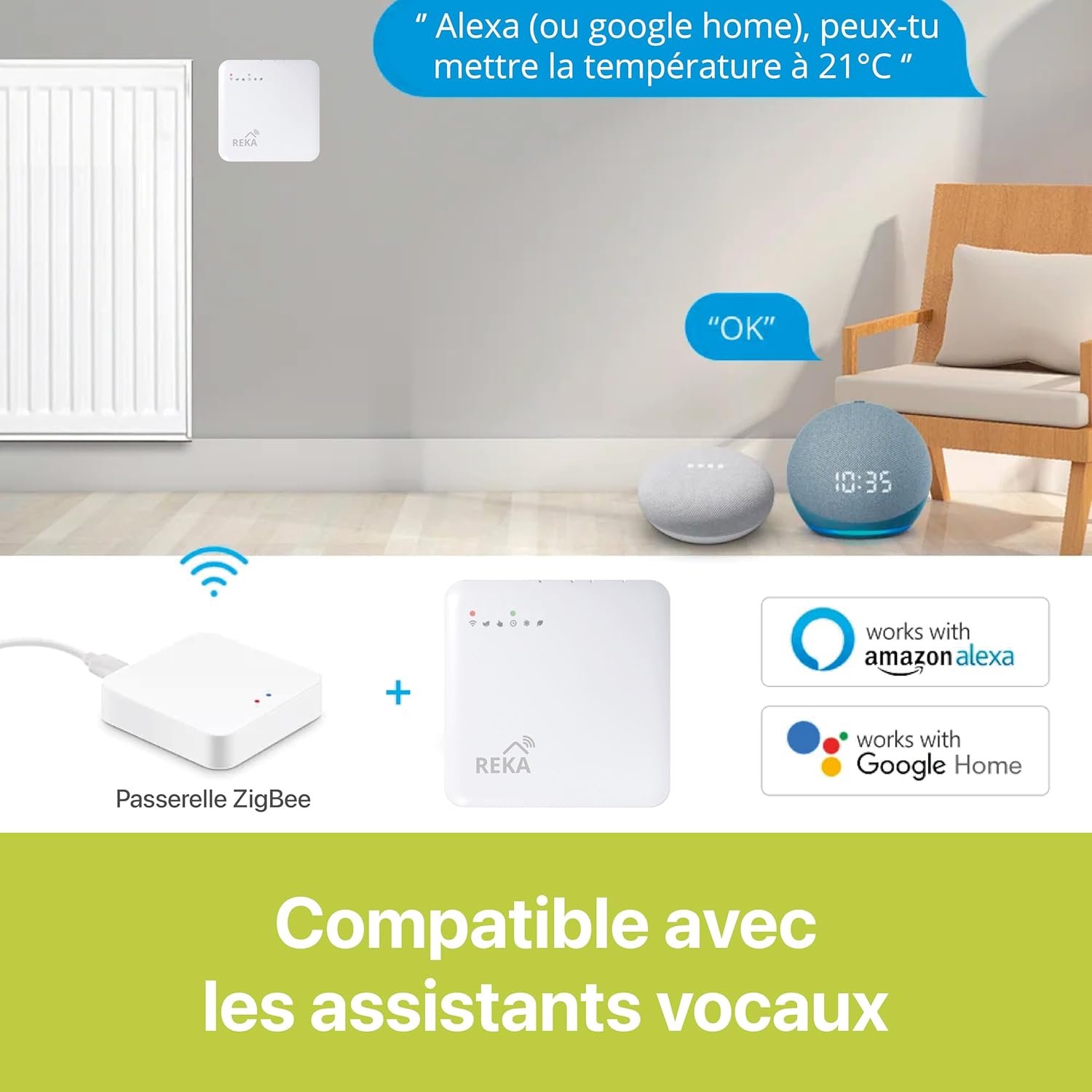
Image 3.2: The REKA Smart Thermostat integrates seamlessly with Amazon Alexa and Google Home for convenient voice control.
4. Operating Instructions
4.1 Manual Control
You can adjust the temperature directly on the thermostat unit using its physical controls (buttons/dial). Refer to the device's display for current settings and temperature.
4.2 Tuya App Control
The Tuya app provides comprehensive control over your thermostat from anywhere.
- Remote Temperature Adjustment: Change the target temperature for individual rooms or zones.
- Room-by-Room Control: Manage heating settings for different areas of your home independently.
- Mode Selection: Switch between various operating modes (e.g., Comfort, Eco, Anti-freeze).

Image 4.1: The Tuya app allows for precise room-by-room temperature control, as shown in this interface example.
4.3 Programming Schedules
Create personalized heating schedules for each day of the week using the Tuya app. This allows you to set different temperatures for specific times, optimizing comfort and energy savings.
- Open the Tuya app and select your thermostat.
- Navigate to the "Schedule" or "Programming" section.
- Set desired temperatures and times for different periods (e.g., morning, day, evening, night) for each day.
- Save your custom programs.

Image 4.2: The Tuya app provides an intuitive interface for creating and managing personalized heating schedules.
4.4 Smart Features
- Open Window Detection: The thermostat automatically detects open windows and temporarily stops heating to prevent energy loss. Heating resumes once the window is closed.
- Voice Control: Use voice commands with Amazon Alexa or Google Home to adjust temperature, change modes, or inquire about current settings. For example, "Alexa, set living room temperature to 21 degrees."
- Buffer Memory: In case of internet connection loss, the thermostat's integrated buffer memory ensures that your pre-defined settings and schedules continue to operate without interruption.
- Eco Mode & Comfort Mode: Utilize these pre-set modes for energy-saving or enhanced comfort, accessible via the app or potentially the device itself.
- Anti-freeze Protection: This mode maintains a minimum temperature to prevent pipes from freezing, especially useful during colder periods or when away from home.
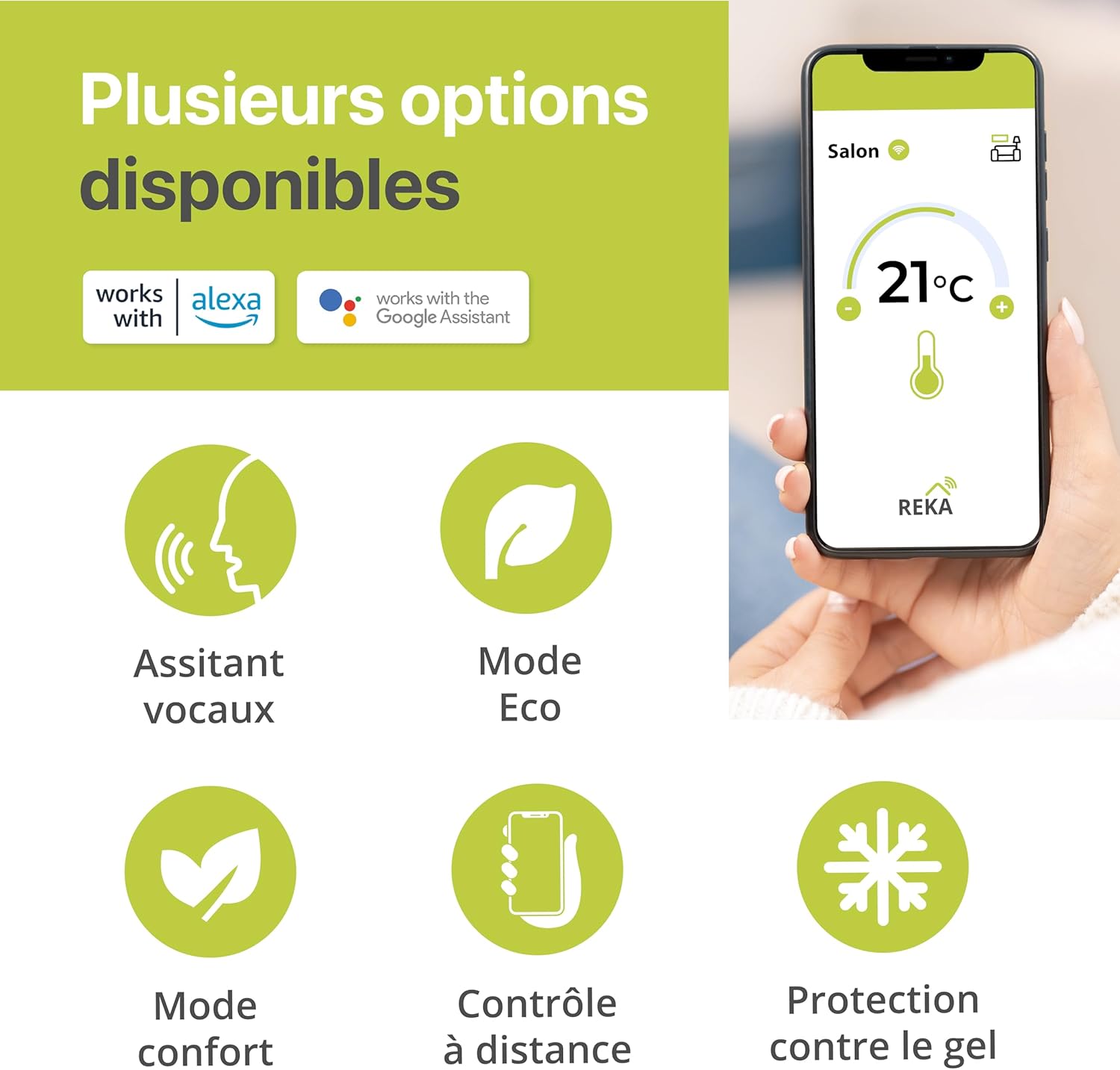
Image 4.3: An overview of the REKA thermostat's various operating options, including voice assistant integration, Eco and Comfort modes, remote control, and frost protection.
5. Maintenance
- Cleaning: Wipe the thermostat's exterior with a soft, dry cloth. Do not use abrasive cleaners or solvents.
- Battery Replacement: (If applicable, check your specific model for battery type and replacement instructions. This model's power source is not explicitly stated, but many smart thermostats use batteries.)
- Software Updates: Ensure your Tuya app and thermostat firmware are up to date for optimal performance and security. Updates are typically managed through the Tuya app.
6. Troubleshooting
| Problem | Possible Cause | Solution |
|---|---|---|
| Thermostat not connecting to app. | Zigbee gateway offline or not paired; incorrect pairing procedure; weak Zigbee signal. | Ensure gateway is powered and connected to internet. Re-attempt pairing process. Move thermostat closer to gateway if possible. |
| Temperature not adjusting. | Valve stuck; thermostat not properly mounted; open window detected; manual override active. | Check valve for obstructions. Re-mount thermostat securely. Close windows. Check app for manual override settings. |
| Voice commands not working. | Tuya skill/action not enabled; account not linked; incorrect command. | Verify Tuya skill/action is enabled and accounts are linked in Alexa/Google Home app. Use correct voice commands. |
| Schedules not running. | Schedule not activated; manual override; internet connection lost (though buffer should help). | Check app to ensure schedules are active. Disable any manual overrides. Verify internet connection. |
7. Specifications
- Brand: REKA
- Model Name: REKA ME223EH
- Color: White
- Product Dimensions: 2.4 x 8.5 x 8.5 cm (Depth x Width x Height)
- Product Weight: 300 g
- Material: Plastic
- Special Features: Open window detection
- Controller Type: Amazon Alexa, Google Assistant
- Specific Product Uses: Heating
- Temperature Control Type: Heating
- Connectivity Technology: Zigbee standard IBEE B02.1.4
- Included Components: Fixing screws, Universal adapters
- Compliance: NF EN ISO 52120-1, NF EN 12098-3
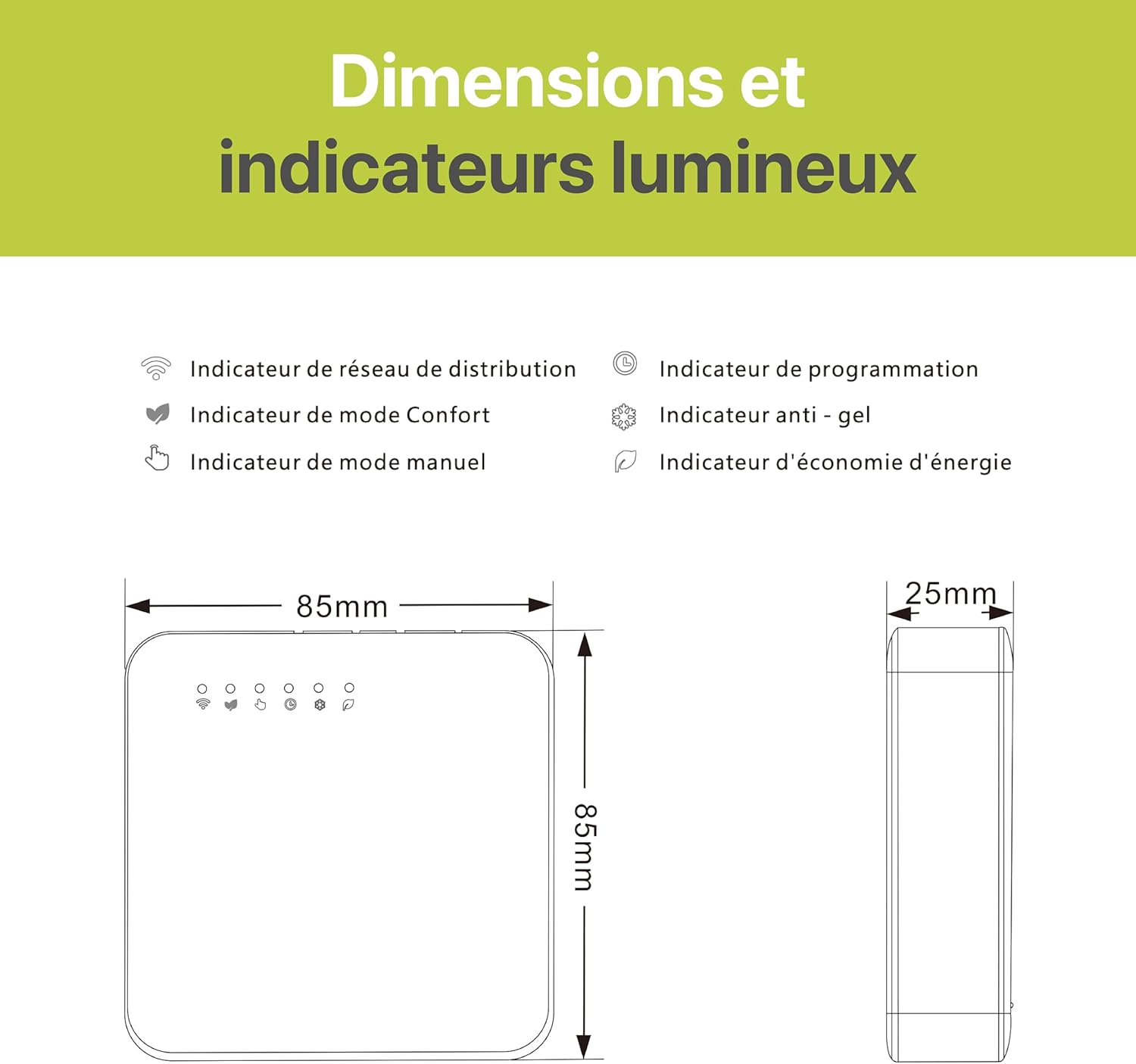
Image 7.1: Detailed diagram illustrating the dimensions (85mm x 85mm x 25mm) and light indicators of the REKA Smart Thermostat.
Light Indicators:
- 📶 Network Indicator
- 💜 Comfort Mode Indicator
- 👍 Manual Mode Indicator
- 📋 Programming Indicator
- ❄ Anti-freeze Indicator
- 🌿 Energy Saving Indicator
8. Warranty and Support
For warranty information and technical support, please refer to the documentation provided with your purchase or contact REKA customer service. Keep your proof of purchase for warranty claims.
For further assistance, visit the official REKA website or contact your retailer.


