
Introduction
This manual provides comprehensive instructions for the installation, operation, maintenance, and troubleshooting of your MekedeTech DUDUAUTO DUDU6 Android Head Unit. This unit is specifically designed for Audi TT models manufactured between 2006 and 2012, offering a 9.5-inch touch screen upgrade with advanced features.
Please read this manual thoroughly before installation and use to ensure proper functionality and to maximize your experience with the device. Keep this manual for future reference.
Safety Information
Observe the following safety precautions to prevent damage to the unit or vehicle, and to ensure safe operation:
- Professional Installation Recommended: Due to the complexity of vehicle electronics, professional installation is highly recommended.
- Power Disconnection: Always disconnect the vehicle's battery before performing any installation or wiring work.
- Correct Voltage: Ensure the unit is connected to a 9V~16V DC power supply. Incorrect voltage can cause damage.
- Wiring: Follow all wiring diagrams precisely. Incorrect wiring can lead to malfunctions or electrical hazards.
- Driving Safety: Do not operate the unit in a way that distracts you from driving. Always prioritize road safety.
- Environmental Conditions: Avoid exposing the unit to extreme temperatures, direct sunlight for prolonged periods, or excessive moisture.
Setup and Installation
The MekedeTech DUDUAUTO DUDU6 Android Head Unit is designed for a direct fit in Audi TT (2006-2012) models. Careful attention to wiring and component placement is crucial for proper function.
Pre-Installation Overview
Before beginning installation, familiarize yourself with the existing car radio setup and the components of your new head unit.

Image: Comparison of the Audi TT dashboard before and after the installation of the MekedeTech DUDUAUTO DUDU6 head unit. The original radio is replaced by the larger 9.5-inch Android screen, seamlessly integrating into the vehicle's interior.
Component Identification and Connections
Identify all ports and cables on the rear of the head unit and the corresponding accessories. This diagram illustrates the main connection points:
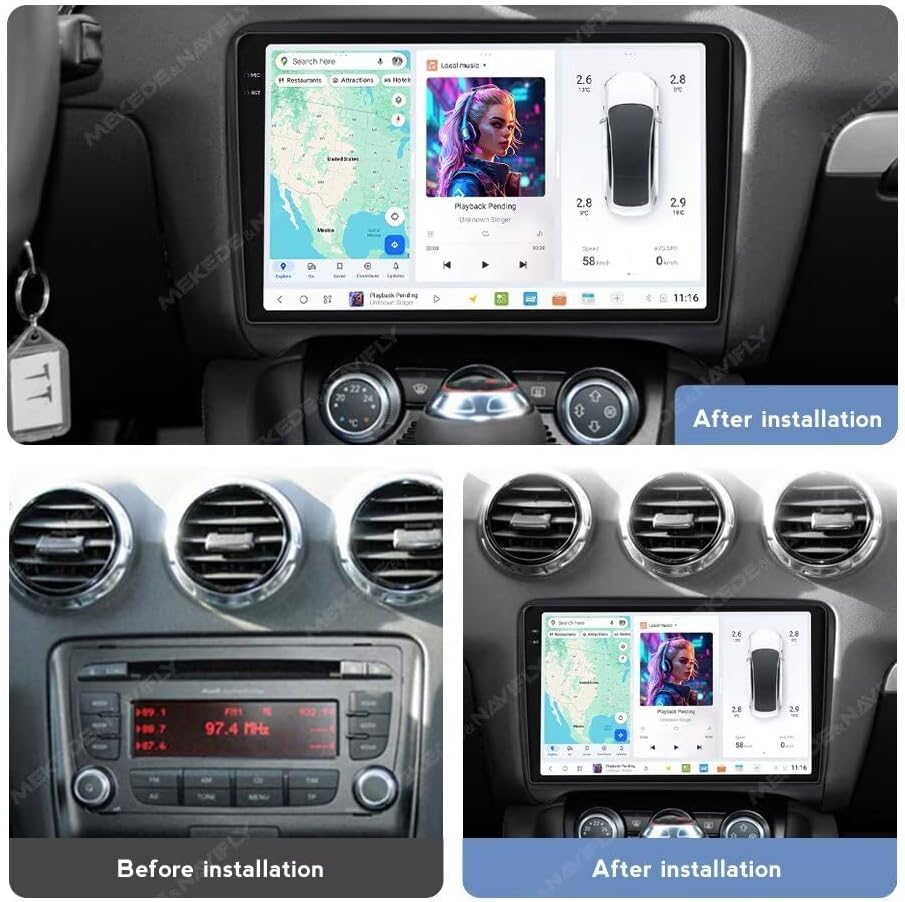
Image: Detailed diagram of the rear panel of the DUDU6 head unit, showing various connection ports. Labels include: A) Protocol Serial (Use with Can-bus), B) 360° panoramic device, C) 4Pin USB, D) 6Pin USB, E) Reverse video cable, F) RCA Cable (4G Card Slot), G) Power Cable, 4) 4G Antenna, 6) GPS Antenna, 7) WIFI, 8) Radio Antenna, and MIC. Below, individual accessory cables are shown: MIC, 4G Antenna, GPS Antenna, 6Pin USB, 4Pin USB, RCA Cable with 4G Card Slot, and Reversing camera.
- Power Cable (G): Connect to the vehicle's power harness. Ensure correct polarity.
- Radio Antenna (8): Connect the vehicle's radio antenna.
- GPS Antenna (6): Install the GPS antenna in a location with a clear view of the sky, typically on the dashboard or under the windshield.
- 4G Antenna (4): If using 4G LTE, connect the 4G antenna and insert a compatible SIM card into the designated slot (part of RCA Cable F).
- USB Ports (C, D): Connect external USB devices such as flash drives or for wired Android Auto.
- MIC: Connect the external microphone for improved call quality and voice commands.
- Reverse Video Cable (E): Connect to a compatible rearview camera for automatic display when reversing.
- RCA Cables (F): For additional audio/video inputs/outputs, including subwoofer output and auxiliary inputs.
- Can-bus (A): Connect the Can-bus decoder (if included) to retain steering wheel controls and other vehicle data.
After all connections are made, carefully secure the head unit into the dashboard opening. Test all functions before fully reassembling the vehicle's interior panels.
Operating Instructions
Your DUDUAUTO DUDU6 head unit runs on a customized Android operating system, offering a wide range of features and customization options.
Initial Power On and System Overview
Upon first power-on, the system will boot into the DUDU OS interface. Navigate using the 9.5-inch capacitive touchscreen. The interface is designed for intuitive use, with access to navigation, media, communication, and vehicle settings.

Image: Screenshots of the DUDU OS 3.5 interface, showcasing various modes and applications. This includes navigation, media playback, vehicle information display, and general system settings, demonstrating the intuitive and streamlined operation.
Wireless CarPlay and Android Auto
The unit supports both wireless CarPlay for iOS devices and wireless/wired Android Auto for Android smartphones, allowing seamless integration of your phone's features onto the head unit's display.

Image: Visual representation of the Wireless CarPlay and Android Auto features. The image shows the head unit displaying phone applications like navigation, music, and calls. Connection steps for both iOS (Wireless CarPlay via Bluetooth) and Android (Wired Android Auto via USB cable) are illustrated.
- Wireless CarPlay (iOS):
- Enable Bluetooth on your iPhone.
- On the head unit, open the CarPlay application and connect to your iPhone via Bluetooth.
- Follow on-screen prompts to establish the wireless connection.
- Android Auto (Wired/Wireless):
- For wired connection, connect your Android phone to the head unit via a USB cable.
- For wireless, ensure Bluetooth and Wi-Fi are enabled on your phone and follow the prompts in the Android Auto application on the head unit.
Bluetooth 5.0 Connectivity
The integrated Qualcomm 3031 Bluetooth 5.0 chip provides stable and high-quality audio streaming and hands-free calling. Pair your smartphone via Bluetooth for music playback and phone calls.
- Go to the Bluetooth settings on the head unit.
- Enable Bluetooth on your phone and search for available devices.
- Select "DUDUAUTO" or a similar device name from the list and confirm pairing.
4G LTE & Wi-Fi Support
Insert a compatible SIM card into the 4G card slot (part of RCA Cable F) for mobile internet access. Alternatively, connect to a Wi-Fi hotspot for internet connectivity.
- 4G LTE: Ensure a valid SIM card is inserted. The unit will automatically detect and connect to the mobile network.
- Wi-Fi: Navigate to Settings > Wi-Fi, select your desired network, and enter the password.
Steering Wheel Controls
The unit retains original steering wheel control functionality, allowing you to adjust volume, change tracks, and manage calls without taking your hands off the wheel. This feature is enabled via the Can-bus connection during installation.
Maintenance
To ensure the longevity and optimal performance of your MekedeTech DUDUAUTO DUDU6 head unit, follow these maintenance guidelines:
- Screen Cleaning: Use a soft, lint-free cloth slightly dampened with water or a screen cleaner specifically designed for electronics. Do not use abrasive cleaners or solvents.
- Software Updates: Periodically check for software updates provided by MekedeTech to ensure you have the latest features and bug fixes. Updates can typically be found on the manufacturer's website or through the unit's system settings if an internet connection is available.
- Avoid Extreme Temperatures: Prolonged exposure to very high or very low temperatures can affect the unit's performance and lifespan.
- Ventilation: Ensure the cooling fan (visible on the rear panel) is not obstructed to prevent overheating.
Troubleshooting
If you encounter issues with your head unit, refer to the following common problems and solutions:
| Problem | Possible Cause | Solution |
|---|---|---|
| Unit does not power on. | No power supply; incorrect wiring; blown fuse. | Check power cable connections. Verify vehicle fuse. Consult a professional for wiring inspection. |
| No sound. | Volume too low; mute activated; speaker wiring issue; incorrect audio output settings. | Increase volume. Check if mute is active. Verify speaker connections. Adjust audio output settings (e.g., Optical + Coaxial, RCA 5.1 Channel Outputs). |
| GPS signal weak or unavailable. | GPS antenna obstructed or improperly installed; antenna faulty. | Ensure GPS antenna has a clear view of the sky. Check antenna connection. Replace antenna if necessary. |
| Bluetooth connection issues. | Device not in pairing mode; interference; incorrect pairing procedure. | Ensure both devices are in pairing mode. Clear previous pairings. Try pairing again. Reduce distance between devices. |
| CarPlay/Android Auto not connecting. | Incorrect cable (for wired); Wi-Fi/Bluetooth issues (for wireless); phone software outdated. | For wired, use a high-quality USB cable. For wireless, check Bluetooth/Wi-Fi connections. Update phone OS and CarPlay/Android Auto apps. |
| Steering wheel controls not working. | Can-bus connection issue; incorrect Can-bus configuration. | Verify Can-bus decoder connection. Check unit settings for steering wheel control configuration. |
If the problem persists after attempting these solutions, please contact customer support.
Specifications
The MekedeTech DUDUAUTO DUDU6 head unit features advanced hardware and software components for optimal performance.

Image: Close-up view of the UIS7862S 8-Core CPU chip, highlighting its advanced architecture. This processor is central to the head unit's performance, enabling smooth operation of the Android system and various applications.

Image: Display of the in-cell screen technology, emphasizing its clarity and detail with a resolution of 1280x720. This image illustrates the vibrant visual quality for navigation, media, and other applications.
| Feature | Detail |
|---|---|
| Model Name | MKD-DUDU6-8-128 |
| Operation System | Android 10 |
| CPU | 8 Core UIS7862S Customized version A55 2.0Ghz 12nm processor |
| Memory (RAM/ROM) | 8GB RAM / 128GB ROM (eMMC 5.1) |
| Display Size | 9.5 inch |
| Display Type | OLED, Capacitive Touchscreen |
| Display Resolution | 2000x1200 |
| GPS | Dual Band 3 modes L1 B1 E1 |
| Microphone | Digital Noise Cancellation Microphone |
| USB Ports | USB2.0*3 |
| Power Amplifier | TDA7850 Digital AB type |
| DSP | AKM7738 |
| Bluetooth Chip | Qualcomm 3031 (Supports aptX HD protocol, BT5.0) |
| Audio Output | Optical + Coaxial, RCA 5.1 Channel Outputs |
| WiFi Type | 802.11a/b/g/n/ac Support 5G WIFI |
| Radio IC | TDA7708 |
| Work Voltage | 9V~16V |
| Special Features | Bluetooth, Bluetooth 5.1, Touchscreen, Wired Android Auto, Wireless CarPlay, 4G LTE Support |
Note: DUDU4 models do not support 360 panoramic view. Please choose 8G version and above which include 360 backup camera chip in default if this feature is desired.

Image: A comparison table detailing specifications across different DUDU models (DUDU4, DUDU5, DUDU6, DUDU7). This table highlights variations in RAM/ROM, CPU, memory type, GPS, MIC, USB interface, power amplifier, DSP, Bluetooth chip, audio output, WiFi type, radio IC, and other features, allowing users to understand the specific capabilities of the DUDU6 model within the series.
Warranty Information
The MekedeTech DUDUAUTO DUDU6 Android Head Unit comes with a 1-Year Warranty from the date of purchase. This warranty covers manufacturing defects and malfunctions under normal use.
The warranty does not cover damage caused by improper installation, misuse, accidents, unauthorized modifications, or normal wear and tear. Please retain your proof of purchase for warranty claims.
Support
For technical assistance, troubleshooting beyond this manual, or warranty inquiries, please contact MekedeTech customer support.
- Online Support: Visit the official MekedeTech store on Amazon for product information and support resources: MekedeTech Store
- Contact Seller: You can also contact the seller directly through your Amazon order history for specific product support.