
1. Product Overview
The Losfom Z12 Mini Body Camera is a compact and discreet wearable camera designed for daily recording, personal safety, and various activities. It features 1080P video recording with audio, night vision capabilities, and a 5-hour battery life, making it suitable for users needing a reliable, on-the-go recording solution.
Key Features:
- Compact and Portable: Lightweight design for easy carrying and discreet use.
- One-Button Operation: Simple single-button control for quick recording initiation.
- 1080P HD Video with Audio: Captures clear video and synchronized audio.
- Extended Battery Life: Up to 5 hours of recording on a single charge.
- Versatile Mounting: Includes clip and strap for flexible attachment to clothing or gear.
- Night Vision: Built-in IR lights for clear recording in low-light conditions up to 10 meters.
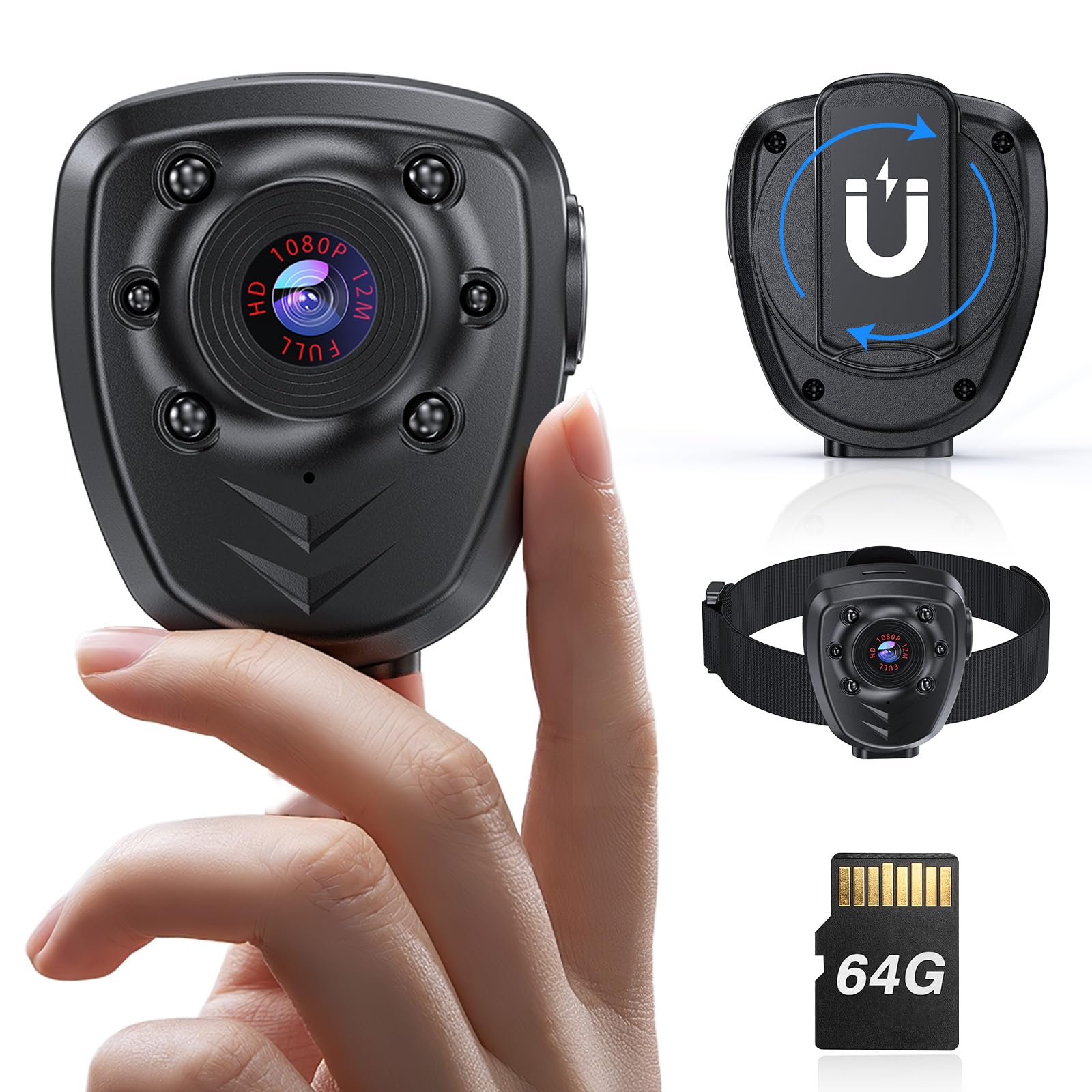
Image 1.1: The Losfom Z12 Mini Body Camera, demonstrating its small and portable design.

Image 1.2: The Z12 camera is small in size, weighing 47 grams and measuring 2.1 x 1.9 x 1.3 inches.
2. What's in the Box
Upon opening the package, ensure all the following items are present:
- Losfom Z12 Camera
- USB Cable
- User Manual
- Strap
- Card Reader (may be included depending on package)

Image 2.1: Package contents of the Z12 Mini Body Camera.
3. Setup
3.1 Charging the Camera
Before first use, fully charge the camera. Connect the camera to a USB power source (e.g., computer, wall adapter) using the provided USB cable. The charging indicator light will show the charging status.
- Charging time: Approximately 4 hours.
- Usage time on full charge: Up to 5 hours.
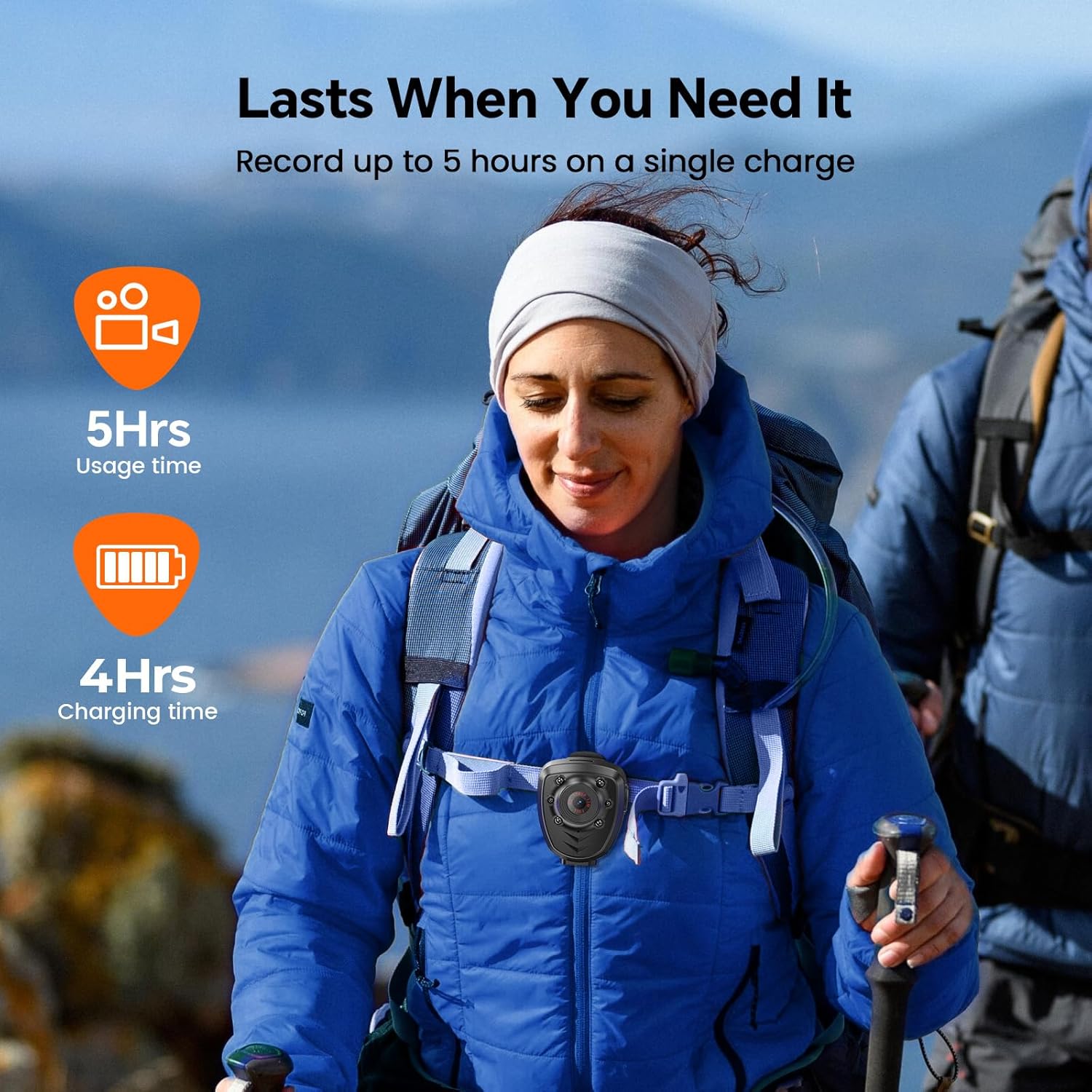
Image 3.1: Battery and charging information for the Z12 camera.
3.2 Inserting the Micro SD Card
The Z12 camera requires a Micro SD card for storing recordings. Ensure the card is inserted correctly before use. The camera supports various capacities (e.g., 64GB, 128GB, 256GB).
- Locate the Micro SD card slot on the camera.
- Gently insert the Micro SD card until it clicks into place.
- To remove, press the card gently to release it.
3.3 Mounting the Camera
The Z12 camera comes with a clip and a strap for flexible mounting options.
- Using the Clip: Attach the camera to clothing, bags, or other surfaces using the integrated clip. The clip features a magnetic design for secure attachment.
- Using the Strap: For head-mounted or arm-mounted use, attach the camera to the provided strap.

Image 3.2: Flexible mounting options with the included strap and clip.
4. Operating Instructions
4.1 Power On/Off
- Power On: Press and hold the power button for a few seconds until the indicator light illuminates.
- Power Off: Press and hold the power button again until the indicator light turns off.
4.2 Starting and Stopping Recording
The Z12 camera features one-button recording for ease of use.
- Start Recording: With the camera powered on, press the record button once. The indicator light will change to indicate recording is in progress (e.g., a red light flashing).
- Stop Recording: Press the record button once again to stop recording. The indicator light will revert to standby mode.

Image 4.1: The Z12 camera's simple one-button operation for recording.

Image 4.2: The camera records in clear 1080P resolution.
4.3 Night Vision Mode
The camera is equipped with built-in IR lights for recording in low-light conditions.
- The night vision feature activates automatically in low light or can be manually toggled depending on the specific model's firmware. Refer to the included user manual for precise activation steps.
- Effective range for night vision is up to 10 meters.
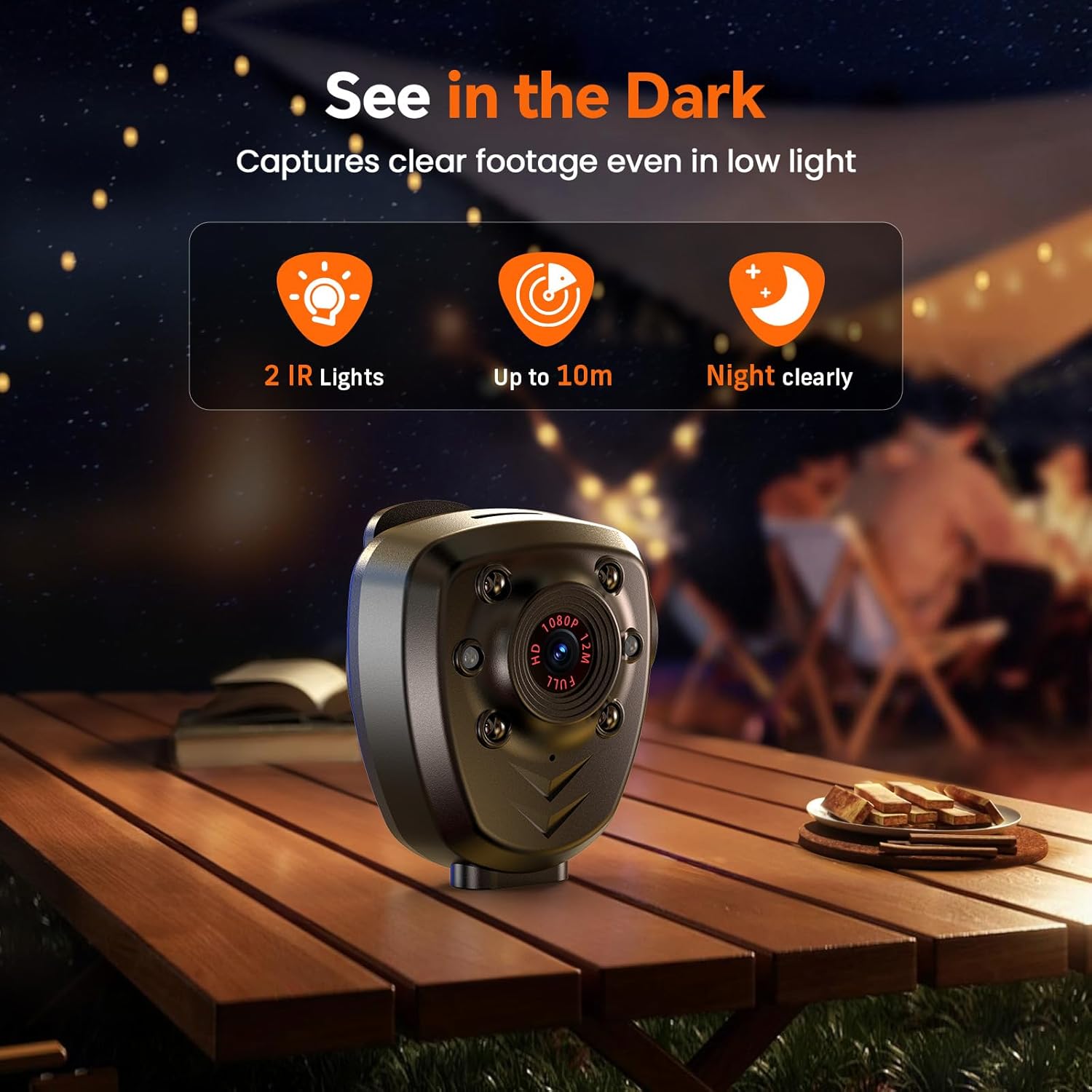
Image 4.3: The Z12 camera's night vision capabilities with 2 IR lights for clear recording up to 10 meters.
4.4 Loop Recording
The camera supports loop recording, automatically overwriting the oldest files when the memory card is full. Videos are saved in fixed 5-minute segments to ensure file safety and manage storage efficiently.

Image 4.4: Loop recording feature, saving videos in 5-minute segments.
4.5 Connecting to a Computer
To view or transfer recorded files, connect the camera to a computer using the provided USB cable.
- Connect the camera to your computer via the USB cable.
- The camera will appear as a removable disk drive.
- Navigate to the camera's storage to access your video files (MOV format).
- Note: Only Windows 10 and Mac 14.5 or above are supported for direct connection.
5. Maintenance
5.1 Battery Care
- Avoid fully discharging the battery frequently to prolong its lifespan.
- Charge the camera regularly, even if not in use, to maintain battery health.
- Store the camera in a cool, dry place when not in use.
5.2 Storage Management
Regularly transfer important recordings to a computer or external storage device. The camera's loop recording feature will overwrite old files when the Micro SD card is full.

Image 5.1: Estimated video recording time based on Micro SD card capacity.
5.3 Cleaning
- Use a soft, dry cloth to clean the camera body.
- For the lens, use a specialized lens cleaning cloth and solution to avoid scratches.
- Do not use harsh chemicals or abrasive materials.
6. Troubleshooting
Refer to the following common issues and their solutions:
| Issue | Solution |
|---|---|
| Camera does not start recording automatically. | The camera begins recording approximately 5 seconds after powering on. A red light flashes while recording. Ensure the power button is pressed correctly. |
| Cannot change video length. | Videos are saved in fixed 5-minute segments to ensure file safety and efficient storage management. This setting cannot be changed. |
| Red light blinks 10 times after startup. | This indicates that the battery is low. Please charge the camera immediately. |
| Cannot connect the camera to a phone to view files. | The Z12 camera supports direct connection only with Windows 10 and Mac 14.5 or above operating systems. File transfer to phones is not supported directly. |

Image 6.1: Common questions and answers for troubleshooting.
7. Specifications
| Feature | Detail |
|---|---|
| Brand | Losfom |
| Model Number | Z12 |
| Video Capture Resolution | 1080p |
| Photo Sensor Technology | CMOS |
| Flash Memory Type | Micro SD |
| Video Capture Format | MOV |
| Supported Audio Format | AAC |
| Connectivity Technology | USB |
| Color | Black |
| Battery Average Life | 5 Hours |
| Form Factor | Compact |
| Water Resistance Level | Not Water Resistant |
| Has Image Stabilization | No |
| Compatible Devices | Computer, Smartphone (for charging only) |
| Built-In Media | Strap, USB Cable, User Manual, Z12 Camera |
| Are Batteries Included | Yes |
| Shooting Modes | Night |
| Effective Video Resolution | 1080 Pixels |
8. Warranty and Support
8.1 Warranty Information
The Losfom Z12 Mini Body Camera comes with a 2-year warranty from the date of purchase. This warranty covers manufacturing defects and malfunctions under normal use. Please retain your proof of purchase for warranty claims.
Note: The warranty does not cover damage caused by misuse, accidents, unauthorized modifications, or normal wear and tear.
8.2 Customer Support
For technical assistance, troubleshooting not covered in this manual, or warranty inquiries, please contact Losfom customer support. Refer to the contact information provided in the packaging or on the official Losfom website.
You can also visit the Losfom Store on Amazon for additional product information and support resources.
