
ZMX A7 Ultra
MCHOSE A7 Ultra Wireless Gaming Mouse User Manual
Model: A7 Ultra | Brand: ZMX
1. Introduction
Thank you for choosing the MCHOSE A7 Ultra Wireless Gaming Mouse. This lightweight, high-performance mouse is designed for serious gamers and professionals, offering versatile connectivity and advanced customization options. This manual provides detailed instructions to help you set up, operate, and maintain your new gaming mouse.

Image: The MCHOSE A7 Ultra Wireless Gaming Mouse in its blue color variant, showcasing its sleek design.

Image: A visual representation of the MCHOSE A7 Advanced lightweight wireless mouse available in blue, pink, and white color options.
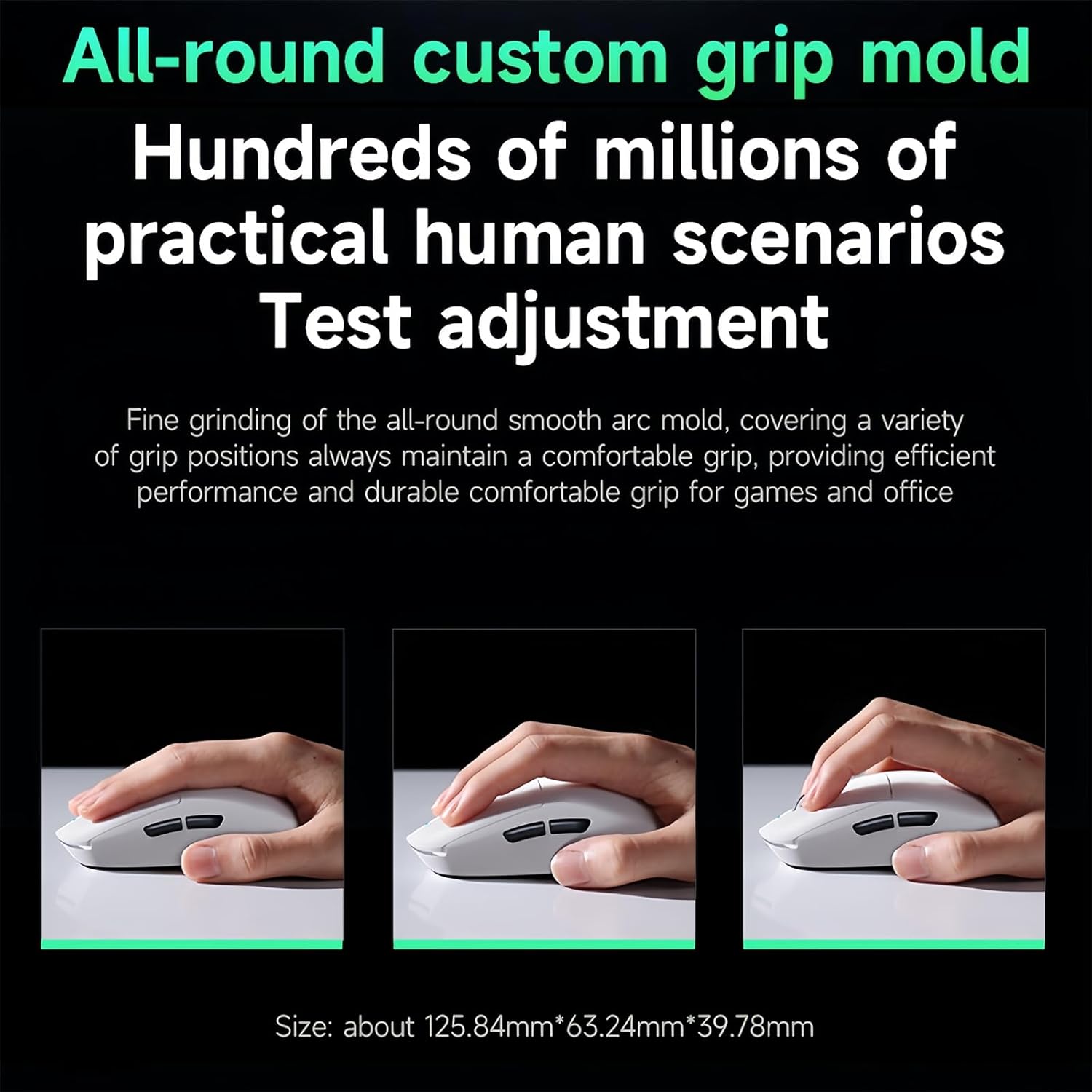
Image: This diagram illustrates the ergonomic design of the MCHOSE A7 mouse, demonstrating how it accommodates various grip styles for comfortable and efficient use.
2. Package Contents
Please check the box for the following items:
- MCHOSE A7 Ultra Wireless Gaming Mouse
- User Manual (this document)
- USB-C Cable
- 2.4G Receiver
- Anti-slip Stickers
3. Setup
3.1 Connectivity Modes
The MCHOSE A7 Ultra supports three connectivity modes:
- Wired Mode: Connect the mouse directly to your computer using the provided USB-C cable. This mode also charges the mouse.
- 2.4G Wireless Mode: Insert the 2.4G USB receiver into an available USB port on your computer. The mouse will automatically connect.
- Bluetooth Mode: Turn on Bluetooth on your device. On the mouse, switch to Bluetooth mode (refer to the bottom of the mouse for the switch). Search for "MCHOSE A7" in your device's Bluetooth settings and pair.

Image: The underside of the MCHOSE A7 mouse, highlighting the Type-C charging port, Bluetooth connection indicator, and the storage slot for the 2.4G wireless receiver.
3.2 Charging the Mouse
Connect the USB-C cable to the mouse and a USB power source (e.g., computer USB port, wall adapter). The LED indicator on the mouse will show charging status. A full charge provides approximately 120 hours of use.
4. Operating Instructions
4.1 DPI Adjustment
The MCHOSE A7 Ultra mouse features 6 on-board DPI levels (400/800/1600/3200/6400/42000) for quick sensitivity adjustments. You can cycle through these levels using the dedicated DPI button on the mouse. For advanced customization and to set your own DPI levels, use the WEB+HUB Pro driver software.

Image: This graphic details the capabilities of the flagship PAW3950 sensor, highlighting its ultra-high 42000 DPI, 750 IPS tracking speed, and 50G acceleration for precise control.
4.2 Programmable Buttons and Custom Software
The mouse is equipped with 5 programmable buttons. To unlock the full potential of your MCHOSE A7 Ultra, download and install the WEB+HUB Pro driver. This software allows you to:
- Assign complex macros to any of the 6 buttons.
- Customize DPI adjustments.
- Adjust polling rates.
- Create and store customized profiles directly on the mouse's on-board memory.
Visit the official MCHOSE website for the latest driver download.

Image: A screenshot of the MCHOSE WEB+HUB Pro driver interface, demonstrating the comprehensive customization options available for the mouse.
4.3 Polling Rate
The MCHOSE A7 Ultra supports a polling rate of up to 8000Hz, ensuring ultra-low latency and rapid response times. This high polling rate provides a smoother and more sensitive control experience, crucial for both gaming and professional use.
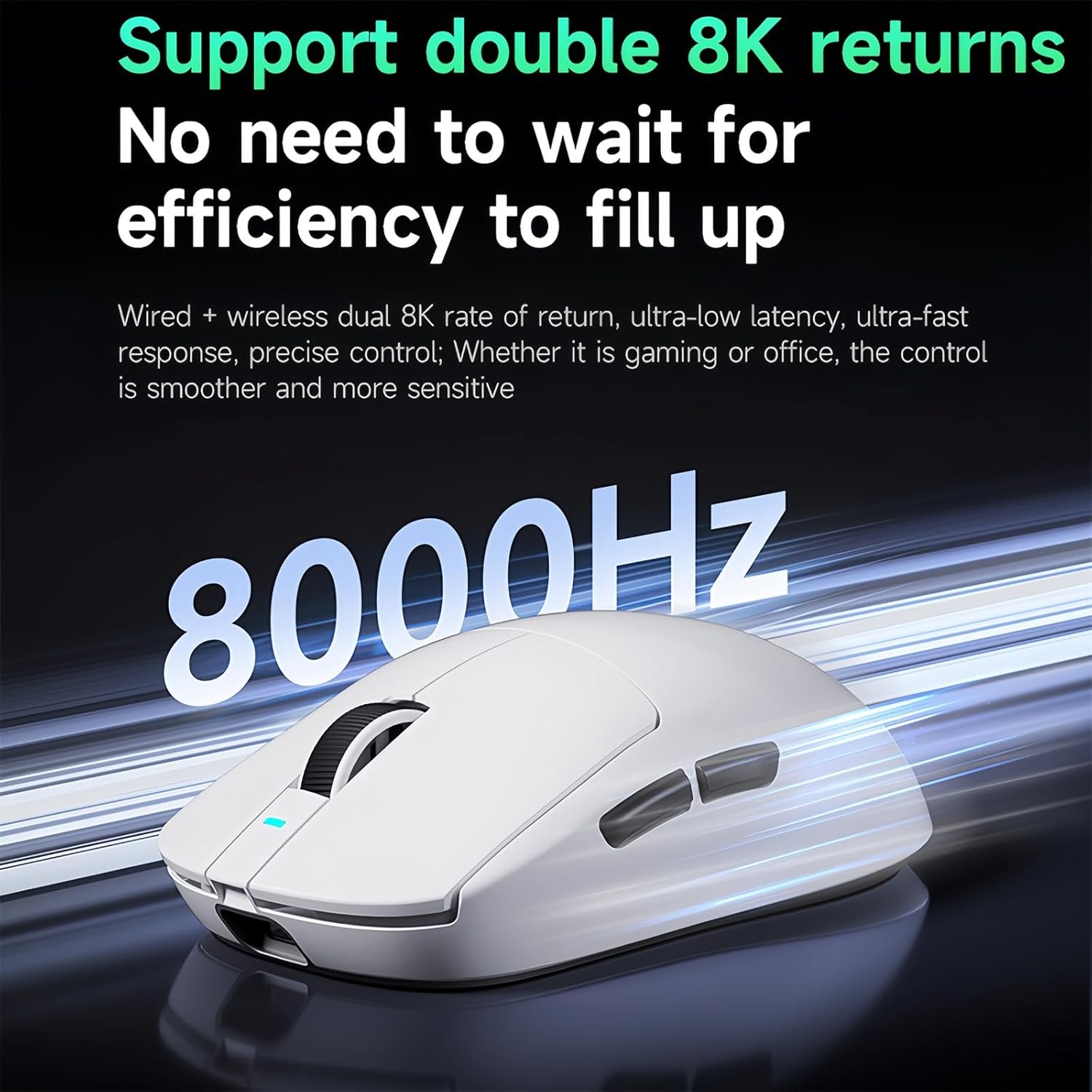
Image: This graphic emphasizes the MCHOSE A7 mouse's capability to support a double 8K Hz return rate, ensuring ultra-low latency and fast response for optimal performance.
5. Maintenance
5.1 Cleaning
To maintain optimal performance and appearance, regularly clean your mouse. Use a soft, dry cloth to wipe the surface. For stubborn dirt, a slightly damp cloth with mild soap can be used, but ensure no liquid enters the mouse. Avoid abrasive cleaners or solvents.
5.2 Battery Care
The MCHOSE A7 Ultra is equipped with a 500mAh rechargeable battery. To prolong battery life:
- Avoid fully discharging the battery frequently.
- Store the mouse in a cool, dry place when not in use for extended periods.
- Use the provided USB-C cable for charging.

Image: This graphic highlights the 500mAh battery capacity of the MCHOSE A7 mouse, emphasizing its long-life endurance for extended usage.
6. Troubleshooting
6.1 Mouse Not Responding
- Ensure the mouse is charged.
- Check the connectivity mode switch (Wired, 2.4G, Bluetooth) on the bottom of the mouse.
- For 2.4G wireless, ensure the USB receiver is securely plugged in and try a different USB port.
- For Bluetooth, ensure Bluetooth is enabled on your device and the mouse is paired correctly. Try re-pairing.
- Try connecting the mouse in wired mode to see if it functions.
6.2 Cursor Movement is Erratic
- Clean the optical sensor on the bottom of the mouse.
- Ensure you are using the mouse on a clean, non-reflective surface. A mouse pad is recommended.
- Check for interference if using wireless modes. Move closer to the receiver or device.
6.3 Buttons Not Functioning
- Ensure the mouse is properly connected.
- If using custom button assignments, check the settings in the WEB+HUB Pro driver.
- Restart your computer.
7. Specifications
| Product Dimensions | 4.9 x 2.5 x 0.1 inches |
| Item Weight | 2.12 ounces |
| Model Number | A7 Ultra |
| Connectivity Technology | 2.4GHz, Bluetooth, USB (Tri-Mode) |
| Sensor | PAW3395 Optical Sensor |
| Max DPI | 42000 DPI |
| Polling Rate | Up to 8000Hz |
| Battery Capacity | 500mAh |
| Battery Life | Approx. 120 hours (on a full charge) |
| Programmable Buttons | 5 |
| Manufacturer | MCHOSE |

Image: An internal view highlighting the Realtek flagship main control chip, which ensures high performance and long-term reliability for the MCHOSE A7 mouse.
8. Warranty and Support
For warranty information and technical support, please refer to the warranty card included with your product or visit the official ZMX/MCHOSE website. You can also contact customer service through the retailer where you purchased the product.
Related documentsA7 Ultra


Ask a question about this manual
Ask about setup, troubleshooting, compatibility, parts, safety, or missing instructions. Manuals+ will review the question and use this page’s manual context to help answer it.