
Introduction
This manual provides detailed instructions for the installation, operation, and maintenance of your Wonsidary W522 Motorcycle CarPlay/Android Auto Display. The W522 is a 5-inch wireless display designed to integrate Apple CarPlay and Android Auto functionalities into your motorcycle, offering navigation, communication, and entertainment features with enhanced durability for various riding conditions.
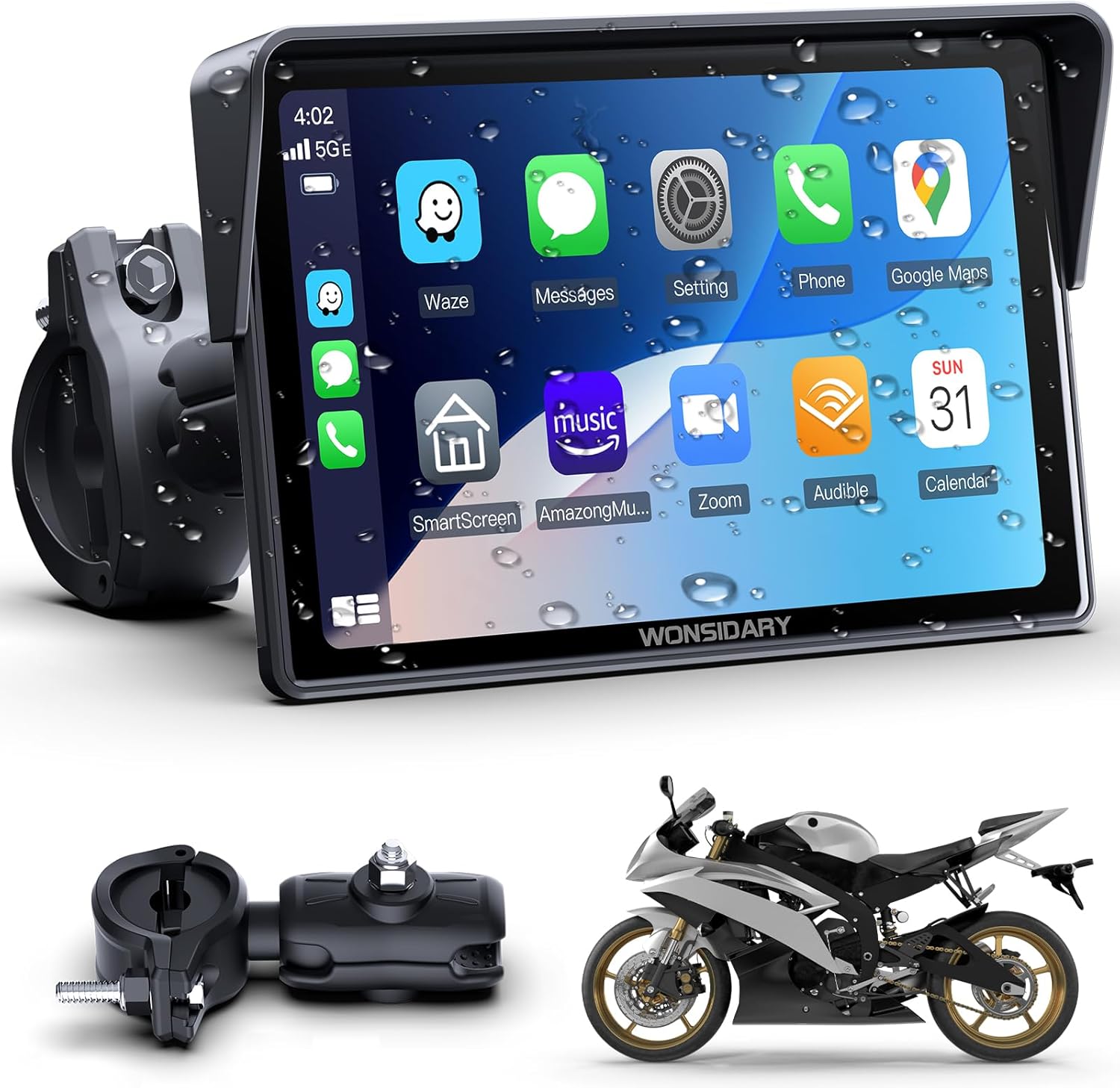
Image: The Wonsidary W522 display unit, its mounting hardware, and a motorcycle, illustrating the product's primary use.
Setup
What's in the Box
- 5-inch screen
- Extension Rod Bracket
- 4 Silicone Gaskets (Stackable)
- USB Cable and Power Cable
- ACC Fuse and User Manual

Image: A visual representation of all components included in the Wonsidary W522 product package.
Mounting the Display
The Wonsidary W522 comes with a handlebar mount designed for secure attachment. You can choose between an anti-theft fixed screw for permanent installation or a quick-release screw for easy removal.
- Select the appropriate thickness of silicone pads (12mm, 22mm, 25.4mm, 28mm) based on your motorcycle handlebar diameter. Stack them if needed for a snug fit.
- Use the hex wrench to install the metal bracket onto the handlebar.
- Clamp the extension rod onto the metal bracket. Use wing screws for quick release or hex screws for anti-theft.
- Insert the W522 unit into the mount and adjust its position and angle as needed.
- Tighten all screws securely to prevent shaking during rides.

Image: A five-step visual guide demonstrating the handlebar mounting process for the Wonsidary W522 display.
Power Connection
The Wonsidary W522 offers two power connection options:
- Hardwired (ACC Fuse): Connect the red power wire to the motorcycle battery positive terminal (12V 1A) and the black ground wire to the negative terminal. The included ACC cable (1.7m/5.6ft) is suitable for most motorcycles. An extended 2.5m (8.2ft) version is available if needed.
- USB Port: Use the included boost cable to connect to a motorcycle USB port. Ensure the USB port provides sufficient output (5V, 2.5A or higher).
The device features reverse protection to prevent damage if connected incorrectly.

Image: A diagram detailing how to connect the Wonsidary W522 using either the hardwired power cable to the battery or the USB cable to a motorcycle's USB port.
Initial Pairing: Apple CarPlay
- Open CarPlay on the W522 screen.
- Turn on Wi-Fi and Bluetooth on your iPhone.
- Your iPhone will search for Bluetooth devices. Connect to "WONSIDARY-XXXX".
- Tap "Pair", then "Allow", and finally "Use CarPlay" on your iPhone.
- Connection successful.

Image: A step-by-step visual guide demonstrating the process of connecting an iPhone to the Wonsidary W522 for Apple CarPlay functionality.
Initial Pairing: Android Auto
- Open Android Auto on the W522 screen.
- Turn on Wi-Fi and Bluetooth on your Android phone.
- Search for connected devices in your phone's Bluetooth settings.
- Add new device "WONSIDARY-XXXX" and tap "Pair".
- Connection successful.

Image: A step-by-step visual guide demonstrating the process of connecting an Android phone to the Wonsidary W522 for Android Auto functionality.
Operating Instructions
Wireless CarPlay & Android Auto
Once connected, the W522 provides seamless access to navigation, calls, messages, and music directly on its 5-inch HD touchscreen. This allows you to keep your phone stored safely while riding.
Dual Bluetooth Modes
The W522 supports two distinct Bluetooth modes for flexible audio management:
- BT Audio (Iplay/Auto): Your phone connects to the W522 for CarPlay/Android Auto, and audio is routed from your phone directly to your Bluetooth headset or helmet. This mode is suitable if you use other Bluetooth functions on your phone simultaneously.
- BT Trans: The W522 pairs directly with your Bluetooth headset or helmet for stable, low-latency audio. This avoids duplicate pairing interruptions and is ideal for dedicated audio transmission from the display.

Image: A diagram comparing the Iplay/Auto (BT Audio) and BT Trans modes for connecting your phone, the W522, and your Bluetooth headset.
BT Audio (Iplay/Auto) Connection Steps:
- On your phone's Bluetooth settings, connect to the W522 to enable CarPlay or Android Auto.
- On the W522 screen, tap "Audio Output" and select "Iplay/Auto" mode.
- Connect your Bluetooth headset to your phone to play audio through the headset.
- If this headset was previously used in "BT Trans" mode, delete it from the W522 Bluetooth list first.

Image: A visual guide for setting up the Iplay/Auto (BT Audio) connection, showing the audio path from phone to headset.
BT Trans Connection Steps:
- In your phone's Bluetooth settings, connect to the W522 to enable CarPlay or Android Auto.
- Go to "Audio Output" and enter the BT Trans interface. Select the BT Trans mode.
- Power on your Bluetooth helmet or headset, then tap the "Search" button on the W522 screen to pair.
- Tap the "Connect" button. If the headset name is displayed, the connection was successful.
- When using Bluetooth audio transmission, ensure your phone is not connected to the Bluetooth headset. If it is, disconnect it and delete the pairing record from your phone's Bluetooth settings.

Image: A visual guide for setting up the BT Trans connection, showing the audio path from W522 to headset.
Brightness Adjustment
The W522 allows for quick brightness adjustments to suit varying light conditions:
- One-Touch Switch: Easily toggle between Day and Night modes.
- Manual Fine-Tuning: Adjust brightness from 0-100% for optimal viewing comfort in any environment.

Image: The Wonsidary W522 display demonstrating its brightness adjustment features, including a quick day/night switch and a slider for manual fine-tuning.
Voice Control (Siri/Google Assistant)
Utilize Siri or Google Assistant for hands-free operation. This allows you to navigate, play music, make calls, and access other features without taking your hands off the handlebars.

Image: The Wonsidary W522 display illustrating voice command capabilities with examples of Siri and Google Assistant prompts for navigation and communication.
Built-in EQ and TF Card Socket
Customize your audio experience with the built-in 16-band HD equalizer. Adjust bass, treble, and other sound parameters for music streamed via Bluetooth or played from a TF card (TF card not included).

Image: The Wonsidary W522 display showcasing its 16-band HD equalizer, allowing users to fine-tune audio output.
Customizable Boot Logo
Personalize your W522 display by setting a custom boot logo. This feature allows you to display your preferred image or motorcycle brand logo upon startup.

Image: The Wonsidary W522 display demonstrating its 5-inch IPS touchscreen and various customizable boot logo options.
Maintenance
The Wonsidary W522 is designed for durability and all-weather use:
- Waterproof Rating: IP67 rated, resistant to rain, snow, and dust.
- Temperature Resistance: Operates reliably in temperatures ranging from -20°C (-4°F) to 70°C (158°F).
- Cleaning: Wipe the screen and unit with a soft, damp cloth. Avoid harsh chemicals.

Image: Visual examples of the Wonsidary W522 operating effectively in rain, extreme heat, and snow, highlighting its robust design.
Troubleshooting
- Connectivity Issues (iOS 26): If you experience issues with CarPlay after updating to iOS 26, refer to the manual for instructions on obtaining the latest device software and update guide.
- Power Issues: If using USB power, ensure your motorcycle's USB port provides sufficient output (5V, 2.5A or higher). Always use the included power cord and USB connection.
- No Sound via Bluetooth: Ensure the correct Bluetooth mode (BT Audio or BT Trans) is selected and that your phone is not simultaneously connected to your Bluetooth headset when using BT Trans mode.
- Firmware Updates: For firmware upgrades, contact customer support for guidance. Updates are typically performed via the TF card slot.
Specifications
| Feature | Detail |
|---|---|
| Model Number | W522 |
| Display Size | 5 Inches |
| Resolution | HD 1024x600 |
| Waterproof Rating | IP67 |
| Operating Temperature | -20°C (-4°F) to 70°C (158°F) |
| Connectivity | Bluetooth, Wi-Fi (for CarPlay/Android Auto) |
| Special Features | Wireless CarPlay/Android Auto, Dual Bluetooth Modes, Touchscreen, USB/Hardwired Dual Power Supply, Built-in EQ, TF Card Socket |
| Mounting Type | Handlebar Mount |
| Item Weight | 0.62 Kilograms (1.36 pounds) |
Warranty and Support
The Wonsidary Motorcycle CarPlay System includes a 1-year warranty from the date of purchase. This warranty covers manufacturing defects and ensures your satisfaction with the product.
For any connectivity issues, installation guidance, or firmware upgrades, please contact our expert support team. We are committed to providing swift solutions and assistance.
Please refer to the contact information provided with your product packaging or visit the official Wonsidary website for support details.


