Introduction
This manual provides comprehensive instructions for the Black Shark S3 Smartwatch. It covers setup, operation, maintenance, and troubleshooting to ensure optimal use of your device. The Black Shark S3 features a 1.43-inch AMOLED display, magnetic strap, Bluetooth calling, over 150 sport modes, built-in GPS, and extensive health monitoring capabilities.
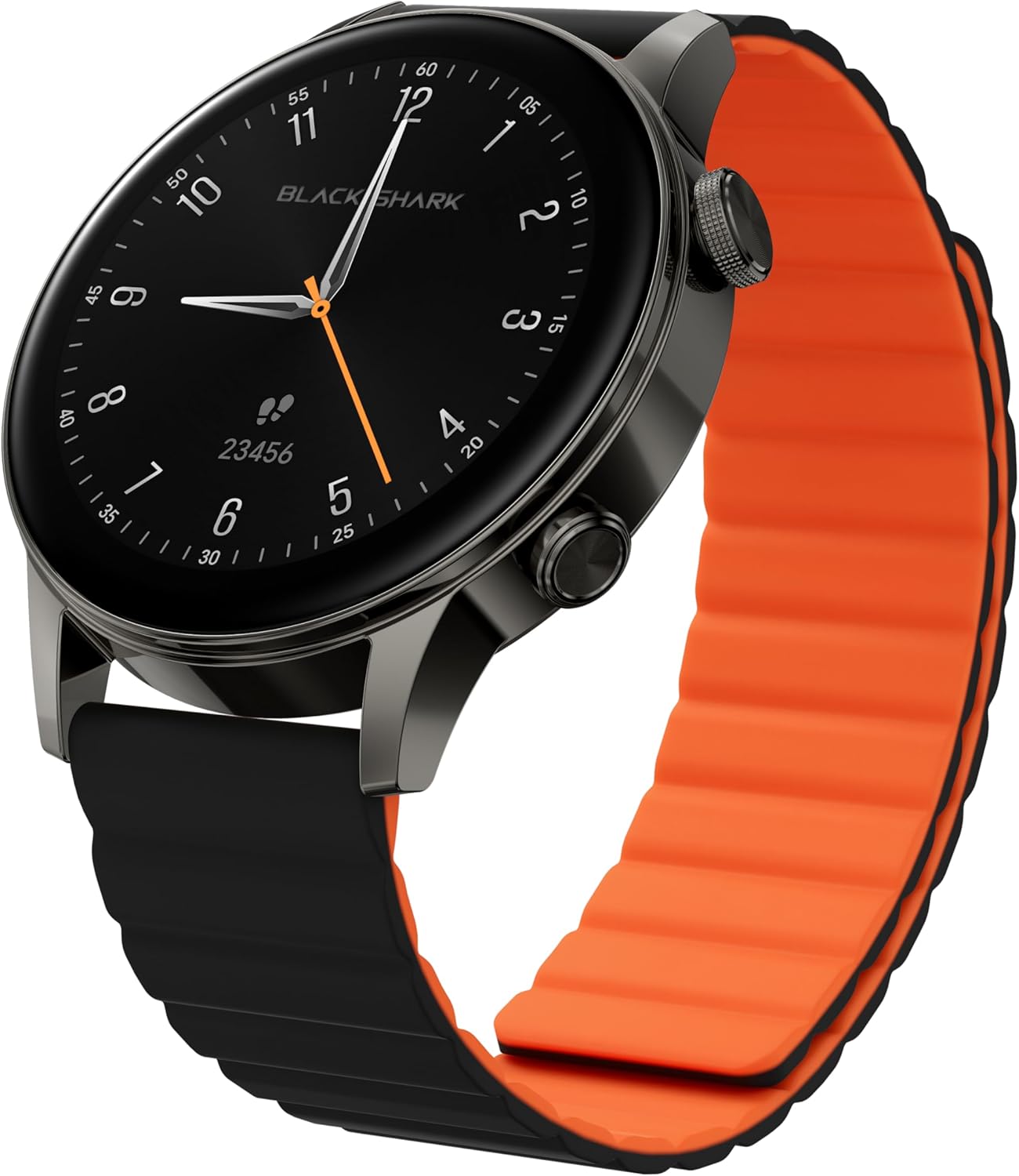
Image: Black Shark S3 Smartwatch, showcasing its round display and distinctive black and orange magnetic strap.
1. Setup Guide
1.1 Unboxing and Initial Inspection
Carefully remove all components from the packaging. Verify that the following items are present:
- Black Shark S3 Smartwatch
- Magnetic Charging Cable
- User Manual (this document)
Inspect the smartwatch for any visible damage before proceeding.
1.2 Charging the Smartwatch
Before first use, fully charge the Black Shark S3. Connect the magnetic charging cable to the charging contacts on the back of the watch and to a standard USB power adapter (not included).
- Align the magnetic end of the charging cable with the charging points on the back of the watch. The magnets will secure it in place.
- Connect the USB-A end of the cable to a power source.
- The watch display will indicate charging status. A full charge typically takes approximately 2.5 hours.

Image: The Black Shark S3 Smartwatch screen showing battery life indicators, illustrating the device's long battery performance.
1.3 Attaching the Magnetic Strap
The Black Shark S3 features a double-sided magnetic silicone strap for easy attachment and removal.
- Simply wrap the strap around your wrist.
- The magnetic ends will automatically connect and secure the watch.
- Adjust the strap for a comfortable and secure fit.

Image: A visual representation of the Black Shark S3's magnetic strap effortlessly securing around a wrist, highlighting its ease of use.
1.4 Pairing with Your Smartphone
To unlock the full functionality of your Black Shark S3, pair it with the companion app on your smartphone.
- Download the official Black Shark Health App from your smartphone's app store (iOS App Store or Google Play Store).
- Ensure Bluetooth is enabled on your smartphone.
- Open the Black Shark Health App and follow the on-screen instructions to create an account or log in.
- Select "Add Device" or a similar option within the app.
- Choose "Black Shark S3" from the list of available devices.
- Confirm the pairing request on both your smartphone and the smartwatch.
- Once paired, the app will synchronize data and allow for further customization.
2. Operating Instructions
2.1 Basic Navigation
The Black Shark S3 features a responsive 1.43-inch AMOLED touchscreen and two physical buttons for navigation.
- Touchscreen: Swipe left, right, up, or down to navigate through menus, notifications, and widgets. Tap to select items.
- Top Button (Crown): Press to return to the home screen or access the app list. Rotate to scroll through menus and lists.
- Bottom Button: Customizable shortcut button, typically used for quick access to sport modes or a frequently used feature.

Image: A detailed view of the Black Shark S3's smart crown, highlighting its finely engraved pattern and functionality for precise control and navigation.
2.2 Customizing Watch Faces
Personalize your smartwatch with a variety of watch faces available through the Black Shark Health App.
- On the watch, long-press the current watch face to enter the watch face selection menu. Swipe left or right to browse pre-installed faces.
- For more options, open the Black Shark Health App on your smartphone, navigate to the watch face store, and download new designs.

Image: A selection of multifunctional watch faces available for the Black Shark S3, demonstrating customization options.
2.3 Bluetooth Calling
The S3 supports Bluetooth calls with ENC noise reduction, allowing you to make and receive calls directly from your wrist.
- Ensure your watch is connected to your smartphone via Bluetooth.
- When a call comes in, you can answer or reject it directly on the watch screen.
- To make a call, access the call function from the watch's app list and select a contact or dial a number.
- The built-in speaker and microphone facilitate clear communication.

Image: A user making a call with the Black Shark S3 smartwatch, illustrating the convenience of its Bluetooth calling feature with noise reduction.
2.4 Sport Modes and GPS
The Black Shark S3 offers over 150 sport modes and built-in GPS for accurate activity tracking.
- Access the "Workout" or "Sport Modes" app on your watch.
- Select your desired activity (e.g., running, cycling, swimming).
- For outdoor activities, the built-in GPS will automatically activate to track your route, distance, and pace.
- Review your workout data on the watch or in the Black Shark Health App after completion.
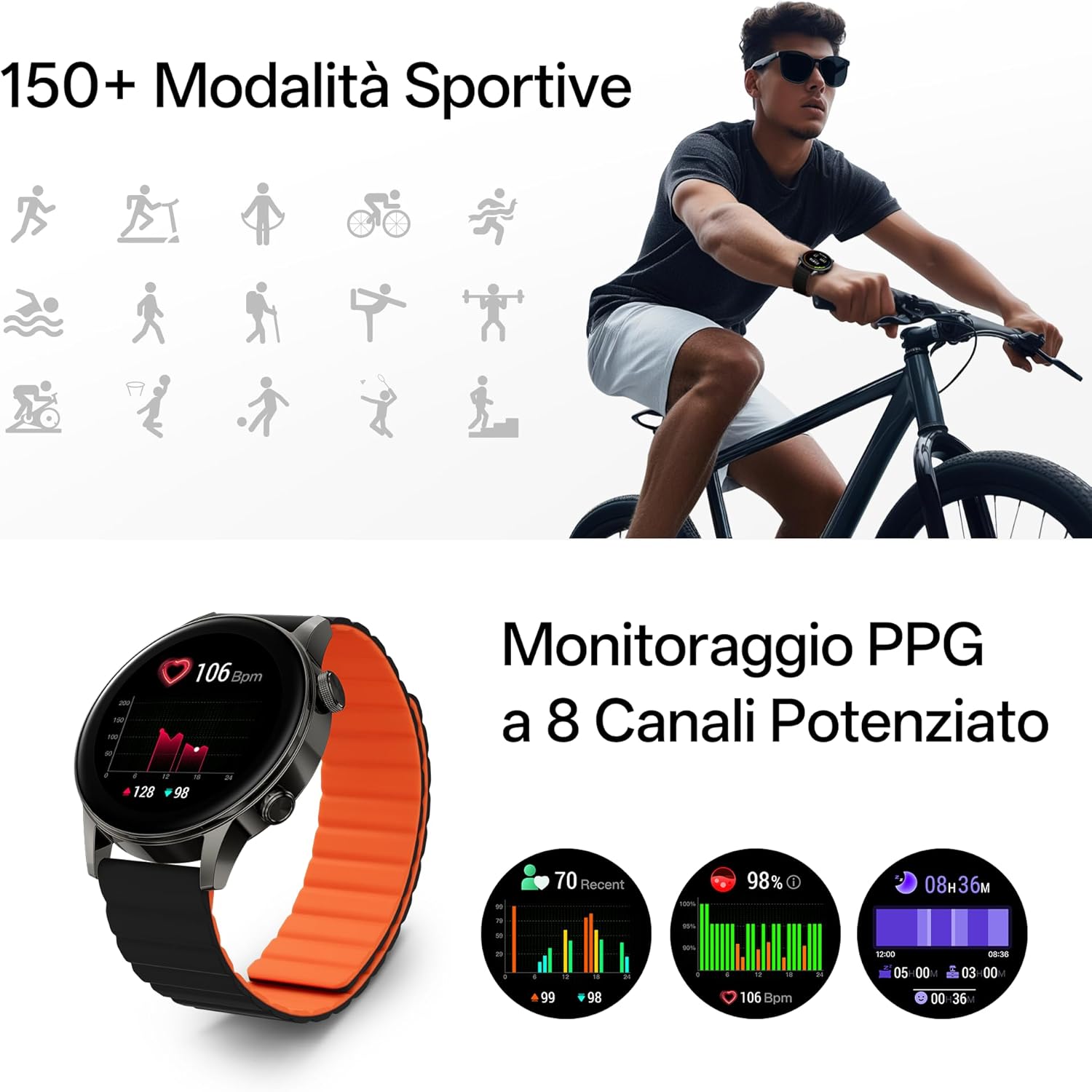
Image: The Black Shark S3 smartwatch showing various sport mode icons and detailed PPG health monitoring data, including heart rate and blood oxygen levels.

Image: The Black Shark S3 smartwatch screen showing GPS tracking with icons representing various satellite positioning systems (BeiDou, GPS, Galileo, QZSS, GLONASS).
2.5 Health Monitoring
The S3 provides 24/7 health monitoring for heart rate, blood oxygen (SpO₂), stress, steps, calories, and distance, along with advanced sleep tracking.
- Heart Rate: The watch continuously monitors your heart rate. View real-time data on the watch or detailed trends in the app.
- Blood Oxygen (SpO₂): Measure your blood oxygen saturation levels.
- Sleep Tracking: Wear the watch to bed for analysis of your sleep stages (deep, light, REM) and overall sleep quality.
- Stress Monitoring: The watch estimates your stress levels throughout the day.
- Activity Tracking: Tracks steps, distance, and calories burned automatically.

Image: A woman sleeping with the Black Shark S3 smartwatch on her wrist, illustrating the device's sleep tracking capability.
2.6 Other Smart Features
The Black Shark S3 includes several additional smart features:
- Weather: Get real-time weather updates.
- Compass: A built-in compass for navigation.
- Breathing Training: Guided breathing exercises for relaxation.
- Music Control: Control music playback on your smartphone.
- Alarm, Stopwatch, Timer: Essential timekeeping functions.
- Flashlight: Uses the screen as a temporary light source.
- SOS: Quick access to emergency contacts (requires setup in app).
- Voice Assistant: Interact with your smartphone's voice assistant.
- Camera Control: Remotely trigger your smartphone's camera shutter.
- Calendar: View your schedule.

Image: A grid of icons illustrating the diverse smart features of the Black Shark S3, including weather, compass, music control, and SOS.
3. Maintenance
3.1 Cleaning Your Smartwatch
Regular cleaning helps maintain the appearance and functionality of your Black Shark S3.
- Wipe the screen and watch body with a soft, lint-free cloth.
- For stubborn smudges, slightly dampen the cloth with water. Avoid using harsh chemicals or abrasive materials.
- Clean the charging contacts periodically to ensure proper charging.
- The magnetic strap can be wiped clean with a damp cloth.
3.2 Water Resistance Guidelines
The Black Shark S3 has a 5ATM water resistance rating, meaning it can withstand pressures equivalent to a depth of 50 meters.
- It is suitable for swimming, showering, and training in various weather conditions.
- Avoid exposing the watch to hot water, steam, or high-velocity water (e.g., high-pressure washing).
- Do not operate the buttons underwater.
- After exposure to saltwater, rinse the watch with fresh water and dry it thoroughly.

Image: A person swimming while wearing the Black Shark S3 smartwatch, demonstrating its 50m water resistance.
3.3 Battery Care
To maximize battery lifespan:
- Avoid extreme temperatures.
- Do not fully discharge the battery frequently.
- If storing the watch for an extended period, charge it to about 50% before storage.
4. Troubleshooting
4.1 Watch Not Turning On
- Ensure the watch is fully charged. Connect it to the charger for at least 30 minutes.
- Press and hold the top button (crown) for 10-15 seconds to attempt a force restart.
4.2 Pairing Issues
- Make sure Bluetooth is enabled on your smartphone and the watch is within range.
- Restart both your smartphone and the smartwatch.
- Forget the device in your smartphone's Bluetooth settings and attempt to pair again through the Black Shark Health App.
- Ensure the Black Shark Health App is updated to the latest version.
4.3 Inaccurate GPS Tracking
- Ensure you are in an open outdoor area with a clear view of the sky for optimal GPS signal reception.
- Wait a few moments after starting an outdoor activity for the GPS to acquire a strong signal.
- Ensure the watch's firmware is up to date via the Black Shark Health App.
4.4 Short Battery Life
- Reduce screen brightness.
- Disable "Always-On Display" if enabled.
- Limit continuous heart rate or SpO₂ monitoring to less frequent intervals if not needed 24/7.
- Turn off unnecessary notifications.
- Ensure the watch's firmware is up to date.
5. Product Specifications
| Brand | Black Shark |
| Model Number | S3 |
| Display | 1.43-inch AMOLED, 466x466 resolution, 326 PPI, 60Hz Refresh Rate |
| Connectivity | Bluetooth |
| GPS | Built-in GNSS (BeiDou, GPS, Galileo, QZSS, GLONASS) |
| Water Resistance | 5ATM (up to 50 meters) |
| Battery Life | Up to 15 days (typical use), 30 days (ultra-long standby) |
| Charging Time | Approx. 2.5 hours |
| Health Monitoring | Heart Rate, SpO₂, Sleep Tracking, Stress Monitoring, Steps, Calories, Distance |
| Sport Modes | 150+ |
| Strap Type | Magnetic Silicone Strap |
| Item Weight | 15.2 ounces (0.43 Kilograms) |
| Package Dimensions | 4.17 x 4.13 x 2.68 inches |
| Operating System | Android (as per product data, typically proprietary for smartwatches) |
6. Warranty Information
Black Shark products are covered by a limited warranty. For specific warranty terms and conditions, please refer to the warranty card included with your product or visit the official Black Shark website. Keep your proof of purchase for warranty claims.
7. Customer Support
If you encounter any issues or have questions regarding your Black Shark S3 Smartwatch, please contact Black Shark customer support. Contact information can typically be found on the official Black Shark website or within the Black Shark Health App.
For the latest FAQs and support resources, please visit the official Black Shark support page.


