1. Introduction
This manual provides detailed instructions for the Generic AI Assistant Language Translator Device. It covers device setup, operation, maintenance, and troubleshooting to ensure optimal performance and user experience. Please read this manual thoroughly before using the device.
2. Product Overview
The AI Assistant Language Translator Device is a versatile tool designed for seamless communication across multiple languages. It features a 3.54-inch touchscreen display, AI assistant capabilities, and supports various translation modes including online, offline, photo, group, and intelligent recording.
2.1 Key Features
- AI Assistant: Provides quick and accurate responses to queries, with seamless smartphone connectivity.
- Touchscreen Display: High-definition 3.54-inch screen for synchronized sound and visual content, offering user-friendly navigation.
- Long Endurance: Offers an impressive 180 hours of standby time and 8 hours of continuous usage.
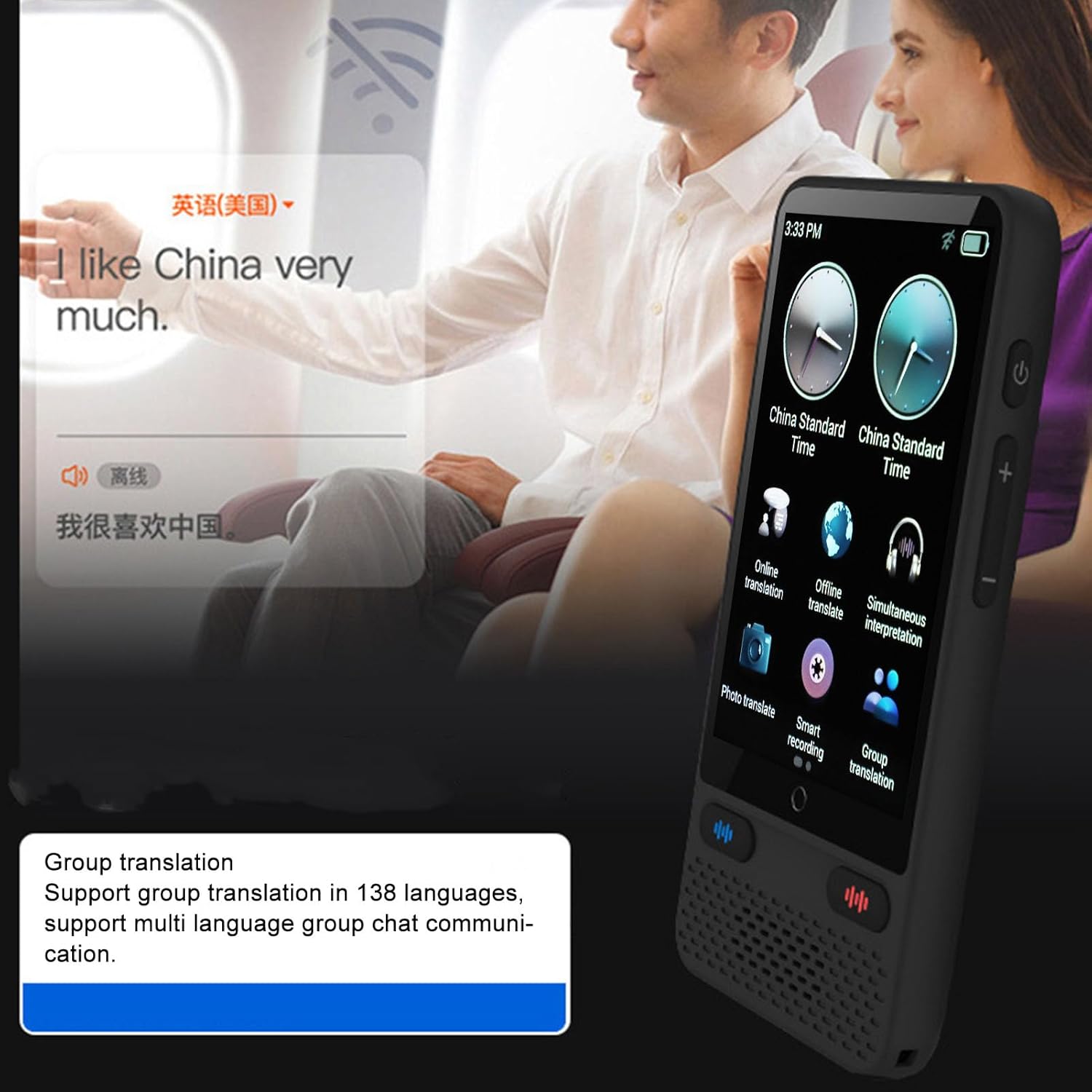
- Group Translation: Facilitates multi-language group chats and real-time communication among multiple users, supporting 138 languages.
- Intelligent Recording: Supports recording in 115 languages with professional noise reduction technology, providing clear sound recordings, real-time transcription, and translation.
2.2 Device Components

This image displays the front of the translator device, highlighting its 3.54-inch touchscreen with various function icons such as Online Translation, Offline Translate, Photo Translate, Smart Recording, Group Translation, and Simultaneous Interpretation. Two clock widgets show 'China Standard Time'.
An angled perspective of the translator device, showcasing its ergonomic design and the vibrant touchscreen interface with the main menu. Side buttons for power and volume are visible.

A view of the device's rear panel, featuring an 'AI Camera' label, indicating its photo translation capabilities. Adjacent to it is a graphic representation of a camera lens.
3. Setup
3.1 What's in the Box
- 1 x Language Translator Device
- 1 x Lanyard
- 1 x Charging Cable
- 1 x User Manual (this document)
3.2 Initial Use
The device is designed for immediate use upon unboxing. Ensure the device is fully charged before first use to maximize battery life.
3.3 Charging the Device
Connect the provided charging cable to the device's charging port and a compatible USB power adapter (not included). The battery indicator on the screen will show the charging status. A full charge typically takes approximately 2-3 hours.
3.4 Powering On/Off
- To Power On: Press and hold the power button located on the side of the device until the screen illuminates.
- To Power Off: Press and hold the power button until a power-off option appears on the screen, then confirm your selection.
3.5 Network Connection
For online translation features, the device requires an internet connection. Navigate to 'Settings' on the device to manage network connections.
- Wi-Fi Connection: Select 'Wi-Fi' from the settings menu, choose your desired network, and enter the password if prompted.
- Mobile Hotspot: You can also connect the device to your smartphone's mobile hotspot for internet access.
4. Operating Instructions
The device offers multiple translation and recording functionalities accessible via the touchscreen interface. Tap on the desired icon from the main menu to activate a function.
4.1 Online Translation
Select 'Online Translation' from the main menu. Choose your source and target languages from the dropdown menus. Press and hold the designated microphone button, speak clearly into the device, and release the button. The device will provide real-time translation.
4.2 Offline Translation
For situations without internet access, select 'Offline Translate'. Ensure necessary language packs are downloaded beforehand via the 'Settings' menu. Speak into the microphone for translation. This feature supports 17 languages.
4.3 Photo Translation
A view of the device's rear panel, featuring an 'AI Camera' label, indicating its photo translation capabilities. Adjacent to it is a graphic representation of a camera lens.
Select 'Photo Translate'. Position the device's camera over the text you wish to translate. Capture the image, and the device will process and translate the text displayed. This feature supports 74 languages.
4.4 Smart Recording

The device is shown on a table during a business meeting, demonstrating its intelligent recording capabilities. The text overlay indicates support for 115 languages, professional noise reduction, and real-time translation during recording.
Select 'Smart Recording'. The device will record audio and provide real-time transcription and translation in 115 languages. This feature includes professional noise reduction for clear sound quality.
4.5 Group Translation

This image illustrates the Group Translation feature, showing the device screen with an interface for creating or joining a group. Several speech bubbles with different people suggest multi-user, multi-language communication.

This image focuses on the device's screen, clearly stating 'Group translation' and detailing its support for 138 languages and multi-language group chat communication.
Select 'Group Translation'. This feature allows multiple users to communicate in different languages within a group chat. Follow the on-screen instructions to create or join a group. The device supports 138 languages for this function.
4.6 AI Assistant

The device screen shows an AI Assistant query for a weather forecast in Paris, displaying temperature and date. A person relaxing on a beach is in the background, illustrating the device's portability and AI capabilities.

This image depicts the internal electronic components and circuitry, symbolizing the advanced processing power of the AI Assistant feature, which enables quick and accurate responses.
Access the 'AI Assistant' for quick queries and information. The AI assistant provides accurate responses and can be connected to your smartphone for enhanced functionality.
4.7 Other Functions
- Simultaneous Interpretation: Provides real-time, continuous translation of spoken language.
- Language Learning: Utilize the language learning features for 138 languages to improve your linguistic skills.
- Exchange Rate Conversion: Access the 'Exchange Rate Conversion' tool for 25 currencies.
5. Maintenance
5.1 Cleaning
Use a soft, dry, lint-free cloth to clean the device's screen and body. Avoid abrasive cleaners, solvents, or aerosol sprays, as these can damage the device's surface or internal components.
5.2 Storage
Store the device in a cool, dry place away from direct sunlight, extreme temperatures, and high humidity. When not in use for extended periods, ensure the device is powered off.
5.3 Battery Care
To prolong battery life, avoid fully discharging the battery frequently. Charge the device regularly, even if it has not been used for some time. Do not expose the battery to extreme heat or cold.
6. Troubleshooting
If you encounter any issues with your device, please refer to the following troubleshooting steps before contacting support.
- Device not powering on: Ensure the device is fully charged. If the issue persists, try connecting it to a different charging cable and adapter.
- Translation not working: Check your internet connection for online translation. For offline translation, ensure the required language packs are downloaded. Verify that the correct source and target languages are selected.
- Poor audio quality: Ensure the microphone and speaker are not obstructed. Try speaking clearly and at a moderate distance from the microphone. The device features professional noise reduction for recordings.
- Touchscreen unresponsive: Restart the device by holding the power button. If the issue continues, ensure the screen is clean and dry.
- Device freezing or slow performance: Try restarting the device. If the problem persists, ensure there is sufficient storage space and close any unnecessary applications running in the background.
7. Specifications
| Screen Size | 3.54 Inches, Touchscreen |
| Resolution | 640x960px |
| CPU | 4 Core, 1.2GHz, Built-in GPU |
| Speaker | 2016 MM BOX Speaker, Power: 1W |
| Battery Type | Lithium Battery |
| Battery Capacity | 1500mAh |
| Standby Time | 180 hours |
| Continuous Usage Time | 8 hours |
| Photo Translation | 74 Languages |
| Smart Recording | 115 Languages |
| Group Translation | 138 Languages |
| Text Translation | 138 Languages |
| Online Translation | 138 Languages |
| Offline Translation | 17 Languages |
| Simultaneous Interpretation | 138 Languages |
| Language Learning | 138 Languages |
| Exchange Rate Conversion | 25 Languages |
| AI Assistant | Supported |
| ChatGPT | Supported |
| Music or Video | Supported |
| Memory Card Support | Maximum 64G (not included) |
8. Warranty Information
This product comes with a 3-month warranty from the date of purchase. Please retain your proof of purchase for warranty claims. The warranty covers manufacturing defects but does not cover damage caused by misuse, accidents, unauthorized modifications, or normal wear and tear.
9. Support
For further assistance or technical support, please refer to the seller's contact information provided at the point of purchase. You may also visit the manufacturer's website for frequently asked questions (FAQs) and additional resources.


