
1. Introduction
The SYNCO Xview M4 is a compact and versatile selfie monitor designed to enhance your mobile content creation experience. It allows you to utilize your smartphone's high-resolution rear camera for selfies, vlogs, and live streaming, providing superior image quality and precise framing. Featuring a magnetic attachment, WiFi-free connection, and a long-lasting battery, the M4 is an essential tool for creators on the go.
2. Package Contents
Please verify that all items are present in your package:
- 1 x SYNCO Xview M4 Selfie Monitor
- 1 x MagSafe Ring Sticker
- 1 x USB Type-C Charging Cable
- 1 x User Manual

Image: The SYNCO Xview M4 Selfie Monitor, a MagSafe ring sticker, a USB Type-C charging cable, and a user manual are displayed as the package contents.
3. Product Overview
Familiarize yourself with the components and controls of your SYNCO Xview M4 monitor:

Image: A diagram of the SYNCO Xview M4 monitor highlighting its features: Speaker, Type-C Charging Port, Power On/Off button, Volume/Brightness controls, Mirror/Rotation button, and Wireless Shutter/Aspect Ratio button.
- Speaker: For audio output.
- TYPE-C Charging Port: Connect the included USB Type-C cable for charging.
- Power On/Off: Press and hold to power the device on or off.
- Volume / Brightness Controls: Adjust audio volume or screen brightness.
- Mirror / Rotation: Toggles screen mirroring and rotation options.
- Wireless Shutter / Aspect Ratio: Activates the wireless shutter function or changes the display aspect ratio.
4. Setup
4.1 Charging the Monitor
Before first use, fully charge the SYNCO Xview M4 monitor using the provided USB Type-C cable and a compatible power adapter (not included).
- Connect the USB Type-C cable to the monitor's charging port.
- Connect the other end to a USB power source.
- The monitor has a built-in 1300mAh battery, providing approximately 3 hours of continuous use when fully charged.

Image: An internal view of the SYNCO Xview M4 monitor showing its 1300mAh battery being charged via a USB Type-C cable.
4.2 Attaching to Your Smartphone
The SYNCO Xview M4 features a strong N56 neodymium magnetic mount for secure attachment.
- For MagSafe-compatible iPhones, simply align the monitor with the back of your phone until it snaps into place magnetically.
- For other smartphones (Android, non-MagSafe iPhones) or metal surfaces, use the included MagSafe Ring Sticker. Adhere the sticker to the back of your phone or phone case, then attach the monitor magnetically.

Image: A hand holding an iPhone with the SYNCO Xview M4 monitor magnetically attached to its back, demonstrating the MagSafe design. The MagSafe ring sticker and compatible phone types (iPhone, Android, Samsung) are also shown.
4.3 Connecting to Your Smartphone
The M4 uses advanced P2P technology for a WiFi-free, instant connection.
- Power on the SYNCO Xview M4 monitor.
- On your smartphone, enable Bluetooth and search for available devices.
- Select "SYNCO Xview M4" from the list to pair.
- Once paired, the monitor will display your phone's rear camera feed with ultra-low 40ms latency.

Image: A smartphone screen displaying a social media live stream, with a notification indicating a "WiFi-Free Connection" to the SYNCO Xview M4 monitor. Another image shows two phones with the SYNCO Xview M4 app interface, illustrating the connection process.
5. Operating Instructions
5.1 Basic Operation
- After successful connection, the M4 monitor will mirror your smartphone's rear camera view.
- Use your phone's camera app to control recording or photo capture.
5.2 Using the Controls
- Power On/Off: Press and hold the power button to turn the monitor on or off.
- Volume/Brightness: Use the dedicated buttons to adjust the monitor's volume or screen brightness.
- Mirror/Rotation: Press this button to toggle between normal view, mirrored view (for correct text orientation in livestreams), and screen rotation (portrait/landscape).
- Wireless Shutter/Aspect Ratio: A short press activates the wireless shutter for remote photo/video capture. A long press cycles through different aspect ratios (e.g., full screen, original).
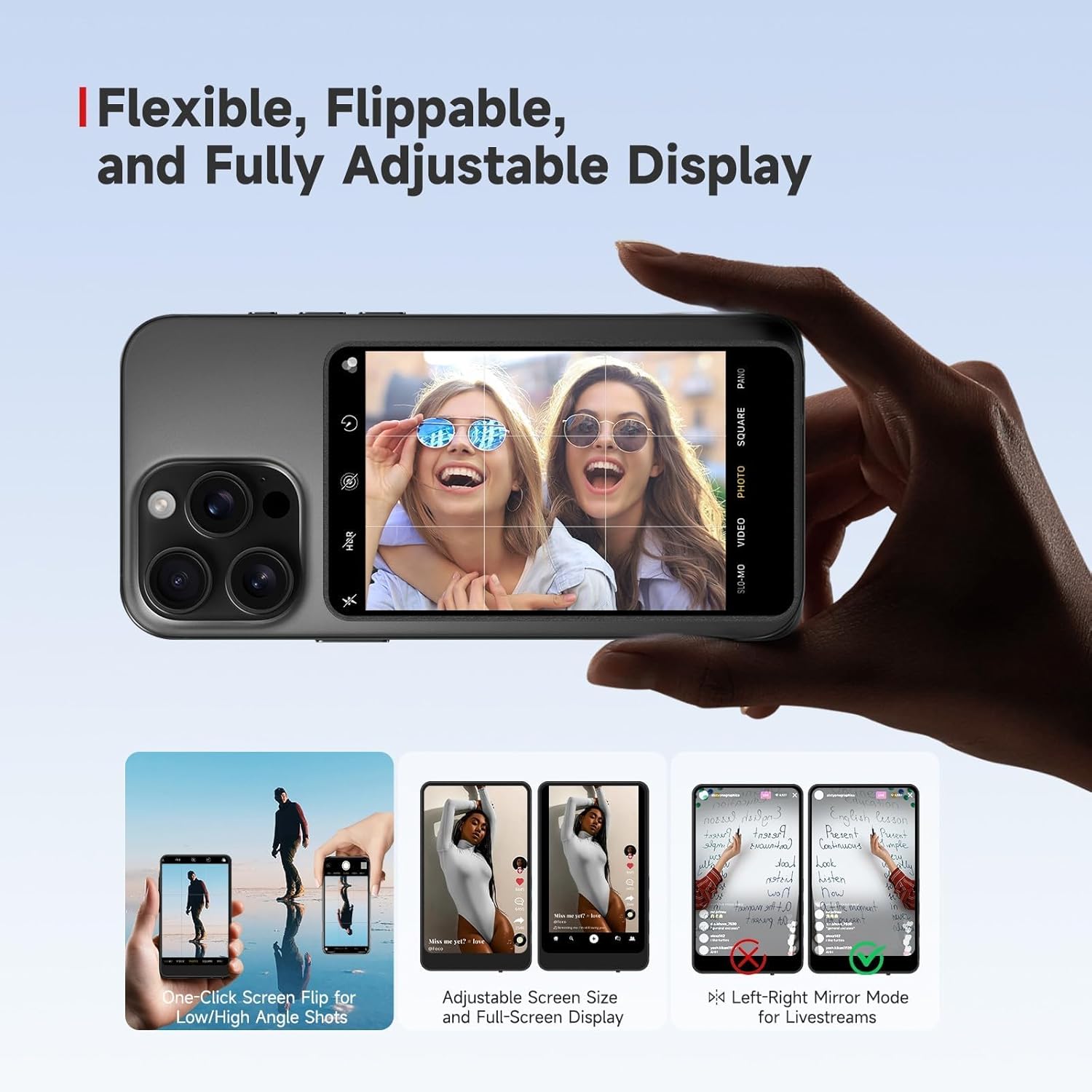
Image: The SYNCO Xview M4 monitor attached to a smartphone, displaying a selfie. Below, three smaller images illustrate its flexible features: one-click screen flip for low/high angle shots, adjustable screen size and full-screen display, and left-right mirror mode for livestreams.
5.3 Bluetooth Remote Control
The included 10m Bluetooth remote allows for convenient remote control of your phone's camera.
- Ensure the monitor is connected to your phone via Bluetooth.
- Press the Wireless Shutter button on the monitor to activate the remote function.
- Use the remote to start/stop recording or capture photos from a distance of up to 10 meters.

Image: A person holding a smartphone with the SYNCO Xview M4 monitor attached, demonstrating the use of the 10m Bluetooth remote shutter to control the camera from a distance. A blue signal icon indicates the wireless connection.
6. Features
- Pro-Level Clarity: Utilizes your phone’s rear camera (up to 48MP) for sharper selfies, vlogs, and livestreams, offering 4x higher resolution than typical front cameras.
- WiFi-Free Instant Connection: Advanced P2P technology pairs in seconds with stable 40ms latency, allowing you to stay online without interrupting Wi-Fi.
- Universal Magnetic Mount: Strong N56 neodymium magnets ensure slip-free attachment for phones and metal surfaces, compatible with iOS, Android, and Samsung devices.
- 3-Hour Stream-Ready Power: Optimized low-power system supports uninterrupted shooting, ideal for long sessions.
- 10m Bluetooth Remote Included: Capture group shots or wide-angle vlogs effortlessly with long-range remote control.
- Flexible Display: Features one-click screen flip for low/high angle shots, adjustable screen size, full-screen display, and left-right mirror mode for accurate livestream visuals.

Image: A person taking a selfie using an iPhone with the SYNCO Xview M4 monitor attached, showcasing the clarity and framing achieved by using the phone's rear camera. Text highlights "Stunning Clarity," "Pro-Grade for Every Shot," and "Perfect Framing."
7. Maintenance
- Cleaning: Use a soft, dry cloth to clean the monitor screen and body. Avoid using harsh chemicals or abrasive materials.
- Storage: Store the monitor in a cool, dry place away from direct sunlight and extreme temperatures.
- Water Resistance: The SYNCO Xview M4 is not water resistant. Avoid exposure to water or high humidity.
8. Troubleshooting
- Monitor not powering on: Ensure the monitor is fully charged. Connect it to a power source using the Type-C cable and try again.
- Difficulty connecting to smartphone:
- Ensure Bluetooth is enabled on your smartphone and the monitor.
- Restart both the monitor and your smartphone.
- Forget the device in your phone's Bluetooth settings and attempt to pair again.
- Verify your smartphone's compatibility. While compatible with iOS and Android, some specific Android models may experience connectivity issues.
- Monitor frequently disconnects or shuts off:
- Ensure the monitor is fully charged. Low battery can cause unstable connections or shutdowns.
- Check for any obstructions between the monitor and your phone that might interfere with the P2P connection.
- Ensure you are within the effective operating range (up to 50m).
- Display issues (e.g., text appears backward): Use the Mirror/Rotation button on the monitor to adjust the display orientation.
9. Specifications
| Brand | SYNCO |
| Model Name | M4 |
| Item Weight | 8.3 ounces |
| Package Dimensions | 6.4 x 4.4 x 1.1 inches |
| Batteries | 1 x 9V battery (included) |
| Color | Blue |
| Photo Sensor Technology | CMOS |
| Video Capture Resolution | 48MP (via phone's rear camera) |
| Effective Still Resolution | 48 MP (via phone's rear camera) |
| Compatible Devices | Smartphone (iOS, Android) |
| Water Resistance Level | Not Water Resistant |
10. Warranty and Support
For warranty information and technical support, please refer to the official SYNCO website or contact their customer service directly. Keep your purchase receipt as proof of purchase for any warranty claims.
For further assistance, please visit: SYNCO Official Store on Amazon


