
1. Introduction
This manual provides detailed instructions for the installation, operation, and maintenance of your Ctronics 4K Outdoor Security Camera (Model 550C-Z30B-4K). This camera features a 4K sensor, 30x optical zoom, AI-powered human/vehicle/pet detection with auto-tracking, advanced night vision, dual-band Wi-Fi, and flexible storage options. Please read this manual thoroughly before use to ensure proper setup and functionality.
2. Safety Information
- Ensure the power adapter is suitable for your local voltage and current requirements.
- Do not expose the camera to extreme temperatures, humidity, or corrosive environments.
- Avoid direct exposure of the lens to strong light sources to prevent damage.
- Disconnect power before performing any maintenance or installation.
- Keep the camera and accessories out of reach of children.
3. Package Contents
Verify that all items are present in your package:
- Ctronics 4K Outdoor Security Camera
- Instruction Manual
- Mounting Screws
- Power Adapter
- Stand (for mounting)
4. Product Overview
The Ctronics 4K Outdoor Security Camera is designed for robust outdoor surveillance, featuring a durable full-metal body and advanced imaging capabilities.
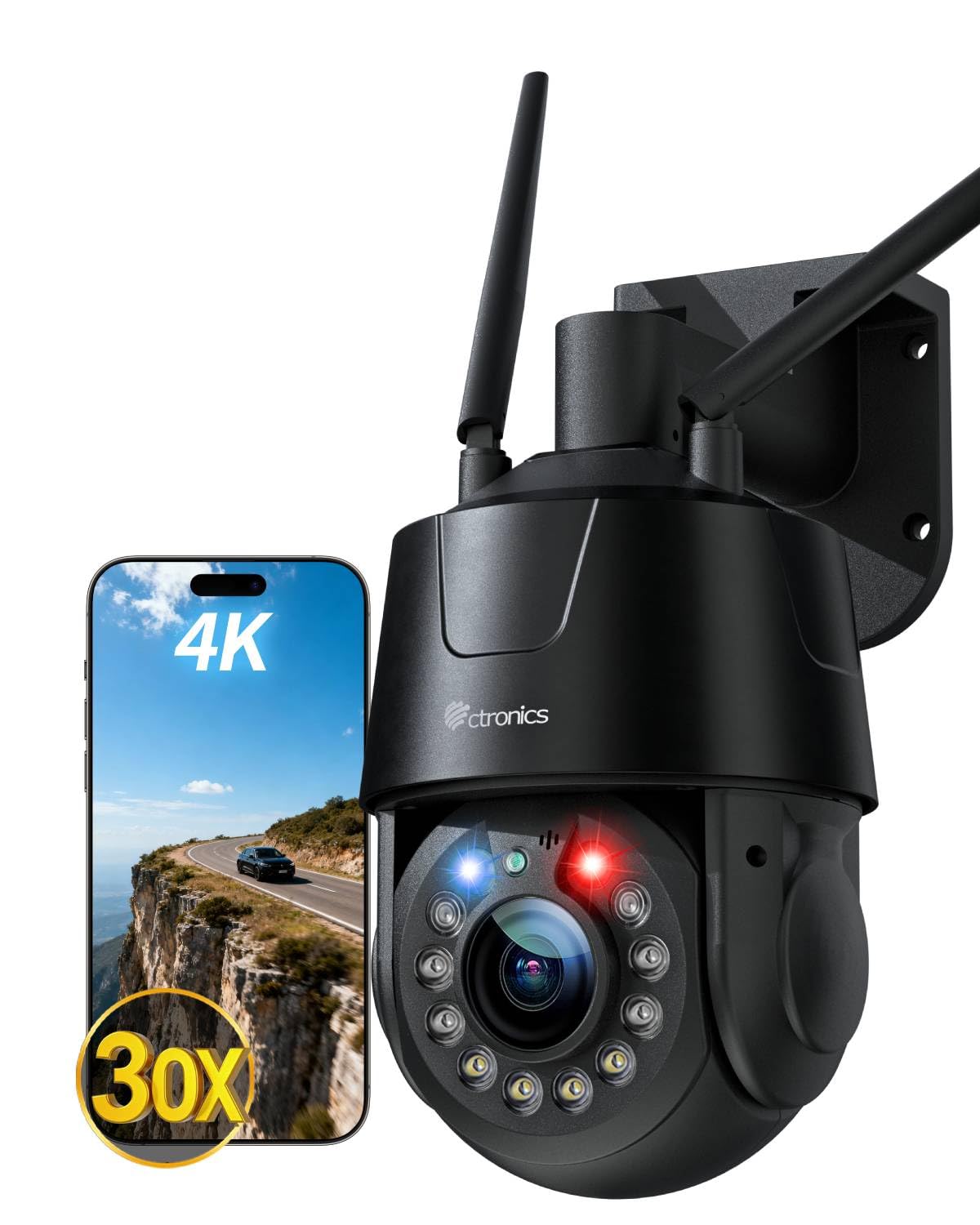
Image: Overview of the Ctronics 4K Outdoor Security Camera, highlighting its 4K resolution and night vision features.
5. Setup
5.1 Physical Installation
The camera supports both wall and ceiling mounting. Choose a location that provides optimal viewing coverage and is within reach of a power source.
- Select Mounting Location: Identify a suitable outdoor location, ensuring a clear line of sight and protection from direct impact.
- Drill Holes: Use the provided mounting template (if applicable) or the camera base to mark and drill pilot holes for the mounting screws.
- Secure the Stand: Attach the camera stand securely to the wall or ceiling using the provided mounting screws.
- Attach Camera: Mount the camera onto the secured stand. Adjust the angle as needed.
5.2 Power Connection
Connect the provided power adapter to the camera's power input port and then plug it into a standard electrical outlet. Ensure the connection is secure and protected from weather elements.
5.3 Network Connection
The camera supports both wired Ethernet and dual-band (2.4G/5G) Wi-Fi connectivity.

Image: The camera illustrating its support for both 2.4G/5G Wi-Fi and wired Ethernet connections for flexible setup.
- Wired Connection: Connect an Ethernet cable from your router to the camera's Ethernet port.
- Wireless Connection (Wi-Fi):
- Bluetooth Quick Pairing: For initial setup, use the Ctronics APP and follow the on-screen instructions for Bluetooth quick pairing. This simplifies connecting the camera to your Wi-Fi network.
- Manual Wi-Fi Setup: If Bluetooth pairing is not used, connect your smartphone to the same Wi-Fi network (2.4GHz or 5GHz) you intend to use for the camera. Open the Ctronics APP, add the camera, and follow the prompts to enter your Wi-Fi credentials.
5.4 App Installation and Initial Setup
- Download App: Search for "Ctronics APP" in your mobile app store (iOS or Android) and install it.
- Register Account: Open the app and register a new account or log in if you already have one.
- Add Device: Tap the "+" icon to add a new device. Select your camera model and follow the in-app instructions for pairing.
- Configure Settings: After successful pairing, you can configure basic settings such as device name, time zone, and initial recording preferences.
6. Operating the Camera
6.1 Live View and Playback
Access the live video feed and review recorded footage through the Ctronics APP or compatible PC client.

Image: Demonstrating the flexible compatibility of the camera with both mobile applications and PC client software for live streaming and playback.
- Live View: Select the camera from your device list in the app to view the real-time feed.
- Playback: Navigate to the playback section in the app to access recorded videos stored on your microSD card, NVR, FTP, or cloud storage.
6.2 AI Detection and Auto Tracking
The camera utilizes advanced AI to distinguish between humans, vehicles, and pets, reducing false alarms. It can automatically track detected subjects.

Image: The camera's smart detection feature identifying and tracking a person and a pet within its field of view.
- Enable Detection: In the app settings, enable AI detection for humans, vehicles, or pets as required.
- Activate Auto Tracking: Turn on the auto-tracking feature. When a detected subject moves, the camera will automatically pan and tilt to follow it, keeping it centered.
6.3 30x Optical Zoom
The camera features a 30x optical zoom lens, allowing for clear magnification of distant objects without loss of image quality.

Image: A visual representation of the camera's 30x optical zoom capability, showing a distant car magnified clearly.
- Manual Zoom: Use the zoom controls in the live view interface of the app to manually adjust the optical zoom.
- Smart 3D Zoom: When auto-tracking is active, the camera can automatically adjust its zoom level to maintain a clear view of the tracked subject.
6.4 Night Vision Modes
The camera offers multiple night vision modes for clear surveillance in low-light conditions.

Image: The camera's night vision capabilities, including 50m full-color mode and 150m infrared (IR) mode for comprehensive nighttime coverage.
- Full-Color Night Vision: Six high-brightness LEDs provide full-color vision up to 50 meters.
- Infrared (IR) Night Vision: Provides black and white vision up to 150 meters in complete darkness.
- Smart Mode: The camera can automatically switch between IR and full-color modes based on detected motion or ambient light.
6.5 Red-Blue Alarm Lights and Custom Sounds
The camera features red-blue warning lights and customizable siren sounds to actively deter intruders.
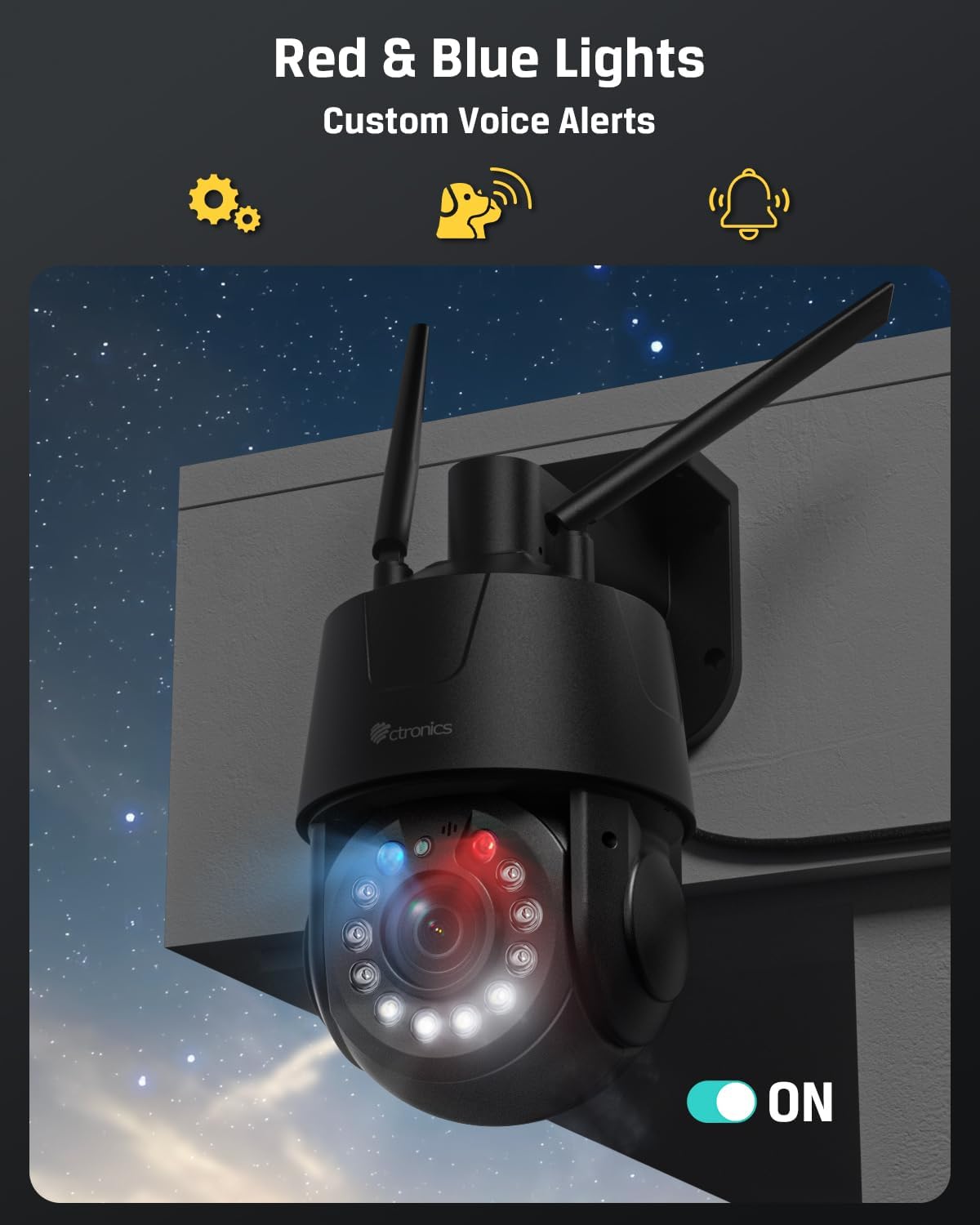
Image: The camera's red and blue alarm lights activated, indicating an alert or deterrent function.
- Enable Alarm: In the app settings, configure the camera to activate red-blue lights and/or siren sounds upon detection of motion or specific AI events.
- Customize Sounds: Upload or record custom alarm sounds through the app.
6.6 Preset Positions and Patrol Routes
Define specific viewing angles and automated patrol paths for comprehensive area coverage.

Image: An aerial view illustrating the camera's ability to cover a large area using 32 preset points and 2 programmable patrol routes.
- Set Presets: Manually adjust the camera to a desired position, then save it as a preset point in the app. Up to 32 preset positions can be configured.
- Create Patrol Routes: Define a sequence of preset points to create a patrol route. The camera will automatically cycle through these points. Up to 2 patrol routes can be configured.
6.7 Storage Options
The camera supports various storage methods for recorded footage.

Image: The camera showcasing its multiple storage options, including cloud, FTP, NVR/ONVIF, and support for a 256GB TF (microSD) card.
- MicroSD Card: Insert a microSD card (up to 256GB, not included) into the designated slot for local storage.
- FTP/NAS: Configure FTP or NAS storage settings in the app to save recordings to a network server.
- NVR: Connect the camera to a compatible Network Video Recorder (NVR) for centralized recording.
- Cloud Storage: Subscribe to Ctronics cloud storage services for off-site backup of your recordings.
6.8 Compatibility
The camera is compatible with various protocols and systems for integration into existing security setups.
- ONVIF: Supports ONVIF protocol for compatibility with third-party NVRs and surveillance software.
- RTSP: Provides an RTSP stream for integration with media players and custom surveillance solutions.
7. Maintenance
- Cleaning: Regularly clean the camera lens with a soft, dry cloth to ensure clear image quality. Do not use harsh chemicals.
- Firmware Updates: Check the Ctronics APP periodically for available firmware updates. Keeping the firmware updated ensures optimal performance and access to new features.
- Power Cycle: If the camera experiences issues, try power cycling it by disconnecting and reconnecting the power adapter.
8. Troubleshooting
8.1 Camera Not Connecting to Wi-Fi
- Ensure the camera is within range of your Wi-Fi router.
- Verify that your Wi-Fi password is entered correctly in the app.
- Check if your router is broadcasting on 2.4GHz or 5GHz, and ensure the camera is attempting to connect to the correct band.
- Restart your router and the camera.
8.2 No Image or Poor Image Quality
- Ensure the power adapter is properly connected and the camera is powered on.
- Clean the camera lens for any dirt or smudges.
- Check your network connection speed. A slow connection can affect live view quality.
- Verify that the camera's resolution settings in the app are appropriate for your network bandwidth.
8.3 Auto Tracking Not Working
- Ensure AI detection for humans/vehicles/pets is enabled in the app settings.
- Verify that the auto-tracking feature is activated.
- Check for any obstructions in the camera's field of view that might interfere with detection.
8.4 Recordings Not Saving
- If using a microSD card, ensure it is properly inserted, formatted, and has sufficient free space.
- If using cloud storage, verify your subscription status and network connection.
- For FTP/NAS/NVR, check network connectivity and configuration settings.
9. Specifications
| Feature | Specification |
|---|---|
| Model Name | 550C-Z30B-4K |
| Indoor/Outdoor Usage | Outdoor |
| Video Capture Resolution | 3840 (4K) |
| Effective Still Resolution | 8 MP |
| Optical Zoom | 30x |
| Night Vision Range | 150 Meters (IR), 50 Meters (Color) |
| Connectivity Technology | Wired, Wireless (2.4G/5G Wi-Fi, Bluetooth, Ethernet) |
| Connectivity Protocol | Ethernet, ONVIF, RTSP, Wi-Fi |
| Storage Options | Micro SD (max 256GB), FTP, NAS, Cloud, NVR |
| Controller Type | Ctronics APP |
| Mounting Type | Wall Mount, Ceiling Mount |
| Material | Metal |
| Water Resistance Level | Waterproof (IP66) |
| Power Source | Corded Electric (12V, 12W) |
| Item Dimensions (L x W x H) | 5.91 x 5.51 x 11.02 inches |
| Item Weight | 3.78 pounds |
| Frame Rate | 15 frames per second |
| Video Encoding | H.265 |
| Alert Type | Audio and Motion |
| Special Features | 2-Way Audio, All-Metal Construction, HD Resolution, PTZ Technology |
10. Warranty and Support
10.1 Warranty Information
Ctronics products typically come with a limited warranty covering manufacturing defects. Please refer to the warranty card included in your package or visit the official Ctronics website for specific warranty terms and conditions applicable to your region and purchase date.
10.2 Customer Support
For technical assistance, troubleshooting, or any questions regarding your Ctronics 4K Outdoor Security Camera, please contact Ctronics customer support. Contact details can usually be found on the official Ctronics website or within the Ctronics APP.
- Online Support: Visit the Ctronics official website for FAQs, support articles, and contact forms.
- Email Support: Refer to your product packaging or the Ctronics website for the customer support email address.


