
1. Important Safety Instructions
Please read these instructions carefully before using the product and retain them for future reference. Incorrect use may result in product damage or personal injury.
- Do not expose the product to extreme temperatures, direct sunlight, or high humidity.
- Avoid dropping or subjecting the product to strong impacts.
- Do not attempt to disassemble or modify the product. This will void the warranty.
- Keep the product away from water and other liquids.
- Use only the provided charging cable or a certified USB-C cable for charging.
- Dispose of batteries according to local regulations. Do not incinerate.
2. Package Contents
Verify that all items are present in your package:
- Wireless Keyboard
- Wireless Mouse
- 2.4GHz USB Receiver (stored in the mouse battery compartment)
- USB-C Charging Cable
- USB to Type-C Adapter
- Silicone Keyboard Cover
- User Manual (this document)

3. Product Overview
3.1 Keyboard Layout and Features
The keyboard features a full-size layout with a numeric keypad and dedicated multimedia keys. It supports dual operating system layouts for Windows and macOS.

- Independent Media Keys: 14 dedicated keys for quick access to media functions without needing the Fn key.
- Dual System Layout: Keys marked for both Windows (Win/Alt) and macOS (Opt/Cmd) for seamless switching.
- Indicator Lights: LEDs for Num Lock, Caps Lock, and Power/Charging status.
- Adjustable Tilt: Integrated feet allow for a 5° or 9° typing angle to reduce wrist fatigue.
- Scissor-Switch Keys: Provides a quiet, responsive, and comfortable typing experience.
3.2 Mouse Features
The wireless mouse is designed for comfort and quiet operation, featuring adjustable DPI settings and side buttons.

- Silent Click Buttons: Left and right mouse buttons operate with minimal noise.
- Adjustable DPI: Cycle through 5 DPI settings (800-1200-1600-2000-2400) using the DPI button.
- Ergonomic Design: Contoured shape for comfortable grip during extended use.
- Forward/Back Buttons: Convenient side buttons for navigation.
4. Setup Instructions
4.1 Charging the Devices
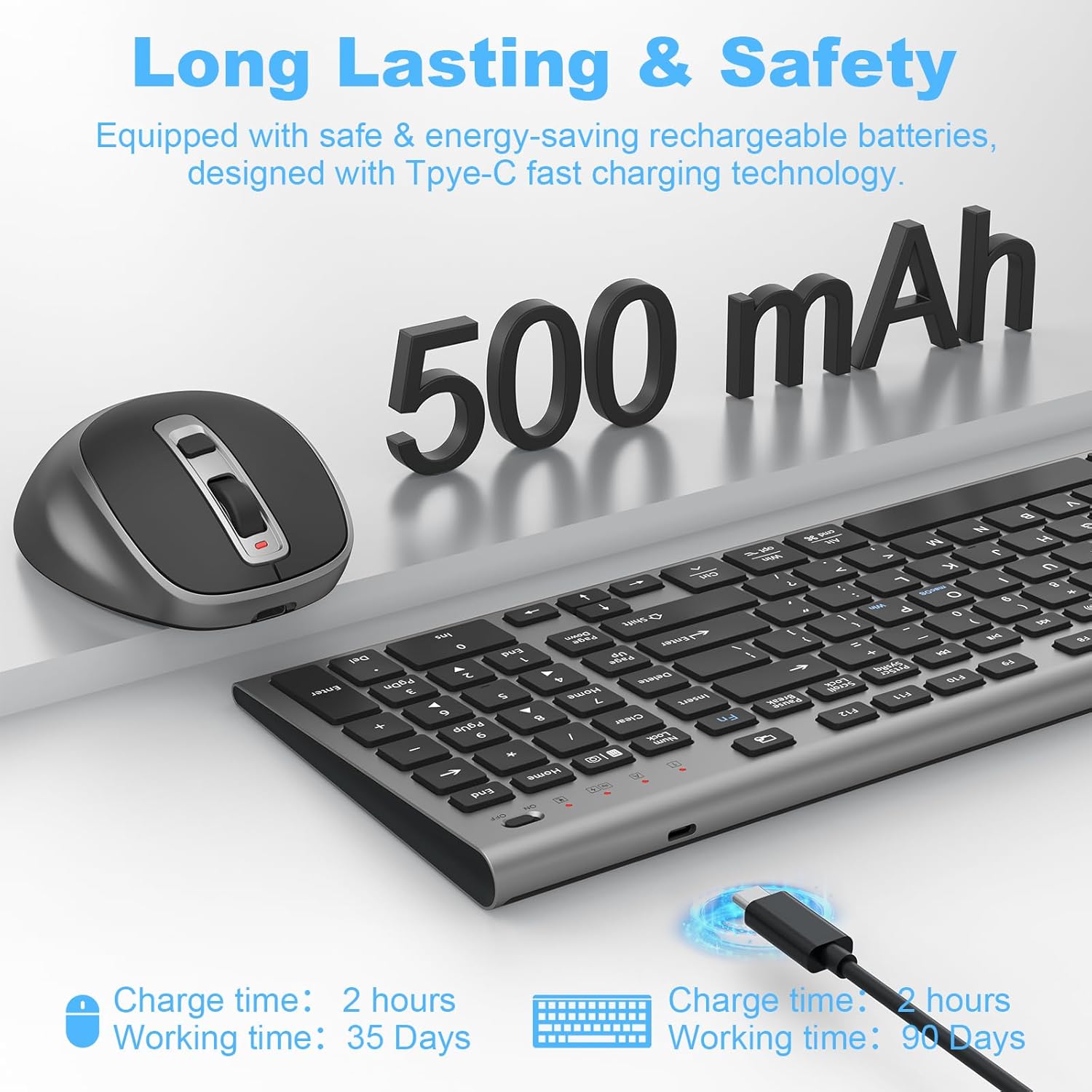
Both the keyboard and mouse are rechargeable via USB-C.
- Locate the USB-C charging port on the keyboard (usually on the top edge) and the mouse (usually on the front).
- Connect the provided USB-C charging cable to the device and to a USB power source (e.g., computer USB port, USB wall adapter).
- The indicator light on the keyboard/mouse will show charging status (e.g., red while charging, off when fully charged).
- Charging typically takes about 1.5 hours. A full charge provides approximately 60 days of use for the keyboard and 40 days for the mouse (usage dependent).
4.2 Connecting to Your Device
The keyboard and mouse connect wirelessly via a single 2.4GHz USB receiver.
- Locate the 2.4GHz USB receiver. It is typically stored in a compartment on the underside of the mouse.
- Insert the USB receiver into an available USB-A port on your computer.
- If your computer only has USB-C ports, use the provided USB to Type-C adapter. Connect the USB receiver to the adapter, then plug the adapter into your computer's USB-C port.
- Turn on the power switch for both the keyboard and the mouse. The power switch for the keyboard is usually on the top right edge, and for the mouse, it's on the underside.
- Your computer should automatically detect and install the necessary drivers. No additional software is required.

5. Operating Instructions
5.1 Keyboard Usage
- Typing: Begin typing normally. The scissor-switch keys provide a quiet and comfortable experience.
- Multimedia Keys: Use the dedicated multimedia keys (F1-F12 row) for quick access to functions like volume control, playback, and web browser shortcuts. These keys operate independently without needing the 'Fn' key.
- Operating System Layout: The keyboard automatically adapts to Windows or macOS. The 'Win' key functions as the 'Command' key on macOS, and 'Alt' functions as 'Option'.
- Indicator Lights:
- Num Lock: Indicates if the numeric keypad is active.
- Caps Lock: Indicates if Caps Lock is active.
- Power/Charging: Indicates battery status or charging.

5.2 Mouse Usage
- Movement: Move the mouse on a flat surface. The optical sensor provides precise tracking.
- Clicking: The left and right buttons offer silent clicks.
- Scroll Wheel: Use the scroll wheel for vertical scrolling.
- DPI Adjustment: Press the DPI button (usually located behind the scroll wheel) to cycle through the 5 available DPI settings (800, 1200, 1600, 2000, 2400). Choose the sensitivity that best suits your needs.
- Forward/Back Buttons: Use the side buttons for quick navigation in web browsers or file explorers.

5.3 Power Saving Features
- Smart Sleep Mode: The keyboard and mouse will enter a sleep mode after a period of inactivity to conserve battery. The Num/Caps indicator lights on the keyboard will turn off.
- Wake-up:
- Keyboard: Press any key to wake it up.
- Mouse: Move the mouse or click any button to wake it up.
- Low Battery Reminder: An intelligent low-battery indicator will alert you when charging is needed.
6. Maintenance
- Cleaning:
- Use a soft, dry cloth to clean the surfaces of the keyboard and mouse.
- For stubborn dirt, slightly dampen the cloth with water or a mild cleaning solution.
- Do not use harsh chemicals or abrasive cleaners.
- The included silicone keyboard cover can be removed and washed with water to protect against dust and spills.
- Storage: When not in use for extended periods, turn off the power switches on both devices to conserve battery. Store in a cool, dry place.
- Silicone Cover: The soft silicone cover protects the keyboard from dust and water. Ensure it is properly placed over the keys for maximum protection.

7. Troubleshooting
| Problem | Possible Solution |
|---|---|
| Keyboard/Mouse not responding |
|
| Lag or intermittent connection |
|
| Mouse cursor erratic or not moving smoothly |
|
| Keyboard keys not working or repeating |
|
8. Specifications
| Feature | Detail |
|---|---|
| Model Number | Rechargeable Wireless Keyboard Mouse |
| Connectivity | 2.4GHz Wireless (via USB Receiver) |
| Keyboard Layout | Full-size, 121 keys, with Numeric Pad and Independent Multimedia Keys |
| Key Type | Scissor-switch (X-frame) |
| Mouse DPI Settings | 800 / 1200 / 1600 / 2000 / 2400 (Adjustable) |
| Battery Type | Rechargeable Lithium Polymer (included) |
| Charging Port | USB-C |
| Charging Time | Approximately 1.5 hours |
| Battery Life (approx.) | Keyboard: 60 days; Mouse: 40 days (depending on usage) |
| Operating Range | Up to 10 meters (33 feet) in an interference-free environment |
| Compatibility | Windows, macOS, PC, Laptop, MacBook, iMac, Surface, Tablet, Smartphone (with appropriate adapters) |
| Product Dimensions (Keyboard) | 15.55 x 5.71 x 0.83 inches |
| Item Weight | 1.41 pounds (Keyboard and Mouse combined) |
9. Warranty and Support
FENIFOX provides customer support for its products. If you encounter any issues or have questions beyond the scope of this manual, please contact us directly.
- Contacting Support: If you have a problem with the product or it's outside the Amazon return period, please go to your order history on Amazon and select "Contact Seller".
- We are committed to resolving your issues efficiently and professionally.