1. Introduction
Thank you for choosing the Doohoeek Surface Pro 11/10/9/8/X 13 Inch Bluetooth Keyboard. This ultra-slim keyboard is designed to enhance your productivity and user experience with its integrated touchpad, pen slot, and lighting keys. It offers seamless compatibility with Surface Pro 11, 10, 9, 8, and X models, and is optimized for Windows 11 gestures. Please read this manual carefully to ensure proper setup and operation of your new keyboard.
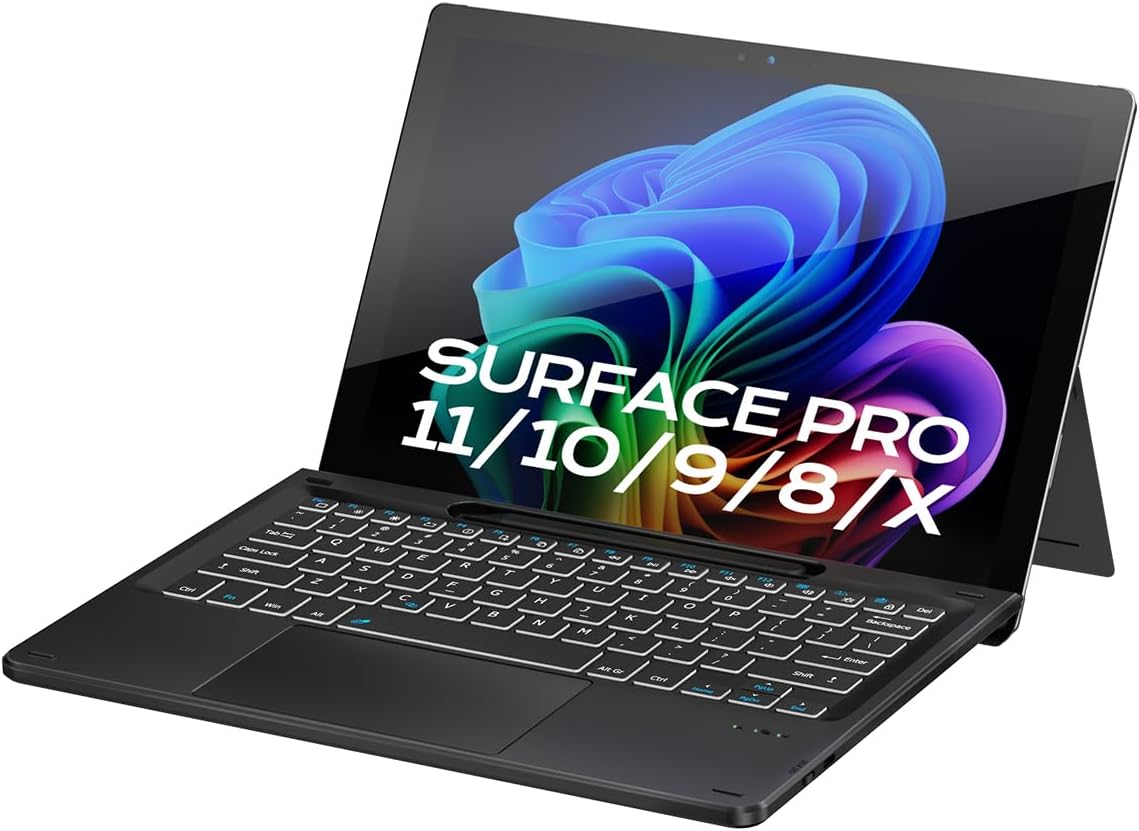
Image: The Doohoeek Surface Pro Keyboard seamlessly attached to a Surface Pro tablet, showcasing its sleek design and perfect fit.
2. Setup
2.1 Package Contents
- Doohoeek Surface Pro 11/10/9/8/X 13 Inch Bluetooth Keyboard
- USB-C Charging Cable
- User Manual
2.2 Initial Charging
Before first use, fully charge the keyboard. Connect the supplied USB-C charging cable to the keyboard's charging port and the other end to a USB power source (e.g., computer USB port, wall adapter). The charging indicator light will show charging status. A full charge typically takes 2-3 hours.

Image: A close-up view of the keyboard's USB-C charging port with the charging cable connected, illustrating the charging process. The image also highlights the keyboard's battery life: 2-3 hours charging time, 650mAh capacity, and 300 hours standby time (without lighting).
2.3 Bluetooth Pairing
- Ensure the keyboard is charged and powered on.
- Press and hold the Fn key and the C key simultaneously for 3 seconds to enter Bluetooth pairing mode. The Bluetooth indicator light on the keyboard will begin to flash.
- On your Surface Pro, go to Settings > Bluetooth & devices.
- Turn on Bluetooth and select Add device.
- Choose Bluetooth and select "Doohoeek Keyboard" (or similar name) from the list of available devices.
- Follow any on-screen prompts to complete the pairing process. The indicator light on the keyboard will stop flashing once successfully paired.
2.4 Magnetic Attachment
The keyboard features smart magnetic alignment for easy attachment to your Surface Pro. Simply align the top edge of the keyboard with the bottom edge of your Surface Pro until it snaps into place. This provides a secure connection for typing and protects your screen when closed.

Image: A detailed view illustrating the strong magnetic connection between the keyboard and the Surface Pro tablet, ensuring a stable and secure attachment.

Image: A visual guide demonstrating the keyboard's compatibility with Surface Pro 11, Surface Pro 10, Surface Pro 9, Surface Pro 8, and Surface Pro X models.
3. Operating Instructions
3.1 Keyboard Functions
- Backlight Adjustment: The keyboard features adjustable backlighting with 7 color options and 3 brightness levels. Use the dedicated backlight keys (often Fn + Light icon or similar) to cycle through colors and adjust brightness.
- Function Keys: The top row of keys includes multimedia and system function shortcuts. Press the Fn key in combination with these keys to activate their secondary functions (e.g., volume control, screen brightness).

Image: The keyboard illuminated with various backlight colors, demonstrating the 7 color lighting effects and 3 levels of brightness for enhanced visibility in low-light conditions.
3.2 Touchpad Functions
The integrated touchpad supports multi-touch gestures for Windows 11, allowing for intuitive navigation and control.
- Basic Navigation: Single finger tap for left-click, two-finger tap for right-click.
- Scrolling: Use two fingers to scroll up or down.
- Zoom: Pinch with two fingers to zoom in or out.
- Switch Applications: Swipe three fingers up to view all open applications.
- Desktop: Swipe three fingers down to show the desktop.
- Palm Rejection: The touchpad features intelligent palm rejection to prevent accidental touches while typing. To lock/unlock the trackpad, press Fn + Lock icon.

Image: Visual representations of various multi-touch gestures for the trackpad, including scrolling and zooming, alongside a demonstration of the palm rejection feature to prevent unintended inputs during typing.
3.3 Pen Slot Usage
The keyboard includes an integrated slot for conveniently storing your Surface Pen or compatible stylus. This keeps your pen secure and easily accessible.
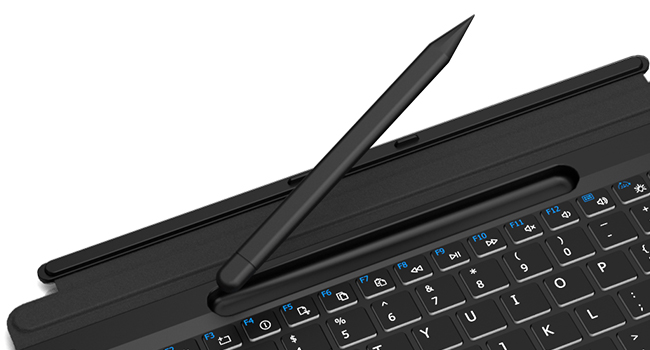
Image: A close-up view of the integrated pen slot located on the keyboard, designed for secure and convenient storage of a stylus.
3.4 Ergo Lift Design
The keyboard features an Ergo Lift design, allowing it to be slightly angled when attached to the Surface Pro. This ergonomic tilt provides a more comfortable typing experience and improved airflow for your device.

Image: A visual explanation of the keyboard's Ergo Lift design, demonstrating how it creates a comfortable typing angle when connected to the Surface Pro.
4. Maintenance
4.1 Cleaning
- To clean the keyboard, gently wipe the surface with a soft, lint-free cloth.
- For stubborn dirt, slightly dampen the cloth with water or a mild, non-abrasive cleaning solution.
- Avoid using harsh chemicals, solvents, or abrasive materials, as these can damage the keyboard's finish.
- Ensure no liquid enters the keyboard's ports or crevices.
4.2 Battery Care
- To prolong battery life, avoid fully discharging the keyboard frequently.
- Charge the keyboard regularly, even if not in constant use.
- Store the keyboard in a cool, dry place when not in use for extended periods.
5. Troubleshooting
5.1 Keyboard Not Connecting/Pairing
- Check Battery: Ensure the keyboard has sufficient charge.
- Re-enter Pairing Mode: Press Fn + C for 3 seconds to put the keyboard back into pairing mode.
- Restart Bluetooth: On your Surface Pro, turn Bluetooth off and then on again.
- Forget Device: If previously paired, remove the keyboard from your Surface Pro's Bluetooth device list and attempt to pair again.
- Restart Devices: Restart both your Surface Pro and the keyboard.
5.2 Backlight Not Working
- Check Brightness: Ensure the backlight brightness is not set to the lowest level. Use the backlight adjustment keys.
- Battery Level: Low battery may disable the backlight. Charge the keyboard.
5.3 Touchpad Unresponsive
- Check Lock Status: Ensure the touchpad is not locked. Press Fn + Lock icon to toggle.
- Restart Keyboard: Turn the keyboard off and on again.
- Re-pair Bluetooth: Disconnect and re-pair the keyboard via Bluetooth.
5.4 Resetting Keyboard to Default Settings
If you experience persistent issues, you can reset the keyboard to its default settings. Press down the first key and the last key on the top row of the keyboard simultaneously until the indicator flickers.
6. Specifications
| Feature | Description |
|---|---|
| Brand | Doohoeek |
| Model | Doohoeek Surface Pro 11/10/9/8/X 13 Inch Keyboard |
| Compatible Devices | Surface Pro 10, Surface Pro 11, Surface Pro 8, Surface Pro 9, Surface Pro X |
| Connectivity Technology | Bluetooth |
| Special Features | Backlit, Rechargeable, Trackpad |
| Color | Black |
| Number of Keys | 84 |
| Battery | 1 9V battery required (included) |
| Item Weight | 1.19 pounds |
| Package Dimensions | 11.61 x 8.9 x 1.06 inches |
7. Warranty and Support
Doohoeek products are manufactured to high quality standards. For information regarding warranty coverage, please refer to the warranty card included with your product or visit the official Doohoeek website. If you encounter any issues or require technical assistance, please contact Doohoeek customer support through the contact information provided on our website or through your purchase platform.


