
1. Product Overview
The Doohoeek Universal Travel Keyboard Plus is a versatile, portable keypad designed for enhanced typing across multiple devices. It features dual Bluetooth connectivity, 7-color backlighting, and an integrated stand for optimal viewing angles. Compatible with iOS, Android, and Windows operating systems, this keyboard is ideal for tablets, foldable phones, and laptops.
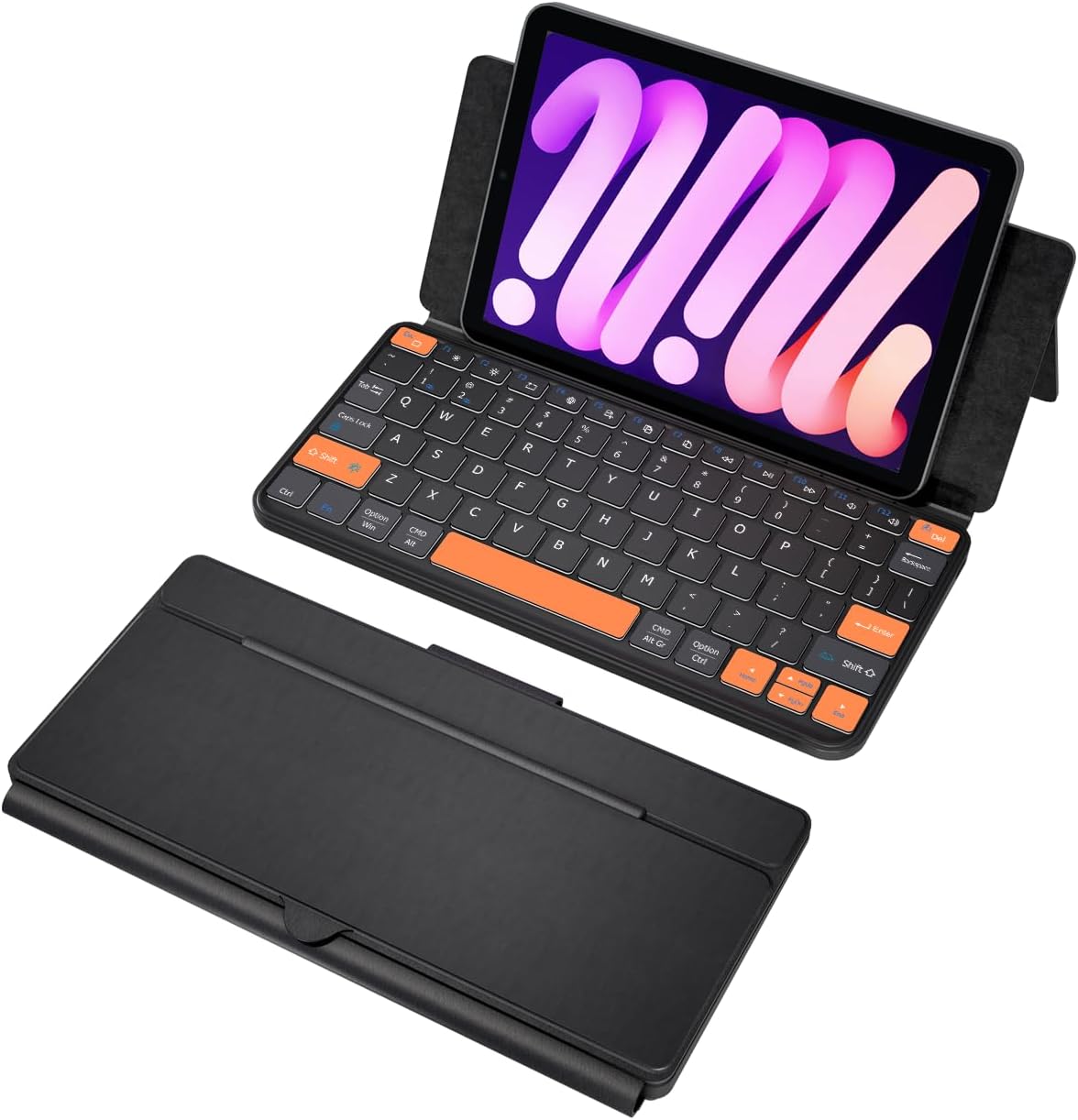
Image: The Doohoeek Universal Travel Keyboard Plus, showcasing its compact, foldable design and backlit keys. The image displays the keyboard both folded for portability and unfolded, ready for use, with a phone placed in its integrated stand.
2. Setup and Connection
2.1. Initial Charging
Before first use, ensure the keyboard is fully charged. Connect the provided USB-C charging cable to the keyboard's charging port and a compatible USB power source. The charging indicator light will show the charging status.
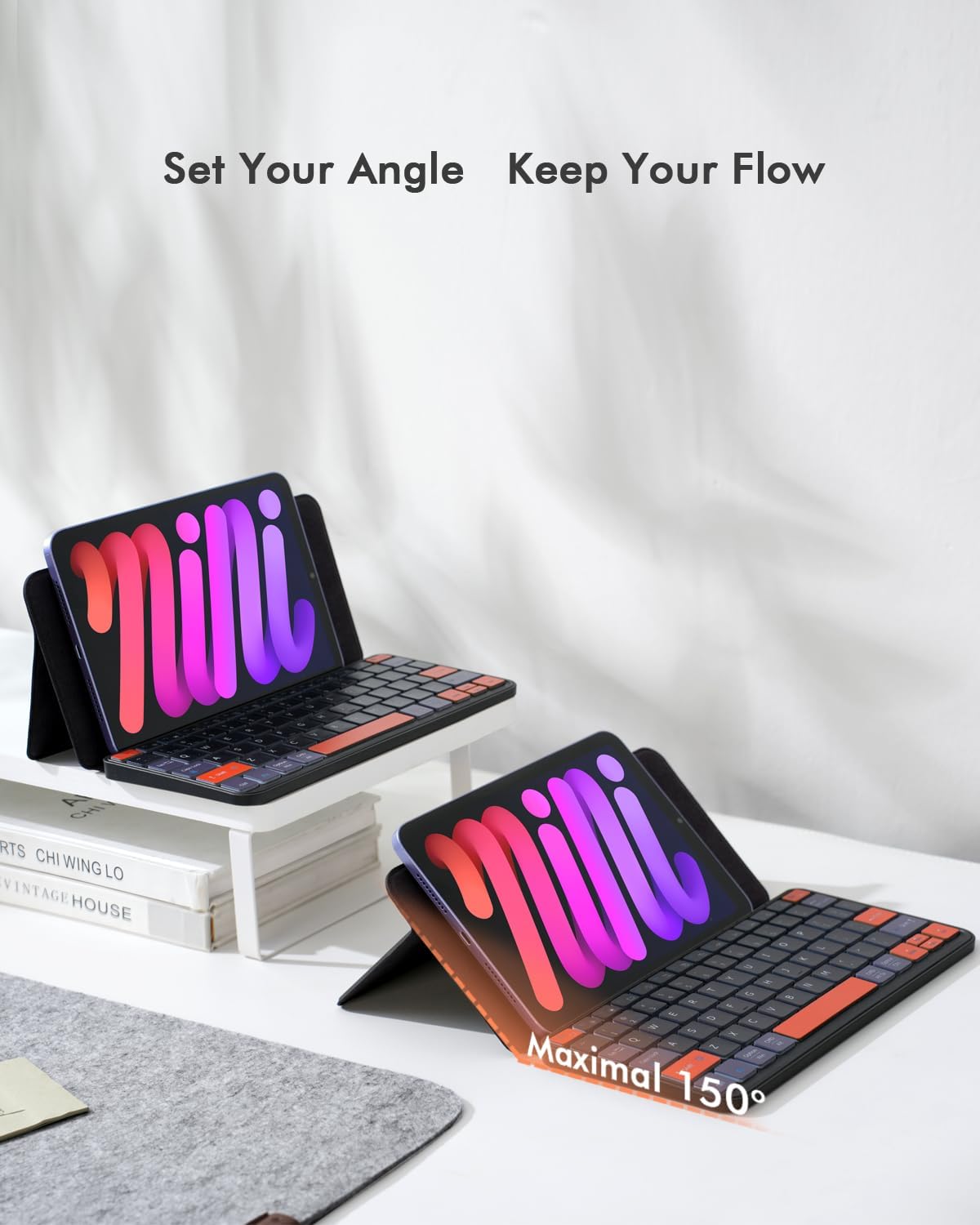
Image: The keyboard connected to a USB-C charging cable, illustrating the charging process. Icons indicate a 500mAh battery, 1.5-2 hours charging time, 150 hours continuous working time, and 30 days standby.
2.2. Bluetooth Pairing
- Turn on the keyboard using the power switch located on the side.
- Press and hold the first and the last key at the top row of the keyboard until all indicator lights start flashing.
- The Bluetooth light will flicker quickly, indicating it has entered Bluetooth pairing mode. (If not, press Fn + 1 or Fn + 2 to activate pairing mode for the desired channel).
- On your device (tablet, phone, or laptop), go to Bluetooth settings and search for "Wireless keyboard".
- Select "Wireless keyboard" to complete the pairing process.
Video: A demonstration of connecting the Doohoeek Universal Travel Keyboard Plus to a device via Bluetooth, showing the pairing process and key functionality.
Video: An overview of the Doohoeek Universal Travel Keyboard Plus, highlighting its features and ease of setup with various devices.
3. Operating Instructions
3.1. Using the Integrated Stand
The keyboard features an integrated stand that allows you to prop up your tablet or phone at various angles, up to 150 degrees, for comfortable typing and viewing. Simply unfold the keyboard and adjust the stand to your desired position.

Image: The keyboard with a tablet securely placed in its integrated stand, demonstrating the adjustable angle for comfortable use.
3.2. Backlight Control
The keyboard offers 7-color adjustable backlighting with 3 levels of brightness. To change the backlight color, press Fn + Shift. To adjust brightness, press Fn + Alt. Note that the backlight illuminates the perimeter and gaps around the keys, providing an ambient glow, but the letters/symbols on the keycaps themselves do not light up.

Image: A close-up view of the keyboard's keys, showcasing the vibrant 7-color backlighting in action.
3.3. Dual-Device Switching
This keyboard supports connection to two different devices simultaneously. To switch between connected devices, press Fn + 1 or Fn + 2.

Image: The keyboard simultaneously connected to an iPad and a laptop, demonstrating the seamless switching capability between two devices.
3.4. Operating System Compatibility
The keyboard is compatible with iOS, Android, and Windows operating systems. It features an enhanced layout with larger keys and additional shortcuts, optimized for comfortable typing on various devices including iPads, Android tablets, and foldable phones.

Image: The keyboard displaying its multi-OS compatibility with Android, iOS, and Windows logos, indicating broad device support.
4. Maintenance
To ensure the longevity and optimal performance of your Doohoeek Universal Travel Keyboard Plus, follow these maintenance guidelines:
- Cleaning: Use a soft, dry cloth to wipe the surface of the keyboard. For stubborn dirt, slightly dampen the cloth with water or a mild cleaning solution. Avoid excessive moisture.
- Storage: When not in use, fold the keyboard to protect the keys and screen. Store it in a cool, dry place away from direct sunlight and extreme temperatures.
- Battery Care: To maintain battery health, avoid fully discharging the keyboard frequently. Charge it regularly, even if not in constant use.
- Avoid Liquids: Keep the keyboard away from liquids to prevent damage to internal components.
5. Troubleshooting
5.1. Bluetooth Connection Issues
If you experience difficulty connecting the Bluetooth or if the connection is unstable, please follow these steps:
- Turn on the keyboard.
- Press and hold the first and the last key at the top row of the keyboard until all indicator lights start flashing.
- The Bluetooth light should flicker quickly, automatically entering Bluetooth pairing mode. (If not, press Fn + 1 or Fn + 2).
- On your device, search for and select "Wireless keyboard" in the Bluetooth settings to reconnect.
- Ensure your device's Bluetooth is enabled and the keyboard is within range.
6. Specifications
| Feature | Detail |
|---|---|
| Brand | Doohoeek |
| Model | Universal Travel Keyboard Plus (B0F9179JND) |
| Connectivity Technology | Bluetooth |
| Compatible Devices | Laptops, Smartphones (iPhones, Z Fold Series, Z Flip Series & other Keyboard-Enabled Phones), Tablets (Galaxy Tabs, iPads, Lenovo Tabs, Pixel Tabs & other Tablets) |
| Special Features | Backlit (7-Color), Integrated Stand, Rechargeable |
| Color | Black |
| Material | Plastic |
| Power Source | Battery Powered (500mAh) |
| Charging Time | 1.5-2 hours |
| Continuous Working Time | 150 hours |
| Standby Time | 30 days |
| Keyboard Layout | QWERTY |
| Number of Keys | 84 |
| Minimum Required OS | Windows 10, iPadOS 13 |
| Included Components | 1 x Keyboard Case |
7. Warranty and Support
The Doohoeek Universal Travel Keyboard Plus comes with a 1 Year Warranty. For any support inquiries or warranty claims, please contact Doohoeek customer service through your purchase platform or the official brand website.