
1. Introduction to the Nikon Coolpix S9900
The Nikon Coolpix S9900 is a compact digital camera designed for versatility and ease of use, offering advanced features for both beginners and experienced photographers. This manual provides detailed instructions on how to set up, operate, and maintain your camera, ensuring you can fully utilize its capabilities to capture high-quality photos and videos.
Key features include a powerful optical zoom, built-in Wi-Fi and NFC for easy sharing, and various shooting modes to suit different photographic situations.
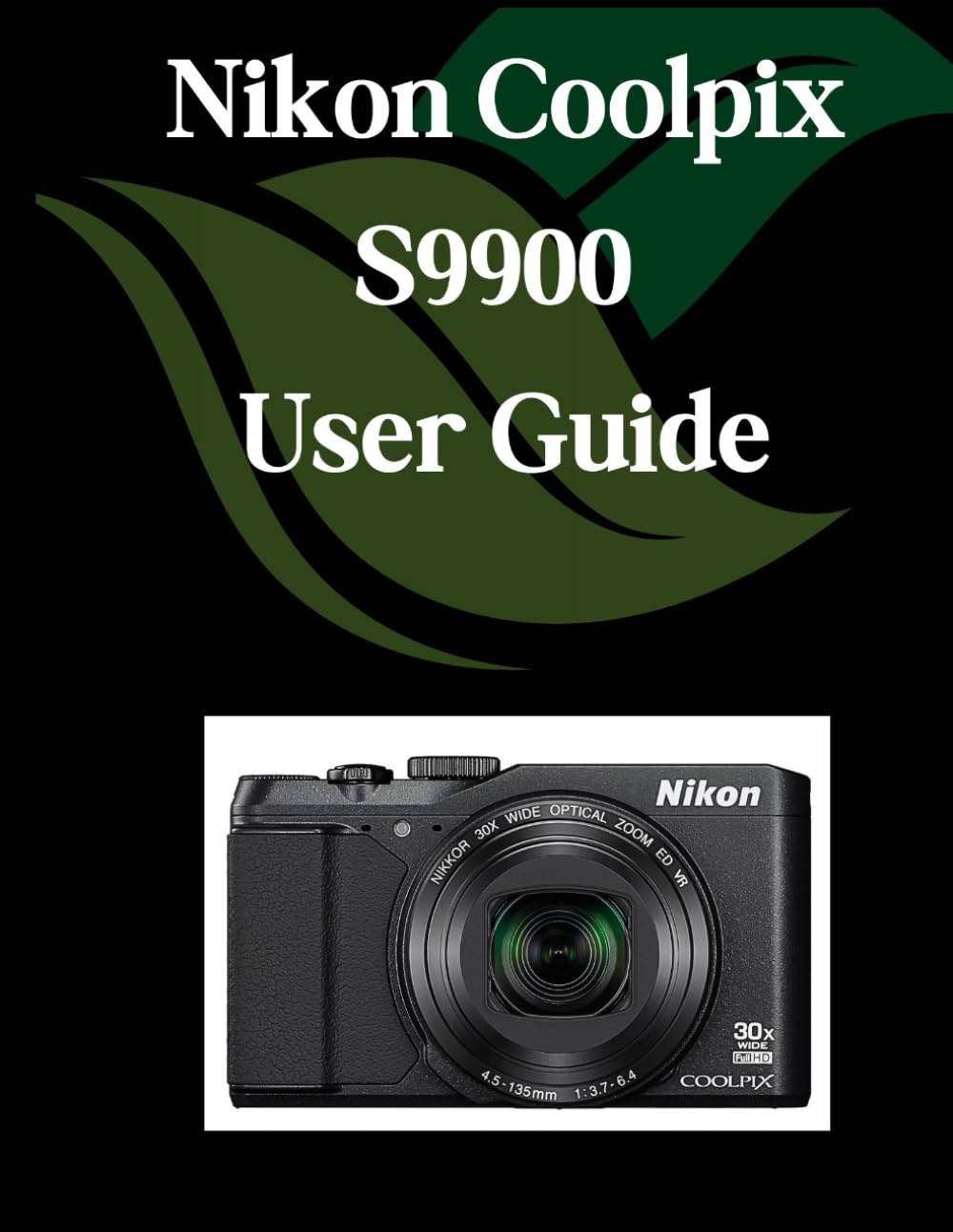
Figure 1.1: The Nikon Coolpix S9900 camera, showcasing its compact design and prominent lens.
2. Setup and Initial Configuration
2.1. Unboxing and Package Contents
Upon opening the package, verify that all components are present:
- Nikon Coolpix S9900 Camera Body
- Rechargeable Li-ion Battery EN-EL12
- Charging AC Adapter EH-71P
- USB Cable UC-E21
- Camera Strap
- User Manual (this document)
2.2. Battery Installation and Charging
- Open the battery chamber cover located at the bottom of the camera.
- Insert the EN-EL12 battery, ensuring the correct orientation as indicated by the diagram inside the chamber.
- Close the battery chamber cover securely.
- Connect the camera to the Charging AC Adapter EH-71P using the supplied USB cable. Plug the adapter into a power outlet.
- The charge lamp will light up during charging and turn off when charging is complete. A full charge typically takes approximately 2 hours and 30 minutes.
2.3. Memory Card Insertion
The camera supports SD, SDHC, and SDXC memory cards. A memory card is required to store photos and videos.
- Open the battery/memory card chamber cover.
- Insert the memory card into the slot with the label facing the front of the camera until it clicks into place.
- Close the cover securely.
Note: Ensure the camera is turned off before inserting or removing the memory card.
2.4. Initial Settings (Date, Time, Language)
The first time you turn on the camera, you will be prompted to set the date, time, and language.
- Press the power button to turn on the camera.
- Follow the on-screen instructions to select your preferred language, set the date, time, and time zone.
- Use the multi-selector to navigate and the OK button to confirm selections.
3. Operating Your Camera
3.1. Basic Controls Overview
Familiarize yourself with the main controls:
- Power Button: Turns the camera on/off.
- Shutter-release Button: Press halfway to focus, fully to take a picture.
- Zoom Control: Adjusts optical and digital zoom.
- Mode Dial: Selects shooting modes (Auto, Scene, Program, Manual, etc.).
- Multi-selector (Directional Pad): Navigates menus and selects options.
- OK Button: Confirms selections.
- Playback Button: Switches to playback mode to view photos/videos.
- Menu Button: Accesses camera settings.
3.2. Shooting Modes
The Coolpix S9900 offers various shooting modes to optimize settings for different scenarios:
- Auto Mode: Camera automatically optimizes settings for most situations. Ideal for quick shots.
- Scene Mode: Choose from predefined scenes (e.g., Portrait, Landscape, Night Portrait) for specific conditions.
- Program Auto (P): Camera sets aperture and shutter speed, but you can adjust other settings like ISO and white balance.
- Shutter-Priority Auto (S): You set the shutter speed, camera sets aperture. Useful for controlling motion blur.
- Aperture-Priority Auto (A): You set the aperture, camera sets shutter speed. Useful for controlling depth of field.
- Manual (M): Full control over aperture and shutter speed.
- Movie Mode: Dedicated mode for recording videos.
3.3. Focusing and Exposure
To ensure sharp and well-exposed images:
- Autofocus: Press the shutter-release button halfway down. The camera will focus on the subject. A green focus indicator confirms focus.
- Exposure Compensation: Use the exposure compensation button (if available) or menu option to adjust brightness.
- Flash: The built-in flash can be set to Auto, Fill-flash, Slow Sync, or Off via the flash mode button or menu.
3.4. Recording Videos
To record a video:
- Turn the mode dial to the movie camera icon or press the dedicated movie-record button (if present).
- Press the movie-record button to start recording. Press it again to stop.
- Zoom can be adjusted during recording, but audio may pick up zoom motor noise.
3.5. Playback and Review
To view your captured photos and videos:
- Press the Playback button.
- Use the multi-selector to scroll through images.
- Press the zoom control towards 'T' to zoom in on a photo, or towards 'W' to view multiple images at once.
- To play a video, select it and press the OK button.
4. Maintenance and Care
4.1. Cleaning the Camera
- Camera Body: Use a soft, dry cloth to wipe dust and smudges. For stubborn dirt, slightly dampen the cloth with water or a mild camera cleaner.
- Lens: Use a lens brush to remove dust, then a lens cloth or lens paper with a small amount of lens cleaning fluid. Avoid touching the lens surface with your fingers.
- LCD Monitor: Gently wipe with a soft, lint-free cloth.
Caution: Never use organic solvents like paint thinner or benzene to clean the camera.
4.2. Battery Care
- Store batteries in a cool, dry place when not in use.
- Avoid fully discharging the battery frequently to prolong its lifespan.
- If the camera will not be used for an extended period, remove the battery.
4.3. Storage
When storing the camera for long periods:
- Remove the battery and memory card.
- Store the camera in a dry, well-ventilated area, away from direct sunlight and extreme temperatures.
- Consider using a desiccant (e.g., silica gel) in the storage container to prevent mold and mildew.
5. Troubleshooting
This section addresses common issues you might encounter with your Nikon Coolpix S9900.
| Problem | Possible Cause | Solution |
|---|---|---|
| Camera does not turn on. | Battery is dead or incorrectly inserted. | Charge the battery fully. Reinsert the battery correctly. |
| Pictures are blurry. | Camera shake, subject movement, or out of focus. | Hold the camera steady. Use a faster shutter speed. Ensure the camera focuses correctly before shooting. |
| "Memory Card Error" message. | Memory card is corrupted, full, or incorrectly inserted. | Reinsert the card. Try a different card. Format the card (this will erase all data). |
| Flash does not fire. | Flash mode is set to "Off" or battery is low. | Change flash mode to Auto or Fill-flash. Charge the battery. |
5.1. Resetting Camera Settings
If issues persist, you may consider resetting the camera to its factory default settings. This will erase custom settings but not photos or videos on the memory card.
- Go to the camera's "Setup Menu".
- Select "Reset all settings" or "Reset to default".
- Confirm your selection.
6. Specifications
Below are the key technical specifications for the Nikon Coolpix S9900 camera:
- Effective Pixels: Approximately 16.0 million
- Image Sensor: 1/2.3-in. CMOS
- Lens: NIKKOR lens with 30x optical zoom
- Focal Length: 4.5 to 135 mm (angle of view equivalent to that of a 25–750 mm lens in 35mm [135] format)
- Aperture: f/3.7 to 6.4
- Vibration Reduction: Lens-shift VR (still images), Electronic VR (movies)
- Monitor: 3-in. (7.5 cm) diagonal TFT LCD with anti-reflection coating and 6-level brightness adjustment
- Storage Media: SD, SDHC, SDXC memory cards
- ISO Sensitivity: ISO 125 to 1600 (ISO 3200, 6400 available in P, S, A, M modes)
- Shutter Speed: 1/1500 to 1 s (when ISO sensitivity is 125 to 1600)
- Power Source: One Rechargeable Li-ion Battery EN-EL12
- Dimensions (W x H x D): Approx. 112.0 x 66.0 x 39.5 mm (4.4 x 2.6 x 1.6 in.) excluding projections
- Weight: Approx. 289 g (10.2 oz) including battery and memory card
7. Warranty and Support
Nikon products are covered by a limited warranty. For specific warranty terms and conditions, please refer to the warranty card included with your camera or visit the official Nikon website for your region. Keep your proof of purchase for warranty claims.
For technical support, service, or further inquiries, please contact Nikon customer support through their official website or authorized service centers. Online resources, including FAQs and software downloads, are also available on the Nikon support portal.
Official Nikon Support: Nikon USA Support


