
Product Overview
The Doohoeek Universal Keyboard Case is designed to enhance the functionality of 9-11 inch tablets. It features a detachable Bluetooth keyboard with a trackpad, multi-color backlighting, and a versatile stand. The case utilizes a unique washable and reusable adhesive mounting system for secure attachment to your tablet.
This keyboard case is compatible with a wide range of tablets, specifically those measuring 9-11 inches with a top-left positioned camera. It offers seamless connectivity to two Bluetooth devices, allowing for efficient multitasking across different operating systems.
Setup Instructions
1. Tablet Compatibility and Mounting
Ensure your tablet is between 9 and 11 inches in size and has its camera located in the top-left corner. This case is designed exclusively for such configurations.

Figure 1: Tablet Compatibility. The image displays three tablets of 9, 10, and 11 inches, illustrating how they fit into the case and emphasizing the requirement for a top-left camera position.
The case uses residue-free adhesive pads for secure tablet attachment. These pads are designed to leave no damage on your device. Four extra adhesive pads are included for long-term use.
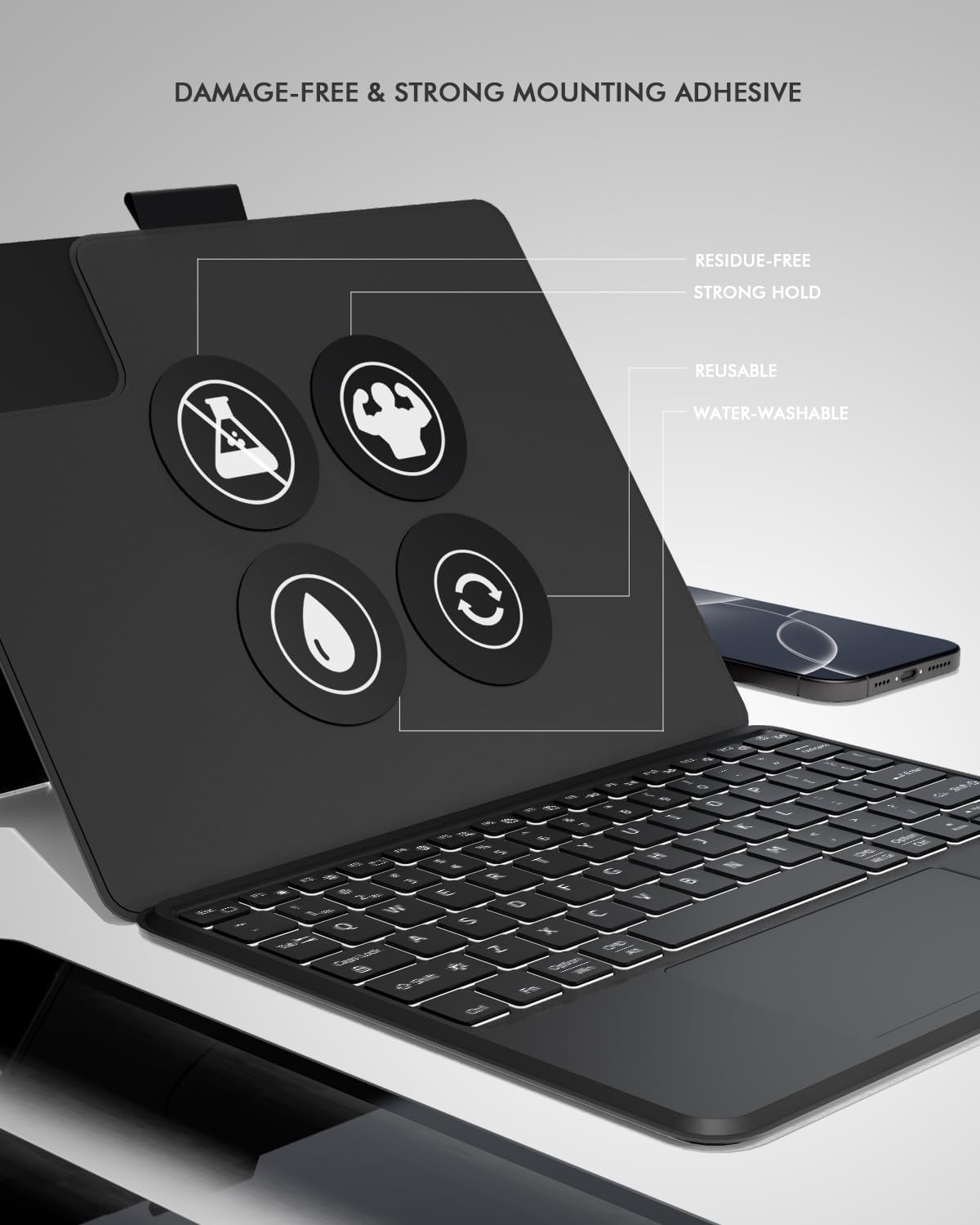
Figure 2: Adhesive Mounting Pads. This image highlights the four adhesive pads on the case, detailing their key features: residue-free, strong hold, reusable, and water-washable.
2. Bluetooth Connection
- Ensure the keyboard is charged.
- Turn on the keyboard.
- Activate Bluetooth on your tablet.
- Press and hold the Fn key and the C key simultaneously on the keyboard to enter pairing mode. The Bluetooth indicator light will flash.
- On your tablet, search for available Bluetooth devices and select the keyboard (e.g., "Bluetooth Keyboard").
- Follow any on-screen prompts to complete the pairing process.
Operating Instructions
1. Multi-Device Connectivity
The keyboard supports connection to two Bluetooth devices simultaneously. To switch between connected devices:
- Press Fn + 1 to switch to the first paired device.
- Press Fn + 2 to switch to the second paired device.
2. Backlit Keyboard
The keyboard features 7-color backlighting with 3 brightness levels for use in various lighting conditions.
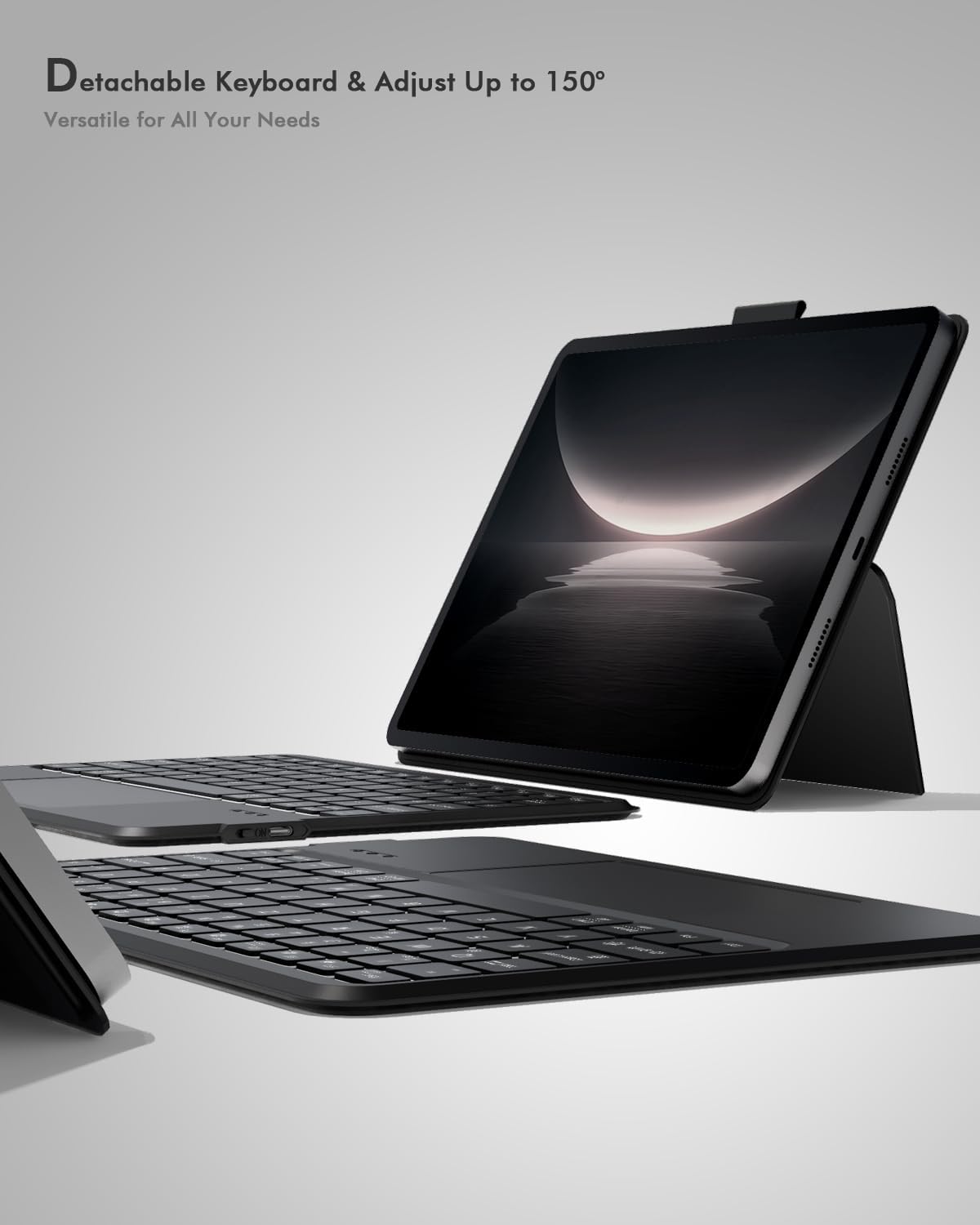
Figure 3: Backlit Keyboard. The image shows the keyboard with its keys glowing, illustrating the multi-color backlit functionality.
- Press the light bulb icon key to cycle through the 7 backlight colors.
- Press Fn + light bulb icon key to adjust the brightness level (3 levels).
3. Integrated Trackpad
The integrated multi-touch trackpad supports various gestures for navigation and control.

Figure 4: Integrated Trackpad. This image provides a detailed view of the keyboard's trackpad, located centrally below the spacebar.
Refer to your tablet's operating system documentation for specific multi-touch gesture support.
4. Multi-Angle Adjustable Stand
The case features a flexible stand that allows for various viewing and typing angles. The keyboard is detachable via a strong magnetic snap-on mechanism.
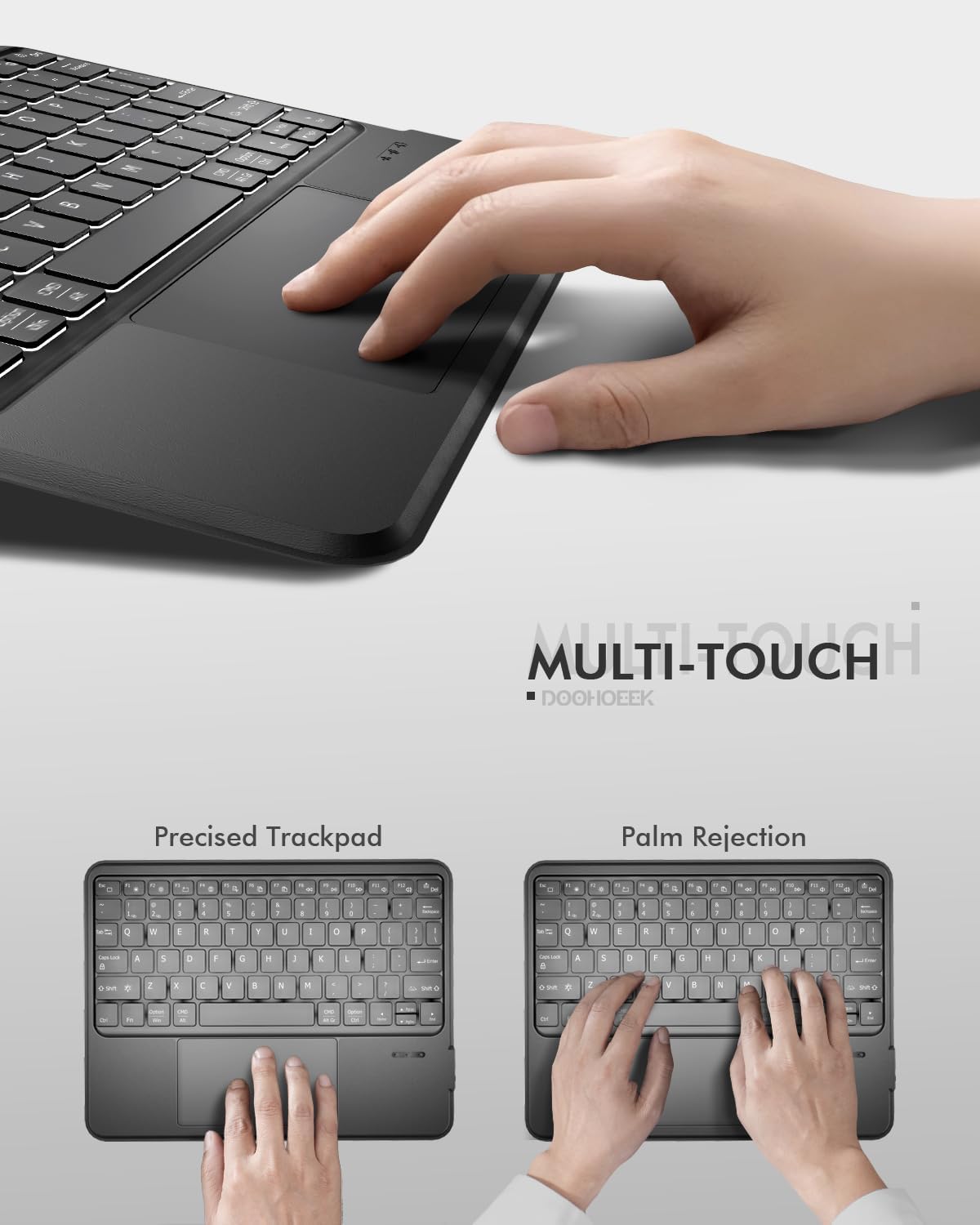
Figure 5: Adjustable Stand. The image demonstrates the case's ability to hold a tablet at multiple angles, suitable for various activities like typing, viewing, or drawing.
Maintenance
1. Cleaning the Adhesive Pads
The adhesive pads are water-washable and reusable. If the stickiness decreases due to dust or debris:
- Gently detach the tablet from the case. Ensure the keyboard remains dry.
- Rinse the adhesive pads with clean water.
- Allow the pads to air-dry completely before reattaching your tablet. Do not use cloths or paper towels, as fibers may reduce stickiness.
2. Cleaning the Case and Keyboard
- The case itself is washable. You can wipe it with a damp cloth.
- The keyboard is not submersible. To clean the keyboard, detach it from the case and wipe it gently with a dry or slightly damp cloth. Avoid getting moisture into the keys or ports.
Troubleshooting
1. Keyboard Not Connecting via Bluetooth
- Ensure the keyboard is charged and turned on.
- Make sure Bluetooth is enabled on your tablet.
- Re-enter pairing mode by pressing Fn + C.
- Forget the device from your tablet's Bluetooth settings and attempt to pair again.
- Ensure the keyboard is within the effective Bluetooth range (typically 10 meters).
2. Keys or Trackpad Not Responding
- Check the keyboard's battery level. Charge if necessary.
- Reconnect the Bluetooth connection.
- Restart your tablet.
- Ensure no debris is obstructing the keys or trackpad surface.
3. Backlight Not Working
- Ensure the keyboard is turned on and charged.
- Press the light bulb icon key to activate or change backlight settings.
- Adjust brightness using Fn + light bulb icon key.
Specifications
| Brand | Doohoeek |
| Compatible Devices | 9-11 inch tablets with top-left cameras (NOT center-positioned) |
| Connectivity Technology | Bluetooth |
| Keyboard Description | Universal Keyboard Case |
| Additional Features | Backlit, Integrated Stand, Rechargeable, Trackpad, Universally Fit |
| Power Source | Battery Powered |
| Keyboard Layout | QWERTY |
| Number of Keys | 84 |
| Enclosure Material | Silicone |
| Model Number (ASIN) | B0F914SPF3 |

Figure 6: Product Dimensions. The image illustrates the physical dimensions of the keyboard case and highlights the removable nature of the keyboard, which weighs 1.1 lbs.
Warranty and Support
For warranty information or technical support, please refer to the product packaging or contact Doohoeek customer service directly. Contact details can typically be found on the manufacturer's official website or through your purchase platform.