
Introduction
This manual provides essential information for setting up, operating, maintaining, and troubleshooting your new TCL QLED 43P7K 4K Google TV. Please read this manual thoroughly before using the television to ensure proper and safe operation. The TCL 43P7K features a 43-inch QLED display with 4K Ultra HD resolution, powered by Google TV, and enhanced with Dolby Atmos audio. It includes an AiPQ Processor, Multi HDR Format support, Game Master features, and a 120Hz Game Accelerator for an optimized viewing and gaming experience.
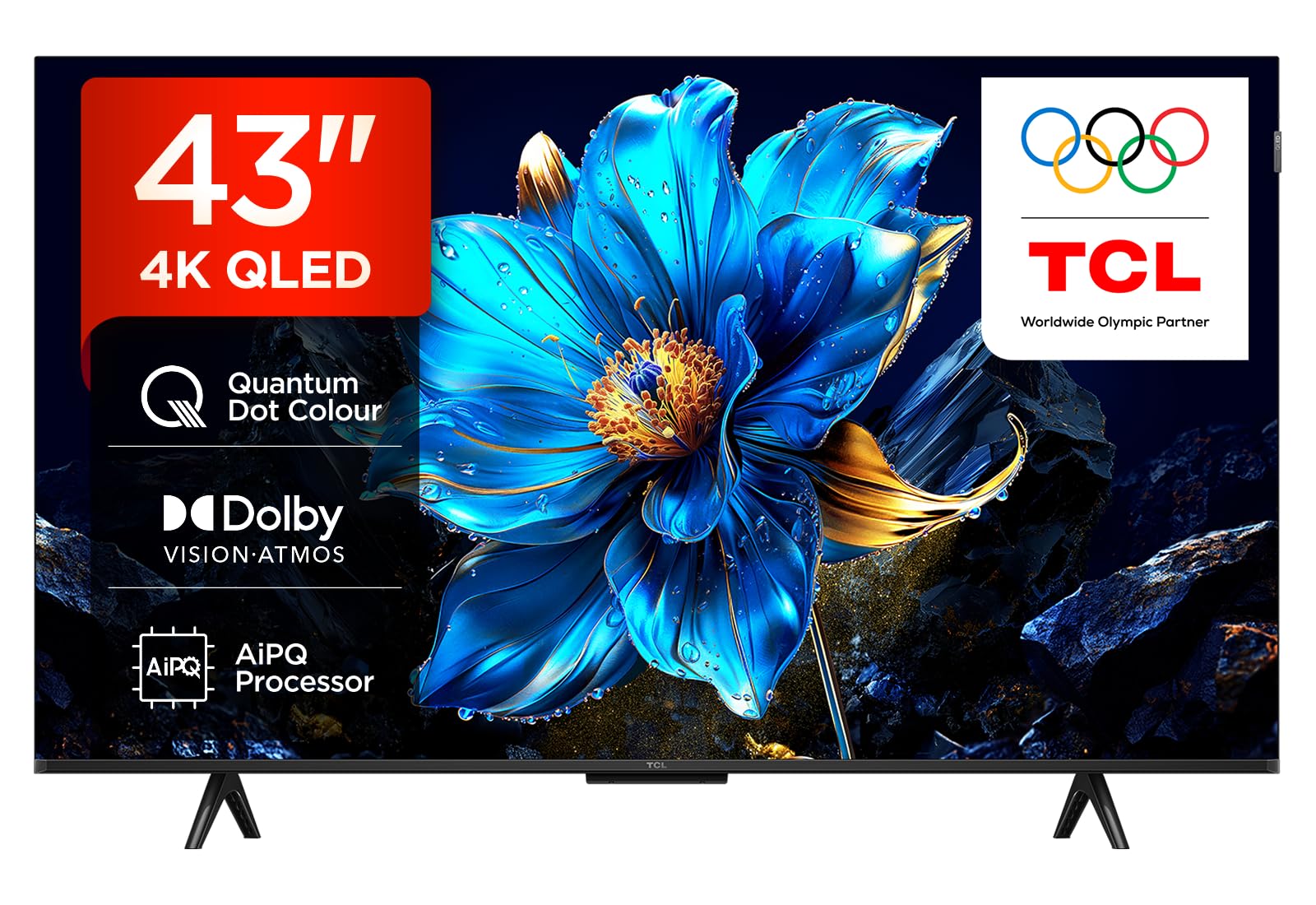
Front view of the TCL QLED 43P7K television, showcasing its slim bezel design and screen.
Setup
1. Unpacking
Carefully remove the television and all accessories from the packaging. Retain the packaging materials for future transport or service needs. Ensure all components listed in the packing list are present.
2. Mounting the TV
Your TCL 43P7K TV can be placed on a stand or wall-mounted. If using a stand, ensure it is stable and on a flat surface. For wall mounting, use a VESA compatible bracket (200 x 200 mm standard) and follow the instructions provided with the wall mount kit. Professional installation is recommended for wall mounting.
3. Connecting Power
Connect the power cord securely to the TV's power input and then to a suitable electrical outlet. Ensure the voltage matches the TV's requirements.
4. Connecting External Devices
The TV provides various ports for connecting external devices:
- HDMI Ports (x3): For connecting Blu-ray players, game consoles, cable/satellite boxes, and other HDMI-enabled devices.
- USB Port (x1): For connecting USB storage devices to play media files or for software updates.
- Ethernet Port: For a wired internet connection.
Ensure all cables are connected firmly to their respective ports.
5. Initial Power On and Google TV Setup
After connecting power, press the power button on the TV or remote control. Follow the on-screen instructions to complete the initial setup, including language selection, network connection, and Google TV account sign-in. This process will guide you through setting up your smart TV features.
Operating
1. Remote Control and Voice Control
Use the provided remote control to navigate the TV's interface. The remote supports voice control, allowing you to search for content, control playback, and manage settings using voice commands. Press the dedicated voice assistant button on your remote to activate this feature.
2. Google TV Interface
Your TV runs on Google TV, providing a personalized home screen with content recommendations from your subscriptions and apps. Easily access streaming services, live TV, and your connected devices. Supported internet services include Google TV and Alexa.
3. Picture Settings
Access the picture settings menu to adjust brightness, contrast, color, and other display options. The QLED display technology, combined with the AiPQ Processor and Multi HDR Format support (including HDR10), ensures vibrant colors and excellent contrast. Experiment with different picture modes to suit your viewing environment and content.
4. Audio Settings
The TV features integrated Dolby Atmos and DTS Virtual:X support, delivering immersive audio. With 5.1 audio channels and 180 watts of speaker power, you can customize sound modes and equalizer settings for an optimal listening experience. Connect external audio systems via HDMI ARC/eARC for enhanced sound.
5. Gaming Features
For gamers, the TCL 43P7K includes Game Master features and a 120Hz Game Accelerator, providing smoother gameplay and reduced input lag. Ensure your game console is connected to an HDMI port that supports these features for the best performance.
Maintenance
1. Cleaning the TV
Before cleaning, unplug the TV from the power outlet. Use a soft, dry cloth to wipe the screen and TV body. For stubborn marks, lightly dampen the cloth with water or a specialized screen cleaner. Do not use abrasive cleaners, alcohol, benzene, or thinners, as these can damage the screen or finish.
2. Software Updates
Your Google TV will periodically check for and install software updates to improve performance and add new features. Ensure your TV is connected to the internet to receive these updates. You can also manually check for updates in the TV's settings menu.
Troubleshooting
If you encounter issues with your TV, refer to the following common troubleshooting steps:
- No Power: Check if the power cord is securely connected to both the TV and the power outlet. Try plugging another device into the same outlet to confirm it's working.
- No Picture/Sound: Ensure the correct input source is selected. Check all cable connections between the TV and external devices. Try restarting the TV and any connected devices.
- No Internet Connection: Verify your Wi-Fi network is active or that the Ethernet cable is properly connected. Restart your router and modem. Check network settings on the TV.
- Remote Control Not Working: Replace the batteries in the remote control. Ensure there are no obstructions between the remote and the TV's IR sensor.
For more complex issues, consult the comprehensive troubleshooting guide available on the TCL support website or contact customer service.
Specifications
| Model Name | 43P7K |
| Screen Size | 43 inches |
| Display Technology | QLED |
| Resolution | 4K Ultra HD (3840 x 2160) |
| Refresh Rate | 120Hz (with 120Hz Game Accelerator) |
| Operating System | Google TV |
| Audio Output | 180 watts, Dolby Atmos, DTS Virtual:X, 5.1 channels |
| HDMI Ports | 3 |
| USB Ports | 1 |
| Connectivity | Ethernet, HDMI, USB |
| Special Features | QLED, AiPQ Processor, Multi HDR Format, Game Master, 120Hz Game Accelerator, Dolby Atmos |
| VESA Mount Standard | 200 x 200 mm |
| Annual Energy Consumption | 73 kilowatt hours per year |
| Model Year | 2020 |
Warranty
Your TCL 43P7K television comes with a limited warranty. Please refer to the warranty card included with your product or visit the official TCL website for detailed terms and conditions regarding coverage, duration, and service procedures. Keep your proof of purchase for warranty claims.
For customers in the EU, spare parts availability is guaranteed for 3 years from the date of purchase.
Support
For further assistance, technical support, or to download the latest software updates, please visit the official TCL support website. You can also find FAQs and contact information for customer service there.
TCL Official Website: www.tcl.com


