
1. Introduction
This manual provides detailed instructions for the AULA S99 99-Key Tri-Mode Wireless RGB Gaming Keyboard. Please read this manual thoroughly before use to ensure proper operation and to maximize your experience with the product.
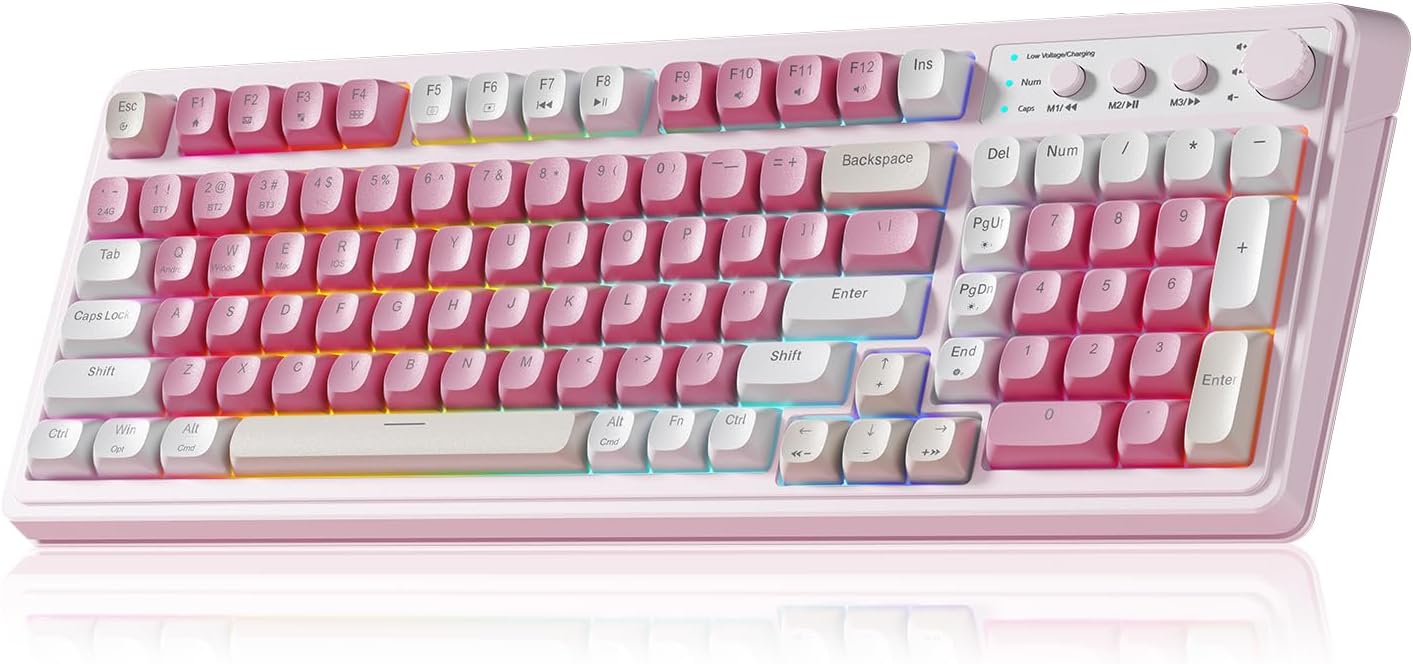
Figure 1: AULA S99 99-Key Tri-Mode Wireless RGB Gaming Keyboard (Pink variant).
2. What's in the Box
- 1x AULA S99 99-Key Tri-Mode Wireless RGB Gaming Keyboard - Pink
- 1x Type-C Cable (Please use our original charging cable, otherwise it may damage the keyboard)
- 1x Keycap Puller
- 1x User Manual
3. Product Overview
The AULA S99 keyboard is designed for versatility and performance, featuring a compact 99-key layout that includes a number pad. It offers multiple connectivity options, vibrant RGB backlighting, and ergonomic considerations for extended use.

Figure 2: Key features of the AULA S99 keyboard.
Key Features:
- 99-Key Layout: Compact design with a dedicated number pad.
- Tri-Mode Connectivity: Supports Bluetooth 5.0, 2.4GHz wireless, and USB wired connections.
- RGB Backlighting: 16.8 million colors with 16 pre-set lighting effects, adjustable brightness and speed.
- Programmable Keys: M1/M2/M3 buttons for macro customization.
- Multi-function Knob: Adjusts volume, connection mode, and backlight settings.
- Ergonomic Design: Features a foldable 2-stage kickstand for adjustable tilt angles.
- Long-lasting Battery: Equipped with a 2000mAh battery.
- Note: This is a membrane keyboard and does not support hot-swapping of switches.
4. Setup
The AULA S99 keyboard offers three connection modes: Bluetooth, 2.4GHz wireless, and USB wired. Follow the instructions below to set up your preferred connection.

Figure 3: Triple Mode Connection options for the AULA S99 keyboard.
4.1. Switching Connection Modes
To restore factory settings, press FN + Esc. Then, quickly switch keyboard modes using FN + ' ~ ! 1(1) / @ 2(#) / # 3($) keys.
4.2. 2.4GHz Wireless Connection
- Switch the mode button on the keyboard to 2.4G.
- Press FN + 4($). The Num indicator (blue) will flash rapidly.
- Insert the 2.4GHz USB receiver into your device.
- The Num indicator will flash slowly upon successful connection.
4.3. Bluetooth Connection
- Switch the mode button on the keyboard to BT.
- Press FN + 1(!), FN + 2(@), or FN + 3(#) to select a Bluetooth channel. The CAP indicator will flash rapidly.
- On your device, search for


