
1. Introduction
The Yahboom Jetcobot is a desktop AI visual collaborative robotic arm designed for ROS educational scenarios and advanced robotics development. It integrates the MyCobot280 7-degree-of-freedom collaborative robotic arm with a high-definition camera clamping system, enabling seamless integration of robotic arm vision and control. This system can accurately identify objects such as color, face, and human posture. By calculating object positions through geometric relationships, the robotic arm can precisely locate, grasp, track, and perform other actions.
Equipped with a Jetson series master control, the Jetcobot simplifies complex motion control of a 7-DOF robotic arm by integrating the ROS robot operating system and inverse kinematics algorithms. It supports robotic arm coordinate control, motion planning, collision detection, gripping, and sorting functions, providing a powerful and flexible platform for ROS education and research.
2. Product Overview
Key Features:
- 7-Axis Collaborative Robot: Designed for user-defined programming with greater flexibility.
- AI Visual Recognition: Equipped with a USB HD camera for object recognition, tracking, and grasping.
- ROS System Integration: Built-in ROS environment with Python driver libraries for easier development.
- Multiple Control Options: Supports multi-function Android app, USB game controller, and Jupyter Lab pages.
- High Precision: Achieves millimeter-level positioning and operation.
- Jetson Orin NX Super 8GB: Provides enhanced AI performance and computing power.
Product Structure:
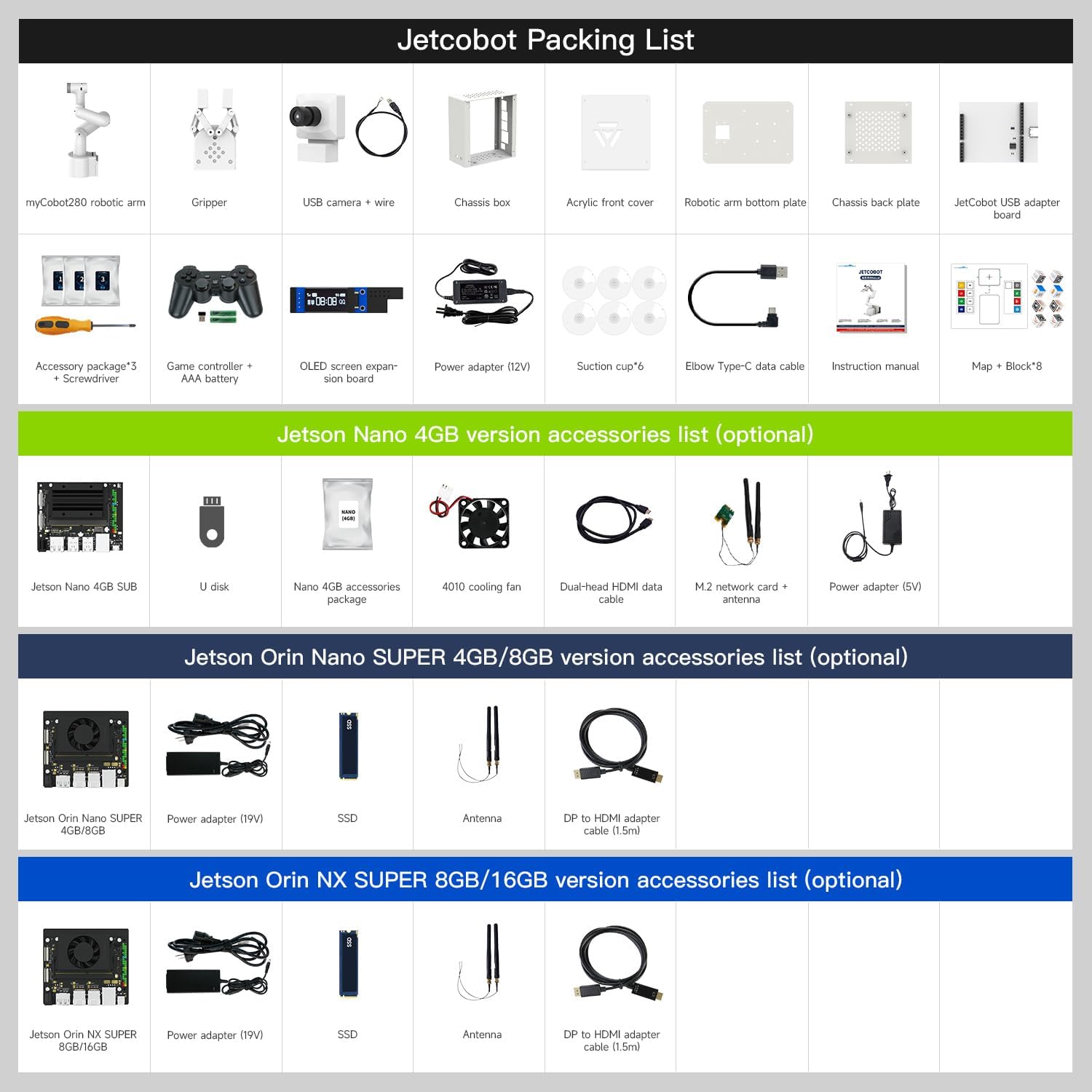
The Jetcobot consists of several key components:
- myCobot280 Robotic Arm: The main articulated arm with 7 degrees of freedom.
- Gripper: Adaptive gripper for manipulating objects.
- USB HD Camera: For visual recognition tasks.
- Chassis Box: Houses the main control board and other electronics.
- JetCobot USB Adapter Board: Facilitates connections.
- ROS Main Control Board (Optional): Jetson Nano B01, Jetson Orin Nano SUPER, or Jetson Orin NX SUPER.
- Robotic Arm Base: Provides stability, often with suction cups.
- OLED Screen: For displaying status or information.
- Antenna: For wireless communication.

What's in the Box:
The standard package includes:
- Robotic arm
- Development board kit
Additional accessories may vary based on the specific Jetson version purchased (e.g., Jetson Nano 4GB, Jetson Orin Nano SUPER 4GB/8GB, or Jetson Orin NX SUPER 8GB/16GB versions).

3. Setup Instructions
Follow these steps to set up your Yahboom Jetcobot Robotic Arm:
- Unpack Components: Carefully remove all items from the packaging. Verify that all components listed in the packing list are present.
- Connect Power and USB: Connect the appropriate power adapter to the robotic arm and the Jetson development board. Connect necessary USB cables for the camera and other peripherals.
- Software Installation: Install the required operating system (Ubuntu 22.04 is recommended for Orin NX Super), ROS, and Python driver libraries on your device or host computer. Refer to the official Yahboom documentation for detailed software setup guides.
- Review Manual: Read the provided English instruction manual thoroughly before proceeding with operation.
- Initial Configuration: Configure the Jetson Orin NX Super board. Initialize the robotic arm using the multi-function Android app or a connected USB game controller.
- Tutorials: Follow the included tutorials to familiarize yourself with basic movements, AI vision recognition, and programming using RoboFlow or custom scripts.
- Calibration and Safety: Perform all necessary calibration steps and safety checks before attempting any autonomous tasks or complex operations.
Important: Pay close attention to the power adapters. Using incorrect power adapters can damage the device.
4. Operating Instructions
The Jetcobot offers various methods for operation and control, leveraging its integrated AI and ROS capabilities.
4.1. Basic Movement Control
Control the robotic arm's movements using either the dedicated Android app or a USB game controller. The USB game controller is recommended for a more precise and responsive control experience, especially for gripper operations, as the app may not fully control the gripper.
4.2. Programming and ROS System
The Jetcobot is built on an open-source ecosystem, providing rich development interfaces and Python driver libraries. It comes with a built-in ROS environment, making it suitable for advanced programming and robotics research.
- RoboFlow Software: Explore the industrial robot software RoboFlow for advanced programming and control.
- Jupyter Lab: Create and manage programming tasks online using Jupyter Lab pages.
- ROS Simulation: Utilize the ROS system for simulation learning and algorithm development.

5. AI Vision & Control Features
The Jetcobot excels in AI-driven tasks, utilizing its integrated camera and powerful processing unit.
5.1. Object Recognition and Tracking
The robotic arm can perform various visual recognition tasks:
- Color Recognition and Tracking: Identify and track objects based on their color. Custom colors can also be extracted.
- Color Block Sorting and Grabbing: Place blocks in designated areas or grab specific color blocks after recognition.
- Region Identification: Identify specific regions for grabbing and placing objects.
- Garbage Classification: The kit includes pattern blocks for simulating garbage classification tasks.
- Label Recognition and Intelligent Stacking: Recognize Apriltag labels and determine positions for stacking.
5.2. Gesture and Human Posture Control
The Jetcobot can interpret human gestures for control:
- Gesture Recognition: Control the robotic arm through specific hand gestures.
- Palm Tracking: The arm can track the movement of a human palm.
- Fingertip Trajectory Recognition: Recognize and replicate fingertip movements.
Video 5.1: Demonstration of the Jetcobot robotic arm's AI capabilities, including object recognition, stacking, and gesture control. This video showcases the robot's ability to interact with its environment based on visual input and human commands.
6. Technical Specifications
Below are the detailed specifications for the Yahboom Jetcobot Robotic Arm:
| Specification | Value |
|---|---|
| Brand Name | Yahboom |
| Model Name | jetcobot |
| Model Number | jetcobot |
| Toy Figure Type | Interactive Gaming Figure |
| Character | robot arm |
| Unit Count | 1 Count |
| Model Series | Jetcobot |
| Age Range Description | 20+ (Manufacturer recommended age: 10 - 20 years) |
| Included Components | robot arm, development board kit |
| Manufacturer | Yahboom |
| Theme | python |
| Color | With Orin Nx Super 8gb |
| Collection Name | educational-robotics |
| Style | Modern |
| Additional Features | Remote Control |
| Play Activity Location | Tabletop |
| Recommended Uses For Product | Learning robotics, programming, and artificial intelligence |
| Educational Objective | To teach users about robotics, programming, and artificial intelligence. |
| Indoor Outdoor Usage | Indoor |
| Operation Mode | manual, automatic |
| Power Source | AC adapter |
| Material Type | Plastic |
| Outer Material | Plastic |
| Item Dimensions L x W x H | 10"L x 8"W x 15"H |
| Number of Pieces | 1 |
| Size | 15 inches (H) x 10 inches (L) x 8 inches (W) |
| Scale | miniature |
Working Radius:
The Jetcobot has a maximum effective arm span of 270mm (without gripper) and 374.5mm (with mold gripper). Its repeatability is ≤0.5mm.

7. Maintenance
Proper maintenance ensures the longevity and optimal performance of your Jetcobot Robotic Arm:
- Regular Cleaning: Keep the robotic arm and its components clean from dust and debris. Use a soft, dry cloth.
- Cable Management: Ensure all cables are properly routed and secured to prevent damage or entanglement during operation.
- Software Updates: Regularly check for and install software and firmware updates for the Jetson board and robotic arm system to ensure compatibility and access to new features.
- Joint Inspection: Periodically inspect the robotic arm joints for any signs of wear or looseness. Tighten fasteners if necessary, following manufacturer guidelines.
- Power Supply Check: Always use the correct power adapter and inspect it for any damage before use.
8. Troubleshooting
If you encounter issues with your Jetcobot, consider the following troubleshooting steps:
- Power Issues: If the robotic arm does not power on, ensure the power adapter is correctly connected and functioning. Verify that the correct power adapter is being used.
- Connection Problems: Check all USB and network connections. Ensure the Jetson board is properly seated and connected.
- Software Errors: If software is not responding or showing errors, restart the system. Verify that all necessary drivers and libraries are installed and up to date. Consult the official Yahboom tutorials and documentation for specific error codes.
- Movement Irregularities: If the arm moves erratically or fails to reach target positions, perform a calibration routine. Check for any physical obstructions or loose connections in the joints.
- AI Vision Malfunctions: Ensure the USB HD camera is clean, properly connected, and its drivers are installed. Verify lighting conditions are adequate for visual recognition tasks.
- App/Controller Issues: If the app or game controller is not working, ensure it is properly paired or connected. Check battery levels for wireless controllers.
For complex issues not resolved by these steps, please contact Yahboom technical support.
9. Warranty Information
The Yahboom Jetcobot Robotic Arm comes with a 90-day warranty against manufacturer defects. This warranty covers defects in materials and workmanship under normal use. It does not cover damage caused by misuse, accidents, unauthorized modifications, or improper power supply usage.
Please retain your proof of purchase for warranty claims.
10. Support
For additional assistance, technical support, or to access further resources, please use the following contact information and links:
- Online Resources: Visit yahboom.net/download for documentation, tutorials, and software.
- Email Support: For general inquiries, contact amazon@yahboom.com.
- Technical Support: For technical assistance, email support@yahboom.com.
Note: The Jetcobot is recommended for individuals with a basic understanding of programming, not for beginners.


