
1. Introduction
The ProtoArc XK01 is a portable, full-size foldable Bluetooth keyboard designed for seamless productivity across multiple devices. Its compact design, comfortable typing experience, and long-lasting battery make it ideal for on-the-go use. This manual provides essential information for setting up, operating, and maintaining your keyboard.
2. Product Features
2.1 Portability and Design
The XK01 features a triple-fold design, making it as compact as an iPad mini when folded. Weighing only 291g, it's easy to carry in a bag or laptop case, perfect for use in cafes, libraries, offices, or during travel. The high-quality hinges are designed to withstand over 100,000 open/close cycles, ensuring excellent durability. Strong magnets securely hold the keyboard closed, preventing accidental opening in your bag.
Unfolded dimensions: 38.58 × 11.89 × 1.22 cm
Folded dimensions: 21.49 × 11.89 × 1.98 cm

Image: Keyboard dimensions and folded size comparison.

Image: Keyboard easily fits into a bag for portability.
2.2 Typing Experience
Experience a comfortable and responsive typing feel similar to a laptop. The keyboard utilizes a pantograph key structure with a 19mm key pitch and a shallow 1.2mm key stroke, designed to prevent mistyping and ensure smooth input.

Image: User typing on the ProtoArc XK01 keyboard.

Image: Detailed view of the pantograph key structure and key pitch.
2.3 Standard Japanese Layout with Shortcut Keys
The XK01 features a standard Japanese JIS 105-key layout, allowing for a familiar typing experience. It includes specialized keys for Japanese input such as the inverted L-shaped large Enter key, 'Half/Full-width' key, 'Convert' and 'Non-convert' keys, a right Ctrl key, and a large independent Delete key, enhancing typing efficiency. Additionally, 14 convenient shortcut keys are integrated for quick access to functions like app switching, home screen display, volume adjustment, and multimedia controls. The integrated numeric keypad further enhances efficiency for data entry.
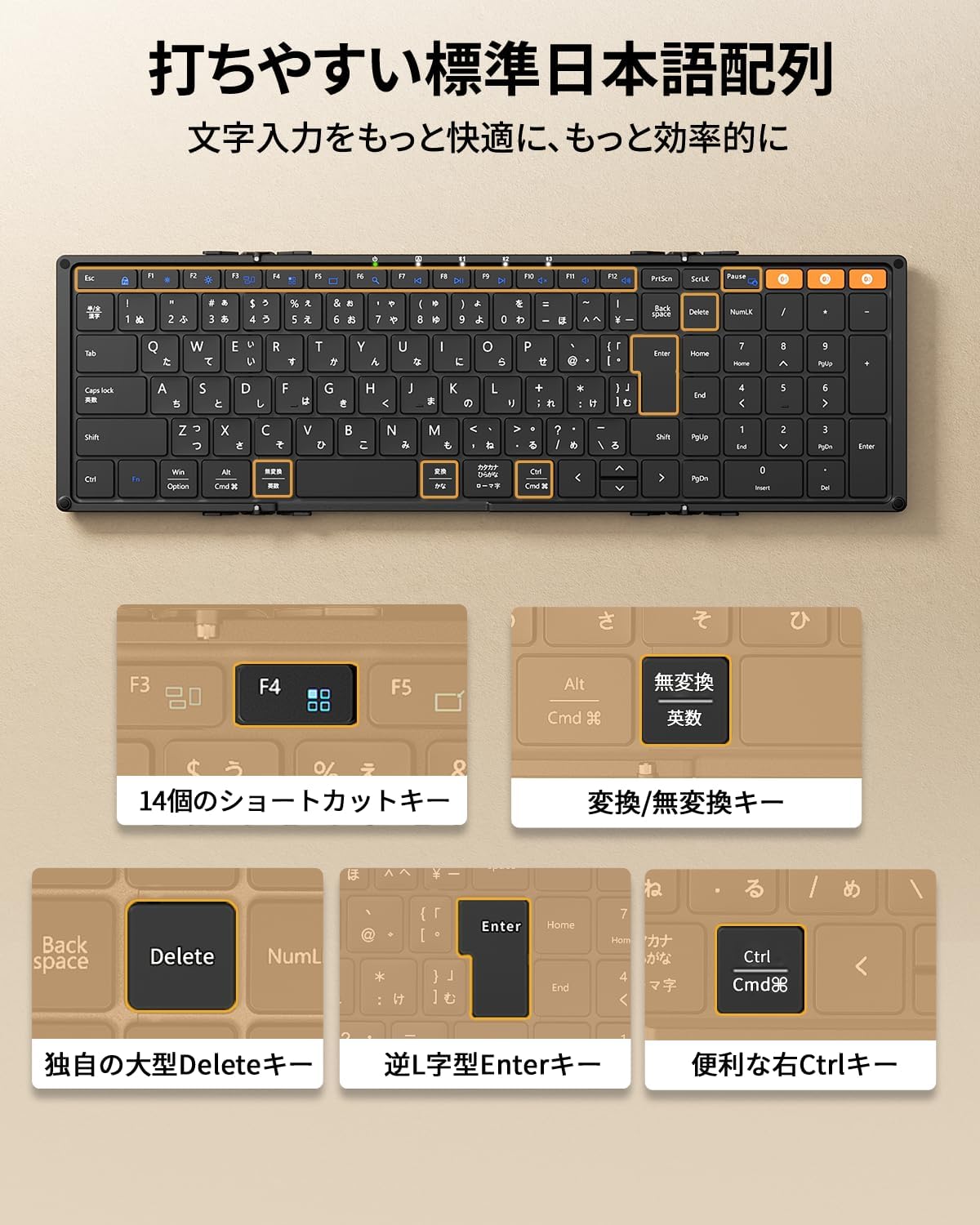
Image: Japanese key layout and dedicated function keys.

Image: Overview of the 14 shortcut keys.
2.4 Multi-Device Connectivity
Connect up to three devices simultaneously via Bluetooth. The keyboard supports a wide range of operating systems including iPadOS, iOS, Android, Mac, and Windows. Easily switch between connected devices with a single button, making it convenient for users who work with multiple PCs, tablets, and smartphones.

Image: Keyboard connected to multiple devices simultaneously.
2.5 Long Battery Life & Energy Saving
Equipped with a 210mAh large-capacity battery, a single full charge provides approximately 1-2 weeks of continuous use or up to 150 days of standby time. The keyboard features energy-saving designs such as automatic sleep after 60 minutes of inactivity and automatic power ON/OFF when folded/unfolded, minimizing unnecessary power consumption. Type-C rapid charging is supported.

Image: Type-C charging port and battery information.
3. Setup Instructions
3.1 Unfolding and Power On
Gently unfold the keyboard until it lies flat. The keyboard will automatically power on due to its magnetic design. Five convenient LED lights on the top of the keyboard allow for quick checking of battery level and connection status.
3.2 Bluetooth Pairing
- Ensure the keyboard is sufficiently charged. Connect the provided Type-C cable to charge if necessary.
- Turn on Bluetooth on your device (smartphone, tablet, PC).
- Press the Fn key along with one of the Bluetooth channel keys (Fn + BT1, BT2, or BT3) to select a pairing channel. The corresponding LED indicator will flash.
- On your device, search for 'ProtoArc XK01' in the Bluetooth settings and select it to pair.
- Once paired, the LED indicator will stop flashing and remain solid for a few seconds.
- To switch between connected devices, simply press the Fn key and the corresponding Bluetooth channel key (Fn + BT1/BT2/BT3).
3.3 OS Compatibility Note
For iOS/iPadOS devices running versions older than iOS 16 / iPadOS 16, the keyboard may be recognized as an English layout keyboard, leading to incorrect input. Please update your device's operating system to iPadOS 16 or later for optimal Japanese input functionality. Refer to your device's settings to change the keyboard layout to Japanese.
4. Operating Instructions
4.1 Power Management
- Automatic Power On/Off: The keyboard automatically powers on when unfolded and powers off when folded due to its magnetic design.
- Automatic Sleep: The keyboard will enter automatic sleep mode after 60 minutes of inactivity to conserve battery. Press any key to wake it up.
4.2 Shortcut Keys
Utilize the 14 shortcut keys for quick access to various functions. Press the Fn key in combination with the desired function key.
- Fn + F1: Brightness Down
- Fn + F2: Brightness Up
- Fn + F3: Window Switch
- Fn + F4: App Switch
- Fn + F5: Show Desktop
- Fn + F6: Search
- Fn + F7: Previous Track
- Fn + F8: Play/Pause
- Fn + F9: Next Track
- Fn + F10: Mute
- Fn + F11: Volume Down
- Fn + F12: Volume Up
4.3 Fn Lock
To toggle Fn Lock (to use F1-F12 keys directly without pressing Fn), press the Fn key and the Esc key simultaneously.
5. Charging
Connect the provided Type-C charging cable to the keyboard's Type-C port and a power source (e.g., USB wall adapter, computer USB port). The charging indicator LED will light up. A full charge takes approximately 2 hours. The keyboard can be used while charging.
6. Troubleshooting
6.1 Keys not responding or incorrect characters
This often indicates that your device recognizes the keyboard as an English layout instead of Japanese. Please change the keyboard layout to Japanese in your device's settings. For example, on an iPad, navigate to Settings > General > Keyboard > Hardware Keyboard and select the Japanese layout.
6.2 Connection Issues
Ensure Bluetooth is enabled on your device and the keyboard is sufficiently charged. Try re-pairing the keyboard by following the Bluetooth pairing instructions in Section 3.2.
6.3 Keyboard not turning on
Ensure the keyboard is fully unfolded. If it still doesn't turn on, charge it using the Type-C cable. The battery might be depleted.

Image: Common troubleshooting tips.
7. Specifications
| Brand | ProtoArc |
| Model | XK01 |
| Connectivity Technology | Bluetooth |
| Keyboard Description | Pantograph |
| Recommended Uses | Business, Student, Education, Everyday Use |
| Special Features | Hotkeys & Media Keys, Portable, Rechargeable, Foldable, Lightweight |
| Color | Black |
| Product Dimensions (Unfolded) | 38.6 cm (L) x 11.9 cm (W) x 1.2 cm (H) |
| Included Components | User Manual, Charging Cable |
| Number of Batteries | 1 |
| Compatible Devices | iPadOS 16+, Win 8/10+, Mac OS X 10.10+, Android 4.3+, Smartphones, Tablets, Desktops, Laptops |
| Power Source | Battery Powered |
| Switch Type | Tactile |
| Keyboard Layout | QWERTY (Japanese JIS) |
| Number of Keys | 109 |
| Item Weight | 291 grams |
8. Warranty and Support
This product comes with an 18-month manufacturer's warranty from the date of purchase. In case of any defects or damage, please contact our customer support. We offer free exchanges or full refunds.
For further assistance, please refer to the contact information provided in the full user manual (PDF version available on the product page) or on the ProtoArc brand store page.

Image: Customer support contact details.
9. Product Videos
9.1 Product Overview
Video: A quick overview of the ProtoArc XK01 foldable keyboard, demonstrating its folding mechanism and compact size.


