
TECKNET TK-KB005
TECKNET TK-KB005 Wireless Bluetooth Keyboard User Manual
Model: TK-KB005
1. Introduction
Thank you for choosing the TECKNET TK-KB005 Wireless Bluetooth Keyboard. This manual provides detailed instructions for setting up, operating, and maintaining your new keyboard. Please read it thoroughly before use to ensure optimal performance and longevity of your device.
1.1 Package Contents
Please check the package for the following items:
- 1 x TECKNET TK-KB005 Wireless Bluetooth Keyboard
- 1 x USB-C Charging Cable
- 1 x USB 2.4G Receiver (may be stored in the keyboard's battery compartment or a dedicated slot)
- 1 x User Manual (this document)
2. Product Overview
2.1 Keyboard Layout
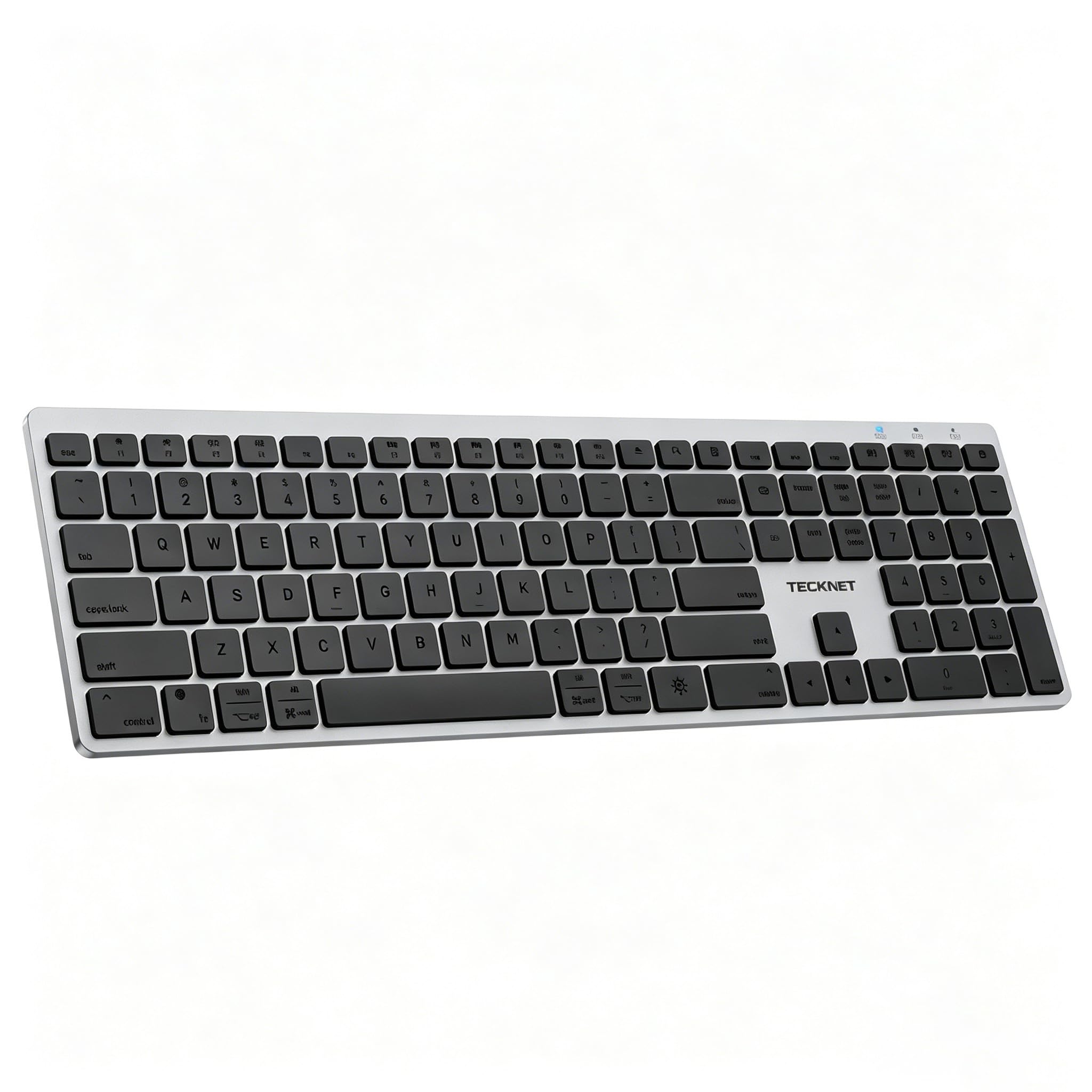
Image: Top view of the TECKNET TK-KB005 Wireless Bluetooth Keyboard, showcasing its full-size Italian QWERTY layout with numeric keypad and function keys. The keyboard features a sleek silver and black design.
2.2 Key Features
- Multi-Device Connectivity: Seamlessly switch between up to four devices (3 x Bluetooth, 1 x 2.4G wireless).
- Rechargeable Battery: Built-in 500mAh battery provides up to 180 days of use on a 2-hour charge (based on 2 hours daily use).
- Quiet and Comfortable Typing: 110 improved scissor-switch keys reduce typing noise by 90%, offering a 2mm key travel and tactile feedback.
- Ergonomic Design: Adjustable tilt angle (3° to 7°) and five anti-slip pads ensure comfortable and stable typing.
- Wide Compatibility: Supports Windows, iOS, MacOS, Android, Linux, making it ideal for PCs, laptops, tablets, smartphones, and Smart TVs.
- Multimedia Shortcuts: 12 multimedia shortcuts (with Fn key) enhance productivity.
3. Setup
3.1 Charging the Keyboard
- Locate the USB-C charging port on the keyboard (usually on the top edge).
- Connect one end of the provided USB-C cable to the keyboard and the other end to a USB power source (e.g., computer USB port, USB wall adapter).
- The charging indicator light (usually near the power switch or connection indicators) will illuminate, typically red, during charging.
- Once fully charged (approximately 2 hours), the indicator light will change color or turn off.
Note: It is recommended to fully charge the keyboard before first use.
3.2 2.4G Wireless Connection

Image: A TECKNET wireless keyboard shown alongside its compact USB 2.4G receiver, illustrating the components needed for a 2.4G wireless connection.
- Locate the USB 2.4G receiver. It might be stored in a slot on the keyboard itself (often near the battery compartment).
- Plug the USB 2.4G receiver into an available USB-A port on your computer or device.
- Turn on the keyboard using the power switch (usually on the top or bottom edge).
- Press the dedicated 2.4G connection key (often labeled with a 2.4G icon or a specific number/mode button) on the keyboard. The indicator light for 2.4G mode should illuminate.
- The keyboard should automatically connect to your device. You can now start typing.
3.3 Bluetooth Connection (BT1, BT2, BT3)
The keyboard supports up to three Bluetooth connections (BT1, BT2, BT3).
- Turn on the keyboard using the power switch.
- Select a Bluetooth Channel: Press and hold one of the Bluetooth channel keys (e.g., BT1, BT2, or BT3) for 3-5 seconds until its indicator light starts blinking rapidly. This indicates the keyboard is in pairing mode.
- Enable Bluetooth on Your Device: Go to the Bluetooth settings on your computer, tablet, or smartphone.
- Search for Devices: Your device will scan for available Bluetooth devices. Look for "TECKNET Keyboard" or a similar name in the list.
- Pair the Keyboard: Select the keyboard from the list. Your device may prompt you to enter a code displayed on the screen using the keyboard, then press Enter.
- Connection Confirmation: Once paired, the indicator light on the keyboard will stop blinking and remain solid for a few seconds, then turn off to save power. The keyboard is now connected.
- Repeat these steps for BT2 and BT3 to connect to other devices.
3.4 Switching Between Connected Devices
To switch between your connected devices (2.4G, BT1, BT2, BT3), simply press the corresponding connection key (2.4G, BT1, BT2, or BT3) once. The keyboard will switch to the selected device almost instantly.
4. Operating Instructions
4.1 Multimedia and Function Keys
The keyboard features a row of function keys (F1-F12) that also serve as multimedia shortcuts. To use the multimedia functions, press and hold the Fn key and then press the desired function key.
- Fn + F1-F12: Access various multimedia controls such as volume up/down, mute, play/pause, previous/next track, web browser, email, etc. (Specific functions may vary slightly based on operating system).
- Fn + ESC: (As noted in a review) This combination might toggle the default behavior of the F-keys between standard function keys and multimedia keys. Refer to the keyboard's specific markings for exact functionality.
4.2 Power Saving Mode
To conserve battery life, the TECKNET TK-KB005 keyboard will automatically enter sleep mode after 30 minutes of inactivity. To wake it up, simply press any key. The keyboard will reconnect to the last active device instantly.
5. Maintenance
5.1 Cleaning
- Turn off the keyboard before cleaning.
- Use a soft, lint-free cloth slightly dampened with water or a mild cleaning solution (e.g., isopropyl alcohol) to wipe the surface of the keys and casing.
- Do not use abrasive cleaners, solvents, or spray cleaners directly onto the keyboard.
- Use compressed air to remove dust and debris from between the keys.
5.2 Battery Care
- Avoid exposing the keyboard to extreme temperatures (hot or cold) as this can affect battery life.
- If the keyboard will not be used for an extended period, it is advisable to fully charge it and then turn it off.
- Recharge the keyboard when the low battery indicator appears to prevent unexpected power loss.
6. Troubleshooting
6.1 Keyboard Not Responding
- Ensure the keyboard is turned on.
- Check the battery level and charge the keyboard if necessary.
- Verify that the correct connection mode (2.4G, BT1, BT2, or BT3) is selected for your device.
- For 2.4G connection, ensure the USB receiver is securely plugged into your device. Try a different USB port.
- For Bluetooth connection, ensure Bluetooth is enabled on your device and the keyboard is paired. Try unpairing and re-pairing the keyboard.
- Move the keyboard closer to your device to rule out range issues.
6.2 Lag or Disconnections
- Ensure there are no other strong wireless signals or devices causing interference (e.g., Wi-Fi routers, other Bluetooth devices).
- Keep the keyboard within the recommended operating range of your device.
- Check for any physical obstructions between the keyboard and the receiver/device.
- Ensure your device's Bluetooth drivers are up to date.
6.3 Keys Not Working Correctly
- Clean the keyboard to remove any debris that might be stuck under the keys.
- Restart your computer/device.
- If only specific keys are affected, and cleaning doesn't help, contact customer support.
7. Specifications
| Model | TK-KB005 |
| Connectivity | Bluetooth (BT1, BT2, BT3), 2.4G Wireless |
| Layout | Italian QWERTY |
| Number of Keys | 110 |
| Key Type | Scissor-switch |
| Battery | 500mAh Rechargeable Lithium Battery |
| Charging Port | USB-C |
| Compatibility | Windows, MacOS, iOS, Android, Linux (PC, Laptop, Tablet, Smartphone, Smart TV) |
| Color | Black and Silver |
8. Warranty and Support
The TECKNET TK-KB005 Wireless Bluetooth Keyboard comes with a 36-month warranty from the date of purchase. This warranty covers manufacturing defects and ensures your product is free from material and workmanship flaws under normal use.
If you encounter any issues or have questions regarding your product, please do not hesitate to contact TECKNET customer support. For the fastest service, please have your product model number (TK-KB005) and proof of purchase ready.
For support, please visit the official TECKNET website or refer to the contact information provided with your purchase documentation.
Related documentsTK-KB005


Ask a question about this manual
Ask about setup, troubleshooting, compatibility, parts, safety, or missing instructions. Manuals+ will review the question and use this page’s manual context to help answer it.