
1. Introduction
Thank you for choosing the FOCUWAY D4 Duo Dash Cam. This manual provides detailed instructions for the installation, operation, and maintenance of your new dash camera. The FOCUWAY D4 Duo is designed to capture high-quality video footage of your journeys, offering advanced features such as real 4K front recording, 1080P rear recording, touchscreen interface, voice control, built-in GPS, Wi-Fi connectivity, HDR night vision, and 24-hour parking monitoring. Please read this manual thoroughly before using the device to ensure proper functionality and safety.
2. Package Contents
Please verify that all items listed below are included in your package:
- 1 x 4K Front Camera with GPS
- 1 x 1080P Rear Camera With 5.5 Meters Cable
- 1 x 1.15ft Mini USB Car Charger With Extra USB Port
- 1 x Electrostatic Sticker
- 2 x Adhesive Sticker Pads
- 1 x Crowbar Tool
- 1 x Cable Clips
- 1 x User Manual
- 1 x Card Pin

Image: Illustration of the FOCUWAY D4 Duo Dash Cam and its included accessories, showing the front camera, rear camera, car charger, cables, mounting accessories, and user manual.
3. Product Overview
The FOCUWAY D4 Duo features a compact design with a front-facing camera and a separate rear camera for comprehensive coverage. The main unit includes a responsive HD touchscreen and physical buttons for intuitive control.

Image: The FOCUWAY D4 Duo dash cam, showing the front camera unit with its touchscreen display, the separate rear camera, and a 64GB microSD card.
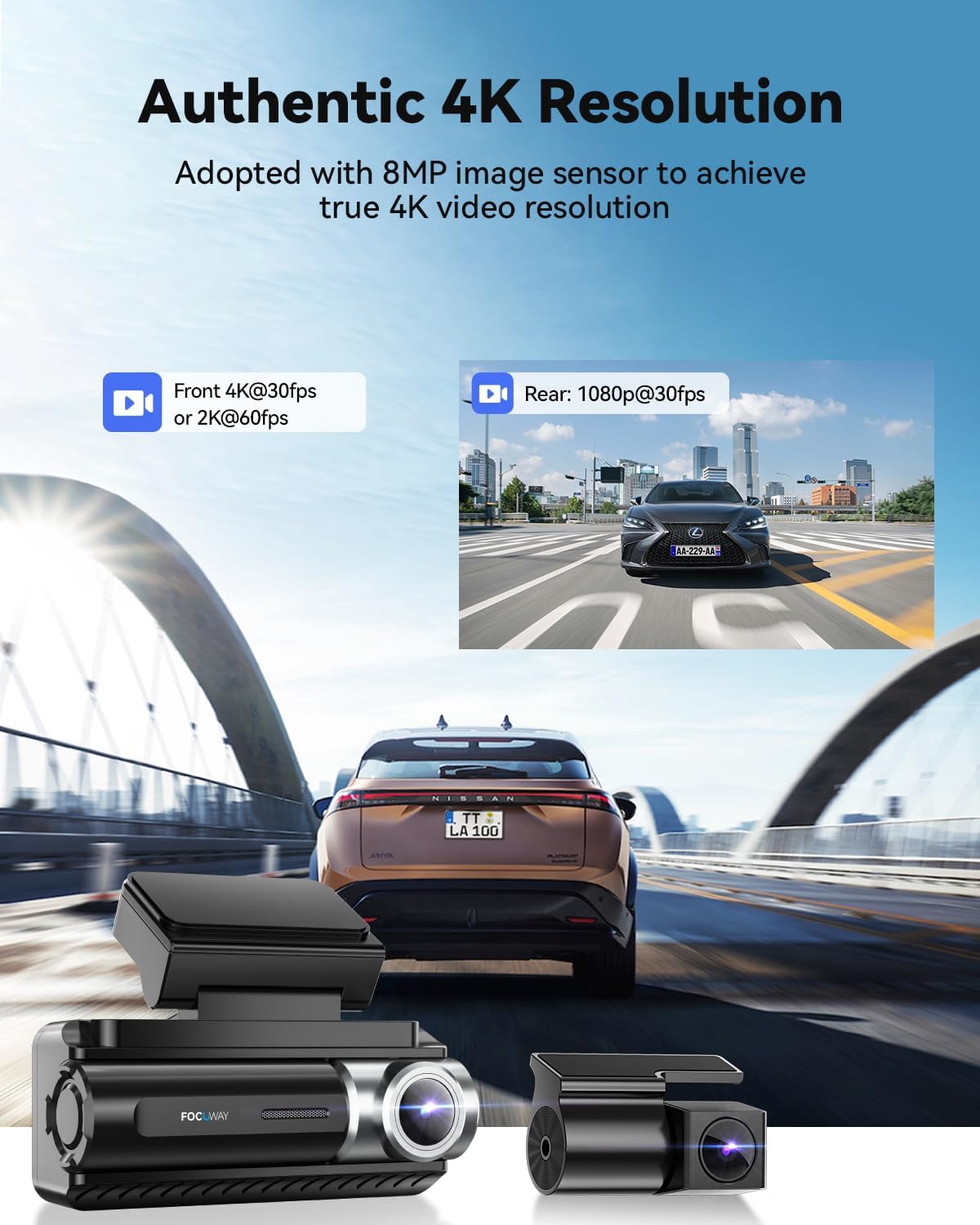
Image: Demonstrates the authentic 4K resolution of the front camera (4K@30fps or 2K@60fps) and 1080P@30fps for the rear camera, with example footage showing clear detail of vehicles.
4. Installation Guide
- Prepare the Windshield: Clean the area on your windshield where you intend to mount the dash cam. Ensure it is free from dust and grease.
- Apply Electrostatic Sticker: Place the electrostatic sticker on the cleaned area of the windshield. This helps in easy removal and repositioning without leaving residue.
- Attach Adhesive Mount: Secure the adhesive mount to the electrostatic sticker. Press firmly for at least 30 seconds to ensure a strong bond.
- Mount the Front Camera: Slide the FOCUWAY D4 Duo main unit onto the mounted bracket until it clicks into place.
- Install Rear Camera: Mount the rear camera on your rear windshield using its adhesive. Route the 5.5-meter cable from the rear camera to the main front camera unit. Connect the rear camera cable to the 'REAR' USB-C port on the GPS module.
- Connect Power: Plug the mini USB car charger into your vehicle's 12V power outlet (cigarette lighter socket). Connect the other end of the charger cable to the 'TYPE-C' USB-C port on the GPS module. Use the provided crowbar tool and cable clips to neatly tuck away the cables along the vehicle's trim.
- Insert MicroSD Card: Insert the provided 64GB microSD card into the designated slot on the side of the main unit. Ensure it is inserted correctly until it clicks.

Image: A diagram illustrating the typical installation of the FOCUWAY D4 Duo dash cam, showing the front camera mounted on the windshield, the rear camera placement, and the routing of power and rear camera cables within a vehicle's interior.
Video: An official product video demonstrating the physical features of the FOCUWAY D4 Duo dash cam, including its ports, mounting, and a visual representation of the cable routing for both front and rear cameras. It also highlights the touchscreen interface and voice control capabilities.
5. Basic Operation
5.1 Powering On/Off
- The dash cam will automatically power on and begin recording when connected to your vehicle's power supply and the engine starts.
- To manually power off, press and hold the power button until the device shuts down. It will automatically power off when the vehicle's ignition is turned off.
5.2 Touchscreen Navigation
The FOCUWAY D4 Duo features an intuitive HD touchscreen for easy navigation through menus and settings. Simply tap on the icons to access different functions such as Homepage, Playback, and Settings.
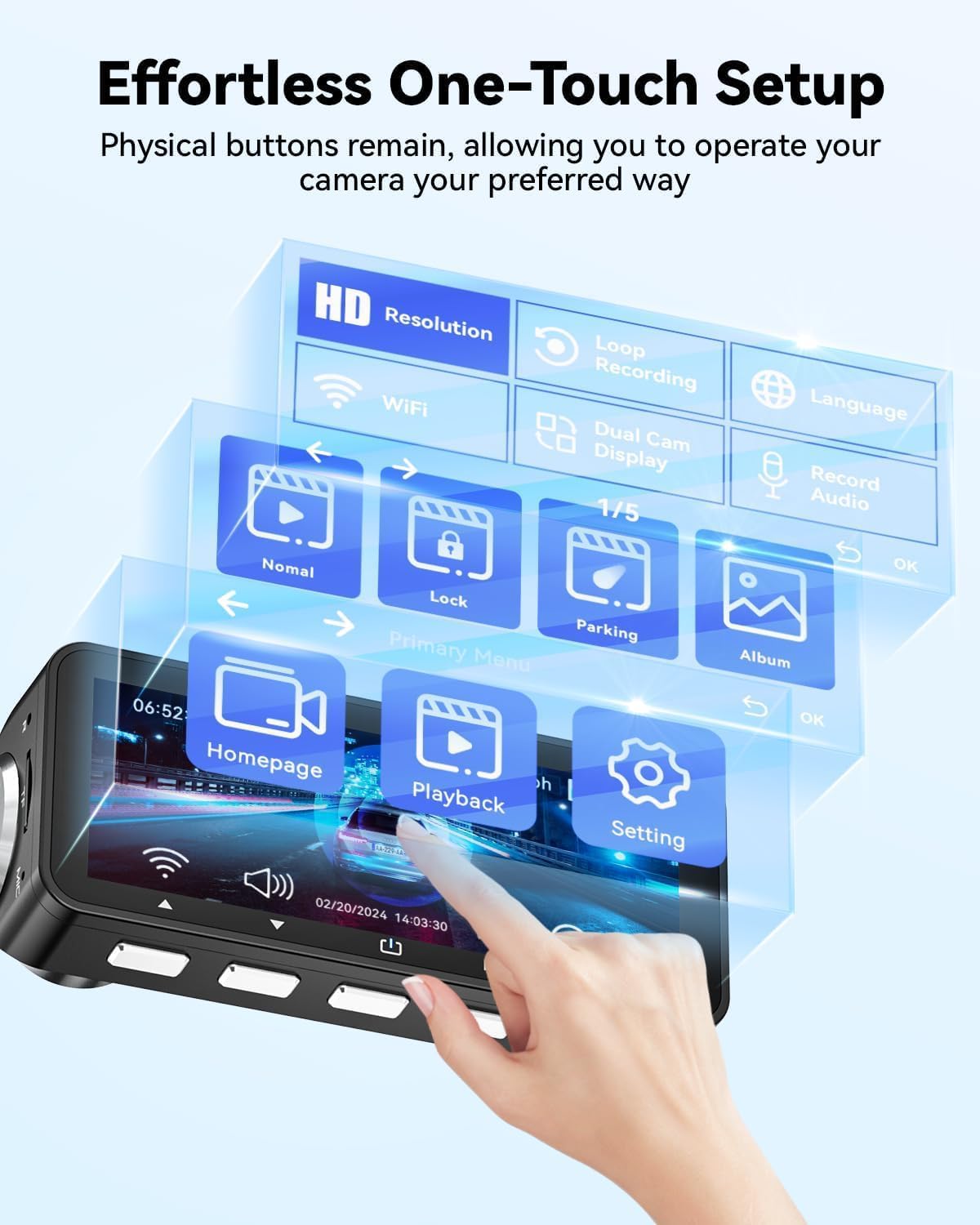
Image: A visual representation of the FOCUWAY D4 Duo's touchscreen interface, showing the main menu with options for Homepage, Playback, and Settings, along with various recording indicators.
5.3 Voice Control
For hands-free operation, the dash cam supports voice commands. Ensure the voice control feature is enabled in the settings. Common commands include:
- "Lock the Video": Locks the current recording to prevent it from being overwritten.
- "Take Photo": Captures a still image.
- "Start Recording": Initiates video recording.
- "Video Stop": Halts video recording.
6. Advanced Features
6.1 Video Recording Modes
- Loop Recording: The dash cam continuously records video in short segments (e.g., 1, 3, or 5 minutes). When the memory card is full, the oldest unlocked files are automatically overwritten to make space for new recordings.
- Emergency Recording (G-sensor): The built-in G-sensor detects sudden impacts or collisions. When triggered, it automatically locks the current video segment, protecting it from being overwritten by loop recording.
- Parking Monitoring: Provides 24-hour surveillance for your parked vehicle. This mode requires an optional hardwire kit (ASIN B0BG5DM5CL) for continuous power. It offers two sub-modes:
- Collision-Detection Mode: Records a short video clip if an impact is detected while parked.
- Time-Lapse Mode: Records continuous video at a low frame rate, compressing hours of footage into minutes for efficient storage and review.

Image: Illustrates the 24-hour parking monitoring feature of the FOCUWAY D4 Duo, showing both collision-detection mode (triggered by impact) and time-lapse mode for continuous surveillance.
6.2 Enhanced Night Vision
Equipped with STARVIS 2 HDR technology and a large aperture lens, the D4 Duo delivers superior low-light clarity, capturing clear footage even in challenging nighttime conditions. This technology significantly reduces image noise and enhances detail compared to standard dash cams.
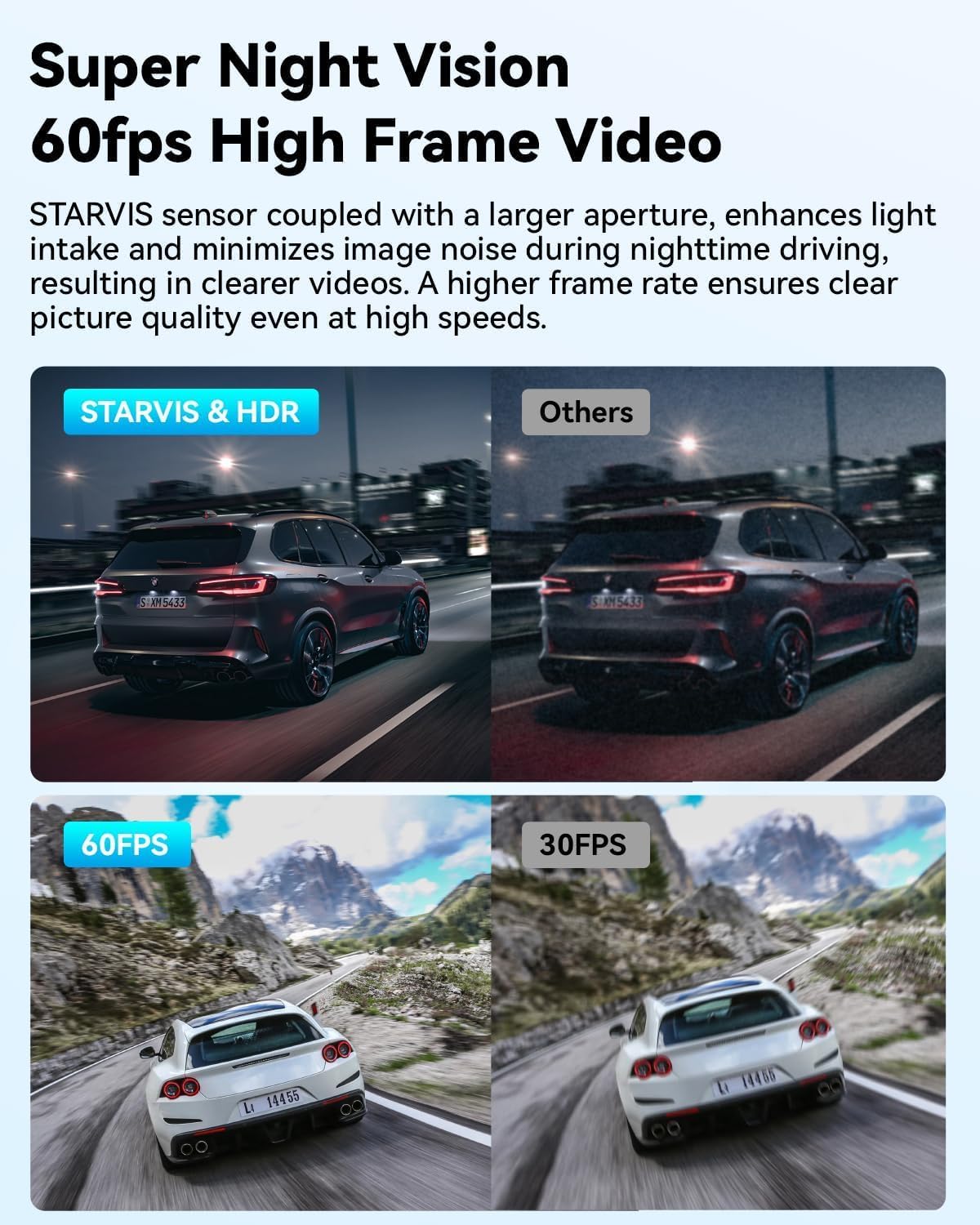
Image: A comparison demonstrating the superior night vision capabilities of the FOCUWAY D4 Duo (STARVIS & HDR) versus other dash cams, showing clearer and brighter nighttime recordings. It also compares 60FPS vs 30FPS video quality.
6.3 Built-in GPS & Wi-Fi
- GPS Tracking: The integrated GPS module accurately logs your vehicle's speed, location, and driving route. This data can be viewed in real-time on the dash cam's screen or later via the dedicated smartphone app or PC software.
- Wi-Fi Connectivity: Connect your dash cam to your smartphone via the free FOCUWAY app. This allows you to:
- Preview live video feed.
- Download recorded videos directly to your phone.
- Adjust settings.
- Share footage easily.
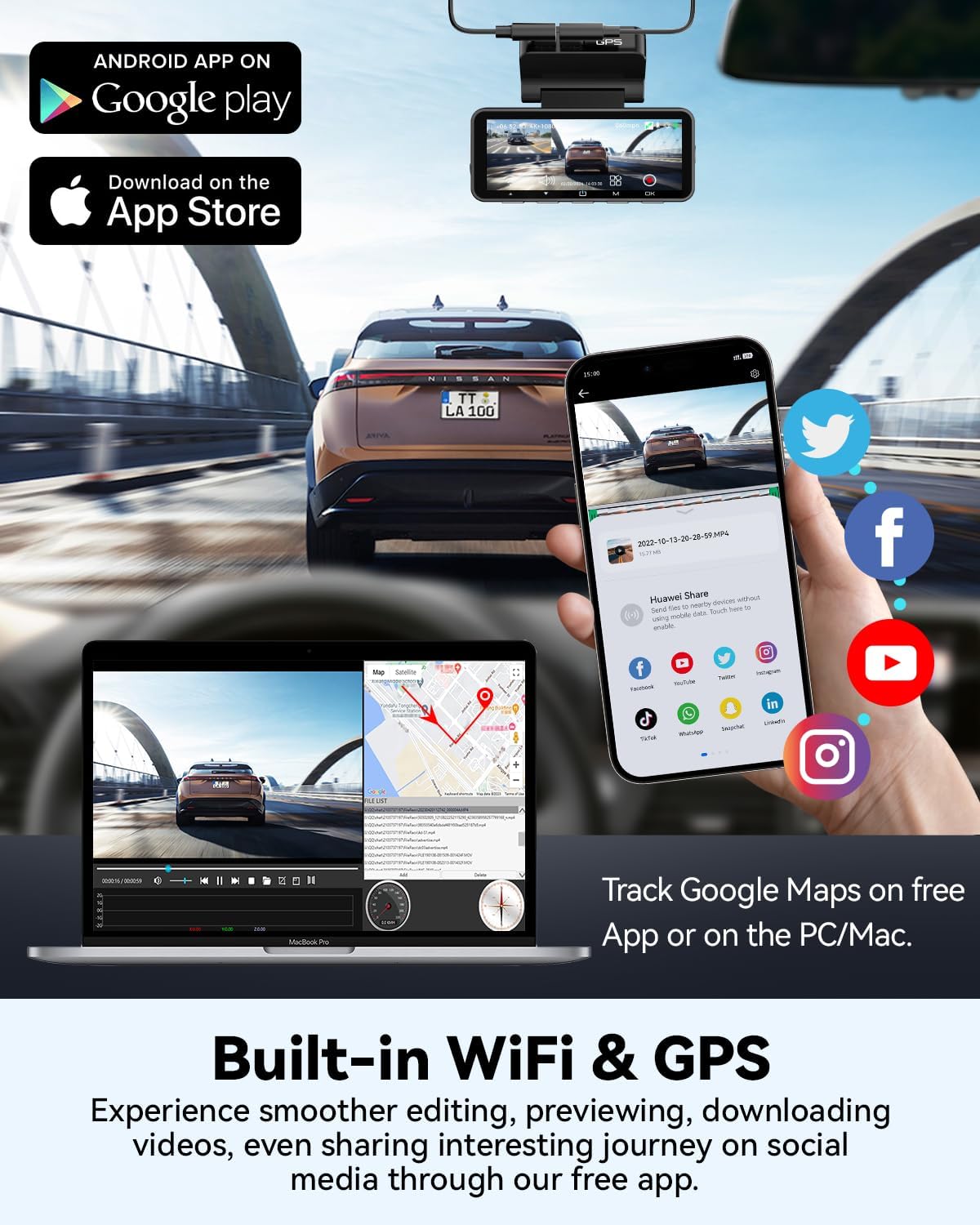
Image: Showcases the built-in Wi-Fi and GPS features, with a smartphone displaying the FOCUWAY app interface for live video preview, map tracking, and social media sharing options.
7. Memory Card Management
The FOCUWAY D4 Duo supports microSD cards up to 512GB. A 64GB card is included to get you started. For optimal performance and to prevent data corruption, it is recommended to format the microSD card regularly (e.g., once a month) directly through the dash cam's settings menu. This ensures the card remains healthy for continuous recording.
8. Specifications
| Feature | Detail |
|---|---|
| Product Dimensions | 1.18 x 3.7 x 2.2 inches |
| Item Weight | 7.8 ounces |
| Item Model Number | D4 DUO |
| Connectivity Technologies | Wi-Fi |
| Special Features | 24/7 Parking Monitoring, Automatic Incident Detection, Built-In GPS, Built-In Microphone, Built-In Supercapacitor, Touch Screen, Voice Control |
| Color | Black |
| Manufacturer | FOCUWAY |
| Model Name | D4 DUO-4K |
| Orientation | Front & Rear |
| Vehicle Service Type | Bus, Car, Minivan, Truck |
| Video Capture Resolution | 2K 1440p@60fps + 1080P@30fps, 4K 2160p@30fps + 1080P@30fps |
| Mounting Type | Windshield Mount |
9. Troubleshooting
If you encounter issues with your FOCUWAY D4 Duo Dash Cam, please refer to the following common problems and solutions:
- Incorrect Time Display: If the camera displays the wrong time, ensure the GPS signal is strong. The device should automatically synchronize time via GPS. If the issue persists, check the time zone settings in the camera's menu and manually adjust if necessary.
- No Footage Recorded:
- Ensure a microSD card is properly inserted and formatted.
- Check if the loop recording function is enabled.
- Verify that the camera is receiving power and is turned on.
- If the card is full, ensure loop recording is active to overwrite old files. If not, manually delete old files or replace the card.
- Dash Cam Not Powering On: Check the car charger connection to both the dash cam and the vehicle's power outlet. Ensure the vehicle's 12V outlet is functioning.
- Poor Video Quality: Clean the camera lenses regularly. Ensure the protective film is removed from the lenses. Check the video resolution settings in the camera menu.
10. Warranty and Support
All FOCUWAY dashcams come with a 12-month worry-free service, which can be extended to 24 months upon registration. Our dedicated customer support team is available to assist you with any questions or issues you may encounter. For technical support or warranty claims, please refer to the contact information provided on the FOCuWay official website or your purchase platform.