1. Introduction
The NEVERYOUYU R36s is a portable retro gaming console designed to provide a wide range of classic gaming experiences. Featuring a 3.5-inch IPS screen, a Linux operating system, and a robust battery, it supports numerous game simulators. This manual provides essential information for setting up, operating, and maintaining your device.

Image 1.1: The R36s console is designed for portability, allowing for gaming on the go.
2. Safety Information
- Do not expose the device to extreme temperatures, direct sunlight, or high humidity.
- Avoid dropping or subjecting the device to strong impacts.
- Keep the device away from water and other liquids.
- Use only the provided charging cable or a compatible 5V/1A charger.
- Do not attempt to disassemble or repair the device yourself. Contact customer support for assistance.
- Small parts may pose a choking hazard. Keep out of reach of young children.
3. Package Contents
Please check the package for the following items:
- NEVERYOUYU R36s Handheld Game Console
- USB-C Charging Cable
- User Manual (this document)
- TF Card (pre-installed or separate, typically 64GB or 128GB)

Image 3.1: The R36s console and typical accessories, including a TF card.
4. Product Overview
4.1 Console Layout
Familiarize yourself with the buttons, ports, and features of your R36s console.
- 3.5-inch IPS Screen: High-resolution display for clear visuals.
- D-Pad: Directional control for navigation and gameplay.
- Action Buttons (A, B, X, Y): Primary game input buttons.
- Analog Joysticks: Dual 3D joysticks for precise control in compatible games.
- SELECT Button: Used for various in-game functions or menu selections.
- START Button: Used for pausing games, confirming selections, or starting games.
- FN Button: Function button for system-level shortcuts.
- Power Button: Turns the console on/off.
- Volume Buttons: Adjusts audio output.
- TF Card Slot: For inserting the system/game storage card.
- USB-C Port: For charging and data transfer (OTG functionality).
- 3.5mm Headphone Jack: For private audio listening.
- Speakers: Integrated stereo speakers.

Image 4.1: Close-up of the R36s console highlighting the dual 3D joysticks for enhanced gaming.
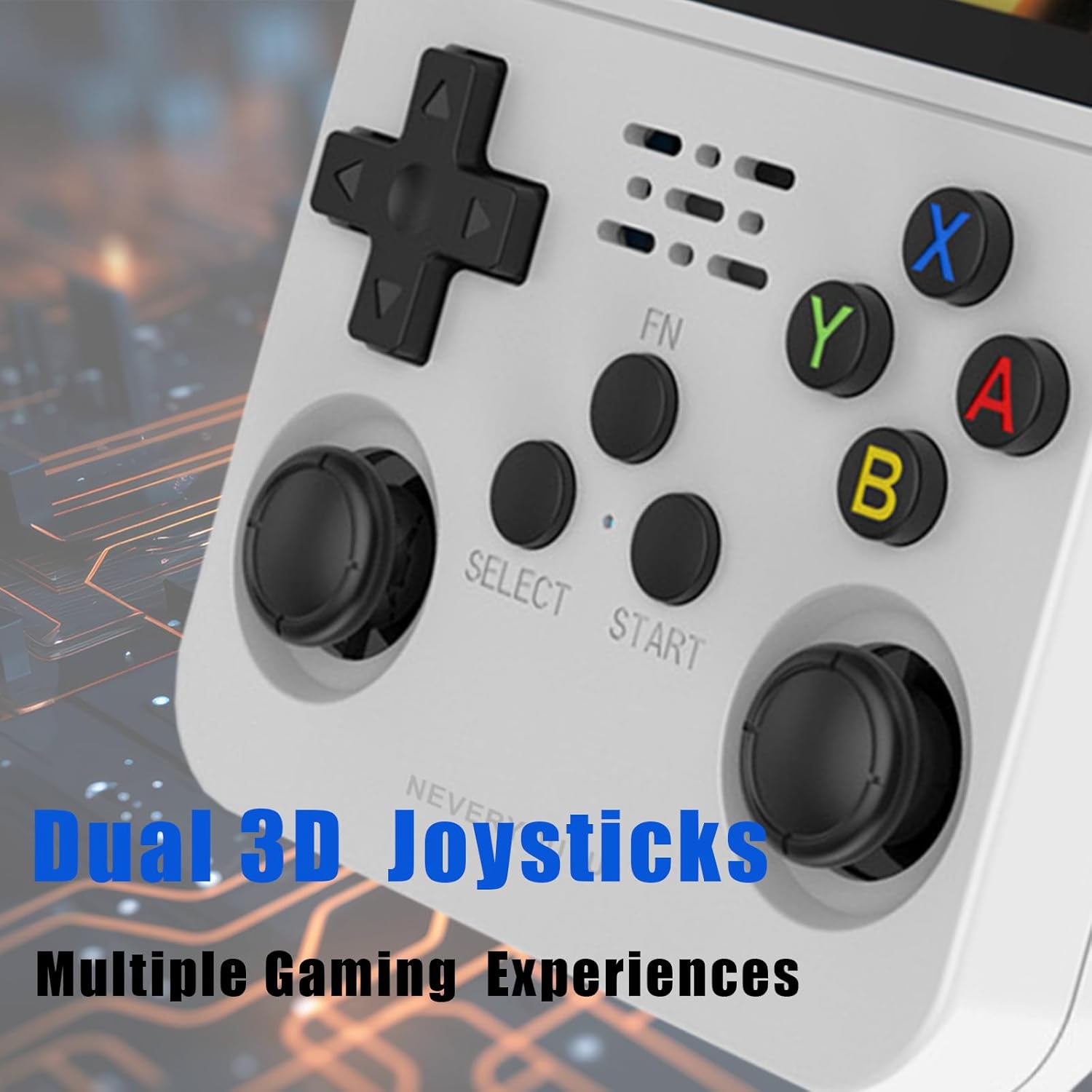
Image 4.2: The R36s features an OTG and Type-C interface for versatile connectivity and charging.
5. Setup
5.1 Charging the Device
- Connect the included USB-C charging cable to the console's USB-C port.
- Plug the other end of the cable into a compatible USB power adapter (5V/1A recommended) or a computer's USB port.
- The charging indicator light will illuminate. The device is fully charged when the light changes color or turns off (refer to device specific indicator behavior).
A full charge typically takes approximately 2-3 hours and provides up to 6-8 hours of gameplay, depending on usage.
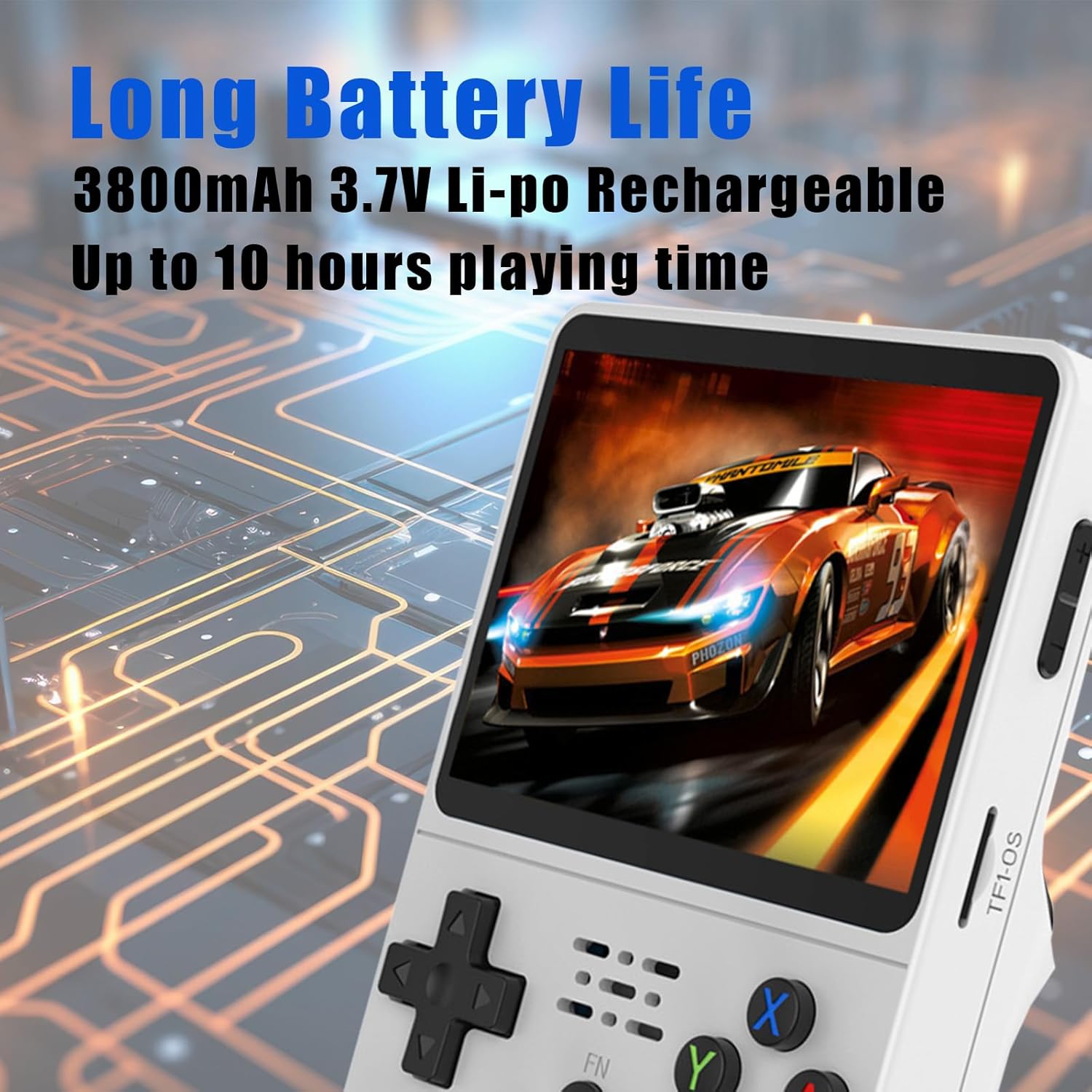
Image 5.1: The R36s console features a 4000mAh battery, providing extended gameplay sessions.
5.2 Inserting the TF Card
The R36s console requires a TF (MicroSD) card for its operating system and game storage. Your console typically comes with a pre-installed TF card.
- Locate the TF card slot on the side of the console.
- Ensure the console is powered off.
- Gently insert the TF card into the slot until it clicks into place. Do not force the card.
- To remove the card, gently push it in again until it clicks and springs out.
5.3 Initial Power-On
- Press and hold the Power button for a few seconds until the screen illuminates.
- The console will boot into the Linux operating system. This may take a few moments.
- Follow any on-screen prompts for initial setup, if applicable.
6. Operating Instructions
6.1 Navigating the Interface
- Use the D-Pad or Left Analog Joystick to move between menu options.
- Press the A button to confirm a selection.
- Press the B button to go back to the previous menu.
6.2 Playing Games
- From the main menu, navigate to the desired emulator or game category.
- Select a game from the list using the D-Pad or Joystick and press A to launch it.
- The game will load. Controls will typically map to the console's buttons.

Image 6.1: The R36s supports a wide array of game simulators, indicated by their respective icons.
6.3 Saving and Loading Game Progress
Most emulators on the R36s support 'save states' which allow you to save and load your game progress at any point, independent of the game's internal save system.
- During gameplay, press the FN button (or a designated hotkey combination, consult specific emulator settings if needed) to access the emulator menu.
- Select 'Save State' to save your current progress. Choose an empty slot.
- Select 'Load State' to resume from a previously saved point.
6.4 Exiting Games
To exit a game and return to the main menu:
- Press the FN button (or designated hotkey) to open the emulator menu.
- Select 'Quit' or 'Exit Game'.
6.5 System Settings
The system settings menu allows you to configure various aspects of the console, such as:
- Display: Brightness, screen timeout.
- Audio: Volume, sound effects.
- Network: (If Wi-Fi is supported) Connect to wireless networks.
- Language: Change system language.
- System Information: View firmware version, storage details.
6.6 Connecting Headphones
To enjoy private audio, plug standard 3.5mm headphones into the headphone jack located on the console.
7. Maintenance
7.1 Cleaning
- Use a soft, dry cloth to wipe the console's exterior.
- For stubborn dirt, slightly dampen the cloth with water; avoid harsh chemicals.
- Use a soft brush or compressed air to clean dust from ports and vents.
7.2 Storage
- Store the console in a cool, dry place away from direct sunlight.
- If storing for an extended period, ensure the battery is partially charged (around 50%) to prolong its lifespan.
7.3 Battery Care
- Avoid completely draining the battery frequently.
- Do not leave the device charging for excessively long periods after it is full.
- If the device will not be used for a long time, charge it every 3-6 months to prevent deep discharge.
8. Troubleshooting
- Console does not power on: Ensure the battery is charged. Connect the charger and try again. If the issue persists, try a different charging cable or adapter.
- Screen is blank or frozen: Press and hold the Power button for 10-15 seconds to force a shutdown. Then, power on the device normally.
- Games are not loading: Check if the TF card is properly inserted. Ensure the game files are in the correct directory for the emulator.
- Poor game performance: Some demanding 3D games may not run optimally. Ensure the system is not running too many background processes (if applicable).
- No sound: Check the volume settings. Ensure headphones are not plugged in if you expect sound from the speakers. Test with different headphones if using the jack.
9. Specifications
| Feature | Specification |
|---|---|
| Model | R36s |
| Screen | 3.5-inch IPS Display |
| Operating System | Linux |
| Battery | 4000mAh Rechargeable Li-po |
| Battery Life | Up to 6-8 hours (approx.) |
| Storage | TF Card (64GB/128GB included, expandable) |
| Charging Port | USB Type-C (OTG compatible) |
| Audio Output | 3.5mm Headphone Jack, Integrated Speakers |
| Material | Plastic |
| Dimensions | Approximately 4 x 1 x 9 inches |
| Weight | Approximately 11.2 ounces |
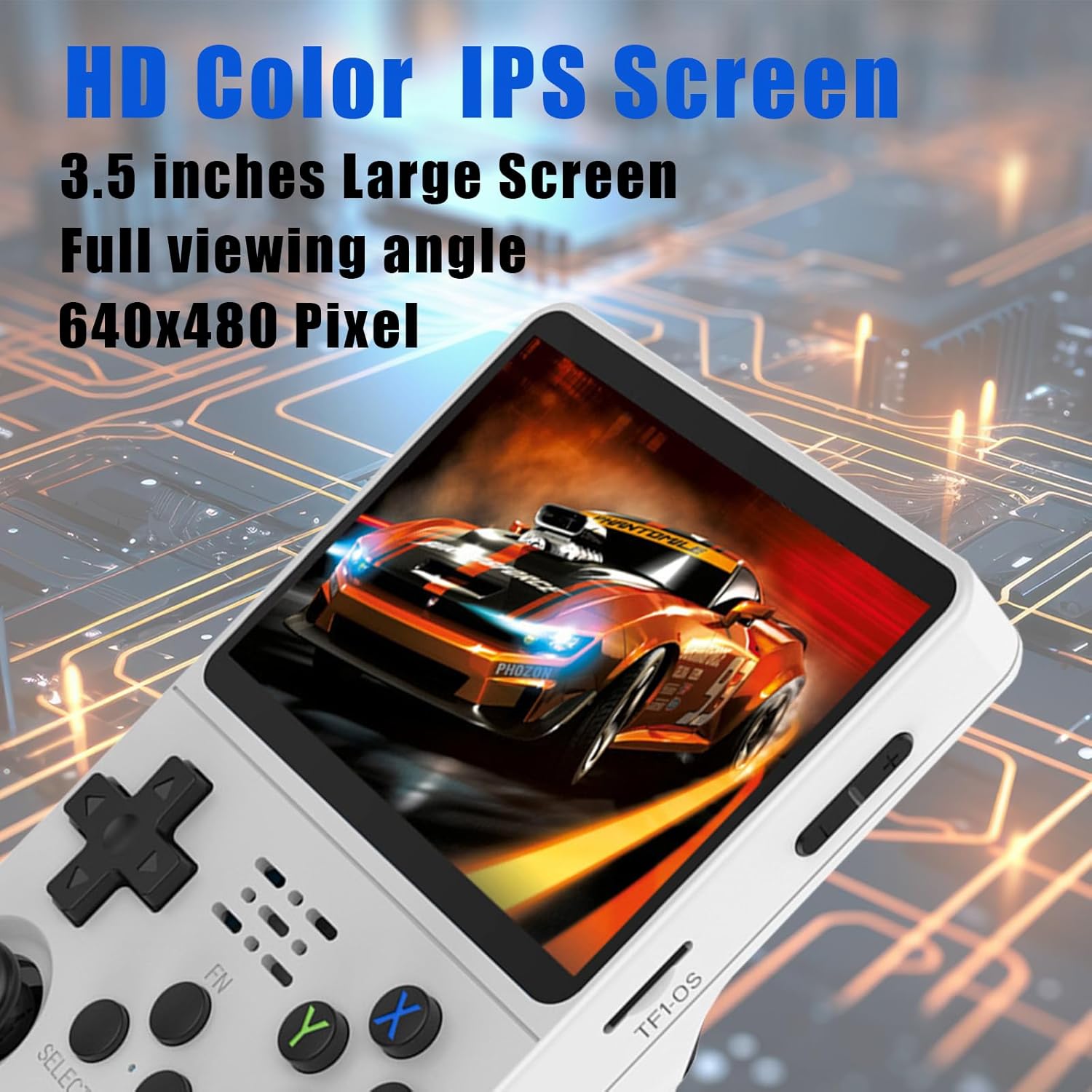
Image 9.1: The R36s features a 3.5-inch HD Color IPS screen for vibrant visuals.
10. Warranty and Support
For warranty information and customer support, please refer to the seller's policies on the platform where the product was purchased. Keep your proof of purchase for any warranty claims.
If you encounter any issues not covered in this manual, please contact NEVERYOUYU customer service for further assistance.


