
AINAVIGO CPad-108
AINAVIGO 10.8-inch Android Portable Car TV Headrest Monitor Tablet
Model: CPad-108
Brand: AINAVIGO
1. Introduction
This manual provides detailed instructions for the installation, operation, and maintenance of your AINAVIGO 10.8-inch Android Portable Car TV Headrest Monitor Tablet (CPad-108). This device is designed to provide entertainment for backseat passengers, featuring an Android 13 operating system, a 10.8-inch IPS touchscreen, and various connectivity options.
2. What's in the Box
Please verify that all items listed below are included in your package:
- 10.8-inch Headrest TV
- Mounting Bracket
- 12V Cigarette Lighter Cable
- ACC Power Cable
- 12V Adapter (for home use)
- HDMI Cable
- Product Manual

Figure 2.1: Package Contents
Video 2.1: Unboxing and Overview of AINAVIGO CPad-108 Components. This video demonstrates the contents of the product package and provides a brief look at the main unit and accessories.
3. Product Overview
The AINAVIGO CPad-108 is a versatile headrest monitor designed for in-car entertainment. It features a high-resolution touchscreen and runs on the Android 13 operating system, offering a wide range of functionalities.
3.1 Key Features
- 10.8-inch 1920×1080 IPS Touchscreen: Supports 4K playback for clear visuals.
- Android 13 Operating System: Allows app downloads via Google Play.
- 2GB RAM + 32GB ROM: Ample storage for media and applications.
- Wireless Connectivity: Supports 5G/2.4GHz WiFi and phone hotspots.
- Phone Mirroring: AirPlay/Miracast compatibility for iOS/Android devices.
- Flexible Ports: HDMI In/Out, USB, SD card slot, headphone jack.
- Audio Options: Built-in speakers, FM transmitter, Bluetooth, wired headphones.
- Customizable UI: Adjustable ambient light colors and startup interface.
- Universal Mount: Designed to fit 98% of vehicles with round headrest poles.
3.2 Component Identification

Figure 3.1: Front View of the Monitor

Figure 3.2: Side View with Ports
- MICRO SD: Micro SD card slot for expanded storage.
- OUT: HDMI output port.
- RESET: Reset button (use a thin pin to press).
- USB: USB port for external devices.
- Headphone Jack: 3.5mm audio output.
- DC: DC power input.
- IN: HDMI input port.

Figure 3.3: Rear View with Mounting Bracket and Ambient Light
4. Setup
4.1 Mounting the Monitor
The CPad-108 comes with a universal mounting bracket designed for headrest poles. Ensure your vehicle's headrest has round poles for proper installation. The bracket is adjustable to fit various pole diameters and widths (6.3-9.45 inches).
- Attach the mounting bracket to the back of the monitor.
- Adjust the bracket to fit securely onto the headrest poles of your car seat.
- Tighten all adjustment points to ensure the monitor is stable and does not wobble during travel.
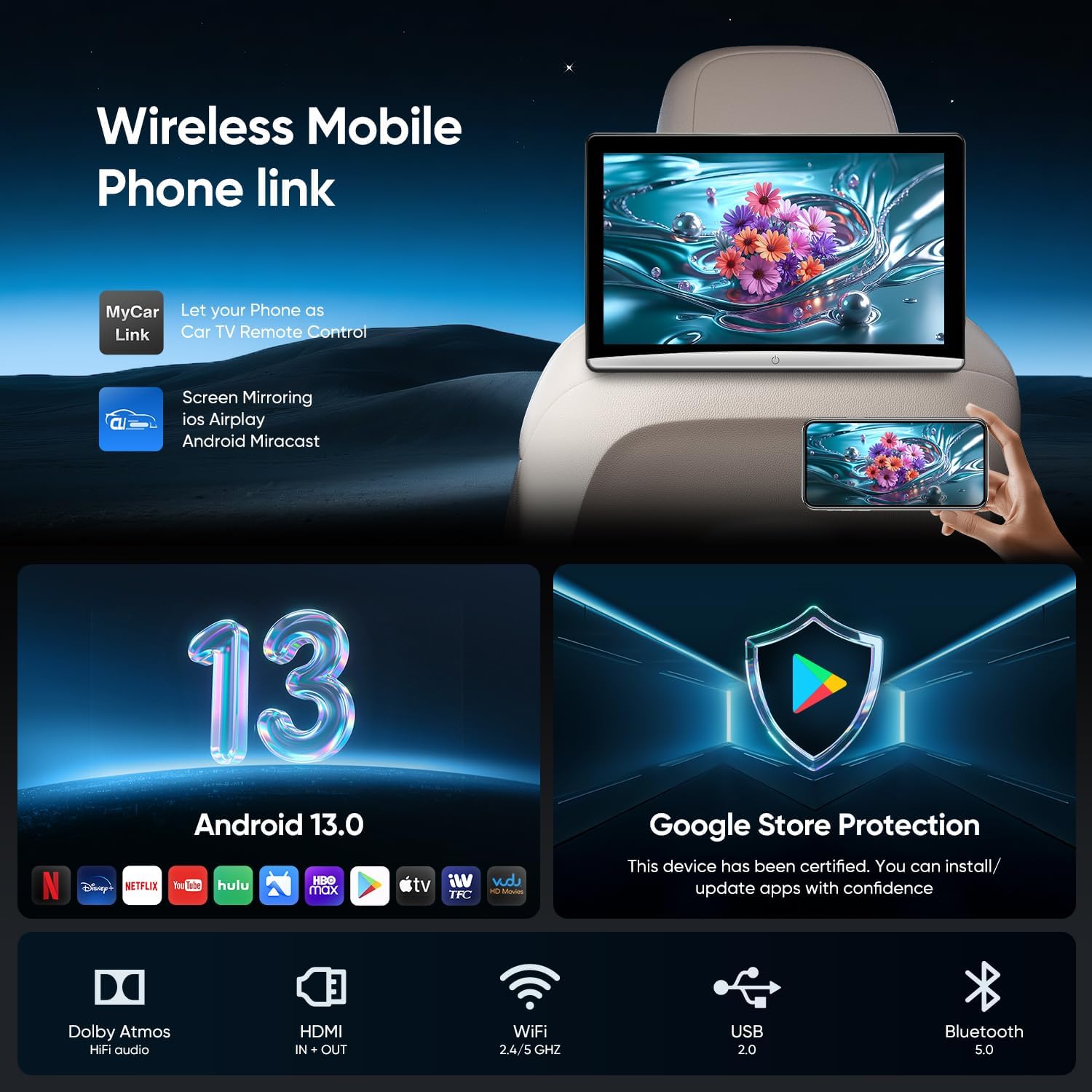
Figure 4.1: Monitor Mounted on Headrest
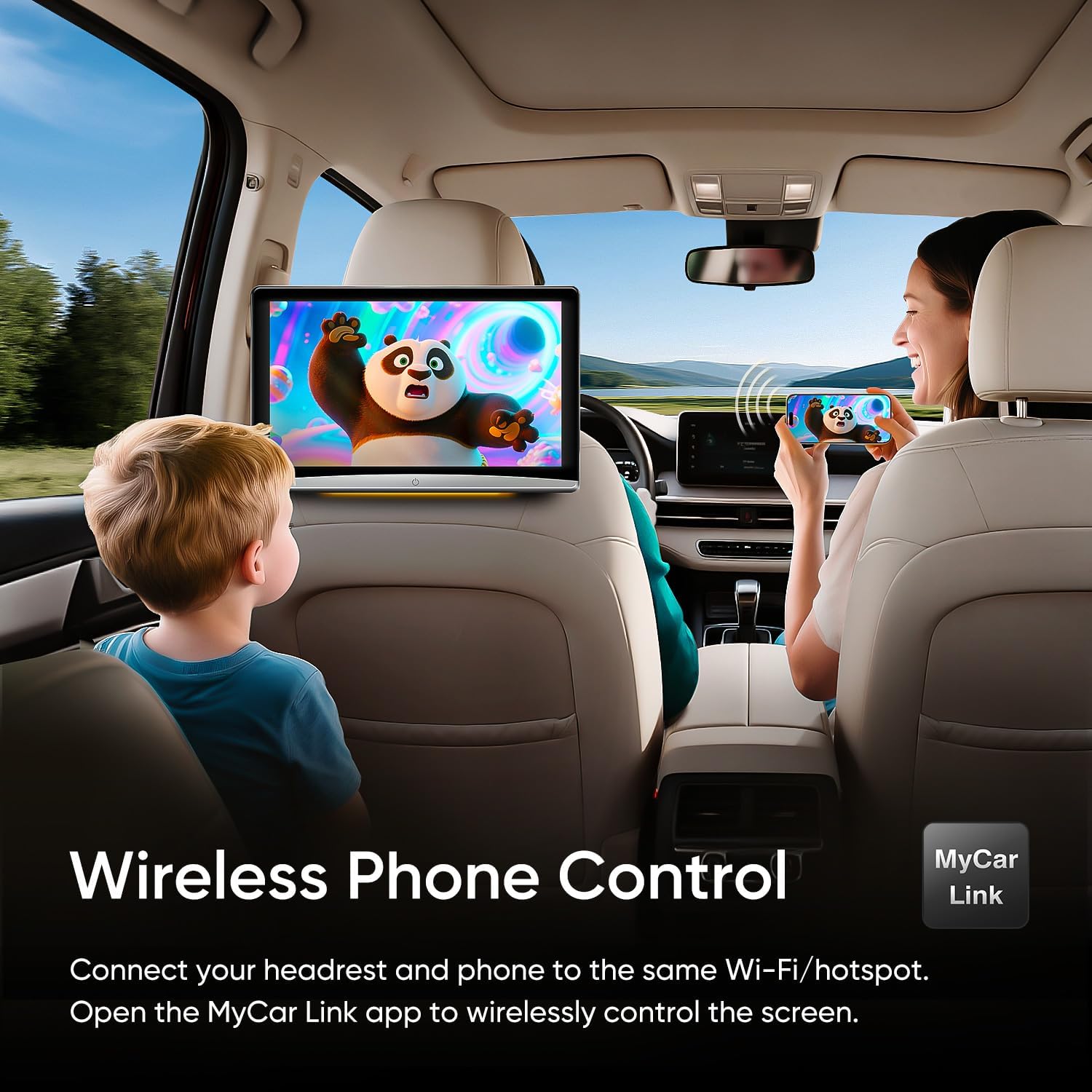
Figure 4.2: Mounting Bracket Detail
4.2 Power Connection
The CPad-108 can be powered in two ways:
- In-Car Use: Use the provided 12V cigarette lighter cable. Plug one end into the monitor's DC port and the other into your car's 12V power outlet.
- Home Use: Use the provided 12V DC adapter. Plug it into a standard wall outlet and connect the other end to the monitor's DC port.

Figure 4.3: Power Supply Options
4.3 Initial Power On and Wi-Fi Connection
- After connecting power, press the power button on the monitor to turn it on.
- Once the Android 13 system loads, navigate to the settings menu.
- Select "Wi-Fi" and turn it on.
- Choose your desired 5G/2.4GHz Wi-Fi network or phone hotspot from the list and enter the password to connect.
- For optimal performance, it is recommended to connect to a wireless network and update the device system to the latest version.
5. Operating Instructions
5.1 Android 13 and App Management
The CPad-108 runs on Android 13, providing access to a wide range of applications. You can download and install apps such as YouTube, Netflix, TikTok, games, music players, and social tools directly from the Google Play Store.
- Ensure the device is connected to Wi-Fi.
- Open the "Play Store" app from the home screen.
- Search for your desired application and follow the on-screen instructions to install it.

Figure 5.1: Android 13 Interface with App Support
5.2 Phone Mirroring (AirPlay/Miracast)
Mirror your iOS or Android device screen to the CPad-108 using AirPlay or Miracast. This allows you to display content from your phone directly on the headrest monitor.
- Ensure both your phone and the CPad-108 are connected to the same Wi-Fi network or hotspot.
- On the CPad-108, open the AirPlay/Miracast application.
- On your phone, activate screen mirroring (e.g., "Screen Mirroring" on iOS, "Smart View" or "Cast" on Android) and select the CPad-108 from the available devices.
You can also control the player from the driver's seat using the "MyCar Link" app on your smartphone.

Figure 5.2: Wireless Phone Link and Control
5.3 External Device Connectivity (HDMI, USB, SD)
The CPad-108 offers multiple ports for connecting external devices and playing media.
- HDMI In/Out: Connect game consoles (e.g., PS5, Switch), laptops, or other HDMI-enabled devices as an input source. The HDMI output allows you to connect to another display.
- USB Port: Play media files from USB drives.
- Micro SD Card Slot: Expand storage and play media directly from an SD card.
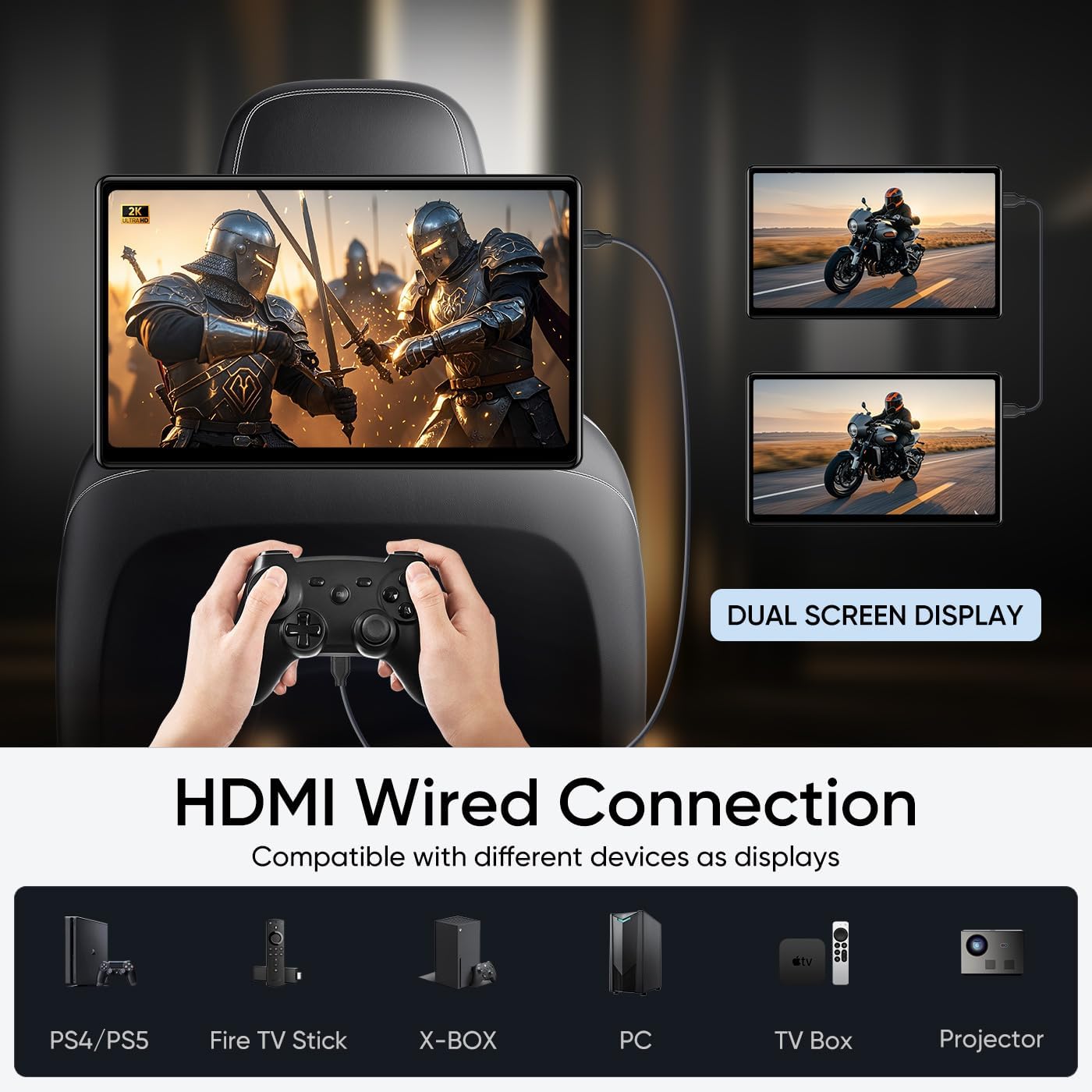
Figure 5.3: HDMI Wired Connection and Dual Screen Display

Figure 5.4: Multiple Ports for Connectivity
5.4 Audio Output Options
You can enjoy audio from the CPad-108 through several methods:
- Built-in Speakers: The monitor has integrated speakers for direct audio playback.
- FM Transmitter: Transmit audio to your car's FM radio.
- Bluetooth: Connect Bluetooth headphones or speakers for private listening.
- Wired Headphones: Use the 3.5mm headphone jack for wired headphones.
5.5 Customization
Personalize your experience with the following options:
- Ambient Light: Choose from 7 ambient light colors or set it to automatic mode.
- Startup UI: Customize the user interface that appears when the device starts.
6. Maintenance
- Cleaning: Use a soft, dry cloth to clean the screen and exterior. Avoid abrasive cleaners or solvents.
- Software Updates: Regularly check for and install OTA (Over-The-Air) system updates to ensure optimal performance and security.
- Storage: When not in use for extended periods, store the monitor in a cool, dry place away from direct sunlight and extreme temperatures.
- Cable Management: Ensure all cables are neatly routed and not pinched or tangled to prevent damage.
7. Troubleshooting
7.1 Common Issues and Solutions
| Issue | Possible Cause | Solution |
|---|---|---|
| Device does not power on. | No power, loose connection, faulty cable. | Check power cable connection to the monitor and power source. Ensure the car's cigarette lighter socket is functional or the home adapter is plugged in correctly. |
| No Wi-Fi connection. | Incorrect password, out of range, Wi-Fi disabled. | Verify Wi-Fi password. Ensure the device is within range of the Wi-Fi signal. Check if Wi-Fi is enabled in settings. Restart the Wi-Fi router/hotspot. |
| Screen mirroring not working. | Devices not on same network, mirroring feature not activated. | Confirm both phone and monitor are on the same Wi-Fi network. Ensure AirPlay/Miracast is enabled on the monitor and screen mirroring is activated on your phone. |
| No sound from speakers. | Volume too low, external audio device connected, FM transmitter active. | Increase volume. Disconnect any Bluetooth or wired headphones. Check if FM transmitter is active and disable if not needed. |
| Apps not downloading or crashing. | Insufficient storage, poor internet connection, app compatibility issue. | Check available storage. Ensure stable internet connection. Clear app cache/data or reinstall the app. Ensure the app is compatible with Android 13. |
If you encounter issues not listed here or if the suggested solutions do not resolve the problem, please contact customer support.
8. Specifications
| Feature | Detail |
|---|---|
| Brand | AINAVIGO |
| Model Number | CPad-108 (10.8'' 2+32GB 1PC) |
| Screen Size | 10.8 Inches |
| Display Type | IPS Touch screen |
| Native Resolution | 1920x1080 |
| Operating System | Android 13 |
| RAM | 2GB |
| ROM | 32GB |
| Connectivity Technology | HDMI, Wi-Fi (5G/2.4GHz), Bluetooth, USB |
| Compatible Devices | Mobile Phone, Game Consoles (PS5, Switch), Computers, Fire TV Stick, X-BOX, TV Box, Projector |
| Media Type Support | SD, SDHC, MP4, MPG, AVI, etc. |
| Color | Black |
9. Warranty Information
The AINAVIGO CPad-108 comes with a 1-Year Manufacturer's Warranty from the date of purchase. This warranty covers defects in materials and workmanship under normal use. It does not cover damage caused by misuse, accident, unauthorized modification, or external causes.
Please retain your proof of purchase for warranty claims.
10. Customer Support
For technical assistance, warranty claims, or any other inquiries regarding your AINAVIGO CPad-108, please contact our customer support team:
- Hotline: +1833 863 6989
- Working Hours (PST): 2:00 PM - 10:30 PM
- Working Hours (PDT): 3:00 PM - 11:30 PM
- Email: Info@ainavigo.com
When contacting support, please have your order ID and product model number (CPad-108) ready for faster service.

Figure 10.1: Customer Support Contact Information
Ask a question about this manual
Ask about setup, troubleshooting, compatibility, parts, safety, or missing instructions. Manuals+ will review the question and use this page’s manual context to help answer it.