
Introduction
This manual provides detailed instructions for the setup, operation, maintenance, and troubleshooting of your ASUS TUF Gaming K3 Gen II Hatsune Miku Edition Wired USB Gaming Keyboard. This keyboard features a compact 97-key layout, Optical-Mechanical RGB switches, PBT keycaps, a detachable top plate, and an IP57 rating for durability. Please read this manual thoroughly to ensure proper use and longevity of your device.
What's in the Box
Verify that all items are present in the packaging:
- TUF Gaming K3 Gen II Hatsune Miku Edition Keyboard
- Quick start guide
- Warranty card
- TUF X Hatsune Miku Limited Edition Sticker
- TUF X Hatsune Miku Limited Edition Poster
- Hatsune Miku Limited Edition keycaps x2

Image: Top-down view of the ASUS TUF Gaming K3 Gen II Hatsune Miku Edition keyboard, showcasing its 97-key layout and vibrant color scheme.
Setup Instructions
- Connect the Keyboard: Locate an available USB port on your PC or Mac. Insert the USB cable from the keyboard into the USB port. The keyboard is plug-and-play and should be recognized automatically by your operating system.
- Software Installation (Optional but Recommended): For full customization of RGB lighting and key assignments, download and install the ASUS Armoury Crate software from the official ASUS support website. This software allows for intuitive adjustments and syncing with other ASUS Aura-enabled products.
- Placement: Position the keyboard comfortably on your desk. The compact 97-key layout is designed to free up more space for your mouse. Utilize the rear cable management slot for a neater desktop setup.
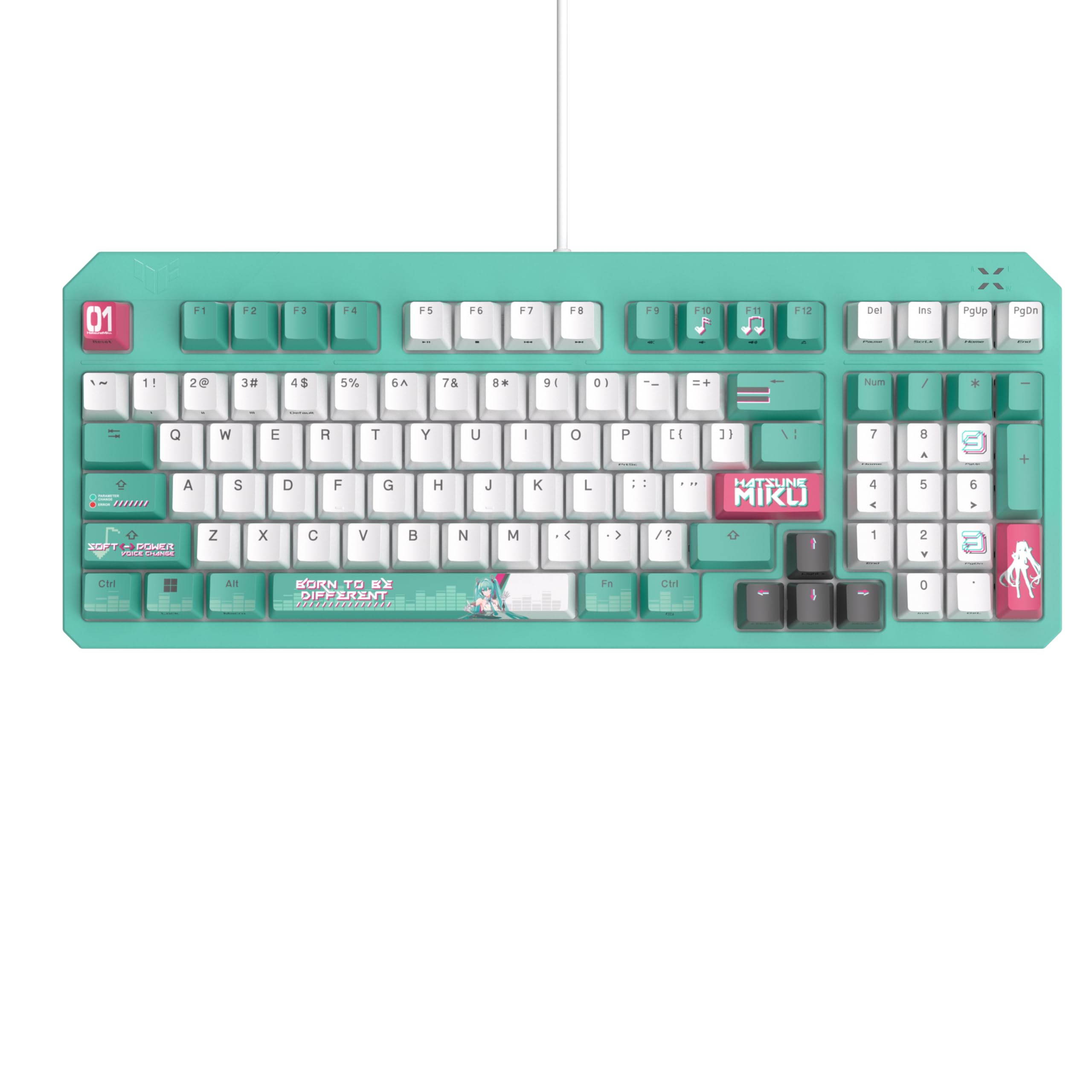
Image: The ASUS TUF Gaming K3 Gen II Hatsune Miku Edition keyboard with its USB cable, ready for connection to a computer.
Operating Instructions
Key Features and Functions:
- Optical-Mechanical RGB Switches: Experience precise and responsive keystrokes with a 100-million-keypress lifespan. These switches provide a consistent typing and gaming experience.
- N-Key Rollover and Anti-Ghosting: Ensures that every keypress is registered accurately, even during rapid, simultaneous key inputs, which is crucial for gaming.
- RGB Lighting and Aura Sync: Customize per-key RGB lighting with up to 16.8 million colors. Use the Armoury Crate software to create personalized lighting effects and synchronize them with other Aura Sync compatible devices.
- PBT Keycaps: Durable PBT keycaps resist shine and wear, maintaining their texture and appearance over time.
- Multimedia Keys: Dedicated or function-layer multimedia keys allow for easy control of audio and video playback.

Image: A close-up view of the keyboard's optical-mechanical switches, highlighting their design and RGB illumination capabilities.
Maintenance
Proper maintenance ensures the longevity and optimal performance of your keyboard.
- Cleaning: The keyboard features IP57 waterproofing and dust resistance, allowing for easier cleaning. Use a soft, damp cloth to wipe down the keycaps and chassis. For deeper cleaning, you can carefully remove keycaps. Avoid harsh chemicals or abrasive materials.
- Detachable Top Plate: The top plate is detachable for easy customization and maintenance. To remove, gently unclip the plate from the keyboard chassis. This provides access for cleaning underneath the keycaps and switches. Ensure the keyboard is disconnected before attempting to remove the top plate.
- Gasket Mount and Dampening Foam: The internal design includes a silicone-gasket mount and dampening foam to absorb pinging noises and echoes. While these components are not user-serviceable, their presence contributes to the keyboard's durability and acoustic performance.

Image: The keyboard with its top plate detached, illustrating the ease of access for cleaning and customization.

Image: An internal diagram highlighting the silicone gasket and dampening foam components, which enhance typing acoustics and durability.
Troubleshooting
- Keyboard Not Responding:
- Ensure the USB cable is securely connected to both the keyboard and your computer.
- Try connecting the keyboard to a different USB port.
- Restart your computer.
- Test the keyboard on another computer to rule out system-specific issues.
- RGB Lighting Not Working or Incorrect:
- Verify that the ASUS Armoury Crate software is installed and up to date.
- Check the lighting settings within Armoury Crate to ensure RGB effects are enabled and configured correctly.
- Ensure no conflicting software is running that might interfere with RGB control.
- Keys Not Registering or Double-Typing:
- Clean the affected keycap and switch area. Dust or debris can sometimes interfere with switch operation.
- Ensure the keycap is properly seated on the switch stem.
- If the issue persists, contact ASUS customer support.
Specifications
| Feature | Detail |
|---|---|
| Brand | ASUS |
| Model Number | RA09 TG K3 GEN II MIKU EDITION/RD/CA/PBT |
| Connectivity Technology | Wired USB 2.0 |
| Keyboard Description | Mechanical |
| Switch Type | Optical-Mechanical RGB Switches |
| Key Rollover | N-key rollover, 100% anti-ghosting |
| Keycap Material | PBT |
| Layout | 97-Key Compact Layout |
| Durability | 100-million-keypress lifespan |
| Water & Dust Resistance | IP57 Rated |
| Backlighting | Per-key RGB lighting with Aura Sync |
| Hardware Platform | PC |
| Compatible Devices | Laptop, PC |
| Product Dimensions (LxWxH) | 15.2 x 6 x 1.5 inches (38.6 x 15.2 x 3.8 cm) |
| Item Weight | 2.22 pounds (1.01 kg) |
| Color | Cerulean Blue/Hot Pink/ White (Hatsune Miku Edition) |
| Material | Plastic, Polybutylene Terephthalate |
Warranty and Support
Your ASUS TUF Gaming K3 Gen II Hatsune Miku Edition keyboard comes with a manufacturer's warranty. Please refer to the included warranty card for specific terms and conditions, including warranty period and coverage details.
For technical support, driver downloads, or further assistance, please visit the official ASUS support website or contact ASUS customer service directly. Keep your purchase receipt and product serial number handy when seeking support.
Online Support: www.asus.com/support/