
1. Introduction
This manual provides detailed instructions for the setup, operation, and maintenance of your HiSpyCam S120 Dual Lens Hidden Camera DIY Module. Please read this manual thoroughly before using the device to ensure proper functionality and to maximize its capabilities. This device is designed for discreet surveillance and monitoring in various indoor and outdoor environments.
2. What's in the Box
- Camera Module
- USB Charging Cable
3. Product Overview
The HiSpyCam S120 DIY Module is a compact surveillance device. Familiarize yourself with its components:

Image 3.1: Overview of the HiSpyCam S120 DIY Module, highlighting the camera lenses, Micro SD Card Slot, USB port, Reset button, and ON/OFF switch.
- Camera Lenses: Dual lenses for wide-angle viewing.
- Micro SD Card Slot: For local storage of recordings (supports up to 256GB, card not included).
- USB Port: For charging the device and continuous power supply.
- Reset Button: Used to restore factory settings or restart the device.
- ON/OFF Switch: Powers the device on or off.
4. Setup Guide
Follow these steps to set up your HiSpyCam S120:
- Charge the Device: Connect the camera module to a power source using the provided USB charging cable. Ensure it is fully charged before first use.
- Insert Micro SD Card: If local storage is desired, insert a compatible Micro SD card (up to 256GB, not included) into the Micro SD Card Slot.
- Download the App: Scan the QR code in the included instructions or search for the recommended application (e.g., 'HomeEye' as mentioned in customer reviews) on your smartphone's app store.
- Power On: Slide the ON/OFF switch to the 'ON' position.
- Connect to Network: The camera supports multiple connection methods. Refer to the 'Connectivity' section for detailed instructions on connecting via Wi-Fi or direct hotspot.

Image 4.1: Illustration of the three primary connection methods for the camera module.
5. Operating Instructions
Once set up, operate your camera via the dedicated smartphone application.
- Live View: Open the app and select your camera to view live footage.
- Recording Modes:
- Continuous Recording: Records continuously to the Micro SD card.
- Motion-Activated Recording: Records only when motion is detected, saving storage space.
- Timing Video: Schedule specific times for recording.
- Accessing Footage: Recorded footage can be accessed and reviewed through the app, either from the Micro SD card or cloud storage (if subscribed).
- Privacy Mode: Activate privacy mode via the app to temporarily disable recording and live viewing.
6. Connectivity
The HiSpyCam S120 offers flexible connectivity options:
- Wi-Fi Connection (2.4GHz): Connect the camera to your home or office 2.4GHz Wi-Fi network for remote access and control via the app. The smart network switching technology ensures uninterrupted monitoring even during WiFi outages.
- Camera's Hotspot (AP Mode): For direct, local connection without an internet router, the camera can generate its own Wi-Fi hotspot. Connect your smartphone directly to this hotspot for local viewing and control.
- Micro SD Card: Record directly to a Micro SD card for local storage without requiring any network connection.
7. Key Features
7.1 Full HD 1080P Resolution & Dual-Lens Innovation
Experience clear video quality with Full HD 1080P resolution. The advanced dual-lens system provides a wider coverage area compared to single-lens cameras, enhancing surveillance capabilities day and night.

Image 7.1: Visual comparison demonstrating the wider field of view provided by the dual-lens system.
7.2 Smart Cloud Storage & Local Backup
The camera supports both secure cloud storage (subscription optional) for automatic backup of footage and continuous local recording to a Micro SD card (up to 256GB). Access your recordings anytime, anywhere through the encrypted platform.
7.3 AI-Powered Motion Alerts
Equipped with advanced motion detection technology, the camera intelligently identifies movement and sends instant notifications to your smartphone. This feature helps minimize false alarms while ensuring you are alerted to important activity.
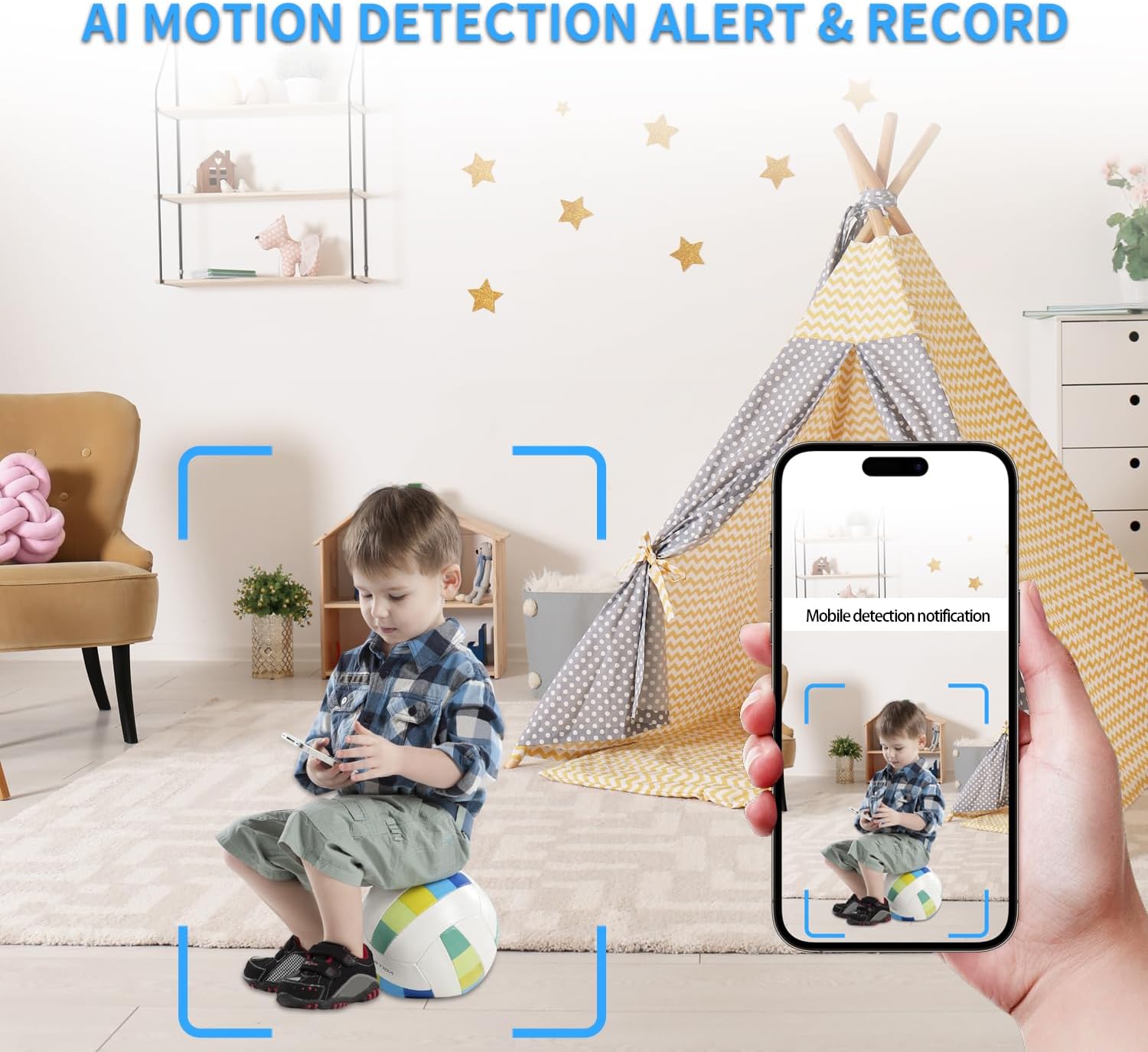
Image 7.2: Example of an AI motion detection alert received on a smartphone.
7.4 Remote Access on the App
Monitor your space remotely from anywhere using the dedicated smartphone application. The app allows for live viewing, playback of recorded footage, and control over camera settings.

Image 7.3: A user accessing live camera feed remotely via the smartphone app.
7.5 Wide Viewing Angle and Multi-User Access
The dual lenses provide a wide viewing angle for comprehensive coverage. The system also supports multi-user access, allowing multiple individuals to view the camera feed and receive notifications.

Image 7.4: Visual representation of various app functionalities including notifications, motion detection, wide coverage, and multi-user support.
8. Maintenance
- Charging: Recharge the camera using the provided USB cable when the battery is low. For continuous operation, keep it plugged into a power source.
- SD Card Management: Regularly back up important footage from the Micro SD card. Format the card periodically to maintain optimal performance.
- Cleaning: Gently clean the camera lenses with a soft, dry cloth to ensure clear image quality. Avoid using harsh chemicals.
- Firmware Updates: Check the app regularly for any available firmware updates to ensure your device has the latest features and security enhancements.
9. Troubleshooting
- Camera Not Connecting to Wi-Fi:
- Ensure your Wi-Fi network is 2.4GHz. The camera does not support 5GHz networks.
- Check Wi-Fi password accuracy.
- Move the camera closer to the Wi-Fi router.
- Reset the camera using the reset button and try connecting again.
- Poor Video Quality:
- Ensure the camera lenses are clean.
- Check network stability for live streaming.
- Adjust video resolution settings in the app if available.
- Motion Detection Not Working:
- Verify motion detection is enabled in the app settings.
- Adjust sensitivity levels.
- Ensure the camera's view is not obstructed.
- Short Battery Life:
- Battery life is approximately 70-90 minutes on a full charge. For extended use, keep the camera connected to a power source.
- Frequent motion detection events or continuous live viewing can drain the battery faster.
- SD Card Not Recording:
- Ensure the SD card is correctly inserted and formatted (FAT32 recommended).
- Check if the SD card is full; delete old footage or replace the card.
- Verify recording settings in the app.
10. Specifications
| Feature | Detail |
|---|---|
| Model Name | Dual Lens DIY Module (S120) |
| Video Capture Resolution | 1080p |
| Connectivity Technology | Wireless (Wi-Fi) |
| Connectivity Protocol | Wi-Fi (2.4GHz) |
| Power Source | Battery Powered |
| Battery Type | 1 Lithium Polymer battery (included) |
| Controller Type | App |
| Viewing Angle | 120 Degrees |
| Frame Rate | 15-20 frames per second |
| Storage Support | Up to 256GB Micro SD Card (Not Included) |
| Alert Type | Motion Only |
| Focus Type | Auto Focus |
| Product Dimensions | 1 x 1 x 1 inches |
| Item Weight | 3.84 ounces |
| Indoor/Outdoor Usage | Indoor, Outdoor |
11. Warranty and Support
All HiSpyCam Security Cameras come with a premium 1-Year Full Warranty and lifetime technical support. Our customer service team is available 24/7 and guarantees a response within 2 hours. We also offer a 30-Day Money Back guarantee and a 365-Day Free Replacement promise.
For technical assistance or warranty claims, please contact HiSpyCam customer support through the contact information provided with your product packaging or on the official HiSpyCam website.