
AutoSky CPHM2
Autosky CPHM2 HDMI CarPlay and Android Auto TV Adapter
Model: CPHM2 | Brand: AutoSky
Introduction
The Autosky CPHM2 adapter is designed to enhance your in-car entertainment experience by converting your vehicle's existing wired CarPlay or Android Auto system into a wireless connection. This device also features an HDMI input, allowing you to connect various HDMI-compatible devices such as TV sticks or gaming consoles directly to your car's infotainment screen, transforming your vehicle into a mobile entertainment hub.
This manual provides detailed instructions for setting up, operating, and maintaining your Autosky CPHM2 adapter, along with troubleshooting tips and product specifications.
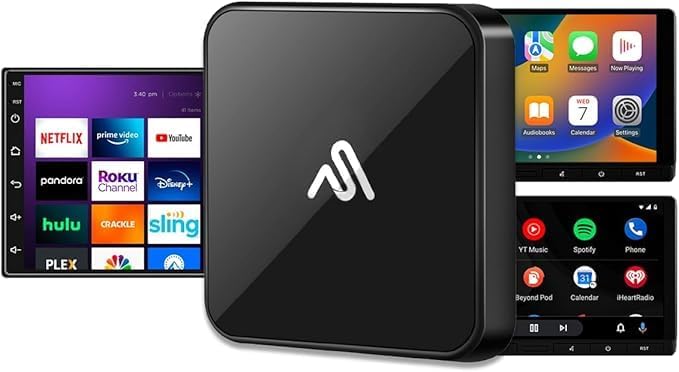
Image: The Autosky CPHM2 adapter, a compact black device, shown alongside various car infotainment screen interfaces displaying streaming apps, CarPlay, and Android Auto. This illustrates the adapter's versatility in providing both wireless smartphone integration and external HDMI media playback.
What's in the Box
Upon opening the package, please verify that all the following components are included:
- Quick Start Guide
- Autosky CarPlay & Android Auto TV Adapter (CPHM2)
- USB-A to USB-C Cable
- Mini USB-A to USB-C Adapter

Image: A flat lay of the Autosky CPHM2 product packaging, showing the adapter unit, a quick start guide, a USB-A to USB-C cable, and a mini USB-A to USB-C adapter. This visual confirms all items included in the product box.
Setup Instructions
Follow these steps to set up your Autosky CPHM2 adapter:
- Connect the Adapter to Your Car: Plug the Autosky TV Adapter into your vehicle's USB or Type-C port to supply power. Ensure your vehicle has a factory-installed wired CarPlay system, as this is required for the adapter to function.
- System Detection: Wait for your vehicle's infotainment system to detect the adapter. This may take a few moments.
- Connect Your HDMI Device (Optional): If you wish to use the HDMI input, connect any compatible HDMI device (e.g., a TV stick, gaming console, or a smartphone via a USB-C to HDMI cable, not included) to the integrated HDMI port on the adapter.
- Select Input on Vehicle Screen: On your vehicle's infotainment screen, you will be prompted to choose between Wireless CarPlay / Wireless Android Auto or HDMI Input.
- Pair Your Smartphone (First Time Wireless Connection): If selecting Wireless CarPlay or Android Auto for the first time, follow the on-screen prompts to pair your smartphone via Bluetooth.

Image: The Autosky CPHM2 adapter shown plugged into a car's USB port, illustrating the initial connection step for setup. The compact design of the adapter is visible, indicating its discreet integration into the vehicle's console.
Operating Instructions
Wireless CarPlay & Android Auto
Once paired, your wired CarPlay or Android Auto system will automatically convert to a wireless connection. You can access navigation, music, calls, and all your favorite apps directly on your car's display without needing to plug in your phone.

Image: A car's infotainment screen showing the Apple CarPlay interface with various app icons like Phone, Music, Podcasts, and Maps. This demonstrates the seamless integration of smartphone features onto the vehicle's display via the adapter.
HDMI Streaming & Mirroring
To switch to HDMI input mode, navigate the adapter's interface on your car screen. Typically, there will be an option to select the HDMI input. This allows you to stream content from connected HDMI devices or mirror your smartphone's screen (with a compatible USB-C to HDMI cable, not included).
Important Note: For online streaming services like Netflix or YouTube via an HDMI device (e.g., a Fire TV Stick), the HDMI device must be connected to the internet via a personal hotspot from your smartphone or another Wi-Fi source.

Image: A car's infotainment screen showing a news broadcast, indicating content being streamed from a connected TV stick. A remote control is visible in the foreground, suggesting user interaction with the streaming device.
Gaming On The Go
Connect your favorite gaming devices via the HDMI port to enjoy immersive entertainment directly on your car's display. This feature is ideal for passengers during long journeys.

Image: A car's infotainment screen displaying a colorful video game, with two game controllers held in hands in the foreground. This illustrates the capability of the Autosky CPHM2 adapter to enable gaming directly on the car's display via its HDMI input.
Troubleshooting
- No Connection / Adapter Not Detected: Ensure your vehicle has a factory-installed wired CarPlay system. The adapter requires this to function. Check that the USB cable is securely connected to both the adapter and the car's USB port. Try a different USB port if available.
- Wireless CarPlay/Android Auto Not Working: Ensure your smartphone's Bluetooth and Wi-Fi are enabled. For the initial setup, ensure your phone is paired via Bluetooth. If issues persist, try forgetting the device on your phone's Bluetooth settings and re-pairing.
- HDMI Streaming Issues (No Picture/Sound): Verify that the HDMI device (e.g., TV stick, console) is properly connected to the adapter's HDMI port and is powered on. Ensure you have selected the HDMI input on your car's infotainment screen. For online streaming, confirm that your HDMI device has an active internet connection via a personal hotspot.
- Lag or Choppy Playback: Ensure a strong Wi-Fi signal for streaming devices. For wireless CarPlay/Android Auto, ensure your phone is close to the adapter and there are no significant interferences.
Specifications
| Feature | Description |
|---|---|
| Brand | AutoSky |
| Model Number | CPHM2 |
| Color | Black |
| Connectivity Technology | Bluetooth, HDMI |
| Connector Type | Micro USB, USB Type A |
| Special Features | Automatically converts wired CarPlay to wireless CarPlay, Converts wired Android Auto to wireless Android Auto |
| Compatible Devices | Requires wired CarPlay / Android Auto, Game Console, Personal Computer, Smartphone |
| Internet Services Supported | All available on connected device (requires hotspot for online services) |
| Item Weight | 30 Grams |
Warranty and Support
The Autosky CPHM2 adapter comes with a 2-year availability of spare parts in the EU, indicating support for product longevity.
For technical support, warranty claims, or further assistance, please refer to the contact information provided in your Quick Start Guide or visit the official AutoSky website. Ensure you have your product model number (CPHM2) and purchase details ready when contacting support.
Official Product Videos
No official product videos from the seller are available for embedding at this time.
Ask a question about this manual
Ask about setup, troubleshooting, compatibility, parts, safety, or missing instructions. Manuals+ will review the question and use this page’s manual context to help answer it.