
1. Introduction
This manual provides detailed instructions for the assembly, operation, and maintenance of your DEVAISE AMGZ 60 Inch L-Shaped Gaming Desk. Please read this manual thoroughly before assembly and use to ensure proper function and safety. Keep this manual for future reference.

Figure 1.1: The DEVAISE AMGZ 60 Inch L-Shaped Gaming Desk in a typical setup, showcasing its monitor stand, LED lighting, and integrated storage.
2. Safety Information
Observe the following safety precautions to prevent injury or damage to the product:
- Read all instructions carefully before assembly.
- Ensure all parts are present and undamaged before beginning assembly.
- Assemble the desk on a soft, clean surface to prevent scratches.
- Do not overtighten screws during assembly, as this may damage the material.
- Keep small parts away from children to avoid choking hazards.
- Do not exceed the maximum weight capacity of the desk (100 lbs).
- Ensure the power cord for the integrated outlets is properly routed and not pinched.
- Avoid spilling liquids directly onto the power outlets or LED light strip.
- Periodically check all connections and fasteners to ensure they remain secure.
3. Setup & Assembly
Assembly typically requires two people and takes approximately 1-2 hours. All necessary tools are usually included. Follow the numbered steps provided in your packaging for detailed assembly instructions.
3.1 Unpacking and Part Identification
Carefully unpack all components and lay them out on a protected surface. Refer to the parts list in your package to identify each piece. Ensure all hardware (screws, bolts, etc.) is accounted for.
3.2 Frame Assembly
Begin by assembling the metal frame components. Attach the main support beams to the leg frames using the provided screws. Do not fully tighten screws until all frame pieces are loosely connected.
3.3 Desktop Panel Installation
Once the frame is stable, carefully place the desktop panels onto the frame. Secure them using the designated screws. Ensure the L-shape orientation is correct for your desired setup.

Figure 3.1: The assembled DEVAISE L-Shaped Desk, ready for use in a home office environment.
3.4 Monitor Stand and Storage Shelf Attachment
Attach the monitor stand to the main desktop panel. Install the open storage shelves on the side frame. The headphone hook can be attached to the side of the desk as desired.

Figure 3.2: Detail of the iron hook for headphones and the open storage shelf for CPU or other items.
3.5 Drawer Unit Assembly
Assemble the fabric drawers according to the instructions. Insert the drawers into the designated cabinet space. The bottom drawer is designed to hold A4/legal files.
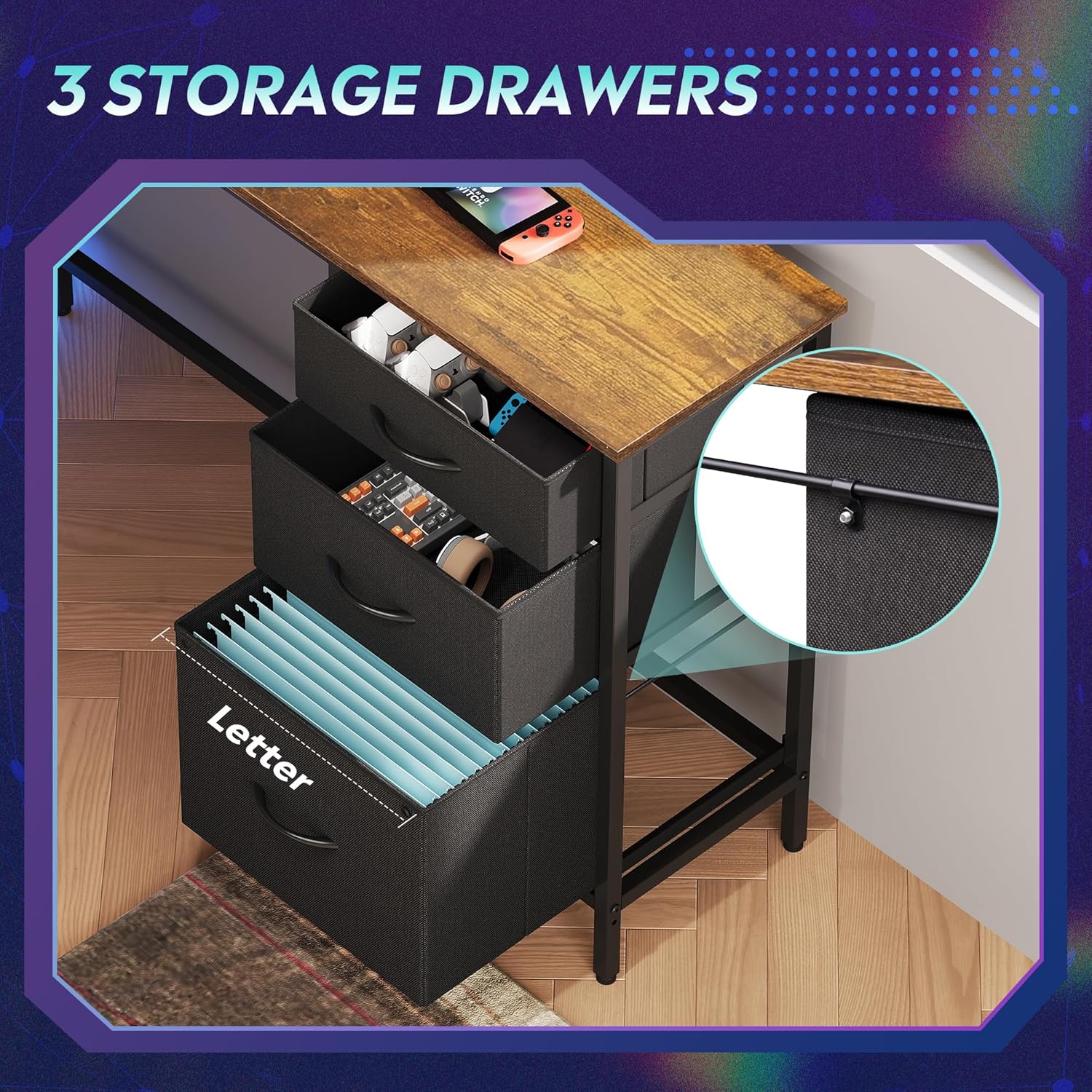
Figure 3.3: The three fabric storage drawers, illustrating their capacity for various items, including file folders in the bottom drawer.
3.6 Power Outlet and LED Light Installation
Integrate the recessed power strip into its designated slot on the desktop. Connect the LED light strip to its power source and route the cables neatly. Ensure all electrical connections are secure before plugging into a wall outlet.

Figure 3.4: The recessed power strip, featuring two AC outlets and two USB ports for convenient device charging.
3.7 Final Adjustments
Once fully assembled, tighten all screws. Adjust the non-slip footpads at the bottom of the desk legs to ensure stability on uneven floors.

Figure 3.5: Detail showing the desk's durable board material and the adjustable footpads for stability.
4. Operating Instructions
4.1 LED Lighting System
The integrated LED lighting system offers various modes and colors. It can be controlled via a smart controller or a dedicated app (if applicable, refer to specific instructions in your package for app details).
- Power On/Off: Single short press the controller button to turn on. Long press for 3 seconds to turn off.
- Change Light Color/Mode: Single short press (again) to cycle through 31 light modes and colors.
- Music Sync: Some models support music rhythm synchronization. Refer to the specific LED controller instructions for activation.
- Timer Functions: Some models include timer functions for automatic shut-off. Refer to the specific LED controller instructions.

Figure 4.1: The smart controller for the LED lighting system, indicating features like 31 light modes, color palette switch, music rhythm, and timer.

Figure 4.2: Instructions for operating the smart controller for the LED lights.
4.2 Power Outlets
The desk includes a recessed power strip with 2 AC outlets (125V/12A) and 2 USB ports (5V/2.1A). Plug the desk's main power cord into a wall outlet. You can then plug your devices directly into the desk's integrated outlets for convenient power access.
- Do not overload the power strip. Ensure the total wattage of connected devices does not exceed the strip's capacity.
- Use the USB ports for charging compatible devices.
4.3 Storage Drawers and Shelves
Utilize the three fabric drawers for organizing office supplies, gaming accessories, or personal items. The bottom drawer is designed with rails for hanging A4/legal size file folders. The open storage shelves provide space for a CPU tower, books, or decorative items. The headphone hook keeps your headset easily accessible.
5. Maintenance
- Cleaning: Wipe the desk surfaces with a soft, damp cloth. Avoid harsh chemicals or abrasive cleaners that may damage the finish.
- Dusting: Regularly dust the desk and LED light strip to maintain optimal appearance and function.
- Fasteners: Periodically check all screws and bolts to ensure they are tight. Retighten if necessary to maintain desk stability.
- Electrical Components: Keep the power outlets and LED light strip dry. If any electrical component appears damaged, discontinue use and contact support.
6. Troubleshooting
6.1 Desk is Wobbly
- Ensure all assembly screws are fully tightened.
- Adjust the non-slip footpads on the bottom of the legs to compensate for uneven flooring.
6.2 LED Lights Not Working
- Check if the desk's main power cord is securely plugged into a functional wall outlet.
- Ensure the LED light strip's connector is properly attached to its power source.
- Verify the smart controller is functioning correctly and not damaged.
- Try pressing the power button on the controller.
6.3 Power Outlets Not Providing Power
- Confirm the desk's main power cord is securely plugged into a functional wall outlet.
- Check if the wall outlet itself is working by plugging in another device.
- Ensure the power strip is properly seated in its desktop slot and its internal connections are secure.
- Avoid overloading the power strip with too many high-wattage devices.
6.4 Drawers Do Not Slide Smoothly
- Ensure the fabric drawers are correctly assembled and inserted into their slots.
- Check for any obstructions within the drawer cabinet.
7. Specifications
| Brand | DEVAISE |
| Model Number | AMGZ |
| Product Dimensions (D x W x H) | 46.5" x 59" x 29.4" |
| Color | Rustic Brown |
| Material | Engineered Wood, Metal |
| Item Weight | 55.8 Pounds |
| Special Features | LED Lights, Power Outlets (2 AC, 2 USB), Monitor Stand, Storage Drawers, Headphone Hook, Open Storage Shelf, Adjustable Footpads |
| Max Weight Capacity | 100 lbs |
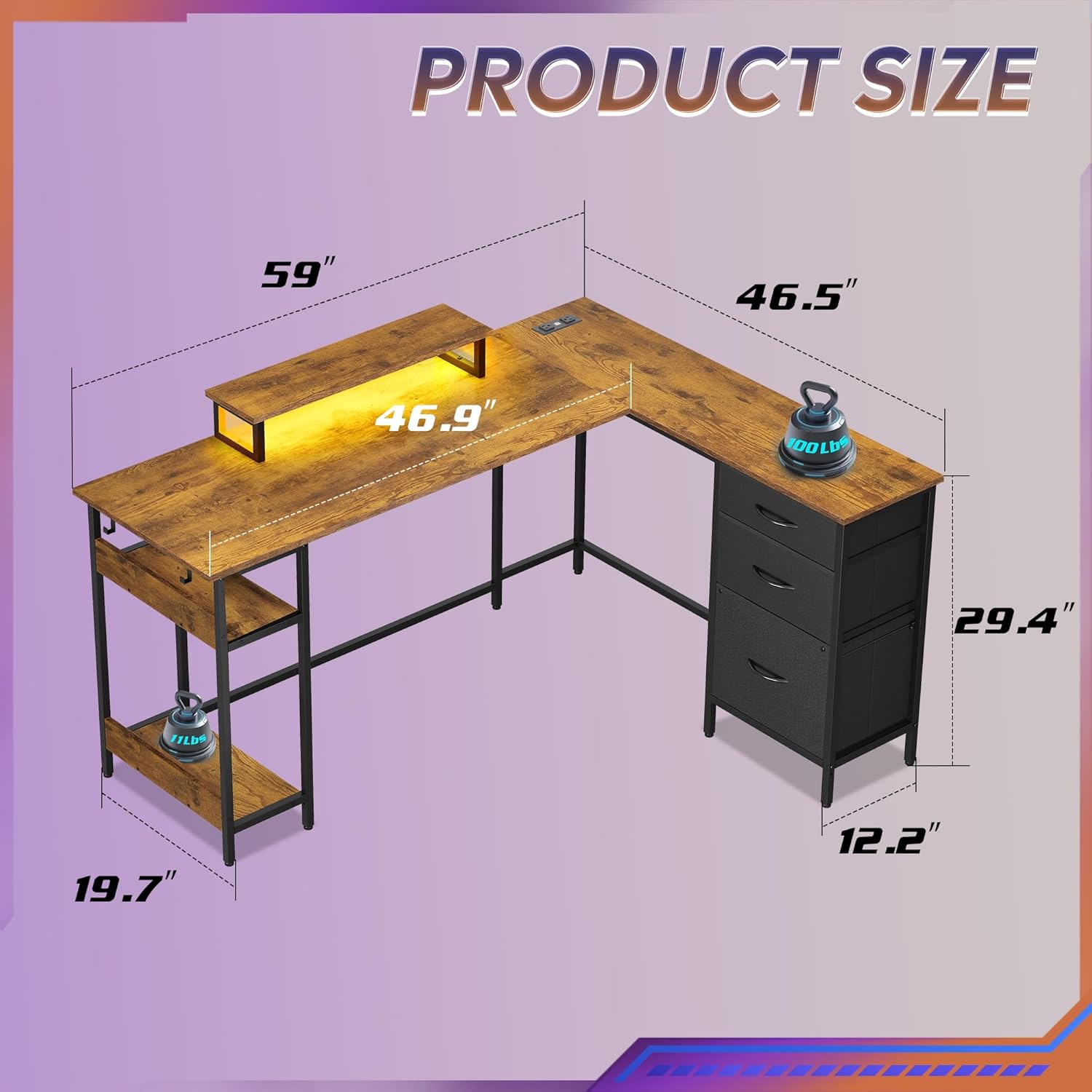
Figure 7.1: Detailed product dimensions of the DEVAISE AMGZ 60 Inch L-Shaped Gaming Desk.
8. Warranty Information
For detailed warranty information, please refer to the warranty card included with your product packaging or visit the official DEVAISE website. Keep your purchase receipt as proof of purchase for any warranty claims.
9. Customer Support
If you encounter any issues or have questions regarding your DEVAISE AMGZ 60 Inch L-Shaped Gaming Desk, please contact DEVAISE customer support through the following channels:
- Email: Refer to your product packaging or the official DEVAISE website for contact email.
- Website: Visit the official DEVAISE website for FAQs, support resources, and contact forms.
- Phone: Check your product documentation for a customer service phone number.
When contacting support, please have your model number (AMGZ) and purchase information ready.


