
1. Introduction
The Acer HB02 Wireless Headset is designed for clear communication and comfortable use in various environments, including work, home, and call centers. It offers dual-mode connectivity via 2.4G wireless (USB dongle) and Bluetooth 5.3, ensuring versatile compatibility with PCs, laptops, tablets, and mobile phones. Key features include an Environmental Noise Cancelling (ENC) microphone for crystal-clear calls, 40mm HIFI audio drivers for high-quality sound, and an extended 36-hour battery life.
2. What's in the Box
- Acer HB02 Wireless Headset
- 2.4GHz USB Dongle
- Charging Dock
- USB Type-C Charging Cable
- User Manual

Image: Acer HB02 Wireless Headset, charging dock, and USB dongle.
3. Product Features
- Comfortable Design: Featherlight construction with pressure-relieving memory foam ear cushions for extended wear.
- High-Quality Audio: Equipped with 40mm HIFI drivers for clear sound during calls and media playback.
- Environmental Noise Cancelling (ENC) Microphone: Filters out background noise to ensure your voice is clear during calls, ideal for busy environments.
- Extended Battery Life: Provides up to 36 hours of usage on a single charge.
- Dual-Mode Connectivity: Seamlessly switch between 2.4G wireless (via USB dongle) and Bluetooth 5.3 for versatile device connection.
- Flip-to-Mute Microphone: Instantly mute the microphone by flipping it up, ensuring privacy during sensitive conversations.
- Flexible Charging: Charge using the included charging dock or directly via the USB Type-C cable.

Image: The headset's lightweight design and comfortable ear cushions.

Image: Internal view of the 40mm HIFI audio driver.
4. Setup Instructions
4.1. 2.4G Wireless Connection (via USB Dongle)
- Insert the 2.4GHz USB dongle into an available USB port on your PC or laptop.
- Power on the headset by pressing and holding the power button for 3 seconds.
- The headset will automatically attempt to connect to the dongle. The blue light on the dongle will be solid blue, and the headset's blue light will flash once every 10 seconds upon successful connection.
- If no sound is heard after successful connection, double-press the power button on the headset to switch to USB mode. You will hear a voice prompt "USB mode".

Image: Headset connected to a laptop via USB dongle.
4.2. Bluetooth Connection
- Power on the headset by pressing and holding the power button for 3 seconds.
- To enter Bluetooth pairing mode, press and hold the power button for 5 seconds until the red and blue lights on the headset flash alternately.
- On your phone or tablet, open Bluetooth settings and search for "HB02".
- Select "HB02" to pair. Once connected, the headset's blue light will flash once every 10 seconds.
- If no sound is heard after successful connection, double-press the power button on the headset to switch to Bluetooth mode. You will hear a voice prompt "Bluetooth mode".

Image: Headset demonstrating smart compatibility with phone and computer.
5. Operating Instructions
5.1. Power On/Off
- Power On: Press and hold the power button for approximately 3 seconds until the indicator light illuminates.
- Power Off: Press and hold the power button for approximately 3 seconds until the indicator light turns off.
5.2. Volume Control
- Use the dedicated volume buttons on the headset to adjust the audio level.
5.3. Microphone Mute/Unmute
- To mute the microphone, flip the microphone boom arm upwards. You may hear a voice prompt indicating "Mic Muted".
- To unmute the microphone, flip the microphone boom arm downwards. You may hear a voice prompt indicating "Mic Unmuted".

Image: Flip-to-mute microphone functionality.
5.4. Switching Between 2.4G Wireless and Bluetooth Modes
- To switch between 2.4G wireless and Bluetooth modes, double-press the power button. The headset will announce the current mode (e.g., "USB mode" or "Bluetooth mode").
6. Charging the Headset
The Acer HB02 Wireless Headset offers two convenient charging methods:
- Charging Dock: Place the headset onto the charging dock. The indicator light on the dock will show the charging status.
- USB Type-C Cable: Connect the provided USB Type-C cable directly to the headset's charging port and a power source.
A full charge provides approximately 36 hours of battery life.
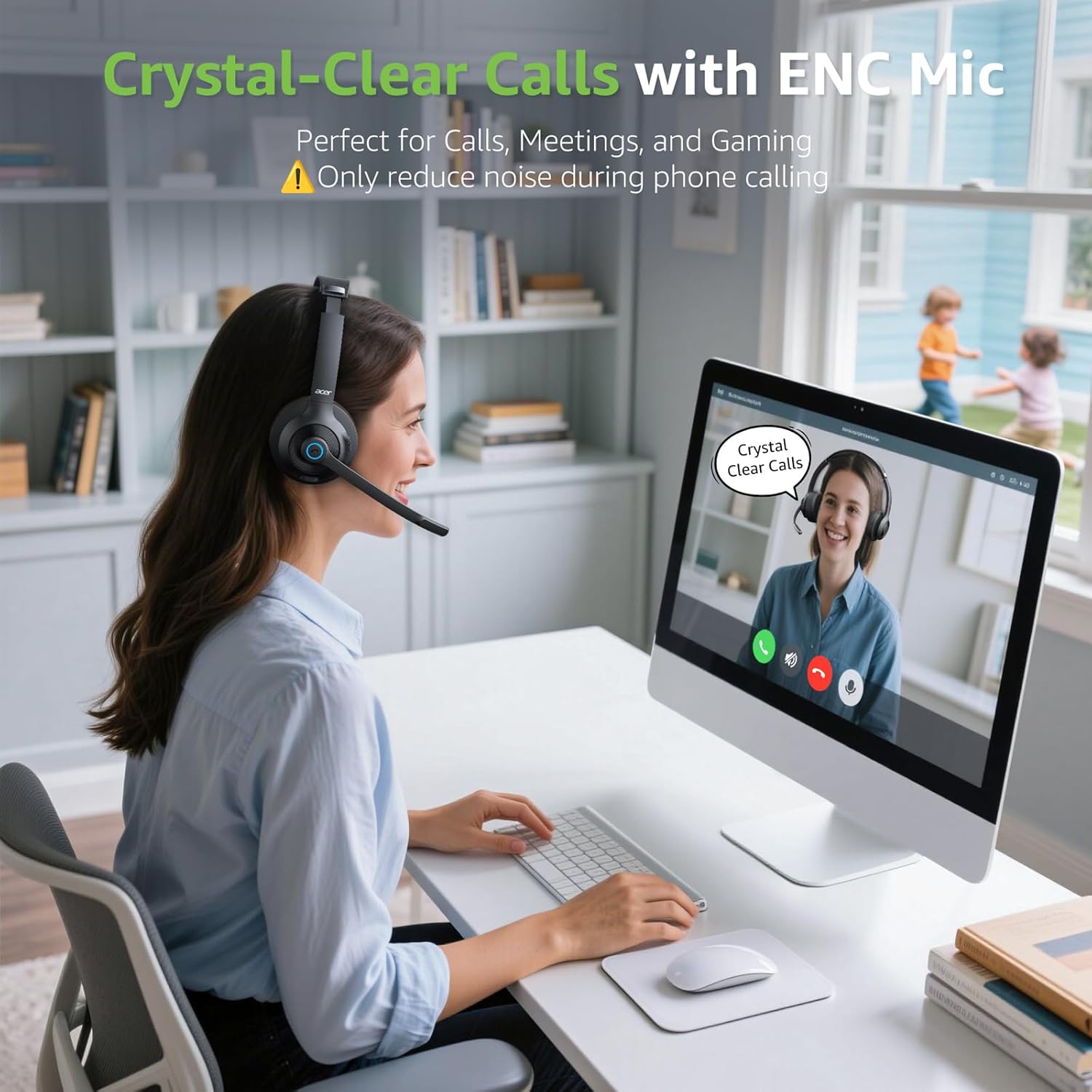
Image: Charging options via dock or USB Type-C cable.
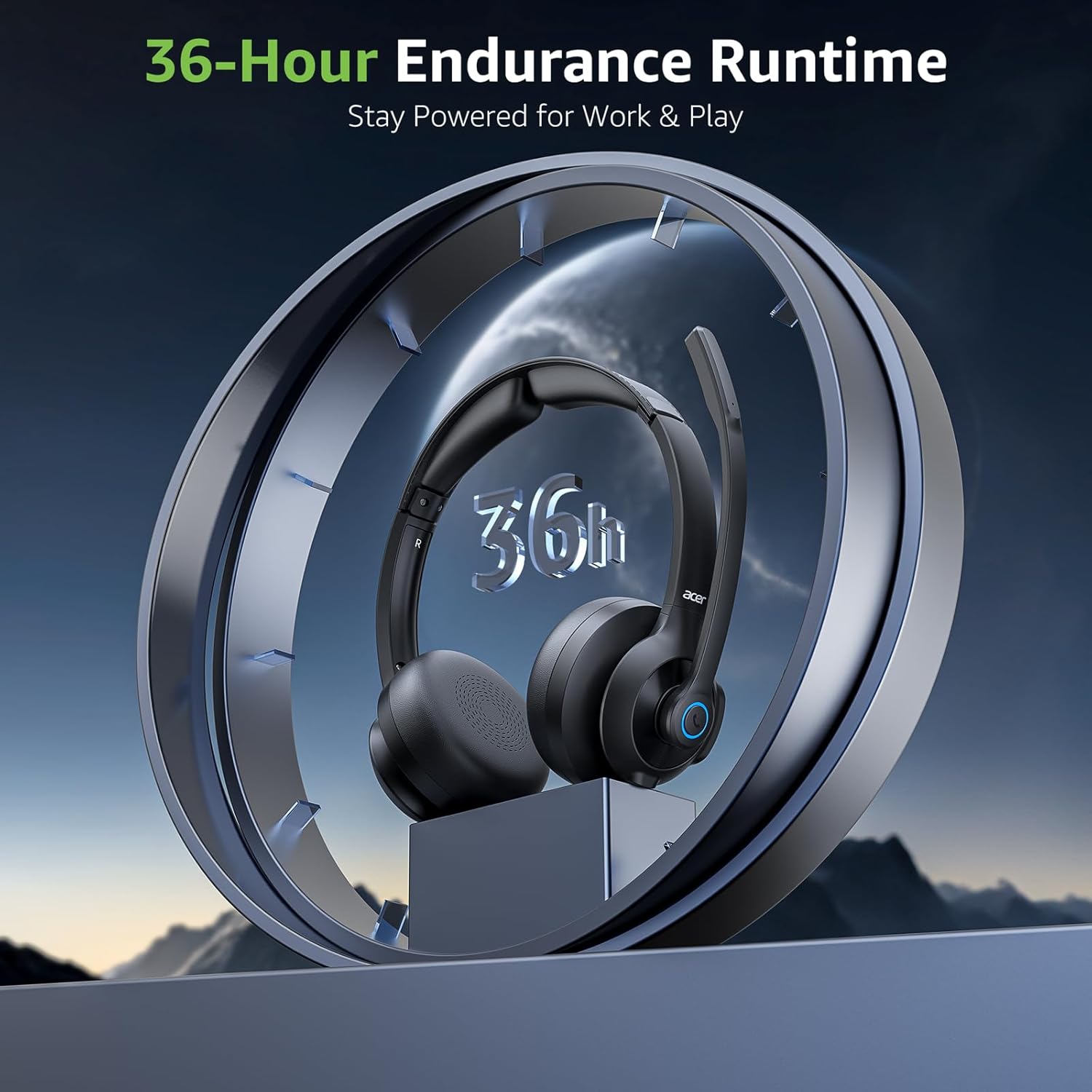
Image: Visual representation of 36-hour battery life.
7. Troubleshooting
7.1. No Sound After Successful Connection
If the headset is connected but you hear no sound, double-press the power button to ensure it is in the correct mode (USB mode for dongle, Bluetooth mode for Bluetooth devices). The headset will announce the active mode.
Video: This video demonstrates how to resolve a 'no sound' issue in USB mode by double-clicking the power button to switch modes. It shows the headset's LED indicators changing from red/blue flashing to solid blue on the USB dongle, indicating normal operation.
7.2. Connection Issues
- Ensure the headset is fully charged.
- For 2.4G wireless, ensure the USB dongle is securely plugged into your device and its blue light is solid.
- For Bluetooth, ensure Bluetooth is enabled on your device and the headset is in pairing mode (red and blue lights flashing). Try unpairing and re-pairing if issues persist.
- Restart both the headset and your connected device.
Video: This video illustrates the Bluetooth pairing process for the Acer HB02 Wireless Headset. It shows pressing the power button for 5 seconds to enter pairing mode (red and blue lights flashing), then connecting via a phone's Bluetooth settings. After successful connection, the headset's blue light flashes every 10 seconds.
Video: This video demonstrates the Acer HB02 Wireless Headset's features, including charging options (dock and USB-C), adjustable headband, microphone mute/unmute by flipping, and dual-mode switching. It also shows connecting the USB dongle to a laptop and pairing with a phone via Bluetooth.
8. Maintenance
- Clean the headset regularly with a soft, dry cloth. Avoid using harsh chemicals or abrasive materials.
- Store the headset in a cool, dry place away from direct sunlight and extreme temperatures.
- Avoid exposing the headset to water or excessive moisture.
- Do not attempt to disassemble or repair the headset yourself, as this may void the warranty.
9. Specifications
| Feature | Detail |
|---|---|
| Model Name | Wireless Headset-HB02 |
| Connectivity Technology | Bluetooth, 2.4G Wireless |
| Bluetooth Version | 5.3 |
| Bluetooth Range | 10 Meters |
| Audio Driver Size | 40 Millimeters |
| Battery Life | 36 Hours |
| Charging Time | Approximately 2 hours (for full charge) |
| Microphone | Environmental Noise Cancellation (ENC) |
| Control Type | Button Control, Push Button |
| Material | Leather, Plastic |
| Item Weight | 0.57 Kilograms (1.26 pounds) |
| Compatible Devices | Cellphones, Computer, Laptops, PC, Tablets |
| Special Feature | Adjustable Headband, Lightweight |
10. Warranty and Support
For warranty information or technical support, please contact Acer customer service. You can reach out via email for assistance:
Email: yb_headset.service@acergadget.com
Please provide your product model (HB02) and a detailed description of your issue when contacting support.