1. Introduction
The domyfan S8 14-inch Laptop Screen Extender is designed to enhance productivity by providing an additional display for your laptop. This ultra-thin and lightweight device features an FHD 1080P IPS display with 100% sRGB color gamut, ensuring vibrant and accurate visuals. It supports various operating systems and offers flexible connection options for seamless integration into your workspace.

Image: domyfan 14-inch Laptop Screen Extender showcasing its 14-inch FHD IPS display, 100% sRGB, 16:9 aspect ratio, 1000:1 contrast, 300cd/m² brightness, and built-in speakers.

Image: Various usage scenarios demonstrating the domyfan S8 screen extender in professional and collaborative settings.
2. Package Contents
Please ensure all items are present in the package:
- 1x S8 Portable Monitor
- 1x User Manual
- 1x USB-C to USB-C Cable
- 1x HDMI to USB-C Cable
- 1x USB-A to USB-C Cable
- 1x Carry Bag

Image: Detailed view of all items included in the domyfan S8 package, including the monitor, cables, and carry bag.
3. Product Features
- Ultra-thin & Lightweight Design: Weighing approximately 1.3 lbs (600g) and measuring 4.5mm thin, the S8 is highly portable.
- FHD 1080P IPS Display: Enjoy crisp visuals with 1920x1080 resolution, 100% sRGB color gamut, 300cd/m² brightness, and a 1000:1 contrast ratio.
- Enhanced Back Frame: Features two additional clasps for secure laptop attachment and a widened, thickened, and reinforced metal kickstand for robust support. The screen can flip 180 degrees.
- Durable Construction: Upgraded to aerospace-grade aluminum alloy material for increased durability.
- Built-in Speakers: Integrated stereo speakers for audio output.
- HDR Technology: Enhances image quality for accurate and comprehensive color reproduction.
- Blue Light Eye Protection: Low blue light mode reduces eye fatigue for comfortable prolonged use.

Image: The domyfan S8 highlighting its ultra-thin (4.5mm) and lightweight (1.3lb) design.

Image: Illustration showing the upgrade from a plastic bracket to a more durable metal bracket for the S8 extender.

Image: Visual representation of HDR Technology enhancing image quality and color reproduction on the S8 display.

Image: Explanation of Blue Light Eye Protection mode reducing harmful blue light exposure and eye fatigue.
4. Setup Instructions
Follow these steps to set up your domyfan S8 screen extender:
- Open the Device: Gently open the screen extender.
- Adjust Outrigger Stretch: Pull out the side clips to match your laptop's width (compatible with 13-17.3 inch laptops).
- Adjust the Kickstand: First, open the support rod and stretch it to the appropriate size. The support rod only supports clockwise rotation of 90 degrees. The maximum opening angle of the support rod is 90 degrees; excessive folding will damage the support rod.
- Attach to Laptop: Carefully position the extender over the top of your laptop screen, ensuring the clips securely hold it in place. The clips are designed at a 45-degree angle to prevent damage when closing your laptop.

Image: Illustration showing how the clips securely attach the S8 extender to a laptop screen, with a maximum stretch length of 15.75 inches.
5. Connection Modes
The domyfan S8 offers flexible connection options:
- Full-Featured USB-C Connection: If your laptop has a full-featured USB-C port (supporting charging and video transmission), you can use a single USB-C to USB-C cable to connect the product.
- USB-A and HDMI Connection: If your laptop has a USB-A port and an HDMI port, use two cables: one HDMI to USB-C cable for video, and one USB-A to USB-C cable for power supply.
Important Note:
- The HDMI to USB-C cable must be connected to the third port of the screen extender for video.
- The USB-A or USB-C to USB-C cable must be connected to the first or second port for power supply.
- If the display has no signal or the signal is unstable after connection, please connect an external 5V/2A power adapter to power the laptop.

Image: Diagrams illustrating how to connect the S8 extender using a single full-featured USB-C cable or a combination of HDMI and USB-A cables.
6. Operating Instructions
6.1. Key Definitions
- Multi-function Button: Used for menu selection and confirmation. Press and hold for 2 seconds to return, press and hold for 3 seconds to shut down.
- Toggle Left: Adjusts backlight (minus).
- Toggle Right: Adjusts volume (plus).

Image: Close-up of the menu button and speaker on the domyfan S8, showing how to adjust brightness and volume.
6.2. Display Modes
The S8 supports three display modes to optimize your workflow:
- Extended Mode: Extends your desktop across both screens, providing more workspace.
- Duplicated Mode (Mirror Mode): Mirrors your laptop's display on the extender.
- Second Screen Mode (Portrait Mode): Uses the extender as a standalone second screen, including a portrait orientation option.

Image: Visual examples of Mirror Mode, Extend Mode, and Portrait Mode in use with the S8 screen extender.
6.3. Audio Settings
The S8 has built-in speakers. You can configure audio output through your operating system's sound settings. Select 'S8 Speaker' as the output device to use the extender's speakers.
7. Compatibility
The domyfan S8 is highly compatible with a wide range of devices and operating systems:
- Operating Systems: macOS, PC, Windows, Android.
- Devices: PS5, Xbox, Switch, and most other devices with compatible ports.
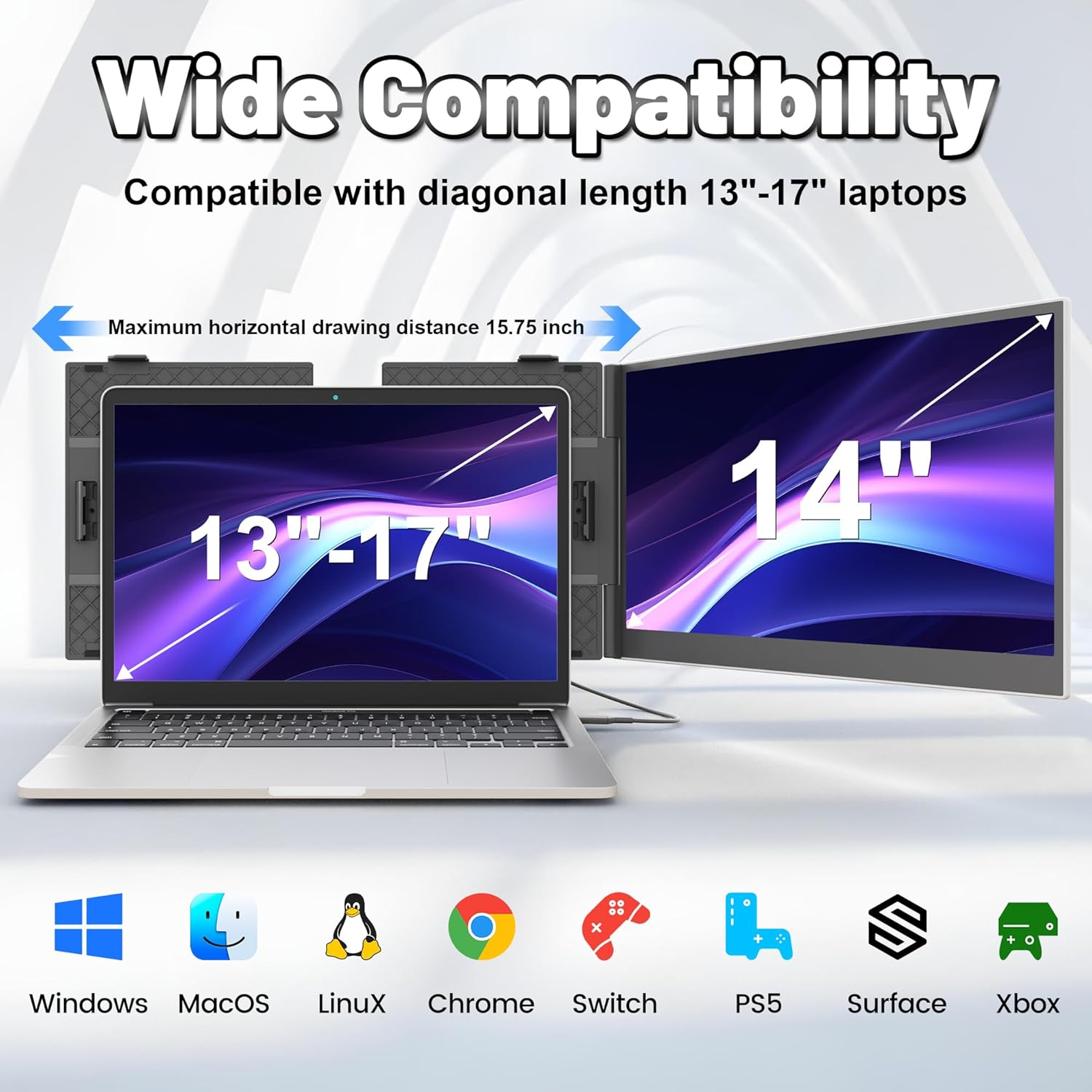
Image: The domyfan S8 demonstrating wide compatibility with Windows, macOS, Linux, Chrome, Switch, PS5, Surface, and Xbox.
8. Troubleshooting
If you encounter issues, please refer to the following common problems and solutions:
- Q1: How can I tell if the USB-C port on my computer is full-featured?
A1: A USB-C port with one of the following symbols is a full-featured one: SS (SuperSpeed), DP (DisplayPort), or a Thunderbolt 3 or Thunderbolt 4 port. You can view the port parameters in the manual or on the Web. - Q2: Why does the monitor show "No Signal"?
A2: There may be a connection failure or the computer port does not support video output. Please contact us for troubleshooting. We will provide you with a solution as soon as possible! - Q3: The screen does not light up after connecting?
A3: It is possible that your computer does not have enough power. Please charge the portable monitor with an external power supply that provides 5V / 2A power or above. You can also contact us for further solutions.
9. Specifications
| Feature | Detail |
|---|---|
| Model | S8 |
| Screen Size | 14 Inches |
| Resolution | 1920 x 1080 Pixels (FHD 1080p) |
| Panel Type | IPS Wide Viewing Angle |
| Aspect Ratio | 16:9 |
| Refresh Rate | 60Hz |
| Average Brightness | 300cd/m² |
| Contrast Ratio | 1000:1 |
| Product Dimensions | 13.07 x 8.15 x 0.61 inches |
| Item Weight | 3.83 pounds (approximately 600g) |
| Screen Surface Description | Glossy |
10. Warranty and Support
For any connection failures or further assistance, please contact our after-sales team directly. We are committed to providing you with a satisfactory solution.
Contact information for support can be found in the product packaging or on the official domyfan website.