1. Introduction
Welcome to the user manual for your new Metz 55MUF7000Z 55-inch 4K UHD Google TV. This television combines advanced display technologies with smart features to deliver an immersive entertainment experience. Featuring 4K HDR10, MEMC for smooth motion, Dolby Vision and Dolby Atmos for superior audio-visuals, integrated Google TV, and Eye Care technology, your Metz TV is designed for optimal performance and user comfort. Please read this manual thoroughly before using your TV to ensure proper operation and to maximize its capabilities.
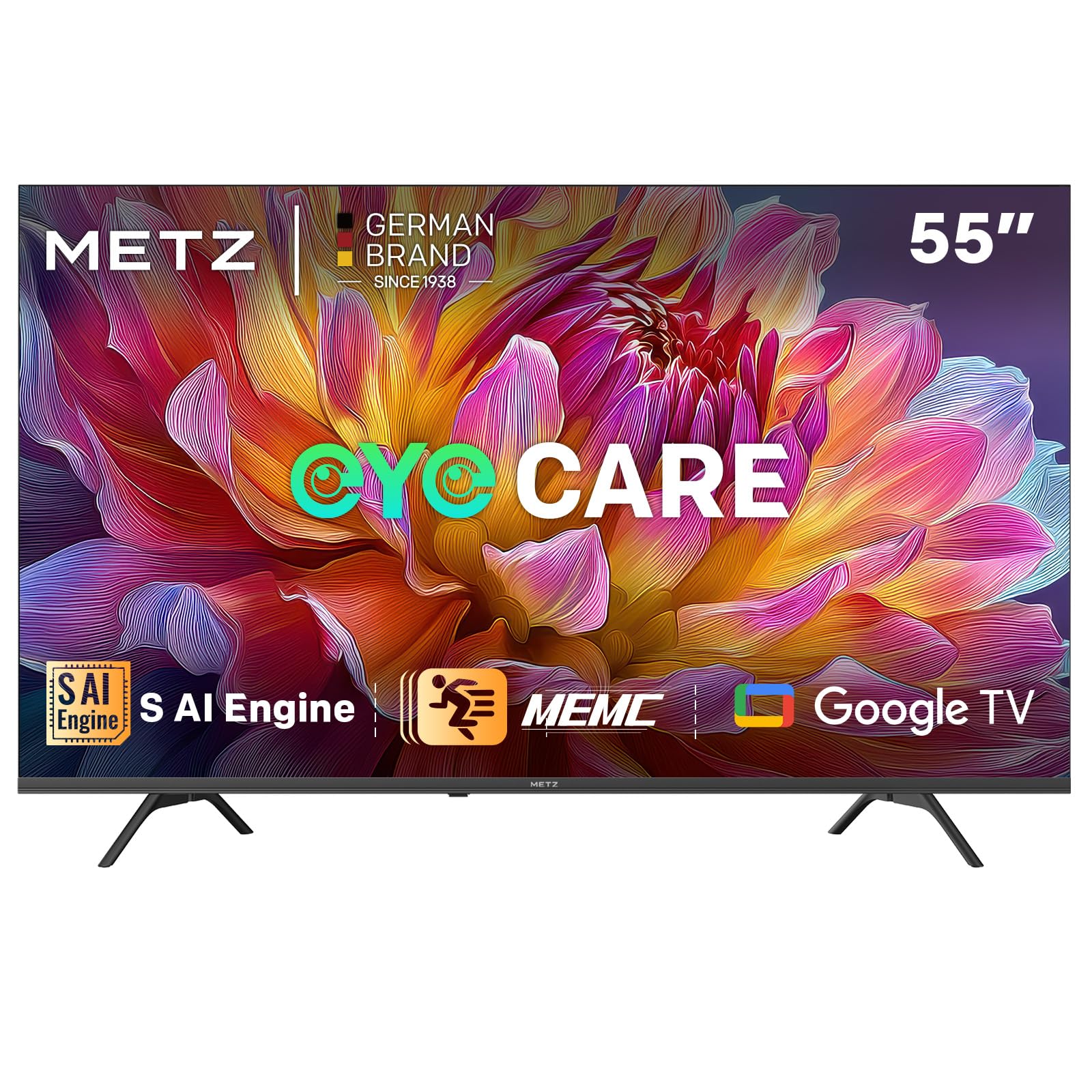
Figure 1.1: Metz 55MUF7000Z 55-inch 4K UHD Google TV.
2. Safety Information
Before operating the TV, please read all instructions carefully. Keep this manual for future reference. Always follow basic safety precautions to reduce the risk of fire, electric shock, and injury.
- Do not expose the TV to rain or moisture.
- Do not open the TV casing; refer all servicing to qualified personnel.
- Ensure proper ventilation around the TV.
- Use only the power cord provided.
- Clean the TV with a soft, dry cloth.
- Keep the TV away from direct sunlight, heat sources, and strong magnetic fields.
3. Package Contents
Verify that all items listed below are included in your TV package:
- Metz 55MUF7000Z 55-inch 4K UHD Google TV
- Remote Control
- Power Cable
- Bases (TV Stand)
- Screws for the Base
- 2 x AAA Batteries for Remote Control
- User Manual (this document)

Figure 3.1: Illustration of TV dimensions and included accessories.
4. Setup
4.1 Unpacking and Stand Installation
Carefully remove the TV from its packaging. Place the TV face down on a soft, flat surface to prevent screen damage. Attach the two stand bases to the bottom of the TV using the provided screws. Ensure the stand is securely fastened before placing the TV upright.
4.2 Connecting Peripherals
Your Metz TV offers various connection ports for your external devices:
- HDMI: Connect up to 3 HDMI devices (e.g., gaming consoles, Blu-ray players, set-top boxes) for high-definition audio and video.
- USB: Use the 2 USB ports to connect USB storage devices for media playback or software updates.
- LAN: Connect an Ethernet cable for a stable wired internet connection.
- DVB-S/S2, DVB-T/T2, DVB-C ATV: Connect your antenna or satellite dish for broadcast TV.
- CI Slot: Insert a Common Interface module for encrypted channels.
- Digital Audio Out: Connect to an external audio system for enhanced sound.
- AV: Connect older devices using composite video and stereo audio cables.
- Headphone: Connect headphones for private listening.
4.3 Initial Power On and First-Time Setup
After connecting all necessary cables, plug the power cord into an electrical outlet. Press the power button on the remote control or the TV. The TV will guide you through the initial setup process, including language selection, network connection (Wi-Fi or Ethernet), and Google TV account login. Follow the on-screen instructions to complete the setup.
5. Operating Your TV
5.1 Google TV Features
Your Metz TV comes with Google TV, offering a personalized and intuitive user experience. Access your favorite apps, receive tailored recommendations, and use voice control with the integrated Google Assistant. Features include:
- Personalized content recommendations.
- Organized watchlists.
- Voice control via Google Assistant.
- Parental controls and child filters.
- Built-in Google Cast for streaming from mobile devices.
5.2 Picture Quality Enhancements
Experience stunning visuals with the following technologies:
- 4K Ultra Sharp Image with AI Power: The S AI engine analyzes each frame in real-time, enhancing color and detail for a cinematic experience.

Figure 5.1: S AI Engine for intelligent image processing.
- 4K HDR10 and HLG: Enjoy impressive 4K HDR10 and HLG images with vivid colors and high contrast, providing a more vibrant and realistic visual experience than standard dynamic range (SDR).

Figure 5.2: Comparison of image quality with and without 4K HDR10.
- MEMC (Motion Estimation, Motion Compensation): This technology reduces blur in fast-moving scenes, ensuring clear details and ultra-smooth motion for sports, action movies, and video games.

Figure 5.3: MEMC technology for smooth and clear motion.
5.3 Audio Experience
Immerse yourself in superior sound quality:
- Dolby Atmos and Wonder Audio: With 87 years of audio experience, enjoy crisp sound with Wonder Audio. Six adaptive sound modes optimize audio for each scene, providing a balanced and immersive experience through two speakers and Dolby Atmos.
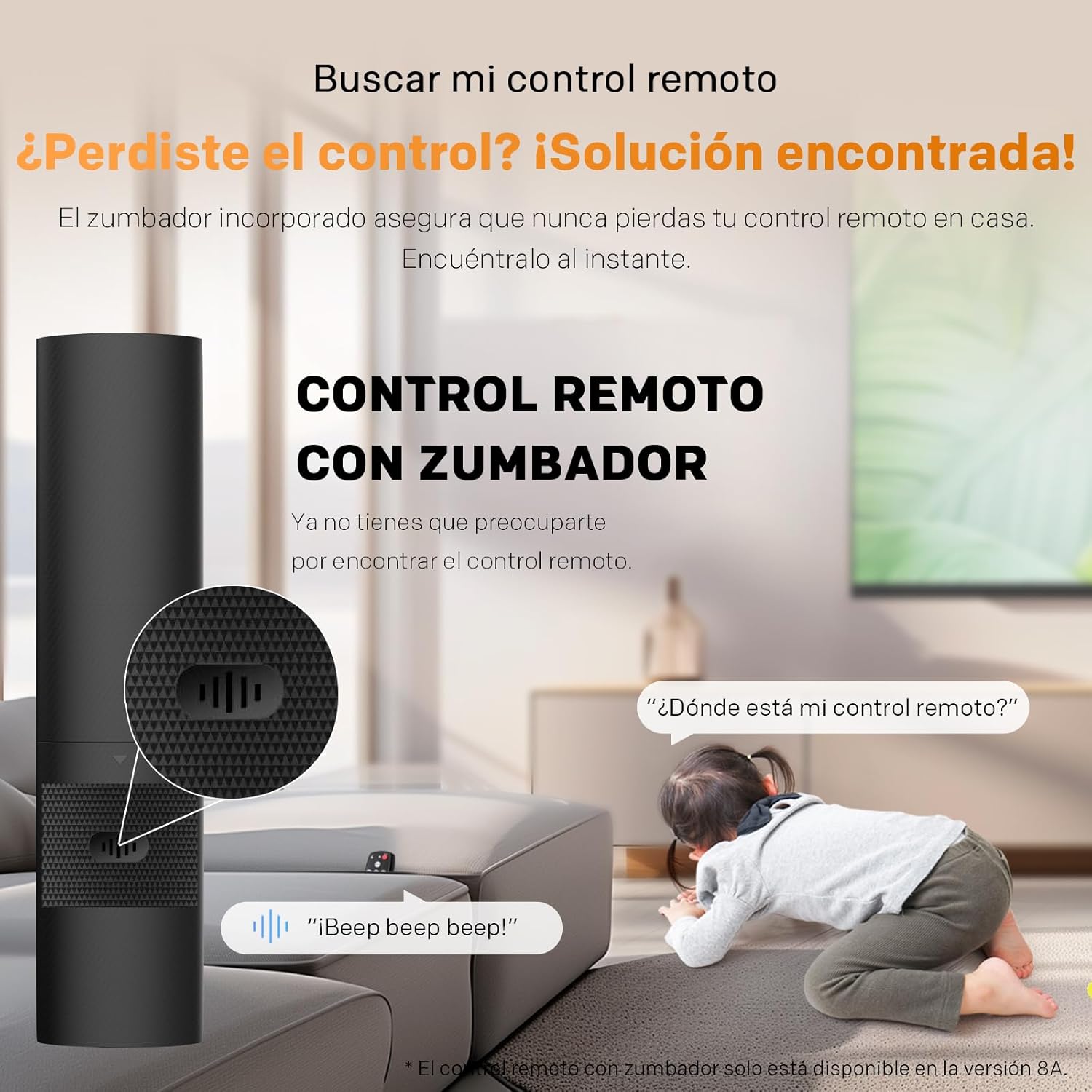
Figure 5.4: Visual representation of Dolby Atmos and Wonder Audio features.
5.4 Eye Care Technology
Your TV is equipped with features to protect your eyes and enhance viewing comfort:
- Personalized Visual Aid: Corrects color deficiency for a more accurate display.
- Reduced Blue Light: Minimizes harmful blue light emissions.
- Flicker-Free Technology: Ensures a smooth and comfortable viewing experience without eye strain.
5.5 Remote Control
The included remote control provides easy access to all TV functions. It features a built-in buzzer to help you locate it if misplaced. Simply activate the 'Find My Remote' function (if available on your model) to hear an audible signal.

Figure 5.5: Remote control with the built-in buzzer feature.
6. Maintenance
6.1 Cleaning Your TV
To maintain the TV's appearance and performance:
- Always unplug the TV before cleaning.
- Use a soft, dry, lint-free cloth to wipe the screen and cabinet.
- For stubborn marks, lightly dampen the cloth with water or a mild, non-abrasive screen cleaner.
- Never spray cleaner directly onto the screen or allow liquid to drip into the TV.
6.2 Software Updates
Your TV may receive software updates to improve performance and add new features. Ensure your TV is connected to the internet to receive these updates. You can usually check for updates manually through the TV's settings menu.
7. Troubleshooting
If you encounter issues with your TV, refer to the following common problems and solutions:
- No Power: Ensure the power cord is securely plugged into both the TV and the wall outlet. Check if the outlet is working by plugging in another device.
- No Picture, But Sound is Present: Check the input source. Press the 'Input' button on your remote to cycle through available sources. Ensure all video cables are securely connected.
- No Sound, But Picture is Present: Check the volume level and ensure the TV is not muted. Verify audio cable connections if using external speakers. Check the TV's audio output settings.
- Remote Control Not Working: Replace the batteries in the remote control. Ensure there are no obstructions between the remote and the TV's IR sensor.
- Poor Picture Quality: Check the antenna or cable connection. Adjust picture settings (brightness, contrast, sharpness) in the TV menu. Ensure you are viewing high-quality content.
- Network Connection Issues: Restart your router and modem. Reconnect the TV to your Wi-Fi network or check the Ethernet cable connection.
If the problem persists after trying these solutions, please contact customer support.
8. Specifications
| Feature | Specification |
|---|---|
| Manufacturer | Metz |
| Model Identifier | 55MUF7000Z |
| Screen Size | 55 Inches |
| Display Technology | LED |
| Resolution | 4K (3840 x 2160) |
| Refresh Rate | 120 Hz |
| Special Features | Chromecast, Dolby Atmos, Dolby Vision, Eye Care, MEMC |
| Connectivity Technology | Bluetooth, USB, Wi-Fi |
| Aspect Ratio | 16:9 |
| Product Dimensions (with base) | 122.6 x 23.7 x 78.2 cm |
| Product Weight (with base) | 9.8 kg |
| Energy Efficiency Class (SDR) | F |
| Energy Consumption (SDR) | 76 kWh/1000h |
| Energy Consumption (HDR) | 115 kWh/1000h |
| Country of Origin | Poland |

Figure 8.1: Detailed product information sheet.

Figure 8.2: Energy efficiency label for the Metz 55MUF7000Z.
For more detailed information, please refer to the EPREL database: https://eprel.ec.europa.eu/qr/2228747
9. Warranty and Support
Your Metz 55MUF7000Z 55-inch 4K UHD Google TV comes with a minimum general warranty period of 2 years from the date of purchase. This warranty covers manufacturing defects and ensures repair or replacement as per applicable consumer laws.
For technical assistance, troubleshooting, or warranty claims, please contact Metz Customer Support. Refer to the contact information provided in your product packaging or visit the official Metz website for specialized customer service.


