
Noorio T420, CD200
Noorio Home Security Camera System User Manual
Models: T420, CD200
Introduction
This manual provides comprehensive instructions for the installation, operation, and maintenance of your Noorio Home Security Camera System, including models T420 and CD200. This system is designed to enhance your home security with advanced features such as 4K and 2K resolution video, AI-powered detection, and wide-area surveillance capabilities.
Please read this manual thoroughly before using the product to ensure proper setup and optimal performance. Keep this manual for future reference.

Image: The Noorio Home Security Camera System, featuring both the T420 and CD200 camera models. The T420 is a dome-style camera, and the CD200 is a bullet-style camera, both in white casing.
Package Contents
Verify that all items listed below are present in your package. If any items are missing or damaged, please contact Noorio customer support.
- Noorio T420 Security Camera(s)
- Noorio CD200 Security Camera(s)
- Power Adapters
- Mounting Screws and Wall Plugs
- Mounting Template
- Quick Start Guide
Setup
1. Before You Begin
- Ensure you have a stable 2.4GHz or 5GHz Wi-Fi network available for camera connection.
- Prepare a microSD card (up to 256GB, not included) for local storage, if desired.
- Have your smartphone ready for app installation and camera configuration.
2. Download the Noorio App
The Noorio app is required for setting up and managing your security cameras. Search for "Noorio" in your device's app store (Google Play Store for Android or Apple App Store for iOS) and install it.

Image: A composite image displaying various features of the Noorio camera system, including the Noorio app download icon, 2K 4MP resolution, 355° pan & tilt, motion detection, IP65 waterproof rating, and color night vision capabilities.
3. Powering On the Cameras
Connect the power adapter to each camera and plug it into a power outlet. The camera's indicator light will illuminate, indicating it is powering on.
4. Adding Cameras to the App
- Open the Noorio app and create an account or log in.
- Tap the "+" icon to add a new device.
- Follow the on-screen instructions to select your camera model and connect it to your Wi-Fi network. This typically involves scanning a QR code on the camera or listening for an audio prompt.
- Once connected, name your camera and assign it to a location.
5. Camera Placement and Mounting
Choose a location that provides optimal coverage for the area you wish to monitor. Consider the camera's pan and tilt capabilities (360° pan and 80° tilt for T420, 355° pan and 90° tilt for CD200) to maximize coverage.
- Use the provided mounting template to mark drill holes.
- Drill holes and insert wall plugs if mounting on drywall or masonry.
- Secure the mounting base with screws.
- Attach the camera to the mounting base.
- Adjust the camera angle as needed after installation.

Image: A close-up of a Noorio camera illustrating its 360-degree pan and 80-degree tilt capabilities for comprehensive area coverage.
Operating the System
1. Live View and Playback
Access the live feed of your cameras through the Noorio app. You can switch between cameras and view recorded footage stored on the microSD card.
- To view live feed: Select the desired camera from the device list in the app.
- To view playback: Navigate to the playback section within the camera's interface in the app and select the desired date and time.
2. AI Detection and Tracking
The Noorio system utilizes on-device AI to differentiate between humans, pets, vehicles, and general motion. This allows for more accurate alerts and recording of relevant events.
- Setting Activity Zones: In the app settings for each camera, you can define specific activity zones where detection should be active. This helps reduce false alarms from areas outside your interest.
- AI Object Tracking: The cameras can automatically track detected objects within their field of view, ensuring continuous monitoring of movement.

Image: An illustration of the Noorio camera's AI detection capabilities, showing the system identifying and tracking a child on a bicycle, a dog, and a car, ensuring only events of interest are recorded.
3. Pan and Tilt Control
For models with pan and tilt functionality (T420 and CD200), you can remotely adjust the camera's viewing angle through the Noorio app.
- Navigate to the live view of the desired camera.
- Use the directional controls on the screen to pan (horizontal movement) and tilt (vertical movement) the camera.
4. Image Quality and Zoom
The T420 camera records in 4K HD resolution, providing detailed and clear video. The CD200 camera records in 2K (4MP) resolution, also offering superior image quality. Both models support 16x smart zoom for closer inspection of details.

Image: A demonstration of the Noorio camera's 4K resolution and 16x smart zoom capability, highlighting the clarity of captured details.
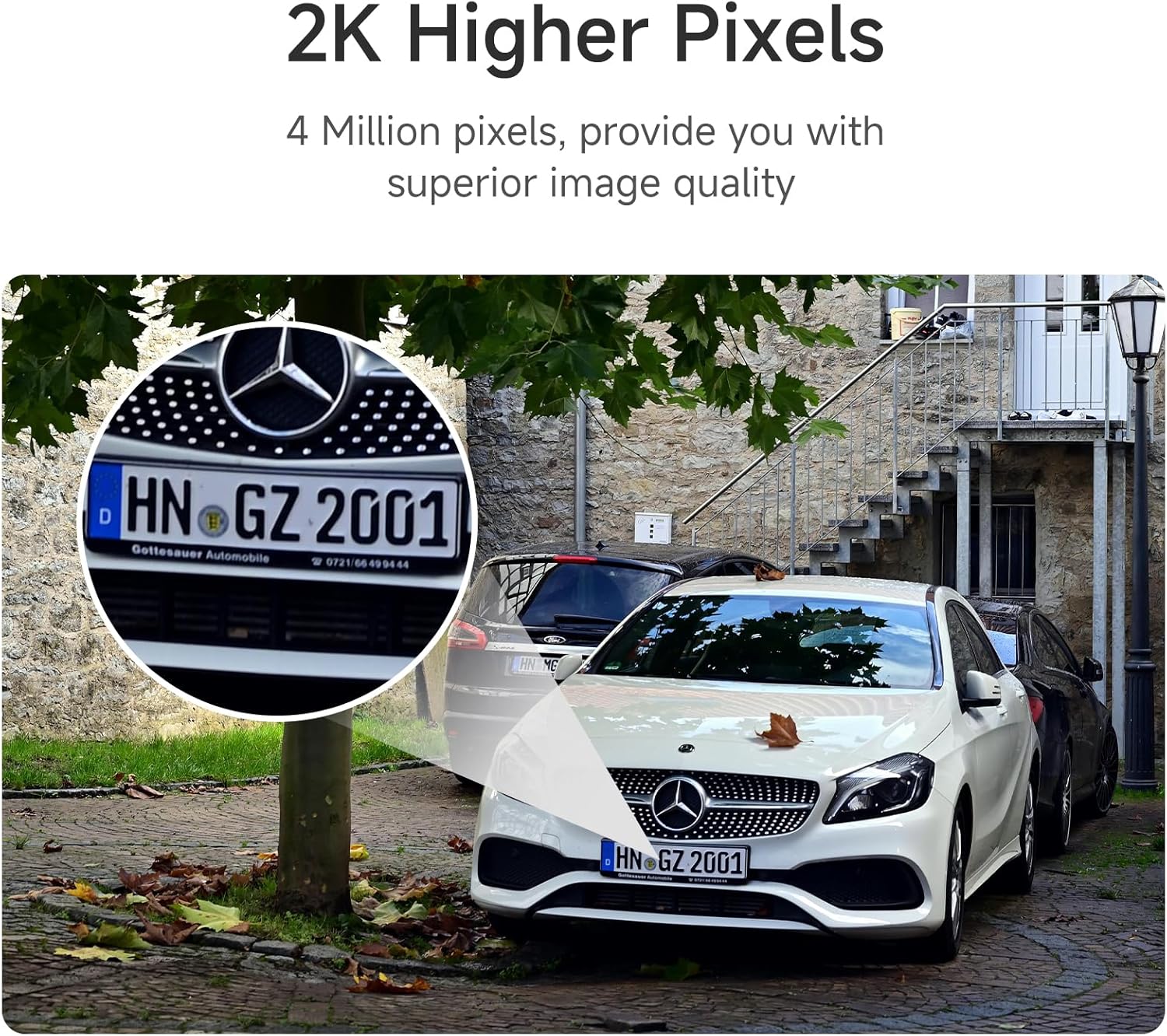
Image: An example of the Noorio camera's 2K resolution, demonstrating its ability to capture fine details such as a vehicle's license plate.
5. Night Vision
The Noorio cameras are equipped with color night vision, providing clear and detailed images even in low-light conditions, unlike traditional black and white night vision.

Image: A comparison demonstrating the superior clarity and color rendition of Noorio's color night vision compared to standard general night vision.
6. Security Features (Lights and Siren)
The cameras can deter unwanted individuals with integrated lights and a siren, enhancing your home's security. These features can be activated manually through the app or configured to trigger automatically upon detection of suspicious activity.
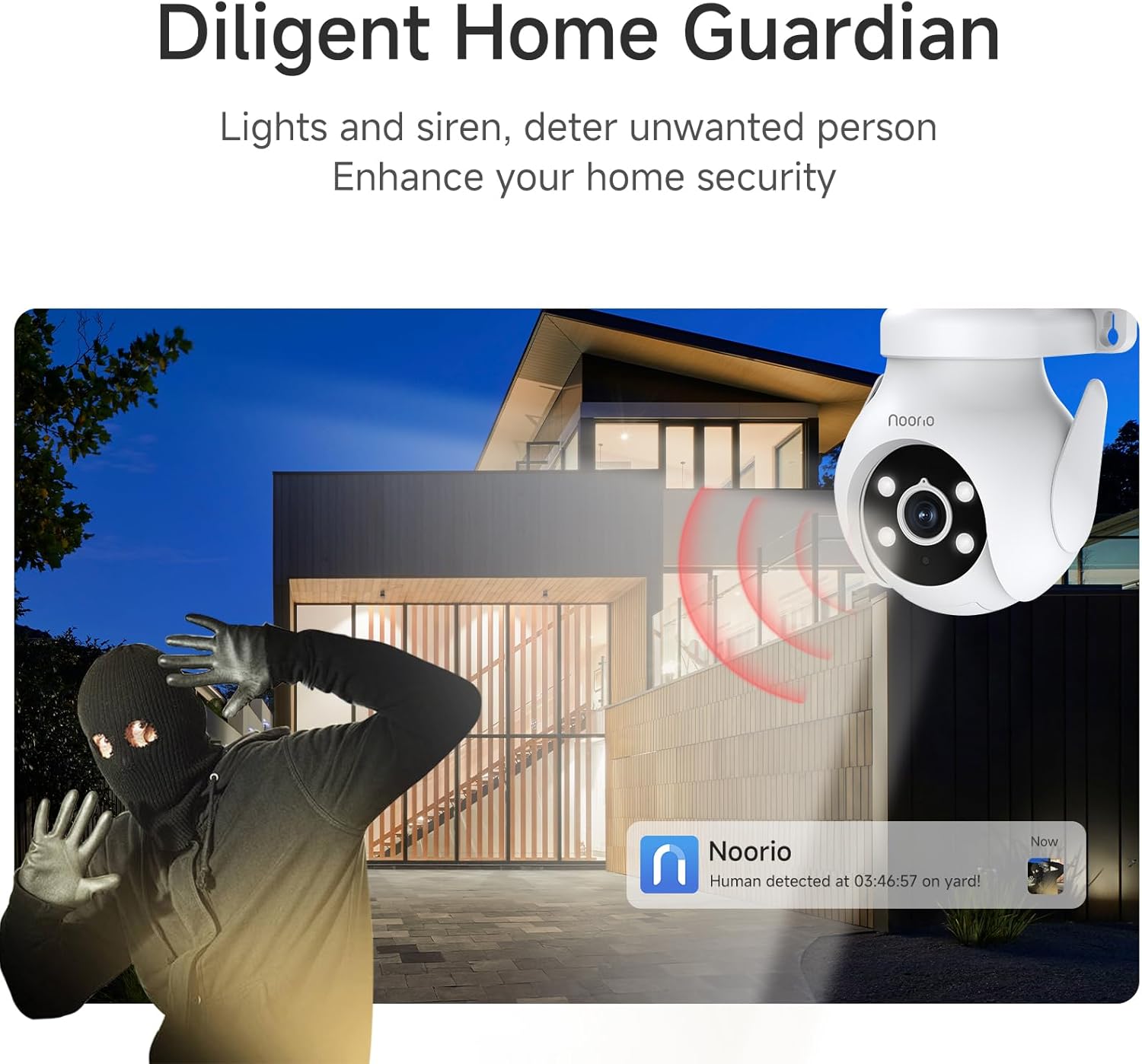
Image: A Noorio camera actively deterring a potential intruder with its integrated lights and siren, illustrating its role as a diligent home guardian.
Maintenance
- Cleaning: Gently wipe the camera lens and body with a soft, dry cloth. Do not use harsh chemicals or abrasive cleaners.
- Firmware Updates: Regularly check the Noorio app for available firmware updates. Keeping your camera's firmware up-to-date ensures optimal performance, new features, and security enhancements.
- SD Card Management: If using a microSD card for local storage, periodically check its status in the app. Format the card as needed to maintain recording efficiency. Replace the card if it shows signs of degradation.
- Environmental Protection: While the cameras are designed for outdoor use (IP65 waterproof rating), ensure they are installed in locations that minimize direct exposure to extreme weather conditions for prolonged durability.
Troubleshooting
| Problem | Possible Cause | Solution |
|---|---|---|
| Camera not powering on. | Power adapter not connected or faulty outlet. | Ensure the power adapter is securely connected to the camera and a working power outlet. Try a different outlet. |
| Camera offline in app. | Weak Wi-Fi signal, incorrect Wi-Fi password, or network issue. | Check Wi-Fi signal strength at camera location. Re-enter Wi-Fi password in app. Restart your router and the camera. |
| Poor image quality. | Dirty lens, low light, or network bandwidth issues. | Clean the camera lens. Ensure adequate lighting for optimal night vision. Check your internet speed. |
| Motion detection not working or too sensitive. | Incorrect sensitivity settings, activity zones not configured. | Adjust motion detection sensitivity in the app. Configure or refine activity zones to focus on areas of interest. |
| SD card not recording. | SD card full, faulty, or not formatted correctly. | Check SD card status in the app. Format the SD card. Replace the SD card if it is faulty. |
Specifications
| Feature | Description |
|---|---|
| Model Numbers | T420, CD200 |
| Video Resolution | T420: 4K HD; CD200: 2K (4 Megapixels) |
| Digital Zoom | Up to 16x Smart Zoom |
| Pan & Tilt (T420) | 360° Pan, 80° Tilt |
| Pan & Tilt (CD200) | 355° Pan, 90° Tilt |
| Connectivity | 2.4GHz / 5GHz Dual-Band Wi-Fi |
| Local Storage | Supports up to 256GB microSD card (not included) |
| AI Detection | Human, Pet, Vehicle, Common Motion |
| Night Vision | Color Night Vision |
| Weather Resistance | IP65 Waterproof Rating |
| ASIN | B0F8QH22PH |
| Date First Available | April 10, 2025 |
Warranty and Support
For detailed warranty information, please refer to the official Noorio website or the warranty card included with your product. Noorio typically offers a limited warranty covering manufacturing defects.
If you encounter any issues not covered in the troubleshooting section or require further assistance, please contact Noorio customer support. You can usually find contact details (email, phone, or support portal) on the official Noorio website or within the Noorio app's help section.
When contacting support, please have your product model numbers (T420, CD200) and ASIN (B0F8QH22PH) ready.
Related documentsT420, CD200


Ask a question about this manual
Ask about setup, troubleshooting, compatibility, parts, safety, or missing instructions. Manuals+ will review the question and use this page’s manual context to help answer it.