
Introduction
Thank you for choosing the Ajblg Wireless CarPlay Adapter. This device allows you to convert your car's wired CarPlay system into a wireless one, providing a seamless and convenient connection for your iPhone. Enjoy navigation, music, calls, and more directly from your car's display without the need for a physical cable connection.
Safety Information
- Do not disassemble, repair, or modify the device. Unauthorized modifications may void the warranty and pose safety risks.
- Keep the device away from water, moisture, and extreme temperatures.
- Avoid exposing the device to direct sunlight for extended periods.
- Use only the provided data cable for connection.
- Ensure the device is securely placed and does not obstruct your view or vehicle controls while driving.
Package Contents
Please check the package for the following items:
- Ajblg Wireless CarPlay Adapter (DX01-EU-SV)
- USB Data Cable
Setup and Connection
Follow these three simple steps to set up your Ajblg Wireless CarPlay Adapter:
- Plug In: Connect the Ajblg Wireless CarPlay Adapter to your car's USB port that supports wired CarPlay. The adapter's indicator light will illuminate.
- Pair Bluetooth: On your iPhone, go to Settings > Bluetooth. Turn on Bluetooth and search for the device named "SmartBox-XXXX" (or similar, check your car's screen for the exact name). Tap to pair.
- Use CarPlay: After successful Bluetooth pairing, a prompt will appear on your iPhone asking to use CarPlay. Confirm the connection. Your car's display should then switch to the wireless CarPlay interface.

Figure 1: Three-step setup process for the Wireless CarPlay Adapter.
Operating Instructions
Automatic Connection
Once the initial setup is complete, the adapter will automatically reconnect to your iPhone every time the vehicle is started, provided your iPhone's Bluetooth and Wi-Fi are enabled and within range.

Figure 2: Automatic connection feature.
Sound and Image Integrity
The adapter is designed to restore 100% of the original sound and image quality, ensuring a 1:1 reproduction of sound integrity for an optimal in-car experience.

Figure 3: High-fidelity sound and image reproduction.
Control Methods
Maintain full control over your CarPlay functions using your car's original input methods:
- Touch Screen: Interact directly with the car's display.
- Knob: Use the car's control knob for navigation.
- Steering Wheel Controls: Utilize your steering wheel buttons for audio, calls, and voice commands (e.g., Siri).

Figure 4: Original control methods for CarPlay.
Stable Connections
The adapter features Bluetooth 5.4 and 5.8GHz Wi-Fi for stable and low-latency connections, minimizing delays in audio and input response.
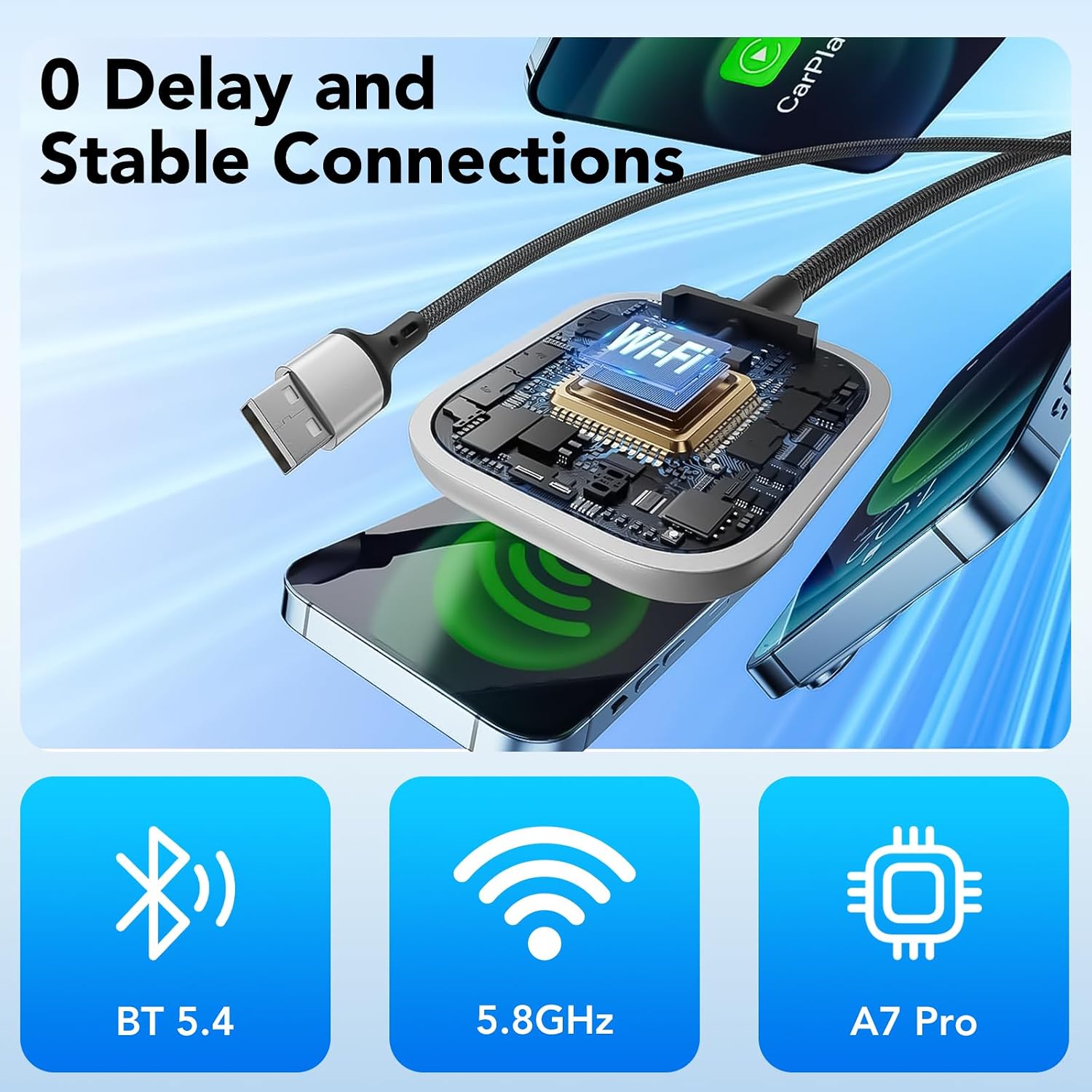
Figure 5: Advanced connectivity for stable performance.
Compatibility
This adapter is designed for specific systems and devices:
- Car Compatibility: Requires vehicles with factory-installed (OEM) wired CarPlay.
- iPhone Compatibility: Compatible with iPhone models 6 and above, running iOS 10 or newer.
- Operating System: Only for iOS devices. Not compatible with Android Auto.

Figure 6: Compatibility requirements for the adapter.
For a comprehensive list of vehicles compatible with Apple CarPlay, please visit the official Apple website: Apple CarPlay Available Models
Specifications
| Feature | Detail |
|---|---|
| Model Name | DX01-EU-SV |
| Brand | Ajblg |
| Wireless Communication Standard | 5.8 GHz Radio Frequency |
| Compatible Devices | Mobile Phones (iPhone) |
| Bluetooth Compatibility | Yes (Bluetooth 5) |
| Hardware Interface | 802.11 ac/b/g/n, Bluetooth 5 |
| Connector Type | Auxiliary (USB) |
| Rechargeable Battery Included | No |
| Remote Control Included | No |
| Color | Silver |
Troubleshooting
If you encounter issues with your Ajblg Wireless CarPlay Adapter, please refer to the following common solutions:
- No Connection / Intermittent Connection:
- Ensure your car's wired CarPlay system is functioning correctly.
- Verify that the adapter is securely plugged into the USB port.
- Restart your iPhone and the car's infotainment system.
- Forget the adapter's Bluetooth connection on your iPhone and re-pair it.
- Ensure your iPhone's Wi-Fi and Bluetooth are both enabled.
- Screen Goes Black / CarPlay Disconnects:
- Unplug the adapter and plug it back in.
- Restart your car's infotainment system.
- Check for any obstructions or interference near the adapter or your iPhone.
- Audio Issues (e.g., disconnections during calls, poor quality):
- Ensure your iPhone is close to the adapter for optimal signal strength.
- Check your iPhone's audio settings.
- Temporarily disable other Bluetooth devices in the car to rule out interference.
- Adapter Not Recognized:
- Try a different USB port in your car, if available.
- Ensure the USB port provides sufficient power.
Maintenance
- Cleaning: Use a soft, dry cloth to clean the adapter. Do not use liquid cleaners or aerosols.
- Storage: When not in use for extended periods, store the adapter in a cool, dry place away from direct sunlight.
- Handling: Handle the device with care to avoid physical damage.
Warranty and Support
The Ajblg Wireless CarPlay Adapter comes with a standard manufacturer's warranty. For specific warranty terms and conditions, please refer to the documentation provided at the time of purchase or contact your retailer.
For technical support or further assistance, please contact Ajblg customer service through the contact information provided with your product or on the official Ajblg website.