
1. Introduction
This manual provides comprehensive instructions for the setup, operation, and maintenance of your new XINFUTE PR3 PR3-UQ Bluetooth Voice Remote Control. Designed for seamless compatibility with Xumo Stream Box, this remote offers both Bluetooth and Infrared connectivity, along with voice search capabilities for enhanced user experience. Please read this manual thoroughly before using the device to ensure proper functionality and safety.
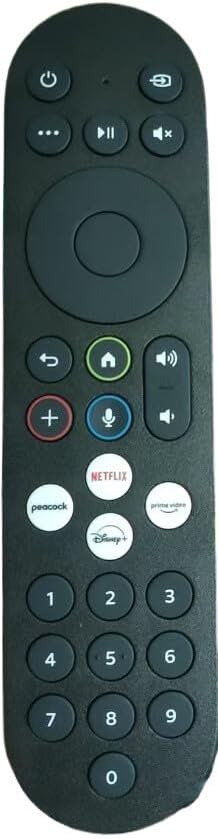
Figure 1: Front view of the XINFUTE PR3 PR3-UQ Bluetooth Voice Remote Control. This image displays the sleek design and button layout of the remote.
2. Safety Information
To ensure safe operation and prevent damage to your device, please observe the following precautions:
- Battery Safety: Always use the specified battery type (2 AA batteries). Do not mix old and new batteries, or different types of batteries. Ensure correct polarity (+/-) when inserting. Remove batteries if the remote will not be used for an extended period to prevent leakage.
- Environmental Conditions: Avoid exposing the remote control to extreme temperatures, direct sunlight, high humidity, or water. Do not drop or subject the remote to strong impacts.
- Cleaning: Use a soft, dry cloth to clean the remote. Do not use liquid cleaners or aerosols.
- Disassembly: Do not attempt to disassemble or modify the remote control. This will void the warranty and may cause damage.
3. Package Contents
Upon opening the package, verify that all components are present:
- 1 x XINFUTE PR3 PR3-UQ Bluetooth Voice Remote Control
- Note: Batteries (2 AA) are not included and must be purchased separately.
4. Setup Guide
4.1. Battery Installation
- Locate the battery compartment cover on the back of the remote control.
- Slide the cover downwards or press the latch (if present) to open the compartment.
- Insert two (2) AA batteries, ensuring that the positive (+) and negative (-) terminals align correctly with the markings inside the compartment.
- Close the battery compartment cover securely until it clicks into place.
4.2. Pairing with Xumo Stream Box
Your PR3 PR3-UQ remote control uses Bluetooth for voice commands and enhanced functionality. Follow these steps to pair it with your Xumo Stream Box:
- Ensure your Xumo Stream Box is powered on and connected to your TV.
- On your Xumo Stream Box, navigate to the Settings menu.
- Select Remotes & Accessories or a similar option.
- Choose Add New Device or Pair Remote.
- On your XINFUTE remote, press and hold the Home button (house icon) and the Back button (curved arrow) simultaneously for approximately 5-7 seconds. The LED indicator on the remote (if present) may flash to indicate pairing mode.
- Your Xumo Stream Box should detect the "XINFUTE Remote" or "PR3 PR3-UQ" as a discoverable device. Select it from the list on your TV screen.
- Follow any on-screen prompts to complete the pairing process. Once successfully paired, a confirmation message will appear on your TV.
- Note: If pairing fails, ensure the remote is close to the Stream Box and repeat the steps. You may also need to reset the remote by removing and reinserting the batteries.
5. Operating Instructions
Familiarize yourself with the buttons and their functions on your XINFUTE PR3 PR3-UQ remote control.

Figure 2: XINFUTE PR3 PR3-UQ Remote Control with key button functions labeled. This image provides a visual guide to the remote's layout and controls.
5.1. Button Functions
- Power On/Off (⏻): Powers the Xumo Stream Box on or off.
- TV Input (►): Switches the input source on your television.
- Options (•••): Launches the existing Quick Access Menu (QAM) for additional options.
- Mute/Unmute (🔇): Mutes or unmutes the audio.
- Pause/Play (►▮▮): Controls media playback (play/pause).
- OK/Select: Confirms selections or opens items.
- Navigation Pad (Up, Down, Left, Right): Navigates through menus and content.
- Last/Back (↶): Returns to the previous menu or selection.
- Home (🏠): Returns to the main home screen of the Xumo Stream Box.
- Volume Up/Down (🔊): Adjusts the volume of your TV or Audio/Video Receiver (AVR) if programmed.
- Voice Search (🎤): Press and hold this button to activate voice commands. Speak clearly into the remote's microphone.
- Add/Remove from My List (+): Adds or removes content from your personalized list.
- App Shortcuts (Peacock, Netflix, Disney+, Prime Video): Dedicated buttons to directly launch the specified streaming applications.
- Number Keys (0-9): Used for direct channel input or other numerical entries. Note: T9 lettering is disabled in EntOS.
5.2. Using Voice Search
The voice search feature allows you to quickly find content, launch apps, or control your Xumo Stream Box using your voice.
- Press and hold the Voice Search button (microphone icon).
- While holding the button, speak your command or search query clearly into the top of the remote.
- Release the button when you have finished speaking.
- The Xumo Stream Box will process your command and display results or perform the requested action.
6. Maintenance
Proper care will extend the life of your remote control.
- Cleaning: Wipe the remote with a soft, dry, lint-free cloth. Do not use abrasive cleaners, waxes, or solvents.
- Battery Replacement: Replace batteries when the remote's performance degrades or if the LED indicator (if present) signals low battery. Always replace both batteries simultaneously with new ones of the same type.
- Storage: Store the remote in a cool, dry place away from direct sunlight and extreme temperatures.
7. Troubleshooting
If you encounter issues with your remote control, try the following solutions:
| Problem | Possible Cause / Solution |
|---|---|
| Remote not responding. |
|
| Voice search not working. |
|
| Remote controls TV volume but not Xumo Stream Box. |
|
8. Specifications
| Feature | Detail |
|---|---|
| Model Number | PR3 PR3-UQ |
| Brand | XINFUTE |
| Compatible Devices | Xumo Stream Box, Television |
| Connectivity Technology | Bluetooth, Infrared |
| Special Features | Ergonomic design, Voice Search capability |
| Max Number of Supported Devices | 1 (Primary control for Xumo Stream Box) |
| Power Source | 2 x AA Batteries (not included) |
| Product Dimensions | 6 x 3 x 1 inches (approximately) |
| Item Weight | 2.82 ounces (without batteries) |
| Material | ABS Material |
9. Warranty Information
XINFUTE provides a one-year warranty on all purchases of the PR3 PR3-UQ remote control. This warranty covers manufacturing defects and ensures the quality of your product.
Please retain your proof of purchase for warranty claims. The warranty does not cover damage caused by misuse, accidents, unauthorized modifications, or normal wear and tear.
10. Customer Support
All products are inspected before shipment. If you are not satisfied with your purchase or require technical assistance, please contact XINFUTE customer support.
For support inquiries, please contact us within 24 hours of receiving your purchase. Refer to the contact information provided with your product packaging or visit the official XINFUTE store on Amazon for further details.
Manufacturer: XINFUTE