
Welcome to Your Broadlink RM5plus
The Broadlink RM5plus is a 5th-generation universal infrared remote designed to centralize control of over 5,000 infrared appliances, including TVs, air conditioners, fans, and set-top boxes. This device allows for seamless smart control across your home, eliminating the need for multiple remote controls. With Wi-Fi connectivity, you can manage your devices from anywhere using the Broadlink app, and integrate with voice assistants like Amazon Alexa and Google Home for hands-free operation. This manual provides detailed instructions for setting up, operating, maintaining, and troubleshooting your RM5plus.

Image: The Broadlink RM5plus universal remote hub shown alongside a smartphone displaying the device setup screen within the Broadlink application.
Key Features
- All-in-One Smart Remote Hub: Controls over 5,000 infrared appliances, including TVs, air conditioners, fans, and set-top boxes.
- Remote Control from Anywhere: Manage infrared appliances remotely via the Broadlink app using Wi-Fi.
- Hands-Free Voice Control: Compatible with Amazon Alexa and Google Home for voice commands.
- Smart Scenes, Schedules & Automation: Create one-tap scenes for routines and schedule timers for automated device control.
- Manual IR Learning with “UserDefine”: Learn and save remote commands for older or uncommon IR devices not found in the database.

Image: Remote Control - A user controlling home appliances from a distance using the Broadlink app.
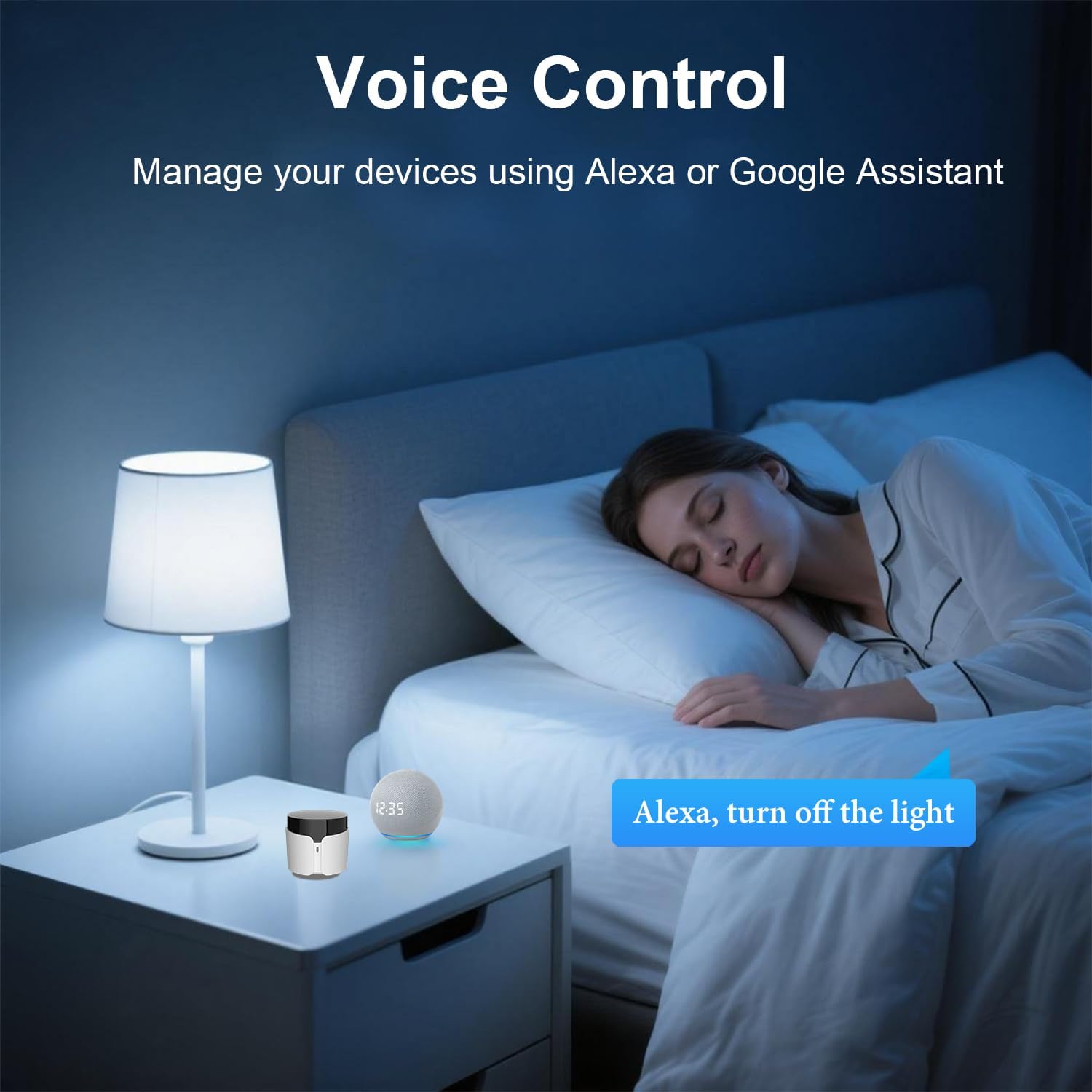
Image: Voice Control - Managing devices using Alexa or Google Assistant.

Image: Timer & Schedule - Setting daily schedules to automatically turn on/off devices.

Image: Preset Scenes - One button to turn off all devices or activate specific routines.
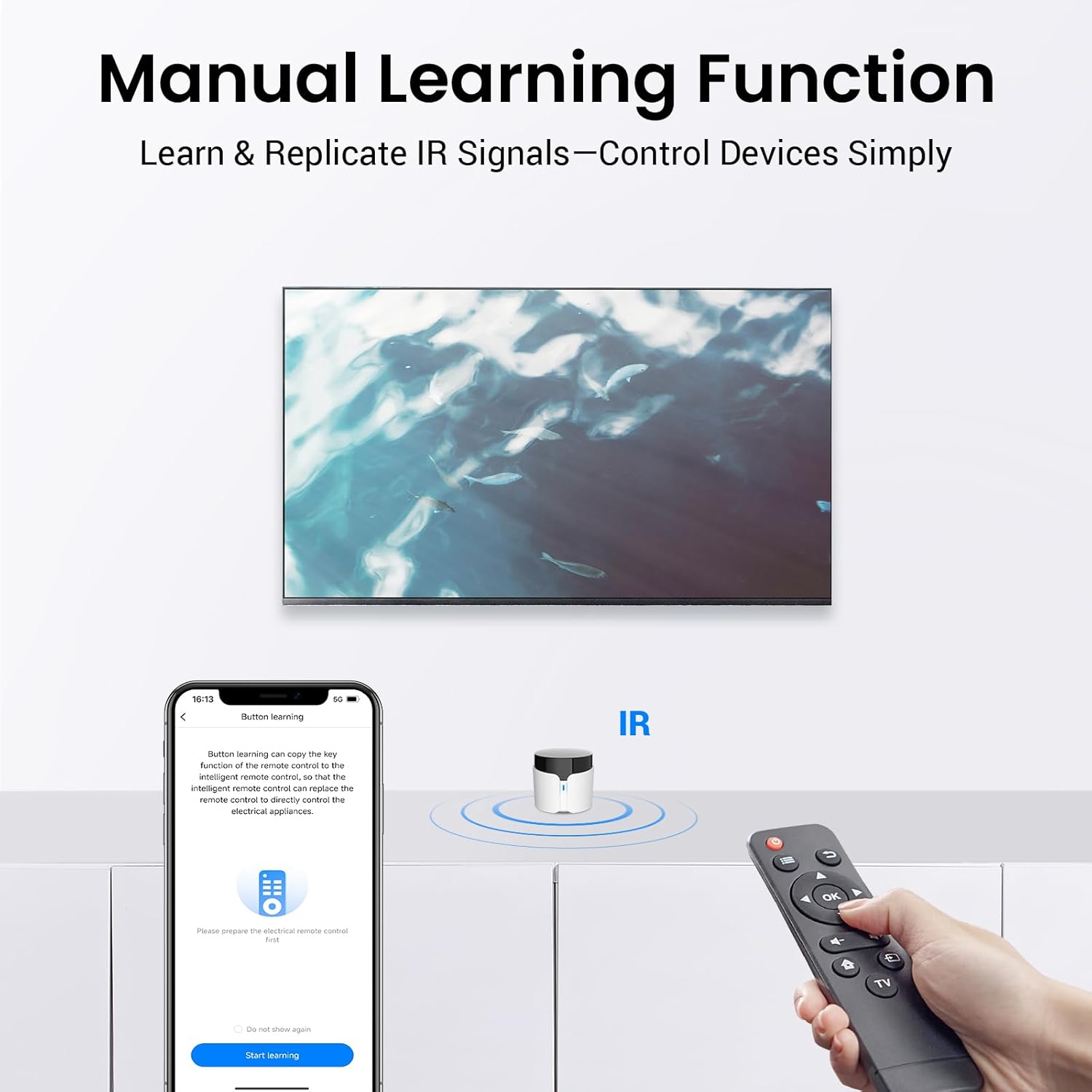
Image: Manual Learning Function - Learn and replicate IR signals to control devices simply.

Image: Empower Your IR Devices - Visual representation of the RM5plus's capabilities and compatible devices.
Setup Guide
What's in the Box
- Broadlink RM5plus Universal Infrared Remote
- USB Power Cable
- User Manual (this document)
Initial Setup Steps
- Power On: Connect the RM5plus to a power source using the provided USB cable and adapter. The LED indicator on the device will begin flashing.
- Download App: Download the Broadlink app from your smartphone's app store (available for iOS and Android).
- Connect to Wi-Fi: Open the Broadlink app, register or log in, and follow the on-screen instructions to connect your RM5plus to your 2.4GHz Wi-Fi network. Ensure your phone is also connected to the same 2.4GHz Wi-Fi network during setup.
- Add Device: Once connected, the app will guide you to add your first IR device (e.g., TV, AC).

Image: Simple to Set Up and Use - A visual guide to the four main setup steps.
Operating Your RM5plus
Adding and Controlling Devices
- Adding Pre-defined Devices: In the Broadlink app, navigate to 'Add Device' and select the type of appliance (e.g., TV, AC). The app will guide you through selecting the brand and testing pre-loaded remote codes.
- Manual Learning (UserDefine): If your device's brand or model is not found, use the 'UserDefine' option. This allows the RM5plus to learn IR signals directly from your original remote control. Point your original remote at the RM5plus and press the desired button to teach the command.
- Controlling Devices: Once added, you can control your devices directly from the Broadlink app interface, which mimics a traditional remote control.
Voice Control Integration
- For Amazon Alexa: Open the Alexa app, go to 'Skills & Games', search for 'Broadlink', enable the skill, and link your Broadlink account. Then, discover devices.
- For Google Home: Open the Google Home app, tap '+' to 'Set up device', then 'Works with Google'. Search for 'Broadlink', link your account, and assign devices to rooms.
- Voice Commands: Use commands like "Alexa, turn on the TV" or "Hey Google, set AC to 24 degrees."
Creating Scenes and Schedules
- Scenes: Combine multiple actions into a single command. For example, a 'Movie Night' scene could turn on your TV, adjust the AC, and dim the lights simultaneously. Create scenes in the Broadlink app by selecting 'Scenes' and adding actions for your linked devices.
- Schedules: Set specific times for devices to turn on or off automatically. For instance, schedule your AC to turn on 30 minutes before you arrive home or turn off your fan at bedtime. Access 'Schedules' in the app to set up these automations.
Maintenance and Care
- Cleaning: Use a soft, dry cloth to clean the exterior of the RM5plus. Do not use liquid cleaners or aerosols.
- Placement: Place the device in a central location within the room where it has a clear line of sight to the IR-controlled appliances. Avoid placing it behind obstacles or inside cabinets, as IR signals require direct line of sight.
- Environmental Conditions: Keep the device away from direct sunlight, excessive heat, and moisture. Operate within recommended temperature and humidity ranges (refer to specifications).
- Firmware Updates: Periodically check the Broadlink app for firmware updates to ensure optimal performance and access to new features.
Troubleshooting Common Issues
| Problem | Possible Cause | Solution |
|---|---|---|
| Device not connecting to Wi-Fi | Incorrect Wi-Fi password; 5GHz Wi-Fi network; device too far from router. | Ensure correct 2.4GHz Wi-Fi password. Move device closer to router. Restart router and RM5plus. |
| IR signal not working / Device not responding | No clear line of sight; incorrect IR code; device out of range. | Ensure RM5plus has clear line of sight to appliance. Try different remote codes in the app or use manual learning. Move RM5plus closer to the appliance. |
| Voice control not working | Skill not enabled/linked; device not discovered; incorrect voice command. | Verify Broadlink skill is enabled and linked in Alexa/Google Home app. Redo device discovery. Use precise voice commands. |
| App shows device offline | Wi-Fi disconnected; power issue. | Check Wi-Fi router and internet connection. Ensure RM5plus is powered on and LED is stable. Restart RM5plus. |
Product Specifications
| Specification | Detail |
|---|---|
| Model Number | RM5 plus |
| Package Dimensions | 3.35 x 2.64 x 2.05 inches |
| Item Weight | 3.56 ounces |
| Connectivity Technology | Infrared, Wi-Fi (2.4GHz Only) |
| Special Feature | Universal IR Remote |
| Max Number of Supported Devices | 10 (per scene/automation, thousands of IR codes supported) |
| Compatible Devices | TVs, Air Conditioners, Fans, Set-top Boxes, DVD Players, Audio Systems, Projectors, etc. |
| Manufacturer | Hangzhou BroadLink Technology Co., Ltd. |
| First Available Date | May 9, 2025 |

Image: Product Specification Diagram - Detailed view of the device's physical features and dimensions.
Warranty and Support
Warranty Information
Broadlink products typically come with a limited manufacturer's warranty. For specific details regarding the warranty period and coverage for your RM5plus, please refer to the warranty card included in your product packaging or visit the official Broadlink website. Keep your proof of purchase for warranty claims.
Customer Support
If you encounter any issues not covered in this manual or require further assistance, please contact Broadlink customer support. You can usually find contact information (email, phone, or support portal) on the official Broadlink website or within the Broadlink app's 'Help' section. When contacting support, please have your product model number (RM5 plus) and a description of your issue ready.


