
1. Introduction
This manual provides detailed instructions for the safe and efficient operation of your FOUKWAKC H8 64GB 4K Thumb Action Camera. Please read thoroughly before use to ensure optimal performance and longevity of your device.
2. Product Overview
Key Features
- 4K HD & 120° Wide Angle: Capture stunning video at 3840*2160 resolution with a wide 120° field of view. Select 4K/2K/1080P via the app.
- Magnetic Design: Features a magnetic body for easy attachment to various surfaces and accessories.
- Two Recording Modes: Supports direct recording via button press or app-controlled recording.
- Extended Battery Life: Records up to 150 minutes in 1080P mode, 120 minutes in 2K, and 100 minutes in 4K. Supports recording while charging.
- Lightweight & WiFi Connection: Weighing only 0.8 lbs, it's ideal for hands-free recording. Connect via WiFi to the app for live view, transfer, and sharing.
- 100ft Waterproof: Equipped with a waterproof housing, allowing submersion up to 100 feet for aquatic activities.
What's in the Box
- Thumb camera
- Magnetic lanyard, Rotating back clip
- Data cable, 64G micro sd card
- Waterproof housing, Curved and flat base
- Helmet bracket, Bicycle bracket
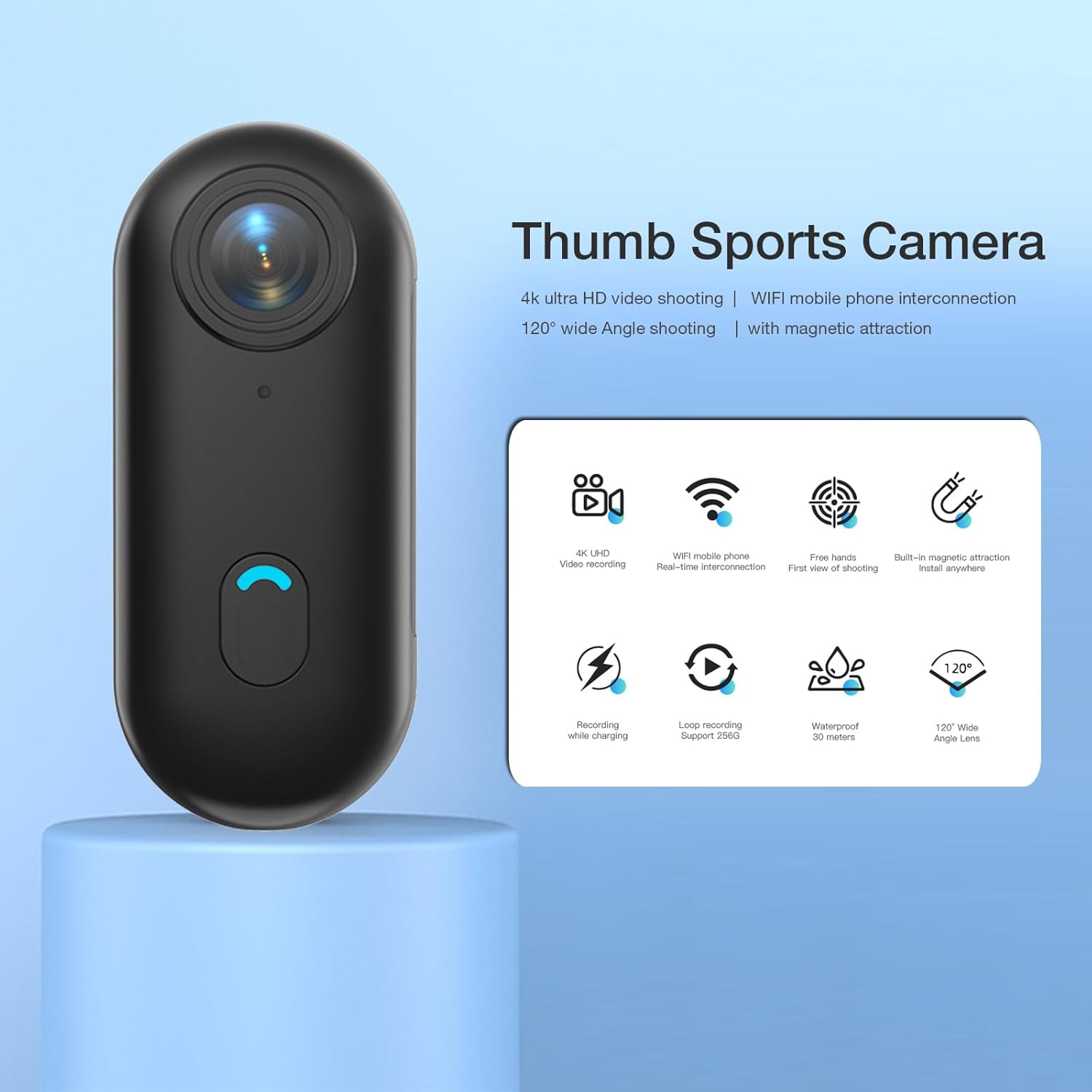
Figure 1: FOUKWAKC H8 4K Thumb Action Camera and all included accessories.
Video 1: A brief product preview showcasing the FOUKWAKC H8 4K Thumb Action Camera and its features.
3. Setup
Component Identification
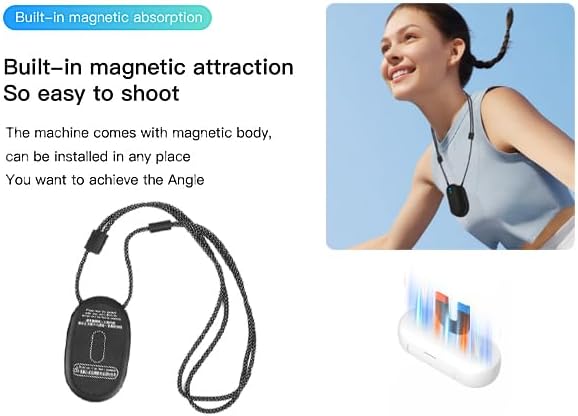
Figure 2: Diagram of the camera's main structure, including the lens, power button, and indicator lights.
Inserting the Micro SD Card
The camera comes with a pre-installed 64GB Micro SD card. To access the slot, gently open the rubber cover on the side of the camera. Ensure the card is inserted correctly. If no card is detected, the blue light will flash and the camera will vibrate.
Video 2: Instructions on how to extract the Micro SD card from the camera for data transfer.
Charging the Camera
Connect the camera to a power source using the provided USB-C cable. The blue LED will indicate charging status. The camera supports recording while charging.
4. Operating Instructions
Power On/Off
To power on, press and hold the power button on the front of the camera for 3 seconds. The blue LED will turn on. To power off, press and hold the power button for 3 seconds; the LED will turn off.
Recording Modes
Direct Recording (without App): With the camera powered on (blue light steady), press the record button once. The blue light will flash slowly to indicate recording has started. Press the record button once again to stop recording.
App Recording: Connect the camera to the app via WiFi (see WiFi Connection Guide below). You can start and stop recording directly from the app interface.
WiFi Connection Guide (App Usage)
1. Download and install the "Viidure" APP. You can find it on the Apple App Store (iOS) or search "Viidure" on Google Play (Android). For Chinese Android systems, download from here.
2. Power on the camera. The blue light will be steady if a memory card is inserted. If no memory card is inserted, the blue light will flash and the camera will vibrate.
3. Enter WiFi Pairing Mode: Quickly press the power button twice consecutively. The blue and green lights will flash alternately, indicating the device is ready for pairing.
4. Open the App on your mobile device and go to the recorder connection section. Find the WiFi network named "H88..." and select it. Enter the password: 12345678. The App should then show a successful connection.
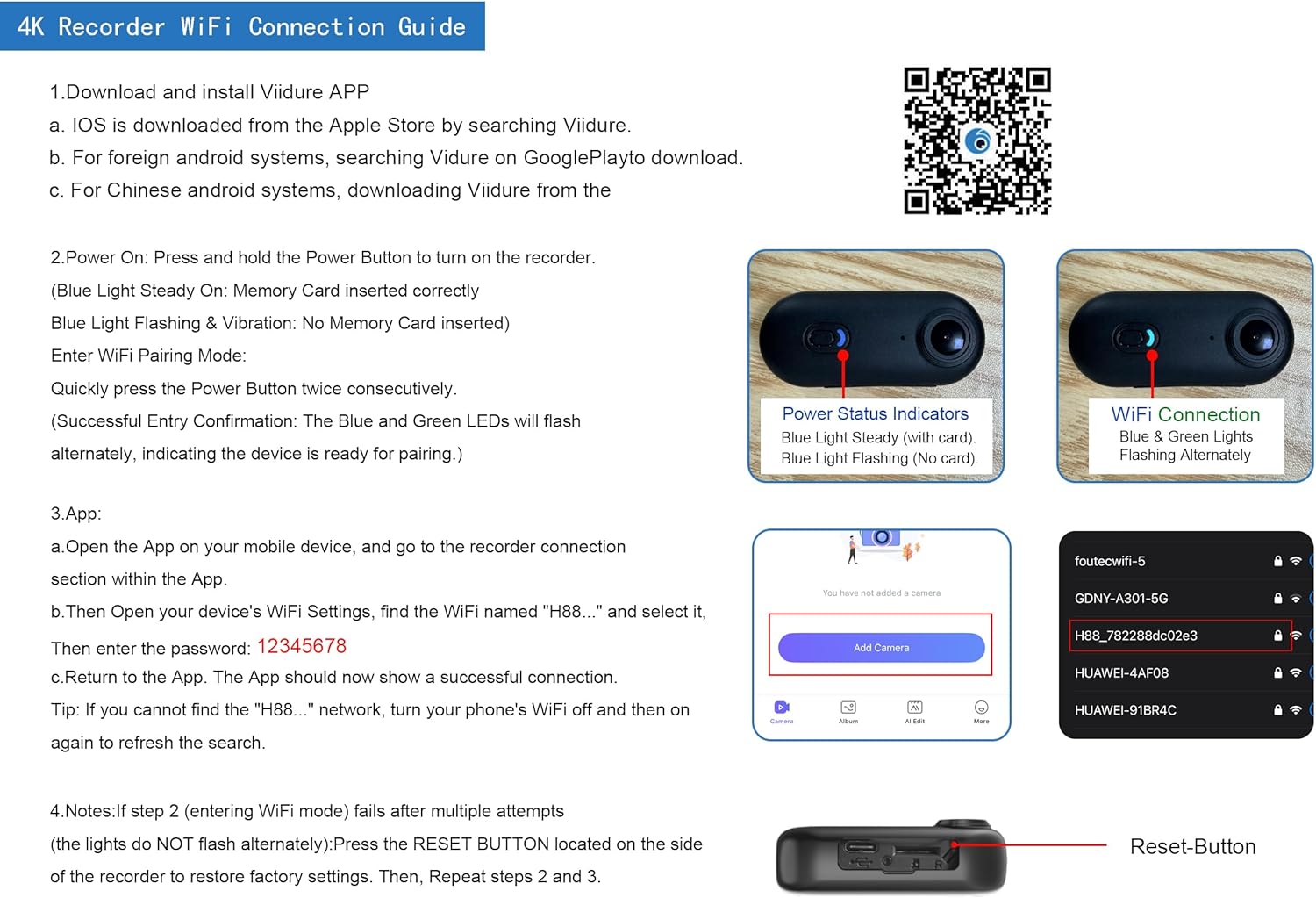
Figure 3: The camera's mobile app interface, showing live view and connection status.
Video 3: A demonstration of how to connect the 4K Thumb Camera to its mobile application.
5. Mounting Options
The H8 camera offers versatile mounting options for various activities, ensuring you can capture footage from almost any perspective.
Magnetic Lanyard
Use the magnetic pendant and lanyard to wear the camera around your neck. This provides a stable, hands-free, first-person perspective for vlogging or daily activities.

Figure 4: The camera attached to the magnetic lanyard for wearable recording.
Rotating Back Clip
Attach the camera to the 360° rotating back clip to secure it firmly to clothing, backpack straps, or belts. This allows for flexible positioning and hands-free recording.
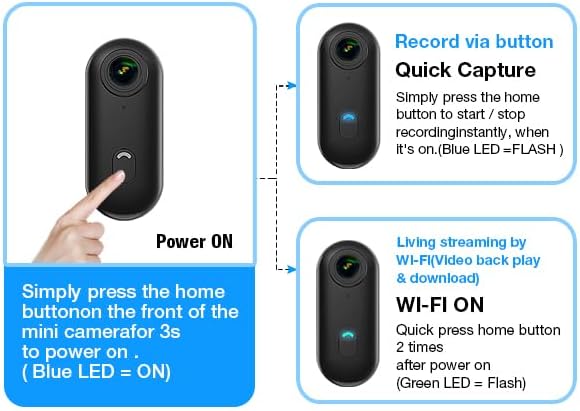
Figure 5: The camera with the rotating back clip, demonstrating its versatility.
Waterproof Housing
For underwater activities such as surfing, diving, or swimming, place the camera inside the included waterproof housing. This case protects the camera up to 100 feet (30 meters) deep.

Figure 6: The camera in its waterproof housing, suitable for underwater use.
Helmet and Bicycle Brackets
Utilize the included helmet bracket for mounting on various helmets (electric vehicle, bicycle, motorcycle) or the bicycle bracket for handlebars. These mounts ensure stable recording during dynamic activities.

Figure 7: Examples of the camera mounted on a helmet and a bicycle handlebar.
6. Data Transfer
Via Card Reader
1. Power off the camera and gently remove the Micro SD card from its slot.
2. Insert the Micro SD card into the provided card reader.
3. Connect the card reader to your smartphone (iOS or Android) or computer.
4. Open your device's file manager (e.g., "Files" app on iOS, "File Manager" on Android) to access the "DCIM" folder and retrieve your video files.
Video 4: A step-by-step guide on how to extract and transfer video files using the provided card reader.
Direct USB-C Connection
1. Connect the camera directly to your computer or compatible smartphone using the USB-C cable.
2. Ensure the metal contacts between the camera and the charging cable are properly aligned for recognition.
3. Your device should recognize the camera as a new disk. Access the "DCIM" folder through your device's file manager to retrieve your video files.
7. Specifications
| Feature | Detail |
|---|---|
| Brand Name | FOUKWAKC |
| Item Weight | 11.7 ounces |
| Product Dimensions | 0.8 x 1.1 x 2.54 inches |
| Item Model Number | H8P |
| Batteries | 1 A batteries required (included) |
| Color Name | black-4k |
| Special Features | 4K, Wireless, compact, mobile-app, night vision |
| Photo Sensor Technology | CMOS |
| Video Capture Resolution | 4K |
| Maximum Aperture | 3.5 f |
| Flash Memory Type | Micro SD |
| Video Capture Format | MP4 |
| Supported Audio Format | MP4 |
| Connectivity Technology | USB, Wi-Fi |
8. Maintenance
- Keep the camera clean and free from dust and debris. Use a soft, dry cloth for cleaning.
- Avoid exposing the camera to extreme temperatures, direct sunlight, or high humidity.
- Ensure the waterproof case is properly sealed and free from damage before any underwater use.
- Store the camera in a dry, cool place when not in use.
9. Troubleshooting
- Camera not powering on: Ensure the battery is sufficiently charged. Press and hold the power button for 3 seconds.
- Recording issues: Check if the Micro SD card is inserted correctly and has sufficient storage space. If issues persist, try formatting the card (this will erase all data).
- WiFi connection problems: Ensure the camera's WiFi is enabled (green light flashing). Try restarting both the camera and your smartphone. Verify the WiFi password (12345678).
- Video playback issues: Ensure your device supports MP4 video format. Try playing the files on a different media player or computer.
10. Warranty & Support
For detailed warranty information, technical support, or to inquire about replacement parts, please refer to the FOUKWAKC official website or contact their customer service department directly. Contact information can typically be found on the product packaging or the brand's official online store.