
Introduction
Thank you for choosing the Dreo Smart Tower Fan. This manual provides essential information for the safe operation, maintenance, and troubleshooting of your new fan. Please read it thoroughly before use and retain it for future reference.
Safety Information
To reduce the risk of fire, electric shock, or injury, please observe the following safety precautions:
- Always ensure the fan is placed on a stable, flat surface to prevent tipping.
- Do not insert fingers or foreign objects into the fan grilles. The bladeless design prevents direct contact with fast-spinning blades, but caution is still advised, especially around children and pets.
- Unplug the fan from the power outlet before cleaning, performing maintenance, or when not in use.
- Do not operate the fan with a damaged cord or plug. If the cord is damaged, it must be replaced by the manufacturer, its service agent, or similarly qualified persons to avoid a hazard.
- This fan is designed for indoor use only. Do not use it outdoors or in wet environments.
- Keep the fan away from water and other liquids.
- Do not block air openings or operate near curtains or other materials that may block airflow.
- This appliance has a polarized plug (one blade is wider than the other). To reduce the risk of electric shock, this plug is intended to fit in a polarized outlet only one way. If the plug does not fit fully in the outlet, reverse the plug. If it still does not fit, contact a qualified electrician. Do not attempt to defeat this safety feature.
What's in the Box
- 1 × WIFI Tower Fan
- 1 × Front Fan Base
- 1 × Rear Fan Base
- 1 × Remote Controller (Includes 1 × CR2025 Lithium Battery)
- 4 × Thumbs Screws
Setup
Follow these steps for initial assembly and placement:
- Carefully remove all components from the packaging.
- Assemble the fan base by aligning the front and rear fan base pieces and securing them with the provided thumbs screws.
- Place the tower fan body onto the assembled base, ensuring it clicks securely into place.
- Position the fan on a firm, level surface, ensuring adequate space around it for optimal airflow.
- Plug the power cord into a standard 120V AC electrical outlet.
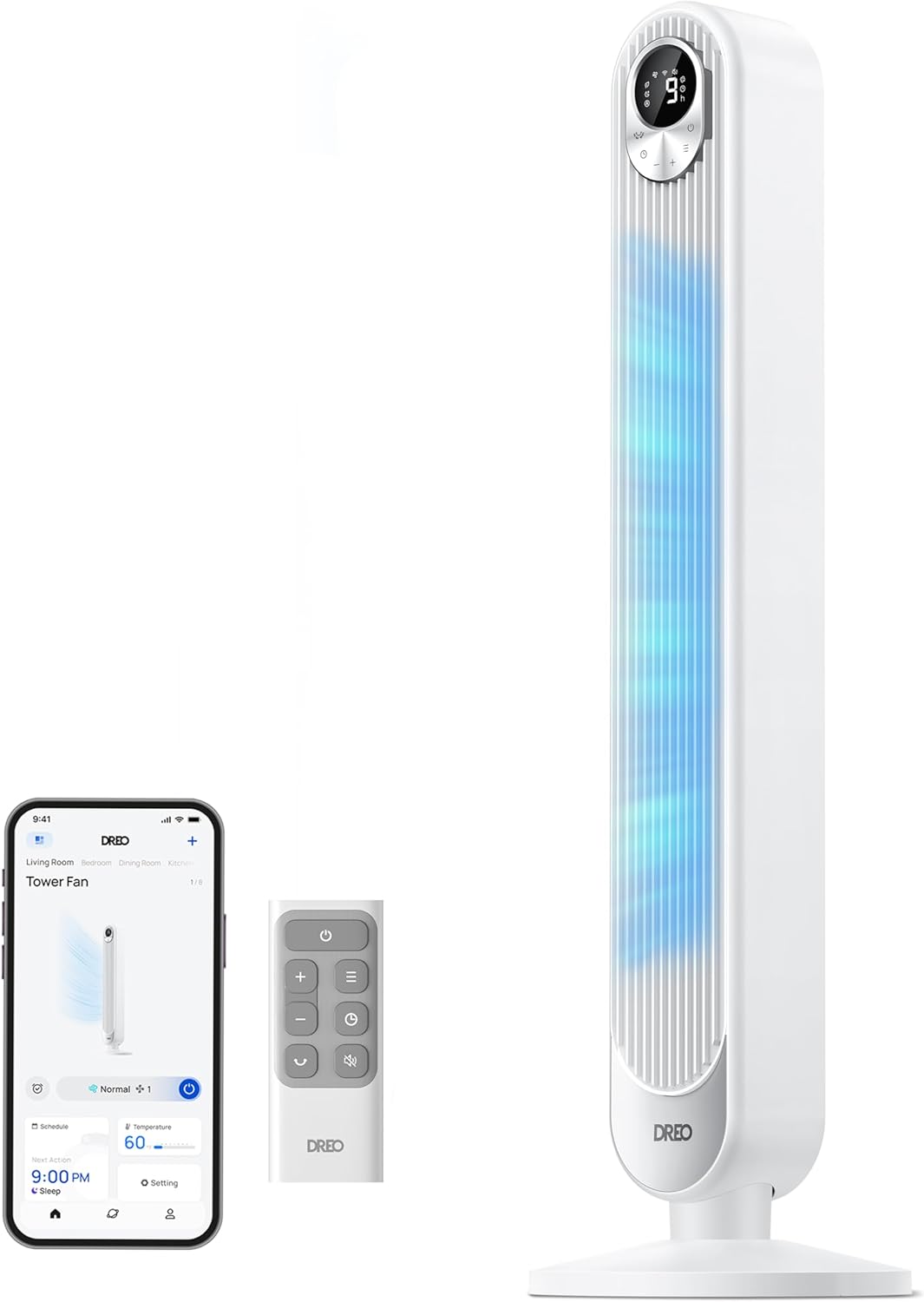
The Dreo Smart Tower Fan, showing its sleek design, remote control, and smartphone app interface for smart control.
Operating Instructions
Your Dreo Smart Tower Fan offers multiple ways to control its functions:
Control Panel & Remote Control
The fan features an upgraded smart LED display and touch controls on the top panel, along with a convenient remote control. The remote can be stored in the fan's built-in carrying handle.
- Power On/Off: Press the power button to turn the fan on or off.
- Speed Settings: Choose from 9 adjustable speeds to customize airflow intensity.
- Modes: Select from 4 distinct modes:
- Normal Mode: Provides a constant, steady airflow.
- Natural Mode: Simulates a natural breeze with varying fan speeds.
- Sleep Mode: Operates at a lower, quieter speed for undisturbed rest.
- Auto Mode: Adjusts fan speed automatically based on room temperature.
- Oscillation: Activate 90° wide oscillation to distribute air across a larger area.
- Timer: Set the fan to automatically turn off after a specified period, up to 12 hours, in 1-hour increments.
- MUTE Function: Turn the control panel's beep sound on or off via the Dreo App or remote control.

Visual representation of the fan's 9 wind speeds and 4 customizable modes (Sleep, Normal, Natural, Auto).

The fan's 90-degree oscillation feature ensures wide and consistent air distribution throughout the room.
Smart Control (Wi-Fi, App, Voice)
Enhance your experience with smart control features:
- Dreo App: Download the free Dreo App to control your fan from your smartphone, anytime, anywhere. The app allows for full control over all fan settings, including scheduling.
- Voice Control: Compatible with Alexa and Google Assistant. Use simple voice commands to turn the fan on/off, adjust speed, or change modes.

The Dreo App provides seamless control over the fan, allowing users to manage settings and schedules from their smartphone.
Airflow & Quiet Operation
The fan is engineered for powerful yet quiet performance:
- High Air Velocity: A powerful motor and unique air propeller design generate air speeds up to 28ft/s, ensuring effective cooling.
- Ultra-Quiet: Designed to minimize noise, especially in Sleep Mode, operating as low as 25 dB for a peaceful environment.

The fan's powerful airflow reaches speeds of 28 feet per second, providing rapid and effective cooling.

Enjoy peaceful nights with the fan's ultra-quiet operation, producing noise levels as low as 25 decibels.
Maintenance
Regular cleaning ensures optimal performance and longevity of your fan:
- Exterior Cleaning: Wipe the exterior surfaces with a soft, damp cloth. Do not use abrasive cleaners or solvents.
- Internal Cleaning: The fan features a detachable design for easy internal cleaning. Refer to the diagram below for guidance. Ensure the fan is unplugged before attempting to clean internal components.
- Storage: When not in use, store the fan in a cool, dry place, preferably in its original packaging, to protect it from dust and damage.

The fan's detachable design allows for easy and thorough cleaning of internal components, ensuring optimal performance.
Troubleshooting
If you encounter issues with your Dreo Smart Tower Fan, please refer to the following common problems and solutions:
- Fan does not turn on:
- Ensure the power cord is securely plugged into a working electrical outlet.
- Check if the power button on the fan or remote control has been pressed.
- Verify that the power outlet is functional by plugging in another device.
- Weak airflow:
- Increase the fan speed setting.
- Ensure the air intake and outlet grilles are not obstructed by dust or objects. Clean if necessary.
- Fan is noisy:
- Ensure the fan is on a flat, stable surface.
- Check for any foreign objects inside the fan.
- If operating in Normal or Natural mode, try switching to Sleep mode for quieter operation.
- Remote control not working:
- Ensure there are no obstructions between the remote and the fan.
- Replace the CR2025 lithium battery in the remote control.
- Wi-Fi connectivity issues:
- Ensure your Wi-Fi network is 2.4GHz.
- Restart your Wi-Fi router and the fan.
- Ensure the fan is within range of your Wi-Fi router.
- Follow the pairing instructions in the Dreo App carefully.
For persistent issues not resolved by these steps, please contact Dreo Customer Support.
Specifications
| Feature | Detail |
|---|---|
| Brand | Dreo |
| Model Name | TF518S |
| Item Model Number | DR-HTF018S White |
| Color | White |
| Style | Smart WiFi |
| Product Dimensions | 13"D x 13"W x 41.73"H |
| Item Weight | 9.64 Pounds |
| Power Source | Corded Electric |
| Wattage | 45 watts |
| Voltage | 120 Volts |
| Noise Level | 25 dB |
| Number of Power Levels | 9 |
| Special Features | 1-12 Hour Timer, Bladeless, High Velocity, Oscillating, Portable |
| Control Method | App, Remote, Touch, Voice |
| Specification Met | ETL, FCC |
| Indoor/Outdoor Usage | Indoor |
Warranty and Support
Dreo provides a limited warranty for this product. For detailed warranty information, including terms, conditions, and duration, please refer to the warranty card included in your product packaging or visit the official Dreo website. For technical support, troubleshooting assistance, or any inquiries regarding your Dreo Smart Tower Fan, please contact Dreo Customer Support through the contact information provided on the warranty card or the official website.


