
ORGSTA S001
ORGSTA S001 Portable Bluetooth Thermal Label Maker User Manual
Model: S001
Introduction
The ORGSTA S001 is a compact and portable Bluetooth thermal label maker designed for creating high-quality labels and stickers without the need for ink or toner. This device offers 203 DPI resolution printing, a built-in 2000 mAh rechargeable battery, and supports various label types and templates through its companion application. Its portable design, complete with an attached metal ring, allows for convenient use anywhere. The included carrying case provides superior protection against shocks, dust, and scratches, ensuring the longevity of your device and accessories.
1. Setup
1.1 Package Contents
Before starting, please verify that all items are present in the package:
- ORGSTA S001 Label Maker
- Label Tape Roll (pre-installed or separate)
- USB Charging Cable
- Carrying Case
- User Manual (this document)
1.2 Charging the Device
The ORGSTA S001 label maker is equipped with a built-in 2000 mAh rechargeable battery. For optimal performance, fully charge the device before its first use.
- Connect the provided USB charging cable to the charging port on the label maker.
- Connect the other end of the USB cable to a compatible USB power adapter (not included) or a computer's USB port.
- The charging indicator light will illuminate. Once fully charged, the light may change color or turn off, depending on the model.
A full charge provides long-lasting performance and extended standby time.
1.3 Loading Label Tape
The ORGSTA S001 uses thermal label tape. Ensure the tape is loaded correctly for proper printing.
- Open the label compartment cover on the device.
- Insert the label tape roll with the printing surface facing up, ensuring it aligns with the guides.
- Pull a small portion of the label tape out through the printer's exit slot.
- Close the compartment cover securely.
1.4 App Installation and Bluetooth Pairing
The ORGSTA S001 operates via a dedicated mobile application. Follow these steps to install the app and pair your device:
- Download the App: Search for the "ORGSTA Label" app (or similar, refer to packaging for exact name) on your smartphone's app store (App Store for iOS or Google Play Store for Android).
- Install the App: Follow the on-screen instructions to install the application.
- Turn On Label Maker: Press and hold the power button on the ORGSTA S001 until the indicator light turns on.
- Enable Bluetooth: Ensure Bluetooth is enabled on your smartphone.
- Pair Device: Open the ORGSTA Label app. The app will typically guide you to search for and connect to your label maker via Bluetooth. Select "ORGSTA S001" from the list of available devices.
- Confirmation: Once successfully paired, the app will indicate a connection, and the label maker's indicator light may change.
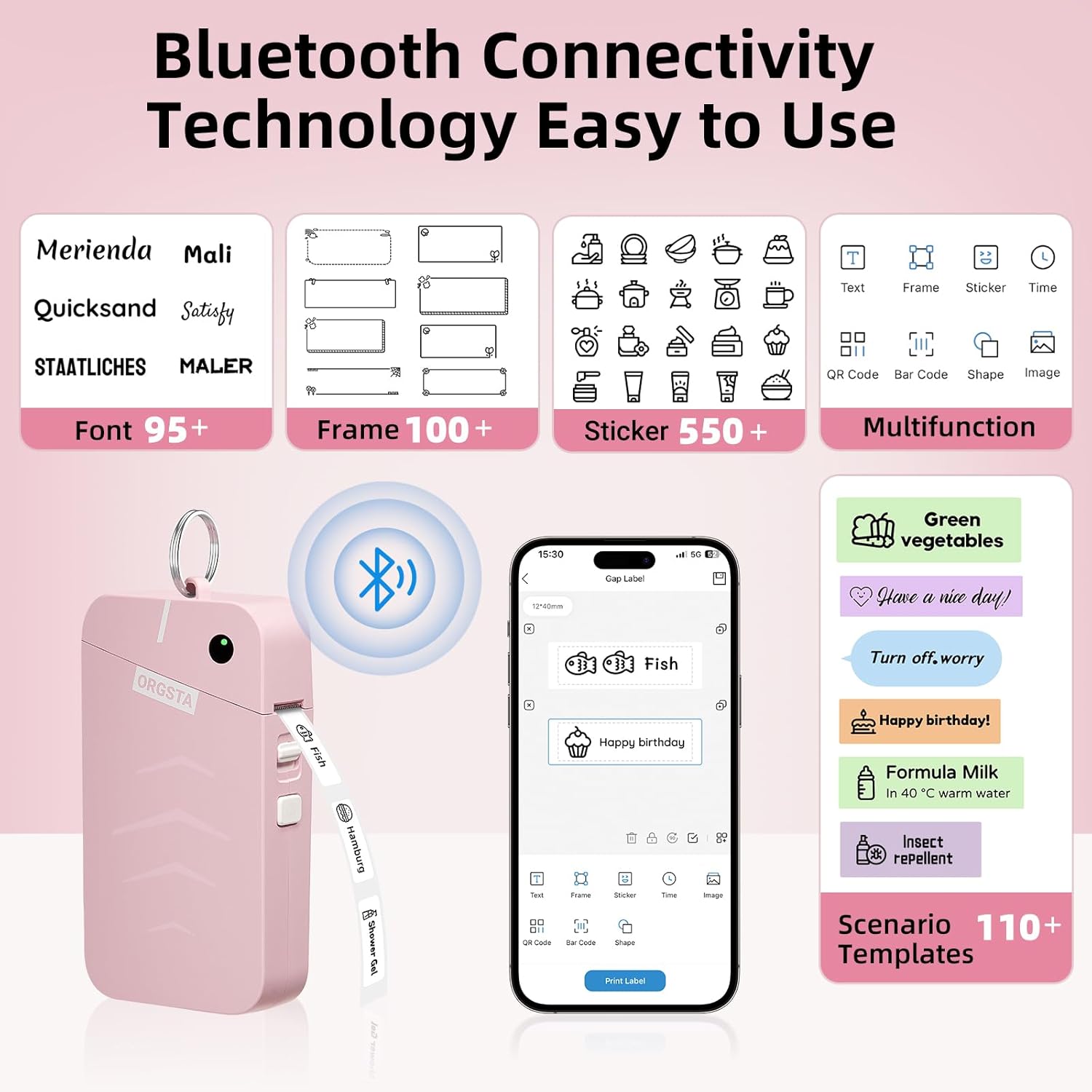
Image: The ORGSTA S001 label maker demonstrating Bluetooth connectivity and the user interface of its companion mobile application, showcasing various templates and customization options.
2. Operating Instructions
2.1 Creating and Printing Labels
Once your ORGSTA S001 is connected to the app, you can begin creating labels.
- Open the App: Launch the ORGSTA Label app on your smartphone.
- Select Template or Create New:
- Choose from over 110 scenario templates, 100+ frames, and 550+ stickers available in the app.
- Alternatively, select "New Label" to start from scratch.
- Edit Content:
- Enter your desired text. The app supports over 95 fonts.
- Add icons, images, QR codes, or barcodes as needed.
- Adjust font size, style, alignment, and other formatting options.
- Preview: Review your label design on the app screen to ensure it meets your requirements.
- Print: Tap the "Print" button in the app. The label maker will print the label at a speed of up to 35 inches per minute (15 mm/s).
- Cut Label: Manually tear or cut the printed label from the device's exit slot.
2.2 Supported Label Types and Sizes
The ORGSTA S001 supports various thermal label tapes, including kiss-cut labels and continuous length tapes, in different colors and designs. Ensure you use ORGSTA-compatible label rolls for best results.

Image: An illustration detailing the various sizes and types of labels supported by the ORGSTA S001, including kiss-cut labels (e.g., 1.57 in x 0.47 in) and continuous length tapes (e.g., 0.59 in width) in different colors and patterns.
Laminated labels produced are designed to be clear, waterproof, oil-proof, scratch-resistant, and easy to tear without leaving residue.
3. Maintenance
3.1 Cleaning the Print Head
To maintain optimal print quality, regularly clean the thermal print head.
- Turn off the label maker and disconnect it from any power source.
- Open the label compartment cover.
- Gently wipe the print head with a soft, lint-free cloth lightly dampened with isopropyl alcohol.
- Allow the print head to dry completely before closing the cover and using the device.
3.2 Storage
When not in use, store your ORGSTA S001 label maker and its accessories in the provided carrying case.

Image: The carrying case for the ORGSTA S001 label maker, showing its dimensions: 6.61 inches (16.8 cm) in length, 4.13 inches (10.5 cm) in width, and 2.24 inches (5.7 cm) in height.

Image: Close-up view of the ORGSTA S001 carrying case interior, highlighting the elastic band for secure protection of the label maker and the high-stretch mesh compartment for easy storage of accessories like charging cords and label rolls.
The premium hard EVA shell and soft velvet lining protect the printer from shocks, dust, and scratches. The semi-water-resistant exterior and reinforced corners offer additional drop protection. The case features a semi-open mesh compartment and elastic straps to secure the label maker and accessories, keeping items organized and preventing clutter.

Image: The ORGSTA S001 label maker featuring an attached metal ring, demonstrating its capability for easy hanging in various positions, such as on a wall hook.
The attached metal ring also allows for easy hanging of the printer in your bag or any convenient location, enhancing its portability.
4. Troubleshooting
If you encounter issues with your ORGSTA S001 label maker, refer to the following common problems and solutions:
- Device not turning on: Ensure the battery is charged. Connect the device to a power source and try again.
- Cannot connect via Bluetooth:
- Make sure Bluetooth is enabled on your smartphone.
- Ensure the label maker is powered on and within range.
- Restart both the label maker and your smartphone.
- Try unpairing and re-pairing the device in the app settings.
- Poor print quality:
- Check if the label tape is loaded correctly and not expired.
- Clean the thermal print head as described in the Maintenance section.
- Ensure the label maker's battery is sufficiently charged.
- Label jam:
- Turn off the device immediately.
- Open the label compartment and carefully remove any jammed tape.
- Ensure the tape is properly aligned before closing the cover and restarting.
- App not responding: Close and restart the application. If the issue persists, try reinstalling the app.
5. Specifications
| Feature | Detail |
|---|---|
| Brand | ORGSTA |
| Model Name | S001 |
| Printing Technology | Thermal |
| Connectivity Technology | USB, Bluetooth |
| Max Print Resolution | 203 DPI |
| Print Speed | Up to 35 inches/minute (15 mm/s) |
| Battery | 2000 mAh Rechargeable |
| Printer Output | Monochrome |
| Print Media | Labels |
| Special Feature | Portable |
| Specific Uses For Product | Label printing |
6. Warranty
The ORGSTA S001 Label Maker comes with a limited warranty. For detailed information regarding warranty coverage, terms, and conditions, please refer to the warranty card included in your product packaging or visit the official ORGSTA website. Please retain your proof of purchase for warranty claims.
7. Support
For further assistance, technical support, or inquiries regarding your ORGSTA S001 Label Maker, please contact ORGSTA customer service. Contact information can typically be found on the product packaging, the official ORGSTA website, or within the companion mobile application.
Online Resources: Visit the ORGSTA Store on Amazon for product information and updates.
Related documentsS001


Ask a question about this manual
Ask about setup, troubleshooting, compatibility, parts, safety, or missing instructions. Manuals+ will review the question and use this page’s manual context to help answer it.