1. Introduction
This manual provides comprehensive instructions for the installation, operation, maintenance, and troubleshooting of your ASUS Z790 MAX Gaming WIFI7 Intel Z790 (LGA 1700) ATX Motherboard. Please read this manual thoroughly before proceeding with installation and retain it for future reference. Proper installation and usage are crucial for optimal performance and longevity of the product.
2. Product Overview
The ASUS Z790 MAX Gaming WIFI7 motherboard is designed to support Intel Core 14th, 13th, and 12th Gen Processors, along with Pentium Gold and Celeron Processors, utilizing the LGA 1700 socket. It features advanced connectivity and power delivery solutions for high-performance computing.
Key Features:
- Processor Support: Intel LGA 1700 socket for 14th, 13th, and 12th Gen Intel Core processors.
- Power Solution: 14+1 DrMOS power stages, 6-layer PCB, ProCool connectors, alloy chokes, and durable capacitors for stable power delivery.
- Memory: Supports DDR5 memory technology.
- Connectivity: PCIe 5.0, Wi-Fi 7, Realtek 1Gb LAN, HDMI, rear USB 20Gbps Type-C, front USB 5Gbps Type-C, and Thunderbolt (USB4) header support.
- Storage: Three PCIe 4.0 M.2 slots.
- Cooling: Large VRM heatsinks, PCH heatsink, hybrid fan headers, and Fan Xpert 4 with AI Cooling II.
- Exclusive Technologies: ASUS Enhanced Memory Profile II and ASUS OptiMem II.
- Diagnostics: Q-LED Core for system status indication.
Package Contents:
The retail package typically includes the following items:

Image: Contents of the ASUS Z790 MAX Gaming WIFI7 motherboard package. This includes the motherboard itself, a Wi-Fi antenna, two SATA data cables, M.2 screw packages for securing SSDs, a rear I/O panel shield, and a quick start guide.

Image: The ASUS Z790 MAX Gaming WIFI7 motherboard displayed alongside its retail packaging and the included Wi-Fi antenna.
3. Setup and Installation
Before beginning installation, ensure your system is powered off and disconnected from the power source. Handle the motherboard by its edges to avoid static discharge.
3.1 Motherboard Preparation
- Unpack the motherboard and place it on an anti-static surface.
- Install the CPU into the LGA 1700 socket. Carefully align the CPU with the socket's orientation key and lower the load plate.
- Install the CPU cooler according to its manufacturer's instructions.
- Install DDR5 memory modules into the DIMM slots. Refer to the motherboard's quick start guide for recommended slot population for dual-channel operation.
- Install M.2 SSDs into the available M.2 slots, securing them with the provided screws or retention mechanisms. Remember to remove any protective plastic films from heatsinks before installation.
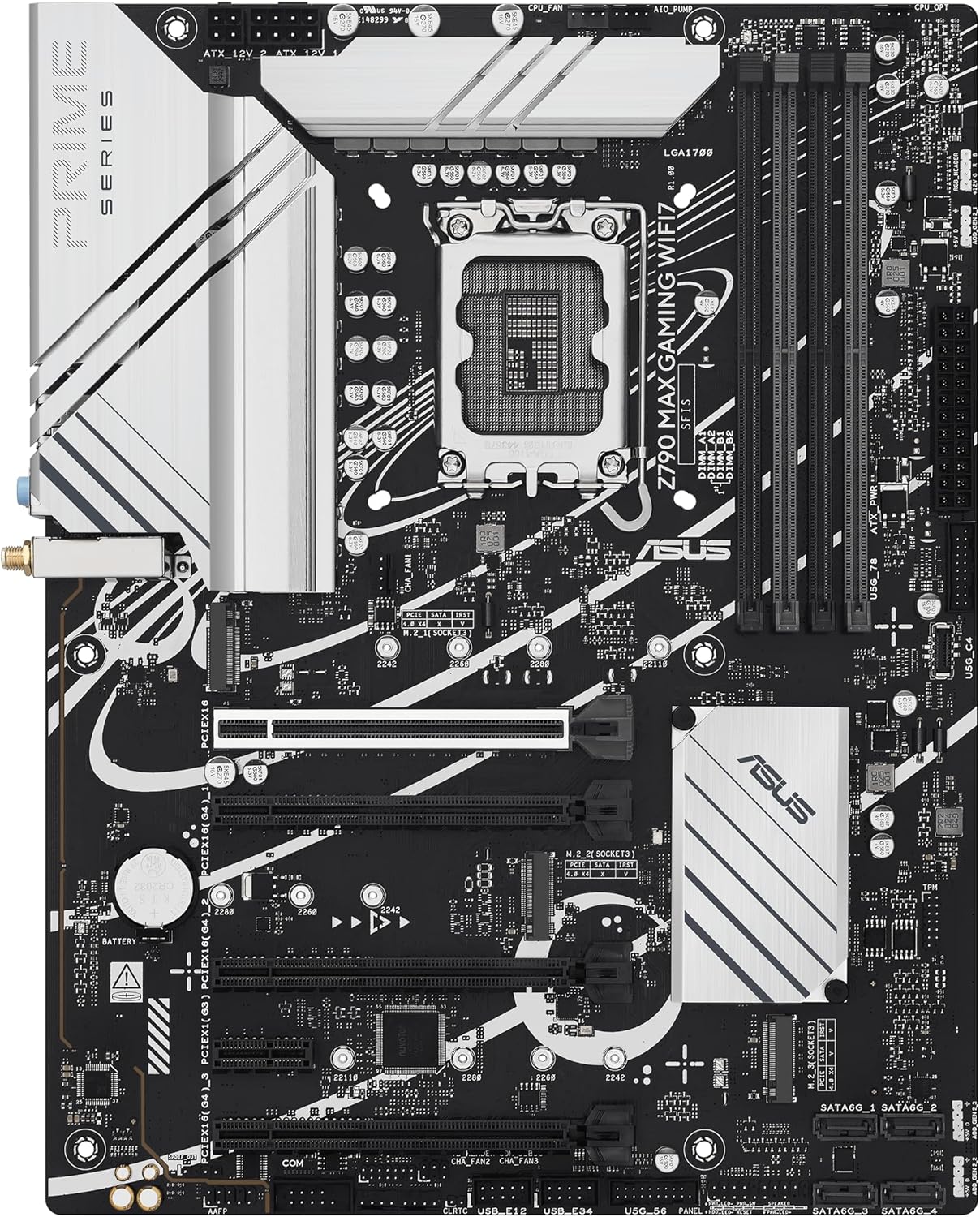
Image: A top-down perspective of the ASUS Z790 MAX Gaming WIFI7 motherboard, illustrating the central LGA 1700 CPU socket, the four DDR5 DIMM slots, and the locations of the M.2 storage slots.
3.2 Chassis Installation
- Install the I/O shield into your PC chassis.
- Carefully place the motherboard into the chassis, aligning it with the standoffs. Secure the motherboard with screws.
- Install your graphics card(s) into the PCIe 5.0 or other available PCIe slots. Ensure the card is fully seated and secured.
- Connect all necessary power cables from your power supply unit (PSU) to the motherboard (24-pin ATX, 8-pin CPU, etc.).
- Connect front panel headers (power button, reset button, USB ports, audio) to the corresponding pins on the motherboard. Refer to the quick start guide for pin layouts.
- Connect SATA devices (HDDs, SSDs) using the provided SATA cables.
- Attach the Wi-Fi antenna to the rear I/O panel connectors for wireless connectivity.
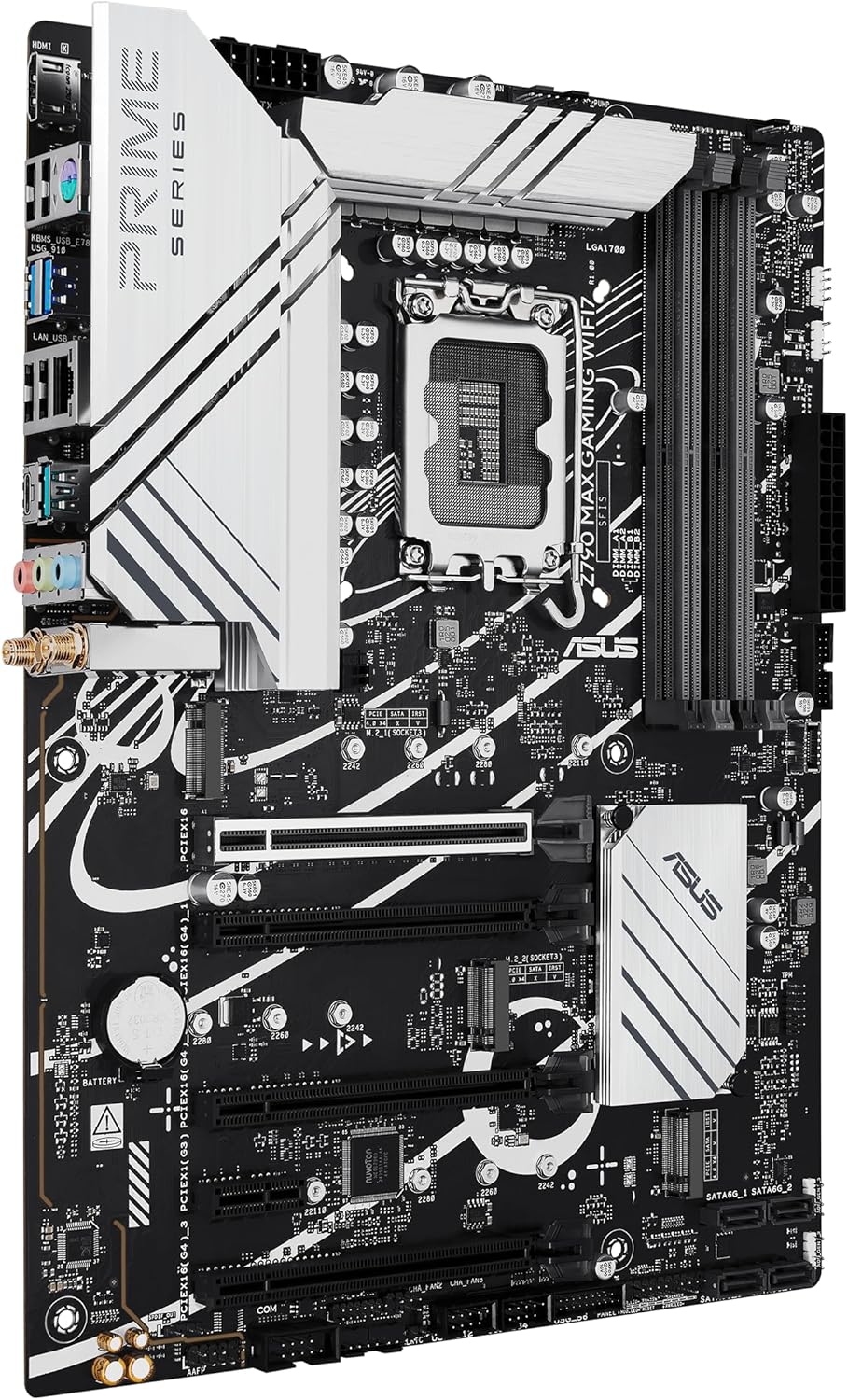
Image: An angled view of the ASUS Z790 MAX Gaming WIFI7 motherboard, showcasing the various ports on the rear I/O panel and the multiple PCIe expansion slots.
4. Operating Instructions
4.1 First Boot and BIOS/UEFI Setup
- After assembly, connect your monitor, keyboard, and mouse.
- Power on your system. Press the DEL key during startup to enter the BIOS/UEFI setup utility.
- In the BIOS, you can configure boot order, enable XMP/EXPO profiles for memory, adjust fan curves, and update firmware.
- Save changes and exit the BIOS to continue with operating system installation.
4.2 Software and Drivers
- After installing your operating system (Windows 10 or Windows 11), install the necessary drivers for the chipset, audio, LAN, and Wi-Fi. These can typically be found on the ASUS support website for your specific motherboard model.
- The motherboard may prompt you to install ASUS Armoury Crate software. This utility can assist with driver installation, system monitoring, and Aura Sync RGB lighting control. Note that some users have reported stability issues with Armoury Crate; if encountered, drivers can be installed manually from the ASUS website.
- For Wi-Fi 7 functionality, Windows 11 version 24H2 or later is required for full features. Windows 11 21H2/22H2/23H2 only support Wi-Fi 6E. For Windows 10, drivers may not be available from ASUS; refer to the Wi-Fi chipset vendor's website for details.
5. Maintenance
- Cleaning: Regularly clean dust from your PC case and motherboard components using compressed air. Ensure the system is powered off and unplugged before cleaning.
- BIOS Updates: Periodically check the ASUS support website for BIOS/UEFI updates. Updates can improve stability, add new features, and enhance compatibility. Follow ASUS's instructions carefully when updating the BIOS.
- Driver Updates: Keep your drivers updated to ensure optimal performance and compatibility with new software and hardware.
6. Troubleshooting
If you encounter issues, refer to the following common troubleshooting steps:
- No Power/No POST:
- Check all power connections (24-pin ATX, 8-pin CPU).
- Ensure CPU and RAM are correctly seated.
- The motherboard features Q-LED Core diagnostic LEDs (red, yellow, white) which can indicate issues with CPU, DRAM, VGA, or Boot devices. Consult the quick start guide for LED interpretations.
- Try booting with only essential components (CPU, one RAM stick, GPU if no integrated graphics).
- System Instability/Crashes:
- Ensure all drivers are installed and up to date.
- Check CPU and GPU temperatures.
- Verify RAM stability, especially if XMP/EXPO profiles are enabled. Try disabling them to test.
- Ensure your power supply unit (PSU) is sufficient for your system's components.
- BIOS Flashback Issues: The motherboard supports BIOS Flashback for updating the BIOS without a CPU or RAM. If this feature is unresponsive, ensure the USB drive is formatted to FAT32, the BIOS file is correctly renamed (e.g., 'Z790MG.CAP'), and it is inserted into the designated BIOS Flashback USB port. Refer to the ASUS quick start guide for precise instructions.
- Wi-Fi Connectivity Problems:
- Ensure the Wi-Fi antenna is securely connected.
- Verify Wi-Fi drivers are correctly installed.
- Check operating system compatibility for Wi-Fi 7 features as noted in the Operating Instructions section.
For further assistance, consult the ASUS support website or contact ASUS customer service.
7. Specifications
| Feature | Specification |
|---|---|
| Brand | ASUS |
| Model Name | Z790 MAX GAMING WIFI7 |
| CPU Socket | LGA 1700 |
| Compatible Processors | Intel Core 14th & 13th Gen Processors, Intel Core 12th Gen, Pentium Gold and Celeron Processors |
| Chipset Type | Intel Z790 |
| RAM Memory Technology | DDR5 |
| Memory Speed | 4800 MHz (Base) |
| Memory Storage Capacity | Up to 192 GB |
| PCIe Slots | PCIe 5.0 support |
| M.2 Slots | 3 x PCIe 4.0 M.2 |
| LAN | Realtek 1Gb LAN |
| Wireless Connectivity | Wi-Fi 7 |
| USB Ports | Rear USB 20Gbps Type-C, Front USB 5Gbps Type-C, Thunderbolt (USB4) header support |
| Video Output | HDMI |
| Platform | Windows 10, Windows 11 |
| Color | BLACK |
| Item Weight | 3.47 pounds |
| Package Dimensions | 13.46 x 10.79 x 2.8 inches |
8. Warranty Information
ASUS provides a limited warranty for its motherboards. The specific terms and duration of the warranty may vary by region and retailer. Please retain your proof of purchase for warranty claims. For detailed warranty information, including coverage and procedures, please visit the official ASUS support website or contact your point of purchase.
Optional protection plans may be available from retailers, offering extended coverage beyond the standard manufacturer's warranty. These plans are separate from the ASUS product warranty.
9. Support
For technical support, driver downloads, BIOS updates, and further product information, please visit the official ASUS support website:
When contacting support, please have your motherboard model name (Z790 MAX GAMING WIFI7) and serial number ready. You may also refer to the quick start guide included in your package, which often contains QR codes or links for direct assistance.


