
1. Introduction
This manual provides essential information for the installation, operation, and maintenance of your PNY NVIDIA GeForce RTX 5060 Epic-X ARGB OC Triple Fan Graphics Card. This graphics card is designed to deliver high-performance visuals and computing power, leveraging NVIDIA Blackwell architecture, DLSS 4, and advanced cooling technologies.
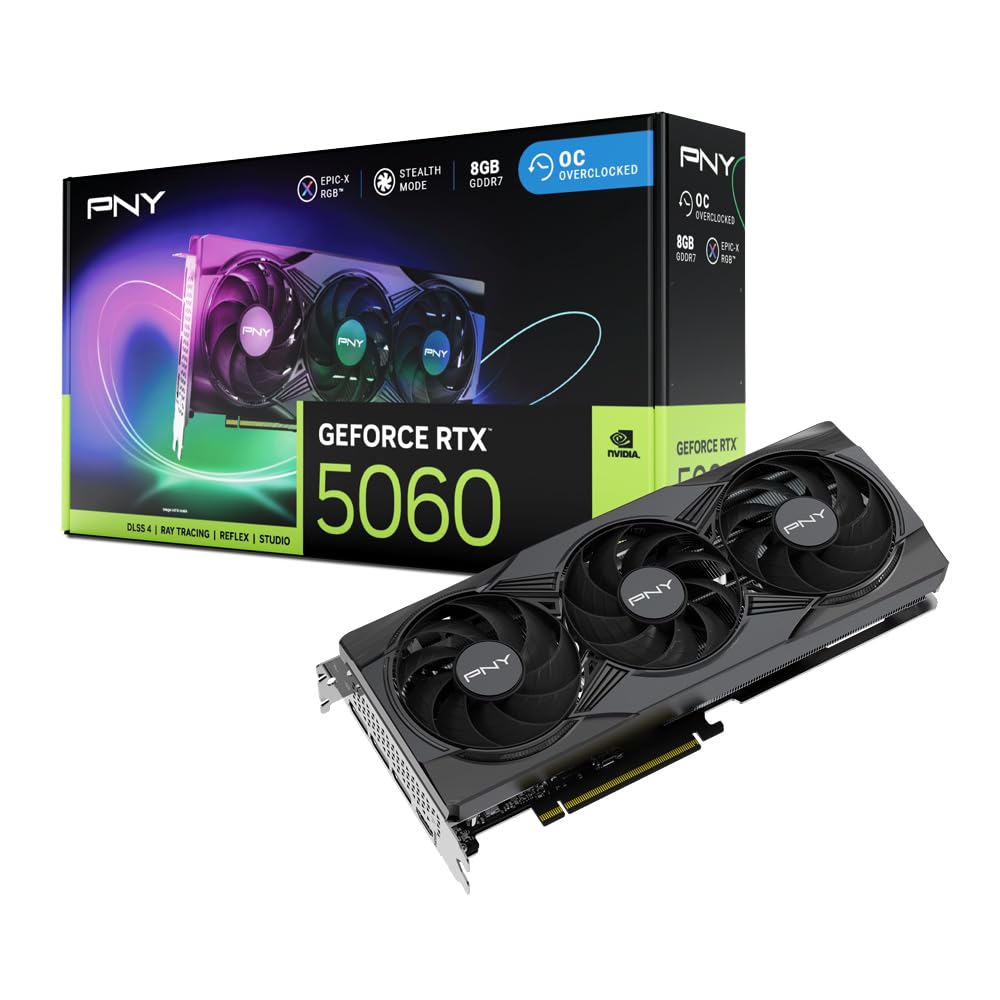
Figure 1: PNY NVIDIA GeForce RTX 5060 Epic-X ARGB OC Triple Fan Graphics Card
2. What's in the Box
Verify that all components are present before proceeding with installation:
- PNY NVIDIA GeForce RTX 5060 Graphics Card
- NVIDIA App (Software download required)
- Quick Start Guide (This document)

Figure 2: Retail packaging for the PNY NVIDIA GeForce RTX 5060 Graphics Card
3. Specifications
| Feature | Detail |
|---|---|
| Graphics Coprocessor | NVIDIA GeForce RTX 5060 |
| Brand | PNY |
| Graphics RAM Size | 8 GB |
| GPU Clock Speed | 2280 MHz |
| Video Output Interface | DisplayPort, HDMI |
| Graphics RAM Type | GDDR7 |
| Compatible Devices | Desktop |
| Display Resolution Maximum | 7680x4320 |
| Graphics Card Interface | PCI-Express x8 |
| Memory Clock Speed | 2280 MHz |
| Number of Fans | 3 |
| Video Processor | NVIDIA |
| Model Name | RTX 5060 8GB |
| Item Weight | 1.01 Kilograms |
4. Setup and Installation
Before installing your new graphics card, ensure your system's power supply meets the recommended wattage and that your motherboard has a compatible PCI-Express x8 slot. Power off your computer and disconnect all cables before opening the case.
- Prepare Your System: Power down your computer, unplug it from the wall, and open the side panel of your PC case.
- Remove Old Graphics Card (if applicable): If you are replacing an existing graphics card, carefully unmount it from the PCIe slot and disconnect any power cables.
- Install the RTX 5060: Align the graphics card with an available PCI-Express x8 slot on your motherboard. Press down firmly until it clicks into place. Secure the card to the case with screws.
- Connect Power: Connect the necessary PCIe power cables from your power supply to the graphics card. Refer to your power supply and graphics card documentation for specific power connector requirements.
- Close Case and Connect Display: Close your PC case, reconnect all cables, and connect your display to one of the graphics card's DisplayPort or HDMI outputs.
- Install Drivers: Power on your computer. Once Windows loads, download and install the latest NVIDIA drivers from the official NVIDIA website (www.nvidia.com/drivers).

Figure 3: Front view of the PNY NVIDIA GeForce RTX 5060 Graphics Card with triple fans.

Figure 4: DisplayPort and HDMI outputs on the graphics card.

Figure 5: Dimensions of the PNY RTX 5060, highlighting its compact 2-slot design suitable for SFF PCs.
5. Operating Your Graphics Card
Your PNY NVIDIA GeForce RTX 5060 graphics card is equipped with advanced features to enhance your gaming and creative workflows.
5.1. NVIDIA Technologies
- DLSS 4: Deep Learning Super Sampling uses AI to boost frame rates and generate high-quality images. Enable DLSS in supported games for improved performance.
- NVIDIA Reflex: Optimizes the graphics pipeline to reduce system latency, providing faster reaction times in competitive games.
- NVIDIA Studio: Accelerates creative applications with world-class drivers and exclusive tools for AI-assisted workflows.
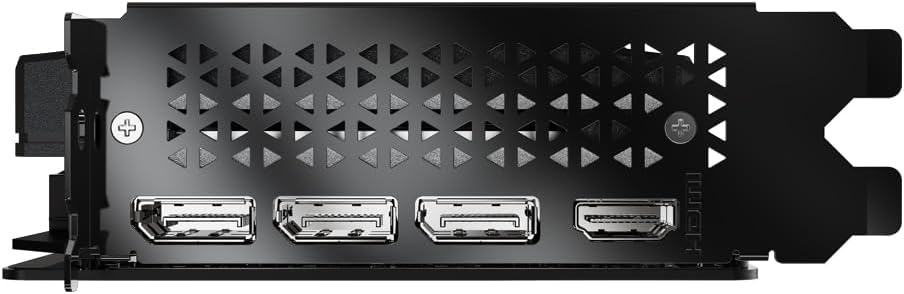
Figure 6: Overview of NVIDIA Blackwell Architecture features, including Tensor Cores, Ray Tracing Cores, DLSS 4, and Reflex.
5.2. PNY VelocityX Software
The PNY VelocityX software allows you to fine-tune your graphics card's performance, monitor its status, and customize its ARGB lighting. Download it from the official PNY website.
- Overclocking: Adjust core clock, memory clock, power target, and thermal target to maximize performance.
- Fan Control: Customize fan speeds with automatic or manual settings to balance cooling and noise levels.
- ARGB Lighting: Personalize the Epic-X ARGB lighting with various effects, colors, and brightness levels.

Figure 7: Screenshot of the PNY VelocityX software interface, displaying performance metrics and overclocking controls.

Figure 8: Visual representation of the Epic-X ARGB Lighting 2.0 features, showing customizable LED lighting zones.
Video 1: PNY GeForce RTX 50 Series GPU with VelocityX. This video demonstrates the features and customization options available through the PNY VelocityX software for your graphics card.
6. Maintenance
Proper maintenance ensures the longevity and optimal performance of your graphics card.
6.1. Cooling System
The PNY RTX 5060 features advanced cooling technology:
- Open Aluminum Backplate: Improves ventilation for better performance and stability.
- Stealth Mode: Fans stop when GPU temperature falls below 50°C for silent operation during light loads.
- Ultra-dense Heat Fins: Maximizes heat dissipation.
- Improved Axial-Fans: Dual-ball bearings and redesigned blades push up to 15% more airflow.

Figure 9: Diagram illustrating the Advanced Cooling Technology, including the open aluminum backplate, stealth mode, ultra-dense heat fins, and improved axial fans.
6.2. Cleaning
Regularly clean dust from the graphics card fans and heatsink using compressed air. Ensure the computer is powered off and unplugged before cleaning.
7. Troubleshooting
If you encounter issues with your graphics card, try the following steps:
- No Display Output: Ensure the display cable is securely connected to the graphics card and monitor. Verify the graphics card is properly seated in the PCIe slot and all power cables are connected.
- Driver Issues: Uninstall existing graphics drivers using Display Driver Uninstaller (DDU) in Safe Mode, then perform a clean installation of the latest drivers from NVIDIA's website.
- Performance Problems: Check GPU temperatures using monitoring software (e.g., PNY VelocityX) to ensure it's not overheating. Verify your power supply unit (PSU) meets the minimum wattage requirements for your system, especially if you have other power-hungry components.
- System Instability/Crashes: Ensure your system's BIOS/UEFI is up to date. Test the graphics card in another compatible system if possible to rule out other component issues.
8. Warranty and Support
Your PNY NVIDIA GeForce RTX 5060 Graphics Card comes with a 3-year warranty. For technical support, driver downloads, and further product information, please visit the official PNY website or contact their customer service.
PNY Official Website: www.pny.com
PNY Store on Amazon: PNY Store


