
1. Introduction
The NORWII N28 is a 2.4 GHz wireless presentation clicker designed to enhance your presentations with ease and control. Featuring a red laser pointer, page navigation, full/black screen functions, hyperlink support, and customizable keys, this device offers a seamless experience for various presentation software and operating systems.
2. Package Contents
Please check the package for the following items:
- 1x NORWII N28 Presenter Pointer
- 1x USB Receiver
- 1x Gift Pouch
- 1x User Manual
- Note: AAA battery not included.
3. Product Overview and Components
Familiarize yourself with the NORWII N28's layout and functions:
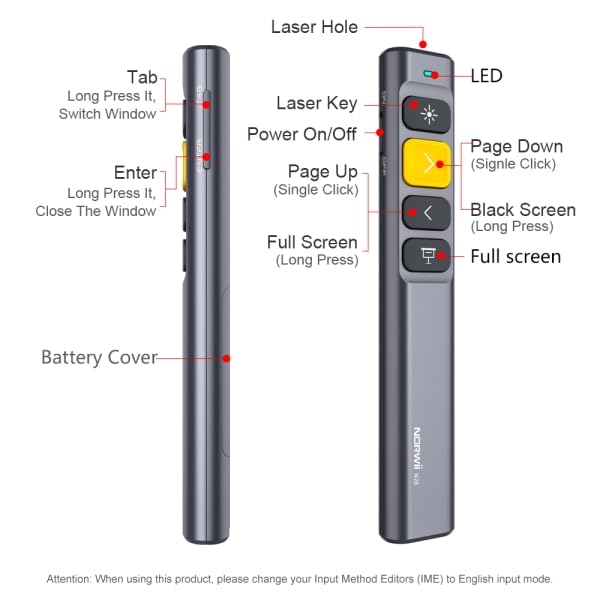
Image: NORWII N28 Presentation Clicker with key components labeled, including Laser Hole, LED indicator, Power On/Off switch, Page Down, Page Up, Black Screen, Full Screen, Tab, Enter buttons, and Battery Cover.
- Laser Hole: Emits the red laser beam.
- LED Indicator: Shows connection status and low battery alerts.
- Power On/Off Switch: Located on the side, slides to turn the device on or off.
- Page Up/Down Keys: Used for navigating slides. The yellow key is typically Page Down (single click) and the grey key below it is Page Up (single click).
- Black Screen Key: Long press to black out the screen.
- Full Screen Key: Long press to enter full screen mode.
- Tab Key: Located on the side, used for hyperlink navigation and switching windows.
- Enter Key: Located on the side, used to activate selected hyperlinks or close windows.
- Battery Cover: Located at the bottom, slides open to insert/replace the AAA battery.
4. Setup and Basic Operation
Follow these steps to set up and begin using your NORWII N28 presenter:
- Insert Battery: Open the battery cover and insert one AAA battery (not included), ensuring correct polarity.
- Connect USB Receiver: Take out the mini USB receiver from the presenter's tail (magnetic storage) and plug it into an available USB port on your computer. The device is plug-and-play, requiring no additional drivers.
- Power On: Slide the Power On/Off switch on the left side of the presenter to the 'ON' position. The LED indicator will light up briefly.
- Activate Laser: Press the 'Laser Key' (often the top button with a sun icon) to emit the red laser dot for highlighting content.
- Page Navigation: Use the 'Page Up' and 'Page Down' keys to move through your presentation slides.
- Full/Black Screen: Long press the 'Full Screen' key to enter full screen mode. Long press the 'Black Screen' key to black out the screen. Press any page turning key to exit black screen.
Video: A demonstration of the NORWII N28 Wireless Presenter's setup and basic functions, including plugging in the USB receiver, powering on, using the laser, and navigating slides.
5. Advanced Operating Instructions
5.1 Mode Switching for Page Navigation
The N28 supports three modes for page navigation, allowing compatibility with various software. To switch modes, long press the '>' (Page Down) and '<' (Page Up) keys simultaneously for 1-3 seconds. The presenter will remember the last used mode.

Image: Diagram illustrating the three page navigation modes: Mode 1 (Up/Down keys for PowerPoint/Keynote), Mode 2 (Left/Right for Prezi), and Mode 3 (PgUp/PgDn for Browser/Photo viewer software).
- Mode 1: Up/Down Keys (Default) - Typically used for PowerPoint and Keynote presentations.
- Mode 2: Left/Right Keys - Suitable for Prezi presentations where left/right navigation is common.
- Mode 3: Page Up/Page Down Keys - Ideal for browsing documents or viewing photos in software that uses these keyboard commands.
5.2 Hyperlink Control
The N28 allows you to control hyperlinks within your presentations:
- Select Hyperlink: Press the 'Tab' key (on the right side) to cycle through available hyperlinks on your slide. A dashed box will appear around the selected hyperlink.
- Open Hyperlink: Once the desired hyperlink is selected, press the 'Enter' key (on the right side) to open it.
5.3 Window Switching and Closing
- Switch Windows: Long press the 'Tab' key to switch between open application windows.
- Close Current Window: Long press the 'Enter' key to close the currently active window.
5.4 Key Function Customization
The NORWII N28 supports key function customization via the Norwii Presenter software. This allows you to assign specific functions to buttons, such as Media Play/Pause, Previous/Next Track, Volume Mute, F5, Esc, Alt+F4, and more.
- Download Software: Visit the official Norwii website to download the 'Norwii Presenter' software.
- Install and Launch: Install the software on your computer and launch it.
- Connect Presenter: Ensure your N28 presenter's USB receiver is plugged into your computer.
- Customize Keys: Within the software interface, you can select individual keys and assign desired functions from a dropdown list. All functions displayed in blue within the software are customizable.
- Save Changes: Save your customized settings.

Image: Screenshot of the Norwii Presenter software, showing options to customize button functions for short press, long press, and double click actions. This allows users to tailor the presenter's controls to their specific needs.
6. Compatibility
The NORWII N28 wireless presenter offers broad compatibility:
- Operating Systems: Compatible with Windows, macOS, Android, and Linux.
- Software: Supports widely used presentation and office software including PowerPoint, Keynote, Prezi, Google Slides, Word, Excel, Photos, ACDSee, OneNote, and others.
- Display Devices: Compatible with projection screens. Note: Not compatible with LED LCD TVs.

Image: Icons depicting compatibility with Windows, macOS, Android, Linux operating systems, and various software applications like Word, Excel, PowerPoint, Keynote, Prezi, and Google Slides.
7. Key Features
- Long Control Range: Equipped with a top-grade microchip, ensuring a control distance of up to 165 ft (50 meters) and a laser distance of up to 656 ft (200 meters). This allows freedom of movement during presentations.
- Ergonomic Design: Comfortable to hold and easily fits into a pocket. Features vulcanized and upgraded silicone buttons for durability.
- Integrated USB Receiver: The mini USB receiver stores securely in the presenter's tail with a magnetic system, preventing loss.
- Low Battery Alert: An indicator light notifies you when the battery is low, ensuring you are prepared.
- Automatic Sleep Function: Helps conserve battery life by entering sleep mode after a period of inactivity.

Image: A hand holding the NORWII N28 presenter, pointing a red laser at a projection screen, with text indicating a laser distance of over 200 meters (656 feet) and a remote control distance of over 100 meters (328 feet).

Image: Close-up of the NORWII N28 presenter demonstrating the integrated magnetic storage for the USB receiver, showing the receiver being inserted into the base of the presenter.

Image: A visual representation of the NORWII N28 presenter with a low battery icon next to it, indicating the low battery alert feature.

Image: The NORWII N28 presenter with a visual cue indicating its automatic sleep function, showing the device in a power-saving state.
8. Specifications
| Feature | Detail |
|---|---|
| Brand | NORWII (E029) |
| Model Number | N28 (OP-02-LP-N28-SN) |
| Connectivity | 2.4 GHz Wireless |
| Laser Type | Red Laser |
| Control Distance | Up to 50 meters (165 feet) |
| Laser Distance | Up to 200 meters (656 feet) |
| Power Source | 1x AAA Battery (not included) |
| Dimensions (LxWxH) | 14 x 2.5 x 1.4 cm |
| Item Weight | 45 g |
| Operating Systems | Windows, macOS, Android, Linux |
9. Troubleshooting
- Presenter not responding:
- Ensure the USB receiver is securely plugged into your computer.
- Check if the presenter is powered on (slide switch to 'ON').
- Replace the AAA battery if the low battery indicator is on or if the device is unresponsive.
- Try plugging the USB receiver into a different USB port.
- Laser not working:
- Ensure the presenter is powered on.
- Press the 'Laser Key' firmly.
- Check battery level.
- Page navigation issues:
- Verify the correct operating mode is selected for your presentation software (refer to Section 5.1).
- Ensure the presentation software is the active window on your computer.
- Hyperlink control not working:
- Ensure the 'Tab' key is used to select the hyperlink (a dashed box should appear).
- Press 'Enter' to activate the selected hyperlink.
- Customization not applying:
- Ensure you have downloaded and are using the official 'Norwii Presenter' software from the Norwii website.
- Make sure the USB receiver is connected during customization.
- Remember to save your changes within the software.
- Not compatible with LED LCD TV: This device is designed for use with projection screens and is not compatible with LED LCD televisions.
10. Safety Information
- Laser Safety: Do not point the laser beam directly at people's eyes or at highly reflective surfaces. Avoid direct eye exposure to the laser beam.
- Children: Keep the device out of reach of children.
- Disassembly: Do not attempt to disassemble or modify the device. This may void the warranty and pose safety risks.
- Batteries: Use only specified battery types. Dispose of used batteries responsibly according to local regulations.
11. Warranty and Support
For warranty information, technical support, or further assistance, please refer to the documentation included with your product or visit the official NORWII website.


