
Acer N60-640-UR26
Acer Nitro 60 N60-640-UR26 Gaming Desktop User Manual
Model: N60-640-UR26
1. Introduction
This manual provides essential information for setting up, operating, maintaining, and troubleshooting your Acer Nitro 60 N60-640-UR26 Gaming Desktop. Please read this manual thoroughly before using your new system to ensure proper function and longevity.

Image 1.1: Front view of the Acer Nitro 60 N60-640-UR26 Gaming Desktop, showcasing its design and RGB fans.
2. What's in the Box
Verify that all items listed below are included in your package:
- Acer Nitro 60 N60-640-UR26 Gaming Desktop
- External Wi-Fi Antenna
- Power Cord
- Documentation (Quick Start Guide, Warranty Card)
Note: Keyboard and mouse are not included with this product.
3. Initial Setup
3.1 Unpacking and Placement
- Carefully remove the desktop from its packaging.
- Place the desktop on a stable, flat surface with adequate ventilation. Ensure no vents are obstructed.
- Remove any protective films or packaging materials from the exterior of the desktop.

Image 3.1: Acer Nitro 60 N60-640-UR26 Gaming Desktop with key specifications highlighted.
3.2 Connecting Peripherals
- Monitor: Connect your monitor to the graphics card ports (HDMI or DisplayPort) on the rear of the desktop.
- Keyboard and Mouse: Connect your USB keyboard and mouse to the available USB ports.
- External Wi-Fi Antenna: Screw the external Wi-Fi antenna into the designated ports on the rear panel.
- Ethernet (Optional): For a wired network connection, connect an Ethernet cable from your router/modem to the Gigabit Ethernet port.
- Audio: Connect speakers or headphones to the audio jacks.
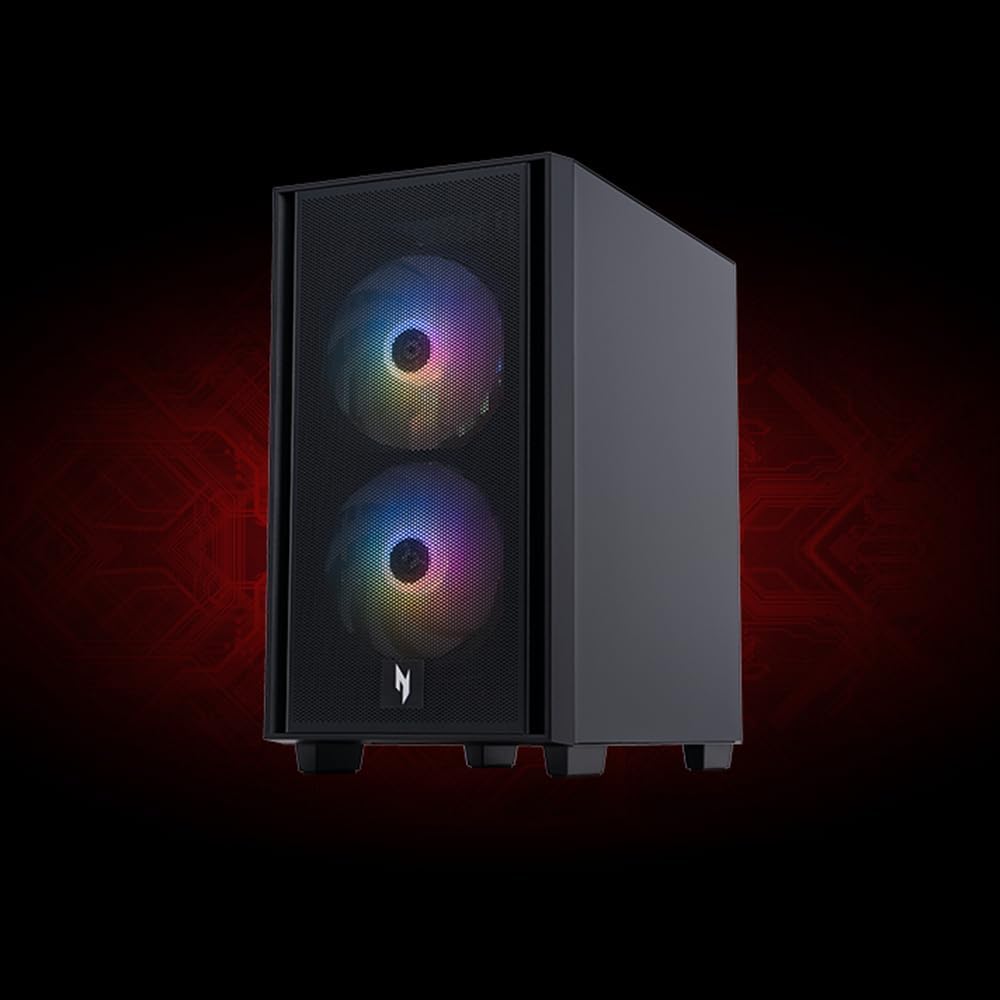
Image 3.2: Top view of the desktop, illustrating the accessible front I/O ports including USB and audio jacks.
3.3 Power Connection and First Boot
- Connect the power cord to the desktop's power input and then to a power outlet.
- Press the power button on the front of the desktop.
- Follow the on-screen instructions to complete the Windows 11 Home setup.
4. Operating Your Desktop
4.1 Power On/Off
- Power On: Press the power button once.
- Shut Down: Click the Start button in Windows, then select Power > Shut down.
- Restart: Click the Start button in Windows, then select Power > Restart.
- Sleep: Click the Start button in Windows, then select Power > Sleep.
4.2 Connectivity
Your desktop supports both wired (Gigabit Ethernet) and wireless (Wi-Fi 6, Bluetooth) connections. Ensure drivers are updated for optimal performance.

Image 4.1: The Acer Nitro 60 desktop highlighting its Wi-Fi capabilities.
4.3 Gaming and Performance
The Acer Nitro 60 is equipped with an Intel Core i7-14700F processor and NVIDIA GeForce RTX 5060 Ti graphics for high-performance gaming. Ensure your graphics drivers are always up to date for the best experience. Adjust in-game settings to balance visual quality and frame rate according to your preferences.
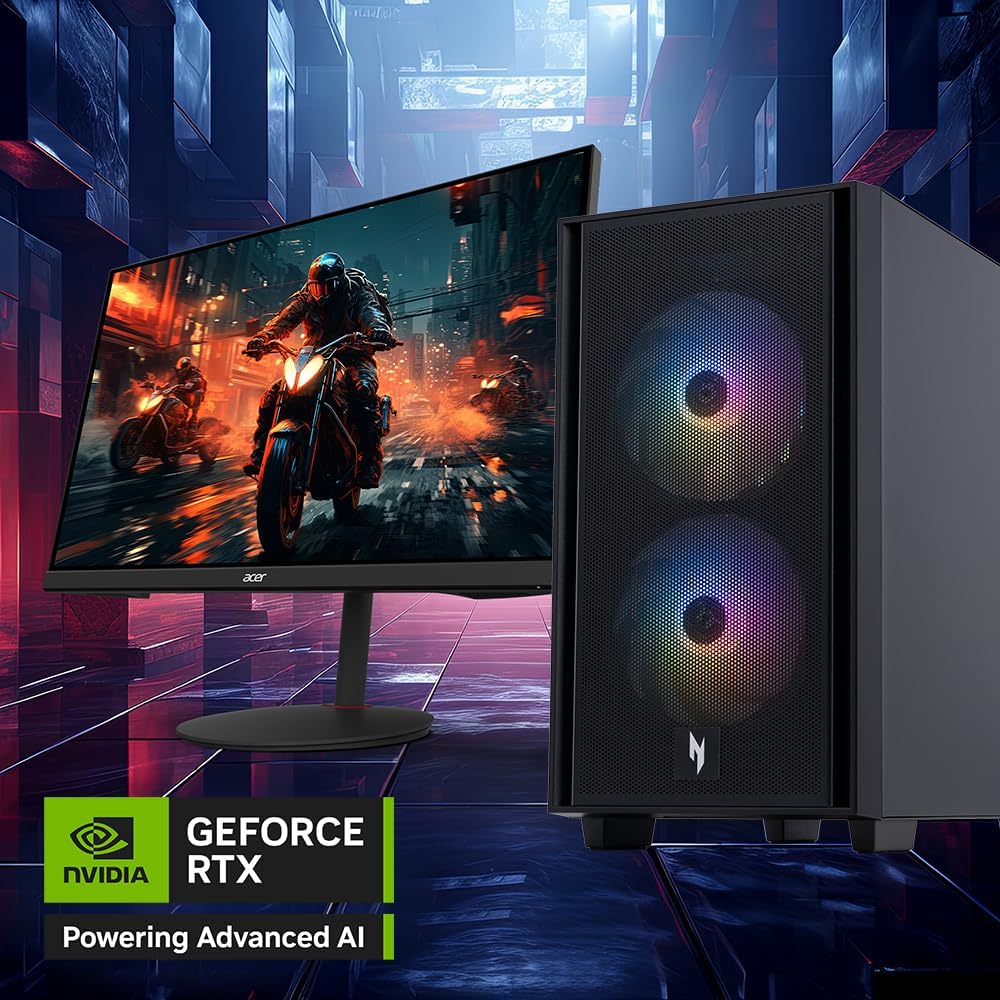
Image 4.2: The Acer Nitro 60 desktop paired with a monitor, demonstrating its gaming application.
5. Maintenance
5.1 Cleaning
- Exterior: Use a soft, damp cloth to clean the exterior surfaces. Avoid abrasive cleaners.
- Vents: Regularly clean dust from the ventilation grilles using compressed air to ensure optimal airflow and cooling.

Image 5.1: Internal view of the desktop, showing the CPU cooler and other components, emphasizing the importance of clean airflow.
5.2 Software Updates
- Regularly update your Windows operating system.
- Keep your graphics drivers (NVIDIA GeForce) updated for performance and stability.
- Update other system drivers as recommended by Acer.
5.3 System Backup
Regularly back up your important data to an external drive or cloud storage to prevent data loss.
6. Troubleshooting
| Problem | Possible Cause | Solution |
|---|---|---|
| No power | Power cord loose, power outlet issue | Check power cord connections, try a different outlet. |
| No display on monitor | Monitor cable loose, incorrect input selected on monitor | Ensure monitor cable is securely connected to the graphics card. Select correct input on monitor. |
| Slow performance | Too many applications running, outdated drivers, insufficient storage | Close unnecessary applications. Update drivers. Check available storage on SSD. |
| No internet connection | Wi-Fi antenna loose, Ethernet cable disconnected, network issues | Check Wi-Fi antenna connection. Verify Ethernet cable. Restart router/modem. |
7. Specifications
| Feature | Detail |
|---|---|
| Model Number | N60-640-UR26 |
| Processor | Intel Core i7-14700F (20-Core, up to 5.4 GHz) |
| Graphics | NVIDIA GeForce RTX 5060 Ti (16 GB GDDR7, 791 AI TOPS) |
| RAM | 32 GB DDR5 (2 x 16 GB, Max 192 GB, 4 DDR5 Slots Total) |
| Storage | 2 TB PCIe Gen 4 NVMe SSD |
| Operating System | Windows 11 Home |
| Wireless Connectivity | Wi-Fi 6 (802.11ax), Bluetooth |
| Wired Connectivity | Gigabit Ethernet |
| USB Ports (Front) | USB 3.2 Gen1 5 Gbps Type-A |
| USB Ports (Rear) | USB 3.2 Gen2 10Gbps Type-A, USB 3.2 Gen2x2 20 Gbps Type-C, USB 2.0 |
| Dimensions (LxWxH) | 14.9 x 8.5 x 15.9 inches |
| Weight | 24 pounds |
8. Warranty and Support
8.1 Warranty Information
Your Acer Nitro 60 N60-640-UR26 Gaming Desktop comes with a standard manufacturer's warranty. Please refer to the warranty card included in your package for specific terms, conditions, and duration. Keep your proof of purchase for warranty claims.
8.2 Technical Support
For technical assistance, driver downloads, or further support, please visit the official Acer support website:
When contacting support, please have your product model number (N60-640-UR26) and serial number ready.