
1. Introduction
Thank you for choosing the Dekala ClearTime 10.1" Digital Wall Calendar Clock. This device is designed to provide clear time, date, and weather information, along with advanced features like voiced medication reminders and a loud alarm, making it ideal for various users, including seniors, visually impaired individuals, and heavy sleepers. This manual will guide you through the setup, operation, and maintenance of your new clock.
2. Product Overview
The Dekala ClearTime clock features a 10.1-inch HD IPS touchscreen display, offering a 178° wide viewing angle for optimal readability. It integrates Wi-Fi connectivity for automatic time synchronization, including Daylight Saving Time (DST), and real-time weather updates. Key functionalities include:
- 10.1'' HD IPS Touchscreen: Ultra-clear display with wide viewing angles.
- Voiced Medication Reminder & Alarm Clock: Voice alerts for daily tasks and appointments with adjustable volume.
- Wi-Fi Enabled: Auto-syncs time, supports DST, and displays weather.
- Smart Light Sensor: Automatic brightness adjustment (10% night mode to 100% daylight).
- Touchscreen with One-Touch Presets: Intuitive interface for easy settings and pre-programmed reminders.
- Vibrating & 110dB Loud Alarm: Includes a powerful wireless bed shaker for deep sleepers.

3. Setup Guide
3.1. Unboxing and Power Connection
- Carefully remove all components from the packaging.
- Connect the provided power adapter to the clock's power input port.
- Plug the power adapter into a standard electrical outlet. The clock will power on automatically.
3.2. Initial Setup (Wi-Fi, Time Zone, DST)
Upon first power-on, the clock will guide you through the initial setup process:
- Language Selection: Tap to select your preferred language from the available options (e.g., English, French, German, Italian, Spanish).
- Wi-Fi Connection: The clock will scan for available Wi-Fi networks. Select your network and enter the password using the on-screen keyboard. A stable Wi-Fi connection is essential for automatic time synchronization, weather updates, and DST adjustments.
- Time Zone: Select your local time zone. The clock will then automatically set the correct time and date via Wi-Fi.
- DST (Daylight Saving Time): Ensure the DST setting is enabled if your region observes Daylight Saving Time. The clock will adjust automatically.
- Location for Weather: Enter your city or zip code for accurate local weather forecasts.

3.3. Mounting Options
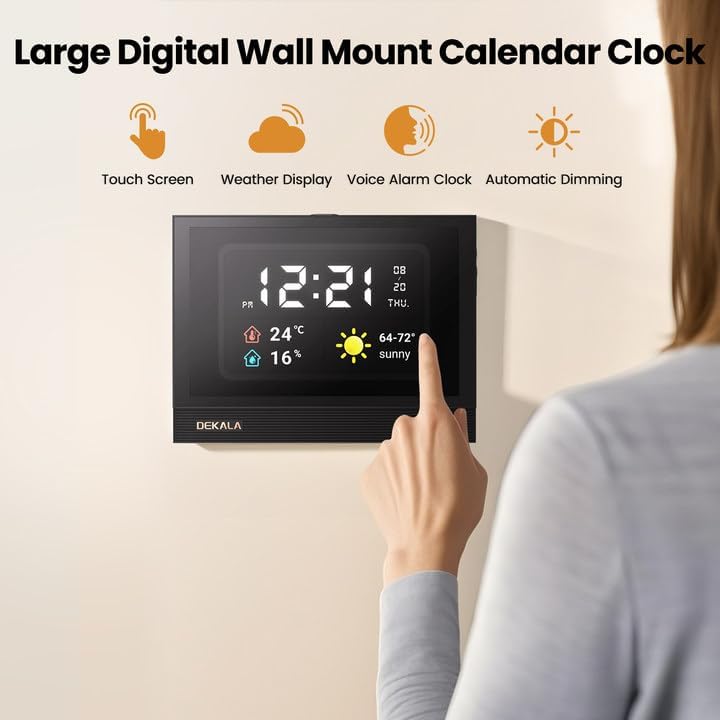
The Dekala ClearTime clock can be placed on a tabletop or mounted on a wall.
- Tabletop Placement: Use the integrated stand on the back of the clock to position it securely on any flat surface.
- Wall Mounting: The clock features mounting holes on the back. Use appropriate screws (not included) to secure it to a wall. Ensure the wall can support the clock's weight and that the power cable can reach an outlet safely.
4. Operating Instructions
4.1. Touchscreen Navigation
The clock's interface is entirely touchscreen-based. Tap icons or text to navigate menus, adjust settings, and interact with features. Swipe left or right on the main display to view different information panels, such as detailed weather forecasts or reminder lists.
4.2. Setting Alarms and Reminders
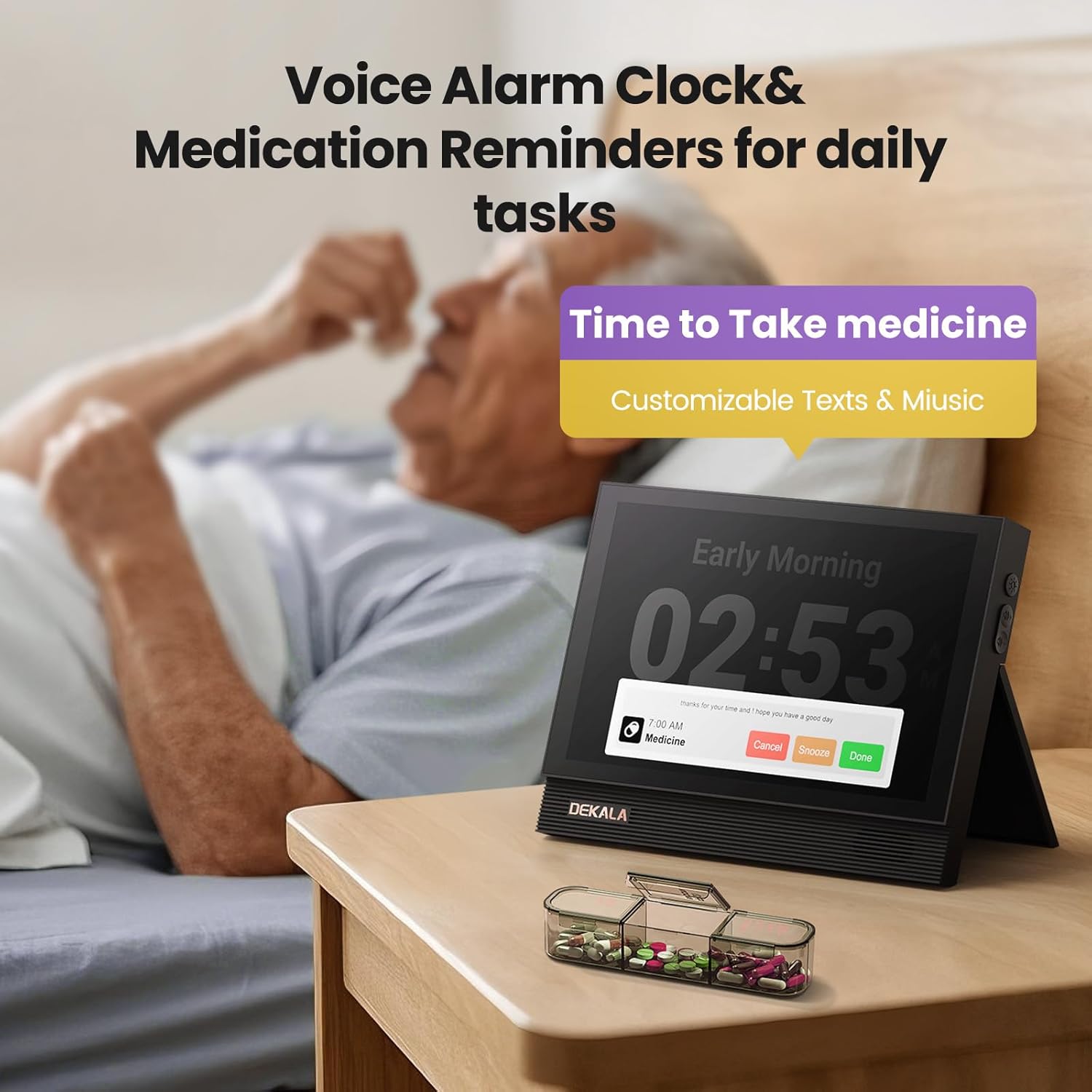
The Dekala ClearTime clock allows you to set multiple alarms and medication reminders with voiced alerts.
- From the main screen, tap the 'Reminders' or 'Alarm' icon to access the settings menu.
- Tap '+' to add a new reminder or alarm.
- Set the time, frequency (daily, specific days), and type of reminder (e.g., medication, appointment).
- Customize the voice message or select from pre-set options.
- Adjust the volume of the voice alert (50-110dB).
- For the vibrating alarm, ensure the wireless bed shaker is placed under your pillow or mattress. It will activate simultaneously with the audible alarm.
4.3. Weather Display Functionality
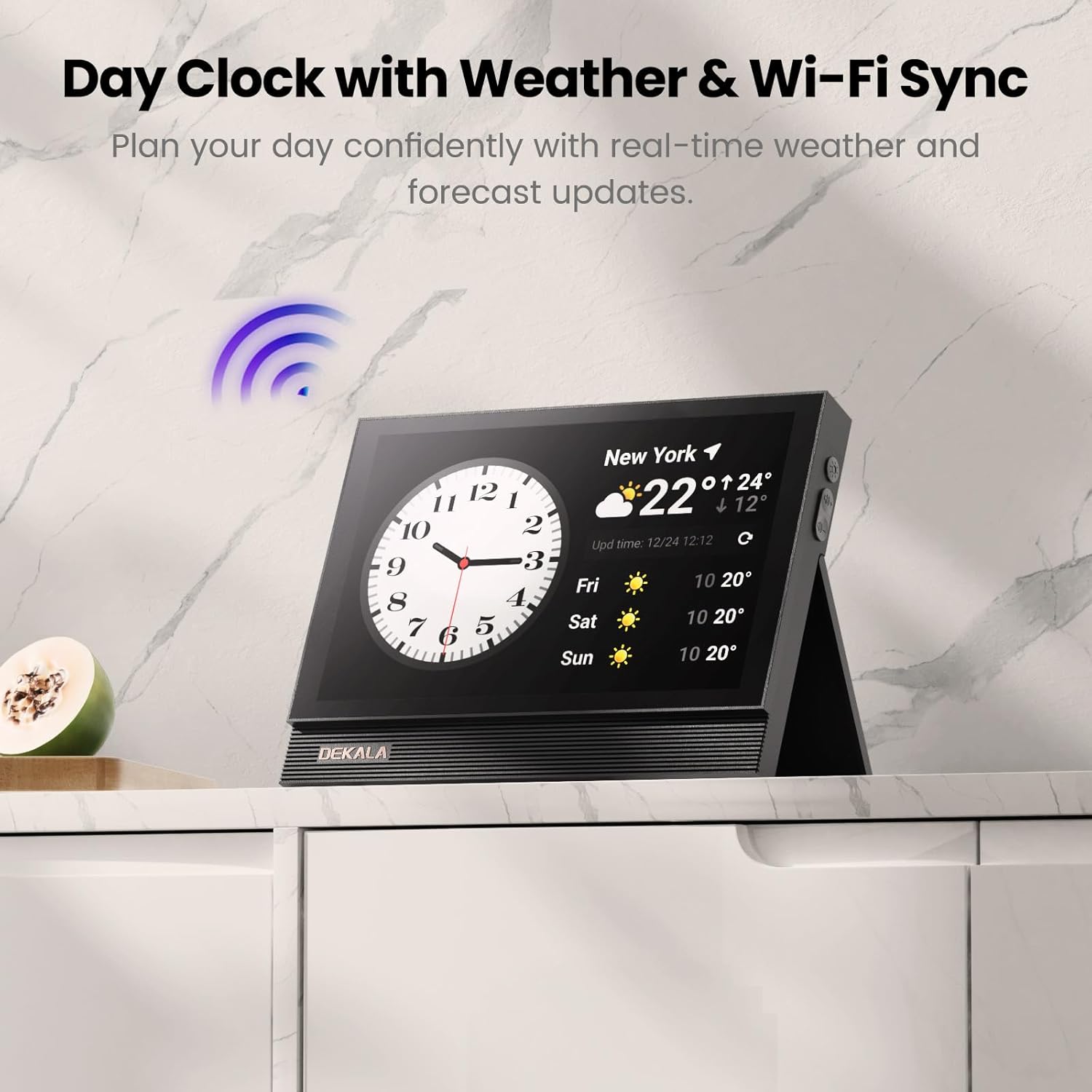
With a Wi-Fi connection, the clock displays real-time weather information for your specified location.
- The main screen shows current temperature, humidity, and a basic forecast.
- Swipe on the weather section to view a multi-day forecast, including high and low temperatures and weather conditions.
4.4. Auto-Dimming Feature
The integrated smart light sensor automatically adjusts the display brightness based on ambient light conditions.
- During the day, the display brightens to 100% for clear visibility.
- At night, it dims to 10% to avoid disturbing sleep.
- This feature can be manually adjusted or disabled in the settings menu if preferred.

5. Maintenance
To ensure the longevity and optimal performance of your Dekala ClearTime clock, follow these maintenance guidelines:
- Cleaning: Use a soft, dry, lint-free cloth to clean the screen and exterior. Avoid abrasive cleaners, solvents, or aerosol sprays, as they may damage the finish or screen.
- Power: Always use the original power adapter. Disconnect power during electrical storms or when not in use for extended periods.
- Environment: Keep the clock away from direct sunlight, extreme temperatures, and high humidity. Ensure adequate ventilation.
- Wireless Bed Shaker: Keep the bed shaker dry and clean. Do not immerse it in water.
6. Troubleshooting
If you encounter issues with your Dekala ClearTime clock, refer to the following common problems and solutions:
| Problem | Possible Cause | Solution |
|---|---|---|
| Clock does not power on. | Power adapter not connected or faulty outlet. | Ensure the power adapter is securely connected and the outlet is functional. Try a different outlet. |
| Wi-Fi connection fails. | Incorrect password, weak signal, or router issue. | Verify Wi-Fi password. Move the clock closer to the router. Restart your router. |
| Time/Date is incorrect. | No Wi-Fi connection, incorrect time zone, or DST setting. | Check Wi-Fi connection. Verify time zone and DST settings are correct. |
| Alarms/Reminders not sounding. | Volume too low, alarm disabled, or incorrect settings. | Check alarm volume in settings. Ensure the alarm is enabled and set for the correct time/day. |
| Display is too dim/bright. | Auto-dimming feature or manual brightness setting. | Check ambient light conditions. Adjust manual brightness settings if auto-dimming is not desired. |
7. Specifications
| Feature | Detail |
|---|---|
| Brand | Dekala |
| Model Number | TAC |
| Display Type | Digital, 10.1" HD IPS Touchscreen |
| Color | White |
| Product Dimensions | 6.5"W x 6.5"H |
| Item Weight | 1.76 Pounds |
| Power Source | Corded Electric |
| Material | Acrylonitrile Butadiene Styrene (ABS) |
| Mounting Type | Tabletop, Wall Mount |
| Special Features | Large display calendar clock, Voice announcement, Medication reminders, Dementia friendly clock, Auto-dimmable |
| Batteries | 1 C battery required (included) |
8. Warranty and Support
The Dekala ClearTime 10.1" Digital Wall Calendar Clock comes with a one-year warranty from the date of purchase. This warranty covers manufacturing defects and ensures reliable performance under normal use. For warranty claims, technical assistance, or customer support, please refer to the contact information provided with your product packaging or visit the official Dekala website.
Additional protection plans may be available for purchase to extend coverage beyond the standard warranty period. Please check with your retailer for details on available protection plans.

