
1. Introduction
This user manual provides essential information for the safe and efficient operation of your eufy Robotic Vacuum. Please read this manual thoroughly before using the product and retain it for future reference. Following these instructions will help ensure optimal performance and extend the lifespan of your device.
2. Important Safety Instructions
To reduce the risk of injury or damage, always observe basic safety precautions when operating your robotic vacuum. This includes, but is not limited to:
- Read all instructions before use.
- Do not operate the vacuum in wet conditions or near water.
- Keep hair, loose clothing, fingers, and all parts of the body away from openings and moving parts.
- Use only as described in this manual. Use only manufacturer's recommended attachments.
- Do not pick up anything that is burning or smoking, such as cigarettes, matches, or hot ashes.
- Do not use without dust bag and/or filters in place.
- Prevent unintentional starting. Ensure the switch is in the off-position before connecting to battery pack, picking up or carrying the appliance.
3. Package Contents
Upon opening the package, verify that all components are present and in good condition:
- eufy Robotic Vacuum
- Charging Base / Self-Emptying Station
- Power Adapter
- Side Brushes (x2)
- High-Efficiency Filter (pre-installed)
- Dust Bag (pre-installed in self-empty station)
- Cleaning Tool
- User Manual (this document)
4. Setup
4.1 Charging the Robotic Vacuum
Before first use, fully charge the robotic vacuum. Place the charging base against a wall in an open, uncluttered area. Ensure there is at least 0.5 meters (1.6 feet) of clear space on either side of the charging base and 1.5 meters (4.9 feet) in front of it. Connect the power adapter to the charging base and plug the other end into a wall outlet.

Figure 4.1: Robotic vacuum docking with its self-empty station.
Align the robotic vacuum with the charging pins on the base. The indicator lights on the vacuum will show charging status. A full charge typically takes 4-6 hours.
4.2 Connecting to the eufy Clean App
For full functionality, download the eufy Clean app from your device's app store. Follow the in-app instructions to connect your robotic vacuum to your home Wi-Fi network. The app allows for remote control, scheduling, cleaning mode selection, and more.
4.3 Preparing the Cleaning Area
Before starting a cleaning cycle, remove any obstacles such as power cords, small objects, or loose rugs that could entangle the vacuum. For optimal performance, ensure doors to rooms you wish to clean are open and clear any potential blockages.
5. Operation
5.1 Starting a Cleaning Cycle
Press the power button on the robotic vacuum or use the eufy Clean app to start a cleaning cycle. The vacuum will automatically begin cleaning and return to its charging base when finished or when the battery is low.
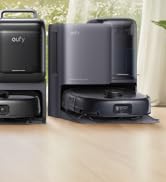
Figure 5.1: Robotic vacuum in operation.
5.2 Cleaning Modes
Your eufy Robotic Vacuum offers various cleaning modes accessible via the eufy Clean app:
- Auto Clean: The vacuum automatically cleans the entire floor area.
- Spot Clean: Cleans a specific area with concentrated suction.
- Edge Clean: Cleans along walls and furniture edges.
- Scheduled Clean: Set specific times for the vacuum to clean automatically.
5.3 Self-Emptying Feature
Models equipped with a self-emptying station will automatically transfer collected dust and debris from the robot's dustbin to a larger dust bag within the station. This significantly reduces the frequency of manual dustbin emptying.
Figure 5.2: The self-emptying station automatically collects debris from the robot.
6. Maintenance
Regular maintenance ensures your eufy Robotic Vacuum operates at peak efficiency.
6.1 Emptying the Dustbin / Replacing Dust Bag
For models with a self-emptying station, the internal dust bag should be replaced when full. For models without, manually empty the robot's dustbin after each cleaning cycle or as needed.

Figure 6.1: Instructions for replacing the dust bag in the self-empty station.
6.2 Cleaning the Main Brush and Side Brushes
Periodically remove and clean the main brush and side brushes to prevent hair and debris accumulation. Use the provided cleaning tool to cut and remove tangled hair.
6.3 Cleaning Sensors and Charging Pins
Wipe the drop sensors, wall sensors, and charging pins on both the robot and the charging base with a clean, dry cloth to ensure proper function.
6.4 Cleaning the Filter
Tap the filter to remove loose dirt. Rinse the filter under running water if necessary, and allow it to air dry completely before reinserting. Replace the filter every 3-6 months depending on usage.
7. Troubleshooting
If you encounter issues with your eufy Robotic Vacuum, refer to the following common problems and solutions:
| Problem | Possible Cause | Solution |
|---|---|---|
| Vacuum does not turn on. | Low battery; Power switch off. | Charge the vacuum; Turn on the power switch. |
| Vacuum gets stuck frequently. | Obstacles; Uneven surfaces. | Clear the cleaning area; Use boundary strips if needed. |
| Poor cleaning performance. | Full dustbin; Clogged brushes/filter. | Empty dustbin; Clean/replace brushes and filter. |
| Cannot connect to Wi-Fi. | Incorrect password; Router issues; Out of range. | Verify password; Restart router; Move vacuum closer to router. |
For more detailed troubleshooting, refer to the eufy Clean app or visit the official eufy support website.
8. Specifications
| Feature | Detail |
|---|---|
| Brand | eufy |
| Model | Robotic Vacuum (Specific model may vary by purchase) |
| ASIN | B0F8NWYFL2 |
| Manufacturer | eufy |
| Power | (Not specified in input, generic placeholder) |
| Battery Type | (Not specified in input, generic placeholder) |
| Dustbin Capacity | (Not specified in input, generic placeholder) |
9. Warranty and Support
eufy products come with a limited warranty. For detailed warranty information, product registration, and technical support, please visit the official eufy website or contact customer service. You can also visit the eufy Brand Store on Amazon for additional resources.