1. Introduction
This manual provides essential information for the safe and effective operation of your WZATCO Yuva Blaze Smart Home Projector. Please read it thoroughly before using the device and retain it for future reference.

Image 1: WZATCO Yuva Blaze Projector Overview
2. What's in the Box
Carefully unpack your WZATCO Yuva Blaze projector and ensure all items are present:
- WZATCO Yuva Blaze Projector
- Remote Control
- Power Cord
- AV Cable
- User Manual (this document)
- Warranty Card
Video 1: Unboxing the WZATCO Yuva Blaze Projector, showing included accessories like the power cable, remote, AV cable, and documentation.

Image 2: The WZATCO Yuva Blaze projector with its stand.
3. Setup Guide
3.1 Power Connection
- Connect the provided power cord to the power port on the projector.
- Plug the other end of the power cord into a suitable electrical outlet.

Image 3: Rear view of the projector showing the power input.
3.2 Initial Power On
- Press the power button located on the projector or the remote control to turn on the device.
- The projector will boot up, displaying the Android 13 OS interface.
3.3 Network Connection (Wi-Fi 6)
To access online content and features, connect your projector to a Wi-Fi network:
- Navigate to the 'Settings' menu on the projector's home screen.
- Select 'Network & Internet' and then 'Wi-Fi'.
- Turn on Wi-Fi and select your desired network from the list.
- Enter the password if prompted and connect.

Image 4: Wi-Fi 6 offers improved streaming performance compared to Wi-Fi 5.
3.4 Bluetooth Pairing
Connect external Bluetooth devices like speakers or headphones for enhanced audio:
- Go to 'Settings' and select 'Remotes & accessories'.
- Turn on Bluetooth and select 'Add accessory'.
- Put your Bluetooth device into pairing mode.
- Select your device from the list to pair.

Image 5: Bi-directional Bluetooth allows connecting external speakers or using the projector as a Bluetooth speaker.
4. Operating Instructions
4.1 Basic Navigation
Use the provided remote control to navigate the Android 13 OS interface. The directional buttons, OK button, and back button are primary for menu selection and content playback.
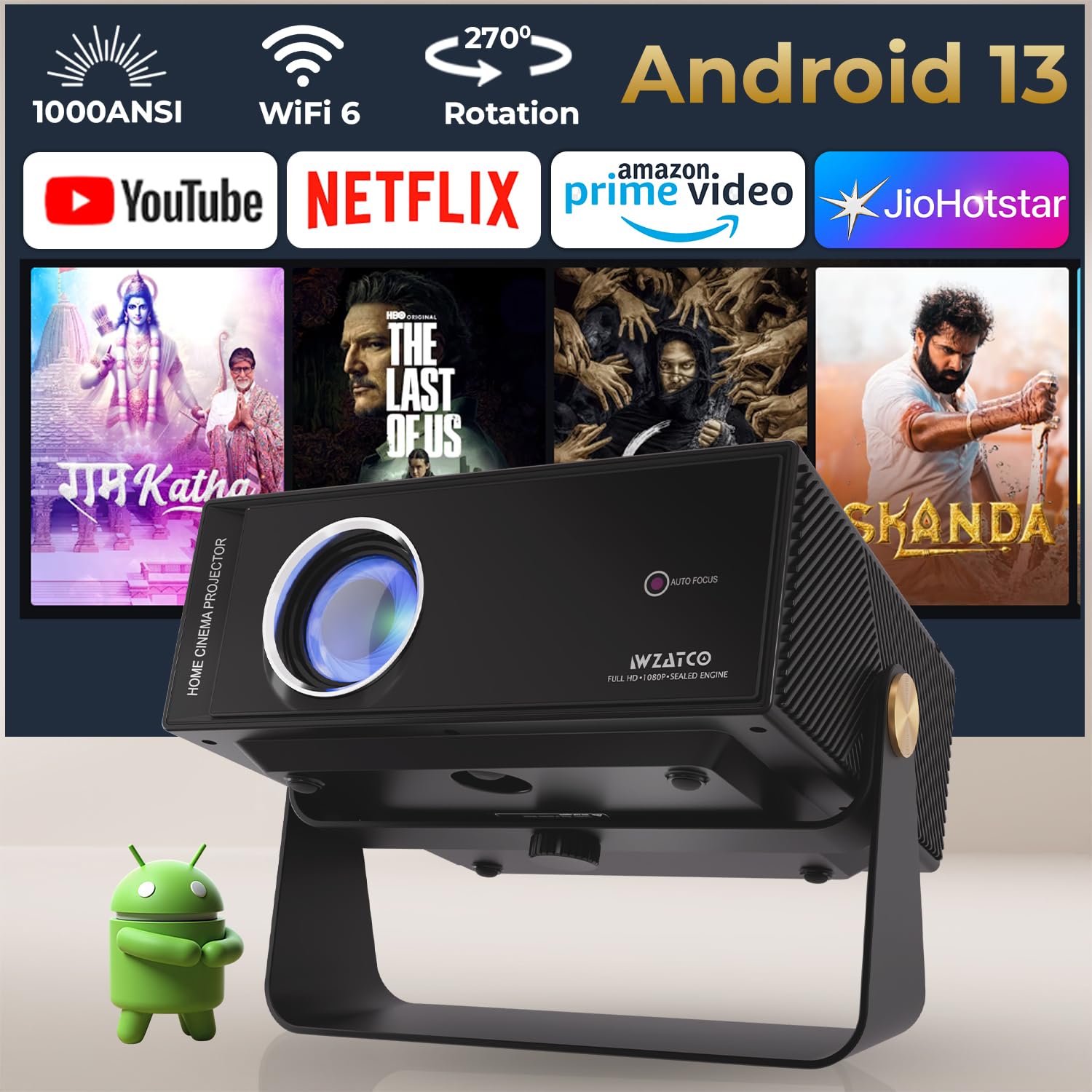
Image 6: The Android 13 OS home screen with various streaming applications.
4.2 Intelligent Image Adjustment
The Yuva Blaze projector features fully automatic intelligent screen adjustments for optimal viewing:
- Auto Focus: The projector automatically adjusts the image clarity. This can be set to activate on startup or manually.
- Auto Keystone Correction: Automatically corrects trapezoidal distortion to ensure a rectangular image, even when the projector is not perfectly aligned with the screen.
- Auto Screen Fit: Adjusts the image size to fit the projection surface.
- Auto Obstacle Avoidance: Detects obstacles on the projection surface and automatically adjusts the image to avoid them.

Image 7: Visual representation of the intelligent image adjustment features.
Video 2: Demonstration of auto keystone, auto focus, and auto obstacle avoidance features.
4.3 Flexible Projection
The projector's design allows for 270° rotation, enabling projection onto walls, ceilings, or floors. Adjust the projector's angle as needed for your desired viewing surface.

Image 8: The projector's 270-degree rotation capability.
5. Connectivity
The WZATCO Yuva Blaze offers versatile connectivity options:
- HDMI ARC: Connect to Blu-ray players, gaming consoles, laptops, or soundbars. HDMI ARC supports audio return channel functionality.
- USB (U1, U2): Connect USB drives for media playback or external devices.
- LAN: For a stable wired internet connection.
- AV: Connect older devices using the included AV cable.
- Aux (3.5mm Audio Out): Connect external speakers or headphones.
- Wi-Fi 6: High-speed wireless internet for streaming.
- Bluetooth: Connect wireless audio devices or use for screen mirroring.

Image 9: Detailed view of the projector's input and output ports.
6. Display and Audio Features
6.1 Display Quality
The Yuva Blaze projector delivers a native 1080P resolution with support for 4K HDR and HLG. It features 1000 ANSI Lumens brightness, a 7000:1 static contrast ratio, and 98% NTSC wide color gamut for vibrant and clear images.

Image 10: High-quality display features including 4K support and wide color gamut.
6.2 Immersive Audio
Equipped with Hi-Fi stereo dual speakers, the projector provides powerful bass and clear audio. For an enhanced cinematic experience, connect external speakers via Bluetooth or the Aux port.

Image 11: The projector's Bluetooth connectivity for external audio devices.
7. Maintenance
Proper maintenance ensures the longevity and performance of your projector:
- Lens Cleaning: Use a soft, lint-free cloth specifically designed for optical lenses to gently wipe the projector lens. Avoid abrasive materials or harsh chemicals.
- Dust Prevention: The projector features a sealed optical engine designed for dust-free performance. However, regularly clean the exterior vents with a soft brush or compressed air to prevent dust buildup.
- Storage: When not in use for extended periods, store the projector in a cool, dry place, away from direct sunlight and extreme temperatures.

Image 12: The sealed optical engine helps maintain image quality by preventing dust intrusion.
8. Troubleshooting
If you encounter issues with your projector, refer to the following common problems and solutions:
- No Power: Ensure the power cord is securely connected to both the projector and the power outlet. Check if the power outlet is functioning.
- No Image: Verify that the correct input source is selected. Check all cable connections (HDMI, AV). Ensure the lens cap is removed.
- Blurry Image: Allow the auto-focus feature to complete its adjustment. If manual adjustment is needed, navigate to projection settings. Ensure the projection surface is flat and smooth.
- No Sound: Check the volume settings on both the projector and any connected external audio devices. Ensure Bluetooth audio is correctly paired if used.
- Wi-Fi Connectivity Issues: Restart the projector and your Wi-Fi router. Ensure you are within range of your Wi-Fi network. Re-enter the Wi-Fi password if necessary.
9. Specifications
| Feature | Detail |
|---|---|
| Brand | WZATCO |
| Model Name | Yuva Blaze |
| Native Resolution | 1920 x 1080 (Native 1080P) |
| Supported Resolution | 4K Pixels (4K HDR Support) |
| Brightness | 1000 ANSI Lumens |
| Contrast Ratio | 7000:1 |
| Operating System | Android TV OS 13.0 (1GB+8GB) |
| Connectivity | HDMI ARC, WiFi 6, Bluetooth, USB, LAN, AV |
| Special Features | Fully Automatic (Auto Focus, Auto Keystone, Auto Screen Fit, Auto Obstacle Avoidance), 270° Rotate, 5 Watt HiFi Speakers, Voice Assistant |
| Lamp Life | 50,000 Hours |
| Product Dimensions | 13 x 28 x 27.5 cm |
| Item Weight | 2.5 kg |
10. Warranty and Support
Your WZATCO Yuva Blaze projector comes with a 1-Year warranty from the date of purchase. Product registration is mandatory to avail warranty benefits.
10.1 Product Registration
To register your product and activate your warranty, scan the QR code provided on the warranty card or visit the official WZATCO website.

Video 3: The warranty card with QR codes for demo video, ticket submission, and customer support information.
10.2 Customer Support
For any assistance, please contact WZATCO customer support:
- Phone: +91 8070977097 (Available Monday to Saturday, 10:00 AM - 5:00 PM IST)
- Email: support@wzatco.com


