
1. Introduction
Thank you for choosing the UGREEN USB 3.0 to USB-C Link Cable. This cable is designed to provide a stable and high-speed connection between your Oculus Quest 2 or Quest 3 VR headset and a Windows PC, enabling an immersive PC VR gaming experience. It also supports fast data transfer and power delivery to keep your headset charged during extended use.
Please read this manual carefully to ensure proper setup and optimal performance of your cable.
2. Product Overview
The UGREEN USB 3.0 to USB-C Link Cable (Model L314) is engineered for durability and performance, featuring a 16-foot (5-meter) length and a right-angle USB-C connector for user comfort and reduced port strain.
Key Features:
- Oculus Link Compatibility: Specifically designed for Oculus Quest 2 and Quest 3 to PC VR gaming.
- Extended Length: 16FT (5m) cable provides ample movement space.
- Right-Angle USB-C Connector: 90-degree design for comfortable headset connection.
- High-Speed Data Transfer: Supports USB 3.0 with up to 5Gbps for quick file transfers.
- Fast Charging: Delivers up to 18W (9V/2A) Power Delivery to charge your headset during use.
- Durable Construction: Reinforced connectors and a robust cable jacket for longevity.
- Built-in Signal Amplification Chip: Ensures stable performance over the full 5m length.
What's in the Box:
- UGREEN USB 3.0 to USB-C Link Cable (16FT) × 1
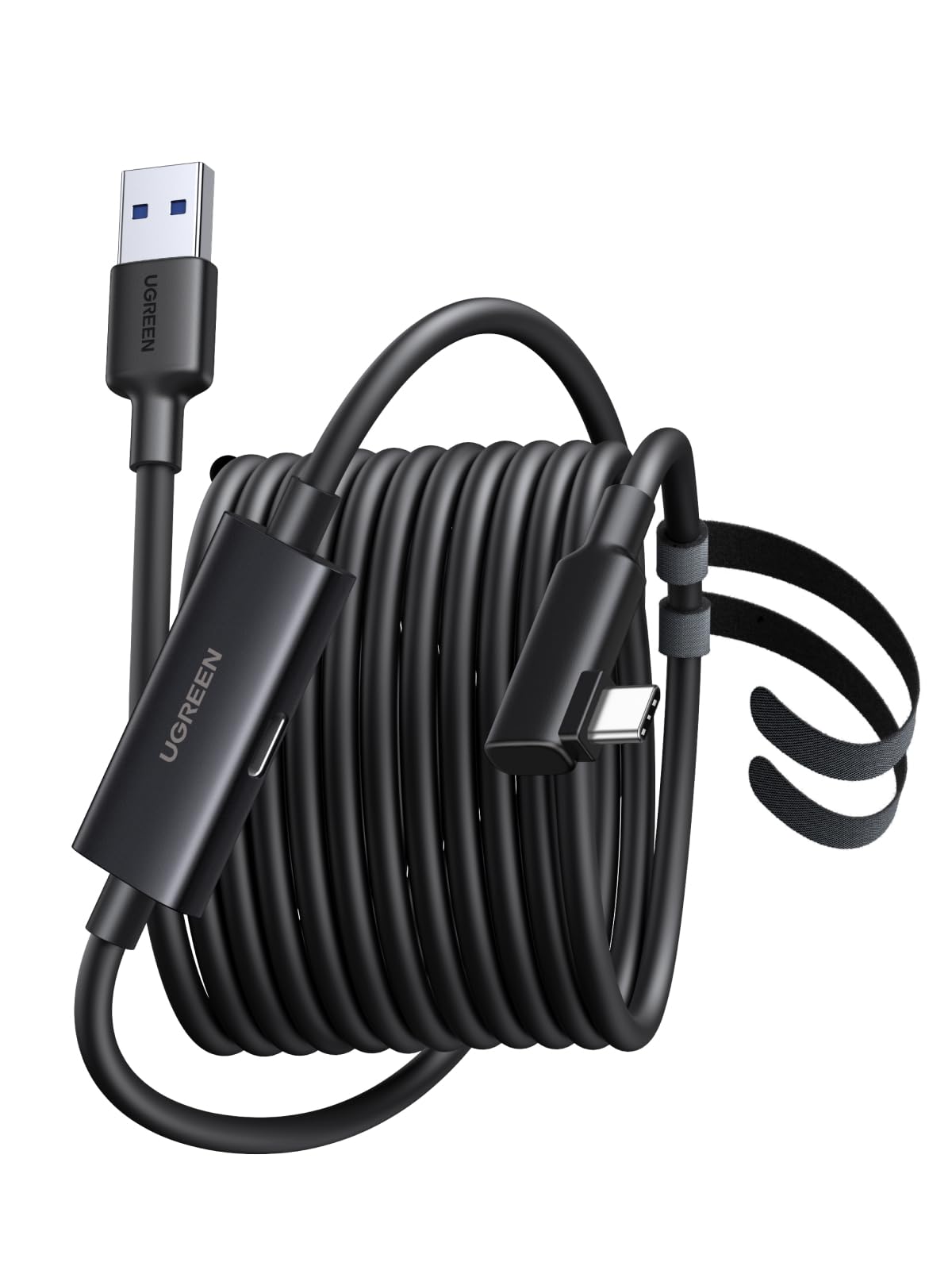
This image shows the UGREEN USB 3.0 to USB-C Link Cable, coiled, highlighting its black color and the UGREEN branding on the connectors.

This image illustrates the 90-degree L-shaped USB-C connector plugged into a VR headset, demonstrating how it sits flush against the device to prevent interference during gameplay.
3. Setup Instructions
Follow these steps to set up your UGREEN Link Cable for PC VR gaming with your Oculus Quest headset.
3.1 Pre-Use Checklist
- Software Download: Download and install the latest version of the Oculus PC client from the official Oculus website.
- Recommended PC Specifications: Ensure your PC meets the minimum requirements for Oculus Link:
- Processor: Intel i5-4590 / AMD Ryzen 5 1500X or higher
- Memory: 8GB RAM or higher
- Operating System: Windows 10 or higher

This image outlines the essential steps and system requirements for preparing your PC and software before using the UGREEN Link Cable with your Oculus Quest headset.
3.2 Connecting the Cable
- Locate the USB-A end of the UGREEN cable. This end connects to your PC.
- Plug the USB-A end into an available USB 3.0 port on your Windows PC. For optimal performance, use a dedicated USB 3.0 port (often blue-colored).
- Locate the L-shaped USB-C end of the UGREEN cable. This end connects to your Oculus Quest headset.
- Carefully plug the L-shaped USB-C end into the USB-C port on your Oculus Quest 2 or Quest 3 headset. Ensure it is fully inserted.
- Optional Charging Connection: The cable features an additional USB-C female port. To charge your headset while playing, connect a compatible 18W Power Delivery (PD) charger to this port.

This image displays the three connection points of the UGREEN Link Cable: the USB-C female port for optional charging, the L-shaped USB-C male connector for the VR headset, and the USB-A male connector for the PC.
4. Operating Instructions
Once the cable is connected, you can begin using your Oculus Quest headset for PC VR gaming and other functions.
4.1 Initiating Oculus Link
- With the cable connected to both your PC and headset, put on your Oculus Quest headset.
- You should see a prompt within your headset asking to enable Oculus Link. Select "Enable" or "Allow" to proceed.
- If prompted, ensure that the Oculus PC client software is running on your computer.
- Your headset should now display the Oculus Link home environment, allowing you to access PC VR games and applications.

This image shows a person actively engaged in a VR game while connected to a PC via the UGREEN Link Cable, demonstrating the freedom of movement provided by the cable's length.
4.2 Data Transfer and Charging
- Data Transfer: The cable supports USB 3.0 speeds (up to 5Gbps), allowing for fast transfer of large VR game files or other data between your PC and compatible USB-C devices.
- Charging: When connected to a compatible 18W PD charger via its dedicated USB-C female port, the cable will charge your Oculus Quest headset while you play, extending your VR sessions.

This image illustrates the UGREEN Link Cable connected to a VR headset and a power adapter, enabling simultaneous charging and gameplay.
5. Maintenance
Proper care will extend the lifespan of your UGREEN USB 3.0 to USB-C Link Cable.
- Storage: When not in use, coil the cable loosely. Avoid tight coiling or sharp bends, which can damage internal wires.
- Cleaning: Use a soft, dry cloth to wipe the cable and connectors. Do not use liquid cleaners or abrasive materials.
- Handling: Always grasp the connector head when plugging or unplugging the cable, not the cable itself, to prevent strain on the connection points.
- Environment: Keep the cable away from extreme temperatures, direct sunlight, and moisture.
6. Troubleshooting
If you encounter issues with your UGREEN Link Cable, refer to the following common solutions:
6.1 Connection Issues (Oculus Link not detected)
- Check Connections: Ensure both the USB-A and USB-C ends are fully and securely plugged into their respective ports.
- Verify USB Port: Make sure you are using a USB 3.0 port on your PC. Try a different USB 3.0 port if available.
- Restart Devices: Restart your PC and your Oculus Quest headset.
- Update Software: Ensure your Oculus PC client software and headset firmware are up to date.
- PC Drivers: Check that your PC's USB drivers are updated.
6.2 Slow Data Transfer or Charging
- USB 3.0 Port: Confirm you are connected to a USB 3.0 port on your PC. USB 2.0 ports will result in slower speeds.
- Charging Adapter: If charging is slow, ensure your external charger connected to the cable's female USB-C port is a Power Delivery (PD) compatible adapter with at least 18W output.
- Cable Condition: Inspect the cable for any visible damage or kinks.

This image visually compares the data transfer speeds of USB 3.2 Gen 1 (5Gbps) versus older USB 2.0 (480Mbps), emphasizing the importance of using a compatible USB 3.0 port for optimal performance.
7. Specifications
| Feature | Specification |
|---|---|
| Brand | UGREEN |
| Model Number | L314 |
| Cable Type | USB 3.0 to USB-C |
| Length | 16FT (5 meters) |
| Data Transfer Rate | Up to 5Gbps (USB 3.0) |
| Power Delivery | Up to 18W (9V/2A) |
| Connector Type (PC) | USB-A Male |
| Connector Type (Headset) | USB-C Male (Right-Angle) |
| Charging Port | USB-C Female |
| Color | Black |
| Item Weight | 9.6 ounces |
8. Warranty and Support
UGREEN products come with a standard warranty. For specific warranty details, technical support, or customer service inquiries, please visit the official UGREEN website or contact their customer support team directly.
You can find more information and contact details on the UGREEN Amazon Store.