1. Introduction
This manual provides comprehensive instructions for the setup, operation, maintenance, and troubleshooting of your OuuOee 15.6" All-in-One Industrial Touchscreen Computer. This device is designed for versatile applications, offering a high-definition touchscreen, robust performance, and flexible adjustment options.

Figure 1.1: OuuOee 15.6" All-in-One Industrial Touchscreen Computer in use.
2. Key Features
- 15.6-inch Full HD Touchscreen: G+G 10 multi-touch screen with 1920x1080 IPS resolution for intuitive and smooth interaction.
- High-Speed Performance: Equipped with ARM RK3399 processor, 4GB LPDDR4x RAM, and 64GB eMMC storage.
- Expandable Storage: Micro SD card slot for additional storage capacity.
- Flexible Screen Adjustment: 360° all-round screen rotation and 180° folding bracket for versatile viewing angles and compact storage.
- Rich Input/Output Ports: Includes HDMI 2.0, USB 3.0, USB 2.0, USB-C, Gigabit LAN, TF card slot, DC, and 3.5mm Audio ports.
- Stable Industrial Performance: Suitable for high-traffic work environments such as offices, automation, kiosks, bars, and warehouses.
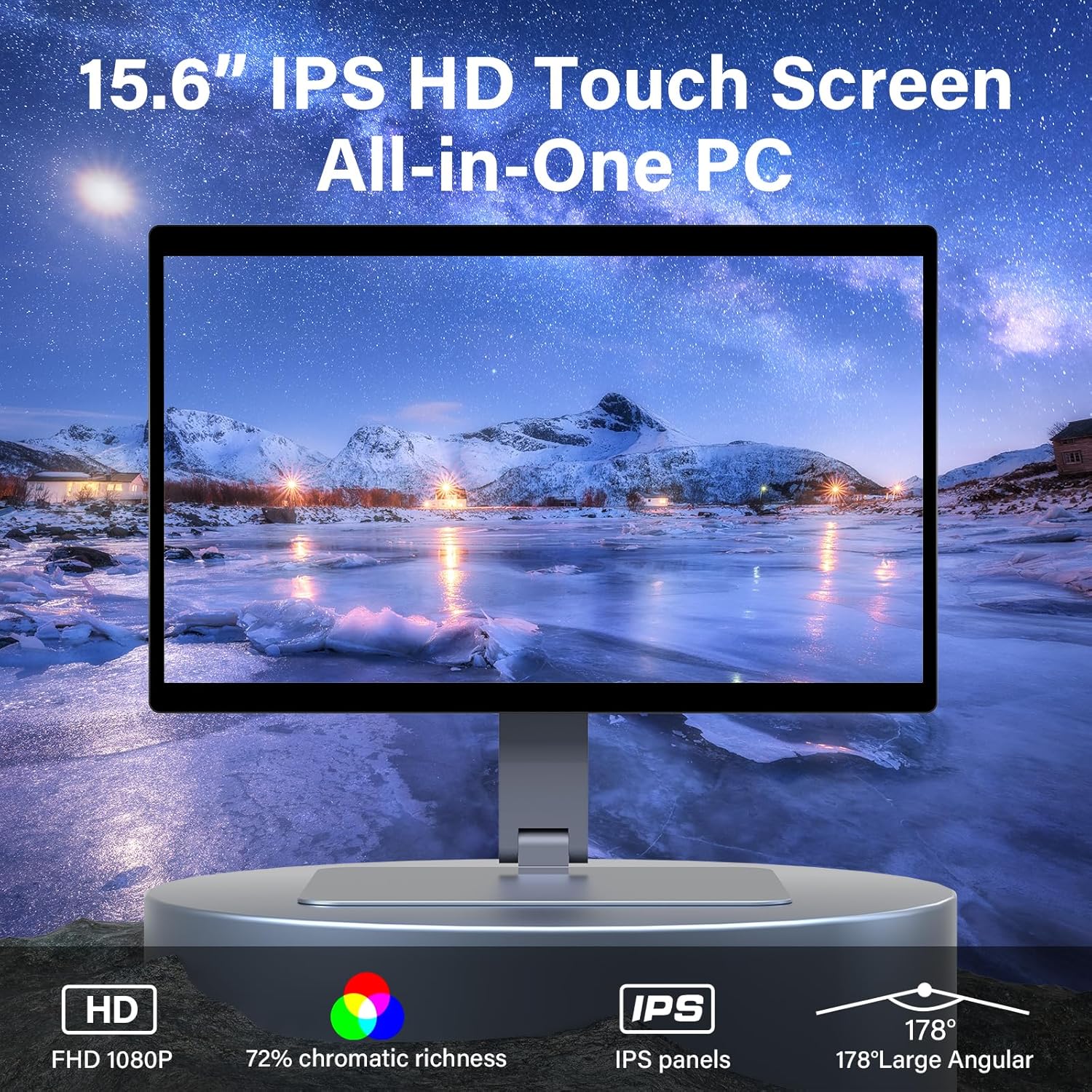
Figure 2.1: High-definition IPS touchscreen display.
3. Setup
- Unpack the Device: Carefully remove the All-in-One computer and all accessories from the packaging.
- Position the Device: Place the computer on a stable, flat surface. Ensure adequate ventilation around the device.
- Connect Power: Insert the DC power adapter into the power port on the device and plug the other end into a suitable power outlet.
- Initial Power On: Press the power button located on the side/rear of the device. The screen will illuminate, and the Android operating system will begin to load.
- Initial Setup Wizard: Follow the on-screen prompts to complete the initial setup, including language selection, Wi-Fi connection, and Google account setup (optional).
Figure 3.1: Device ready for initial setup.
4. Operating Instructions
4.1 Touchscreen Operation
The 15.6-inch G+G 10 multi-touch screen allows for intuitive interaction without a mouse or keyboard. Common gestures include:
- Tap: Select an item or open an application.
- Double-Tap: Perform a secondary action or zoom.
- Press and Hold: Access contextual menus or move icons.
- Swipe: Navigate through screens or scroll content.
- Pinch-to-Zoom: Use two fingers to zoom in or out on images or web pages.
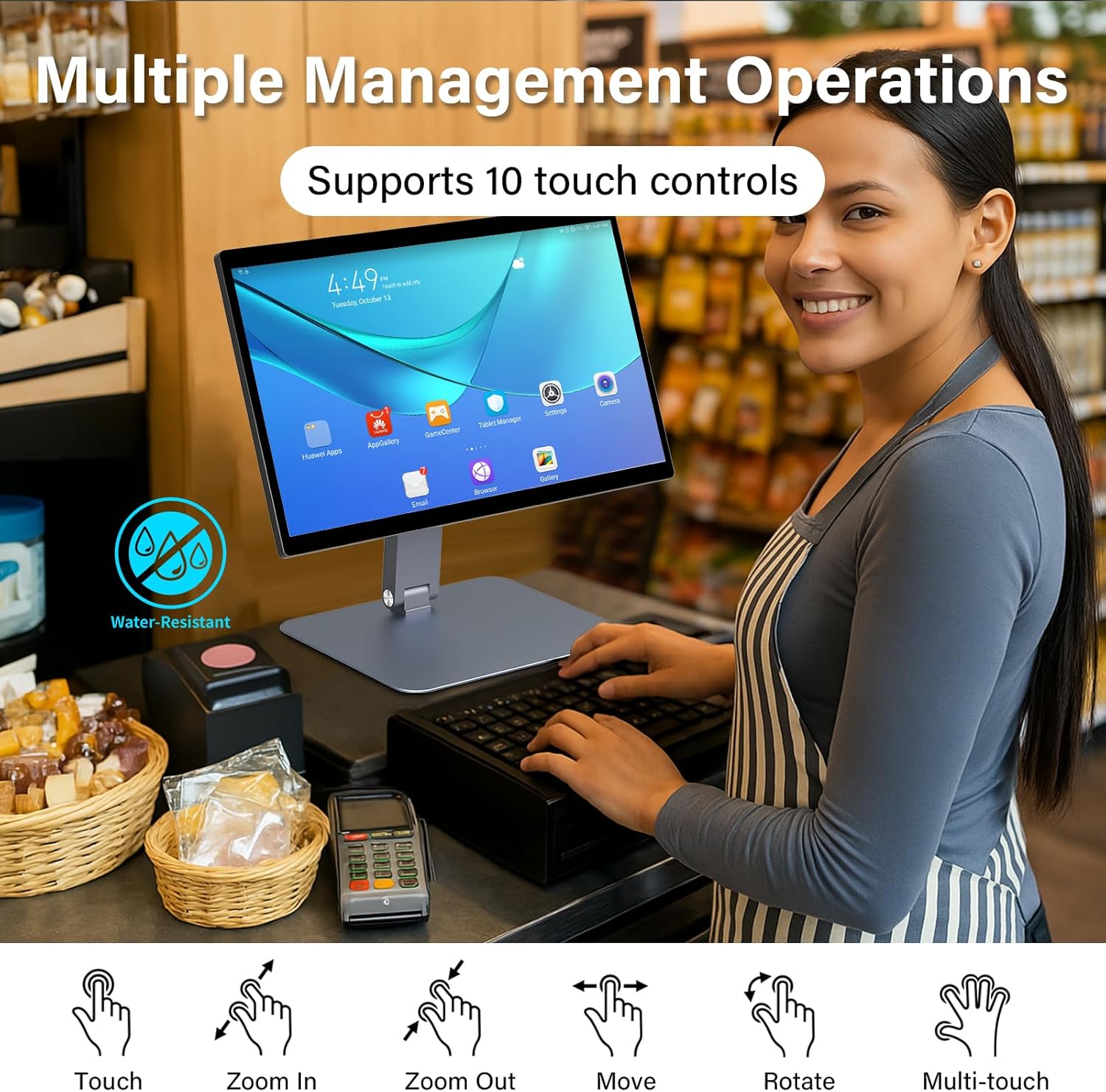
Figure 4.1: Multi-touch gestures supported by the device.
4.2 Screen Adjustment and Rotation
The device features a highly flexible stand allowing for various viewing angles and orientations:
- 360° All-Round Rotation: The screen can be rotated horizontally to switch between landscape and portrait modes, or to share the view with others.
- 180° Folding Bracket: The integrated stand allows the screen to fold flat for convenient storage or to adjust the viewing angle from upright to nearly horizontal.

Figure 4.2: Flexible screen adjustment options.
5. Connectivity and Ports
The OuuOee All-in-One PC offers a comprehensive set of input/output ports to meet diverse connectivity needs:
- Power Port (DC): 1x for connecting the power adapter.
- HDMI 2.0 Port: 1x for connecting to external displays, supporting 4K video output.
- USB 3.0 Port: 1x for high-speed data transfer and peripheral connection.
- USB 2.0 Port: 1x for connecting standard USB devices.
- USB-C Port: 1x for versatile connectivity, including data transfer and display output (depending on specific USB-C capabilities).
- Gigabit LAN Port (RJ45): 1x for stable wired network connection (1000Mbps).
- TF Card Socket: 1x for expanding storage with a Micro SD card.
- 3.5mm Audio Port: 1x for connecting headphones or external speakers.

Figure 5.1: Overview of available ports.
5.2 Wireless Connectivity
The device supports standard wireless communication protocols:
- Wi-Fi: Integrated Wi-Fi for connecting to wireless networks.
- Bluetooth 4.2: For connecting wireless peripherals such as keyboards, mice, and audio devices.

Figure 5.2: Wireless connectivity via Wi-Fi and Bluetooth.
6. Application Areas
This industrial touchscreen computer is designed for a wide range of professional and commercial applications, including but not limited to:
- Office Environments: For general computing tasks, presentations, and collaborative work.
- Automation Control: As a human-machine interface (HMI) in industrial automation systems.
- Kiosk Systems: For interactive information points, self-service ordering, or ticketing.
- Retail and Bar Environments: As a point-of-sale (POS) terminal or for digital signage.
- Warehouse Management: For inventory tracking and logistics operations.
- Medical Equipment: For data display and control in certain medical settings.

Figure 6.1: Diverse application areas for the industrial PC.
7. Maintenance
To ensure the longevity and optimal performance of your OuuOee All-in-One PC, follow these maintenance guidelines:
- Cleaning the Screen: Use a soft, lint-free cloth slightly dampened with water or a screen-cleaning solution. Avoid harsh chemicals or abrasive materials.
- Cleaning the Casing: Wipe the exterior with a soft, dry cloth. Do not use liquid cleaners directly on the ports or openings.
- Ventilation: Ensure that the ventilation openings are not blocked to prevent overheating.
- Software Updates: Regularly check for and install system updates to maintain security and performance.
- Environmental Conditions: Operate the device within recommended temperature and humidity ranges to prevent damage.
8. Troubleshooting
This section addresses common issues you might encounter with your device. If the problem persists, please contact customer support.
- Device does not power on:
- Ensure the power adapter is securely connected to both the device and a working power outlet.
- Verify the power outlet is functional by plugging in another device.
- Touchscreen is unresponsive:
- Restart the device.
- Ensure the screen is clean and free of debris or moisture.
- No Wi-Fi connection:
- Check if Wi-Fi is enabled in the system settings.
- Restart your Wi-Fi router.
- Ensure you are within range of the Wi-Fi network.
- External display not detected via HDMI:
- Ensure the HDMI cable is securely connected to both the computer and the external display.
- Verify the external display is set to the correct input source (HDMI).
- Try a different HDMI cable.
9. Specifications
| Feature | Detail |
|---|---|
| Standing Screen Display Size | 15.6 Inches |
| Screen Resolution | 1920 x 1080 (FHD IPS) |
| Max Screen Resolution | 4K (via HDMI output) |
| Processor | ARM RK3399 (1.8 GHz Rockchip RK3288 listed, but RK3399 in features) |
| RAM | 4GB LPDDR4x (LPDDR3 listed in specs, but LPDDR4x in features) |
| Hard Drive | 64 GB eMMC |
| Operating System | Android 11 |
| Graphics Card | Integrated (Mali-T864 in some images) |
| USB Ports | 1x USB 3.0, 1x USB 2.0, 1x USB-C |
| LAN | 1000Mbps Gigabit Ethernet |
| Wireless Connectivity | Wi-Fi, Bluetooth 4.2 |
| Item Weight | 8.1 pounds |
| Product Dimensions (LxWxH) | 14.17 x 9.06 x 1.18 inches |
Note: Some specifications may vary slightly based on production batch.

Figure 9.1: Key hardware specifications.
10. What's in the Box
The standard package for your OuuOee 15.6" All-in-One Industrial Touchscreen Computer includes:
- 1x OuuOee 15.6" All-in-One Industrial Touchscreen Computer
- 1x Power Adapter (DC)
- 1x HDMI 2.0 Cable
- 1x USB 3.0 Cable
- 1x USB 2.0 Cable
- 1x USB-C Cable
- 1x Gigabit LAN Cable (RJ45)
- 1x TF Card Socket (integrated)
- 1x 3.5mm Audio Cable
Note: The list of included cables is based on the "whats_in_the_box" data which lists ports. Actual included cables may vary.
11. Warranty and Support
Your OuuOee All-in-One Industrial Touchscreen Computer comes with a standard manufacturer's warranty. Please refer to the warranty card included in your packaging for specific terms and conditions, including warranty period and coverage details.
For technical support, troubleshooting assistance, or warranty claims, please contact OuuOee customer service through the contact information provided on the product packaging or the official OuuOee website. When contacting support, please have your product model number (RK3399-Support) and purchase details ready.
For additional resources and frequently asked questions, visit the official OuuOee store on Amazon: OuuOee Store


